

Site Visit
The Site Visit feature is designed to help you manage and control inspection visits across different service locations. It provides a structured way to schedule, configure, and execute site inspections, ensuring consistency and efficiency in field operations.
With this feature, you can:
-
Define Site Visit Configurations with pre-set services, default amounts, work order types, and discount rules.
-
Include questionnaires that field staff must complete during the visit using the mobile app.
-
Automatically apply or exclude the site visit amount from the main service invoice, based on your configuration.
-
Create related Work Orders and Quote Requests directly from the site visit.
-
Manage and track inspections efficiently through the Admin App.
Note: Even when using Site Visit Work Orders, you can link custom inspection forms . This allows a tailored inspection form to appear in the mobile app for each visit type, which field staff can fill in directly during the visit.
1. Site Visit Main Screen
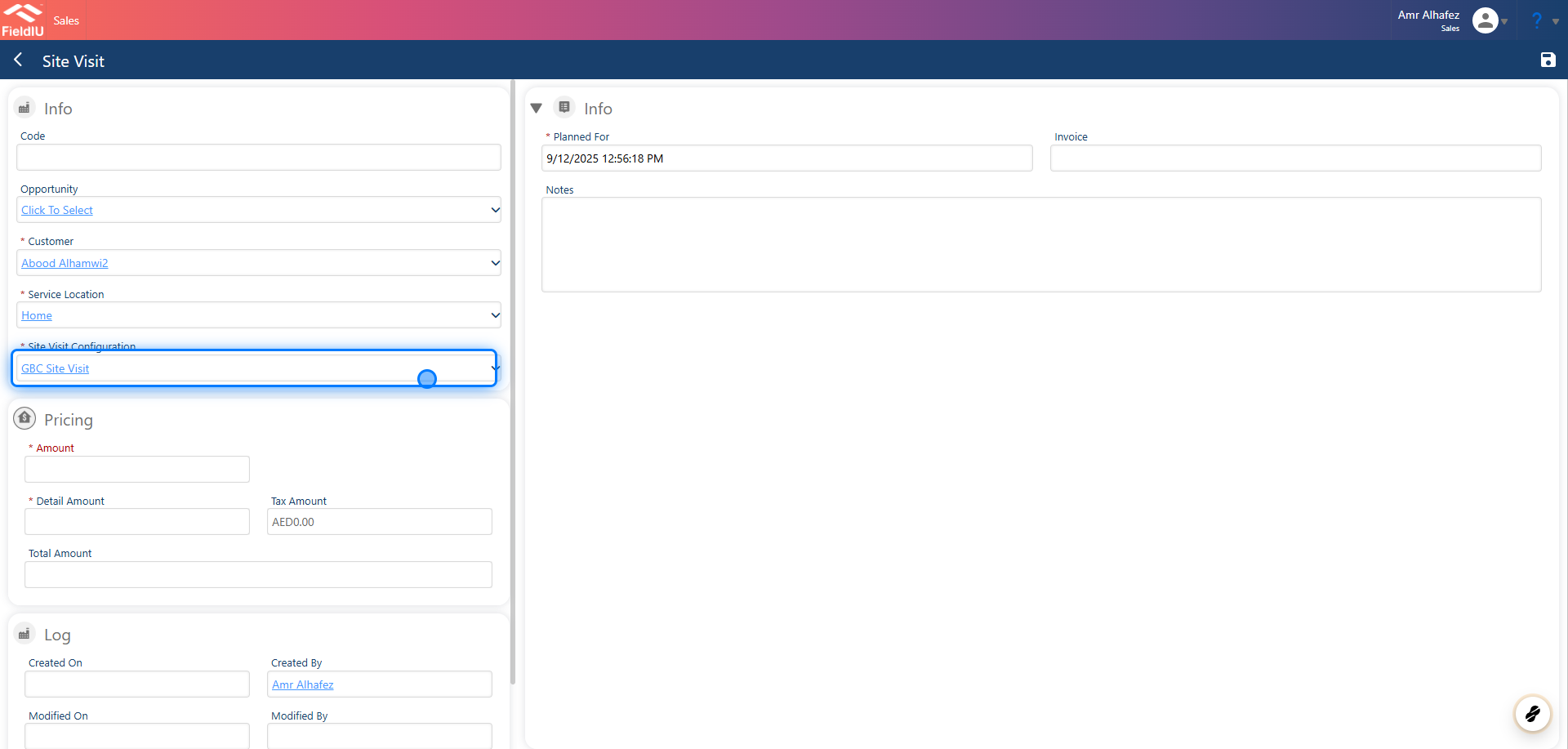
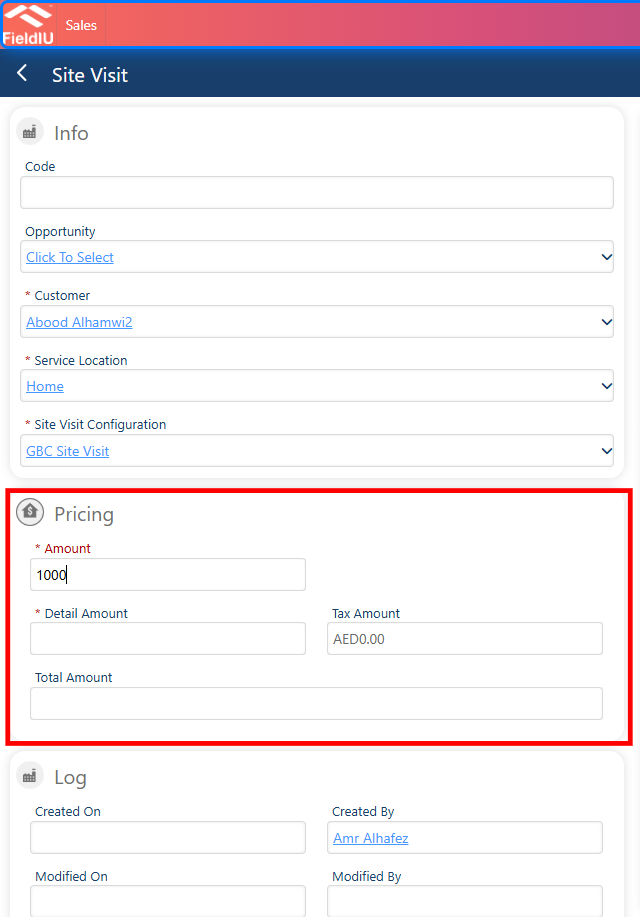
Once you create a new site visit, you need to insert the following details:
-
Customer
-
Service Location
-
Site Visit Configuration (Pre-defined)
-
Amount
If you have previously created an Opportunity, you can link it by entering it in the Opportunity field.
2. Site Visit Configuration
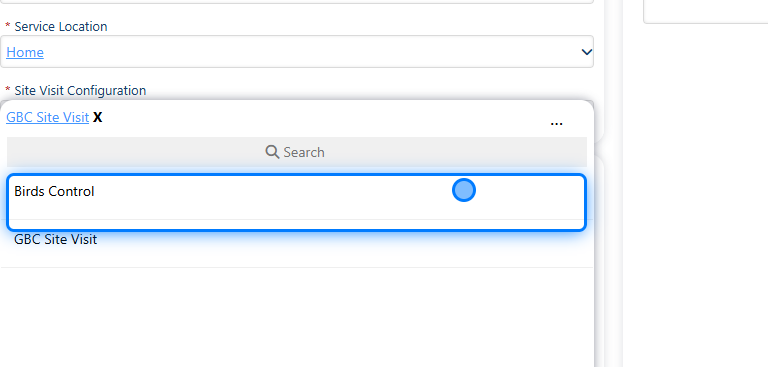
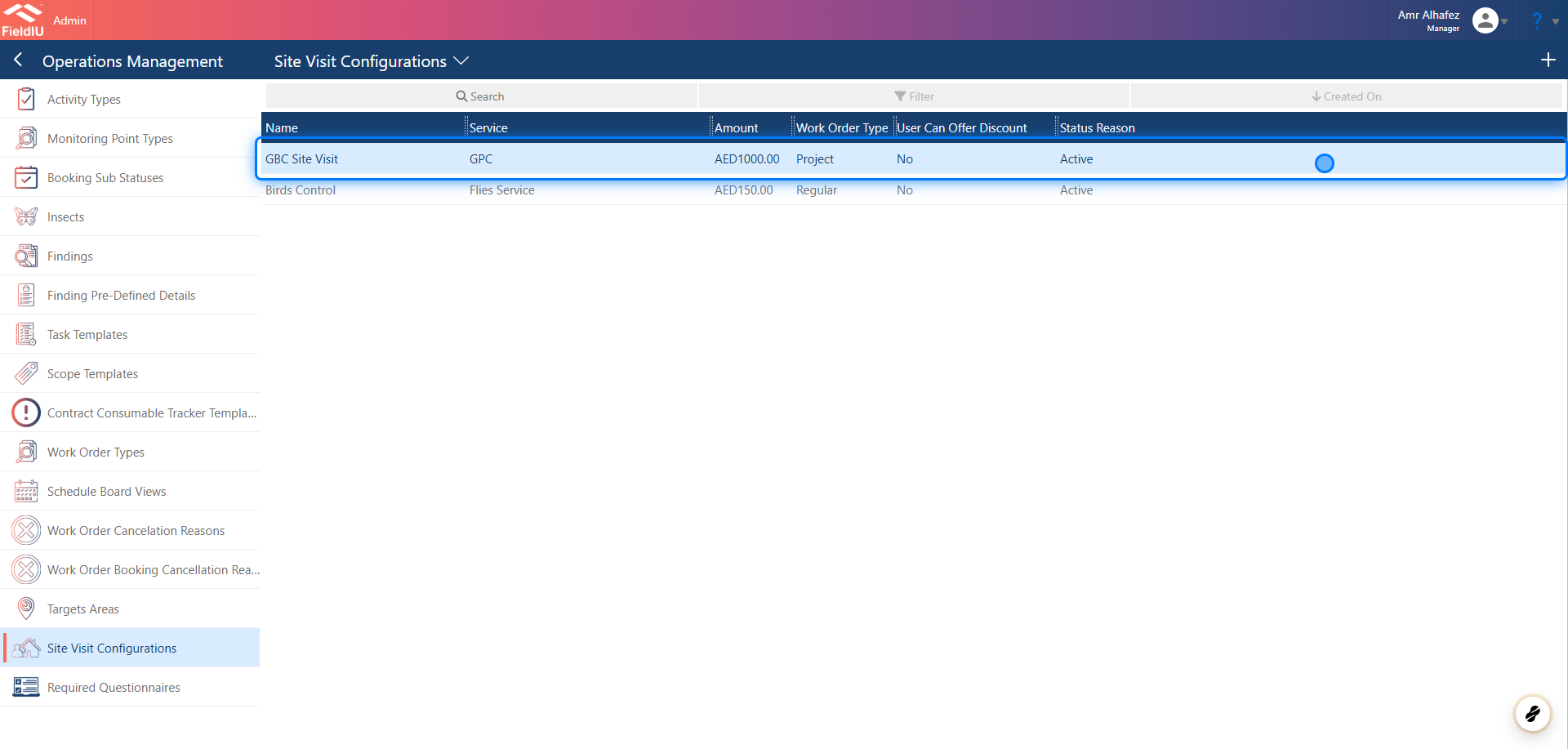
The Site Visit Configuration is where the manager (Admin) creates the configuration for the site visit. For example, a GBC Site Visit has a different configuration than a Birds Control site visit. The GBC configuration might include a questionnaire that the field staff or the visitor has to fill out during the visit.
Site Visit Configuration
3. Create New Configuration
To create a new Site Visit Configuration, you need to open the Admin App, then go to Operation Management → Site Visit Configuration .
4. Create New Configuration
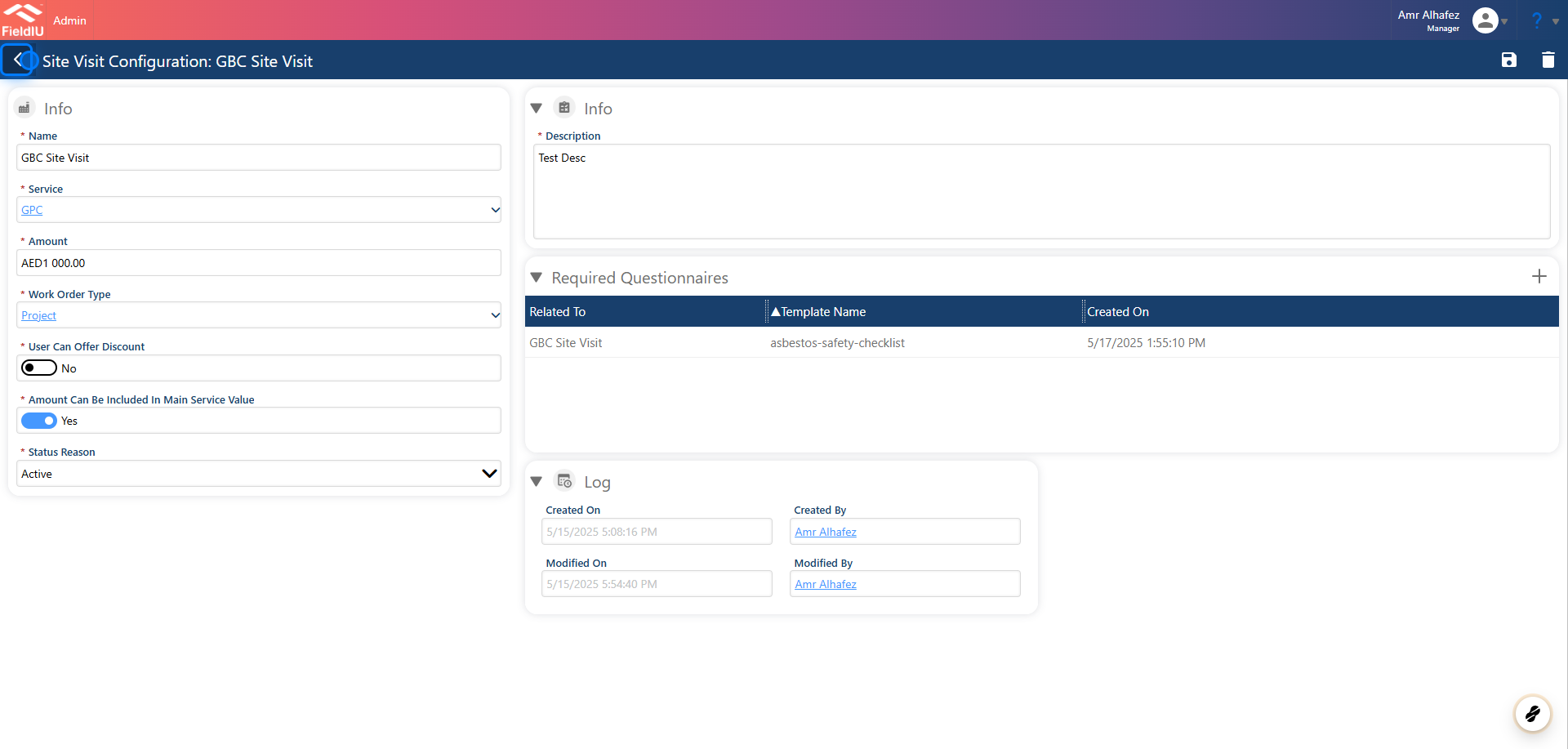
When creating the configuration, simply fill in the fields with the desired settings:
-
Name
-
Service
-
Amount (This will be the default amount for the site visit once selected)
-
Work Order Type
-
User Can Offer Discount (If enabled, we can select the approval settings for it)
-
Amount Can Be Included in Main Service Value (This setting allows the site visit amount to be discounted from the service if the customer decides to purchase the service when invoicing the whole service)
Additionally, you can add a Questionnaire to be displayed in the field staff's mobile app when they conduct the site visit.
💡 Pricing
When you add the default price for the configuration, it will automatically populate the Amount field in the site visit once you select the configuration. However, you can change the amount if needed and enter a different value.
5.
6. Creating Site Visit Work Order
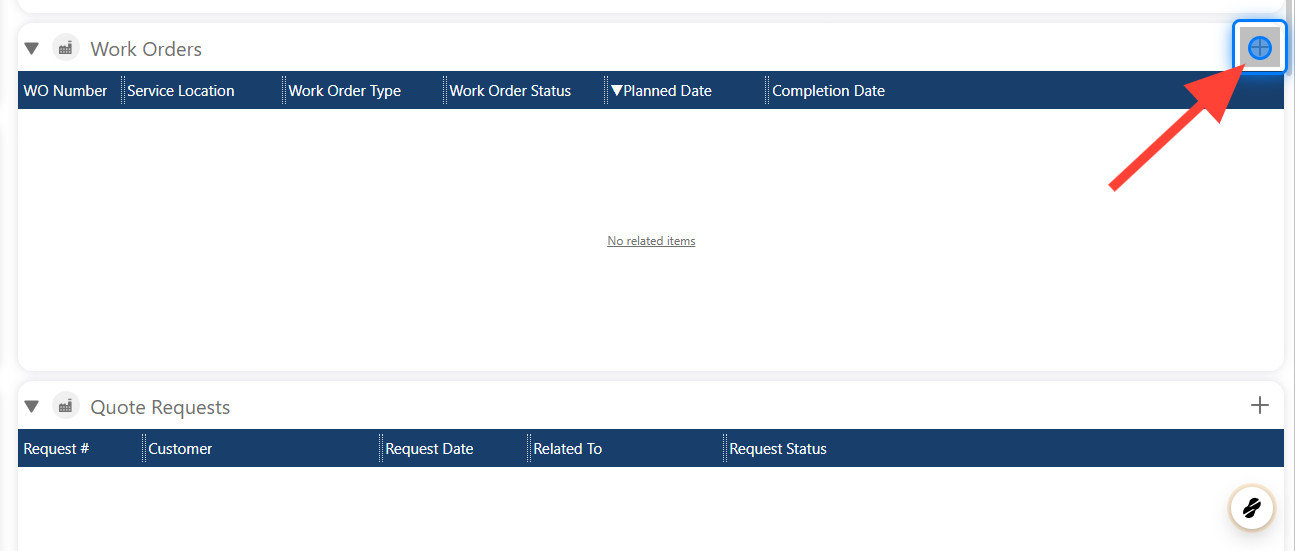
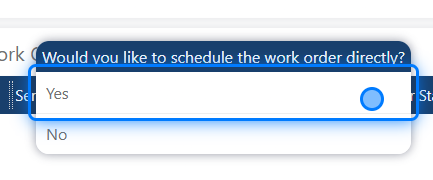
By clicking on the + button in the Work Order section, a new work order related to the site visit will be created. A new window will open, asking if you want to directly schedule the visit.
-
If you choose Yes , you can directly select the resource, and the visit will be scheduled for that resource.
-
If you choose No , only an unscheduled work order will be created.
7.
8. Quote Request
You can also create a Quote Request for the site visit by clicking on the + button in the Quote Request section.
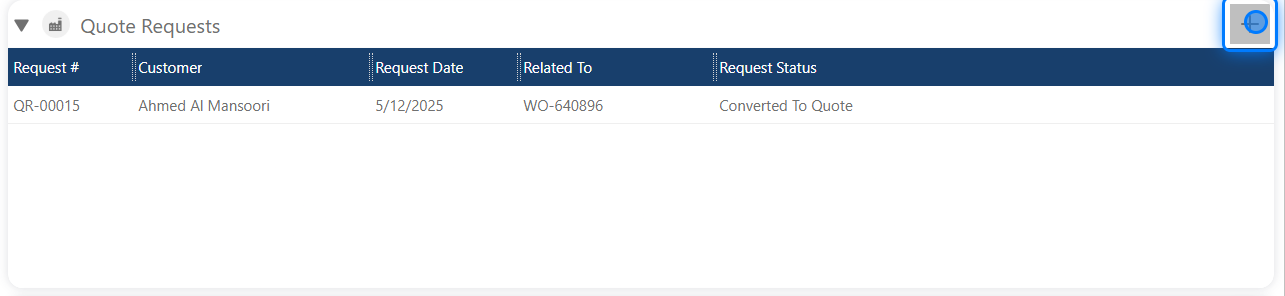
9. Just fill in the details and save.
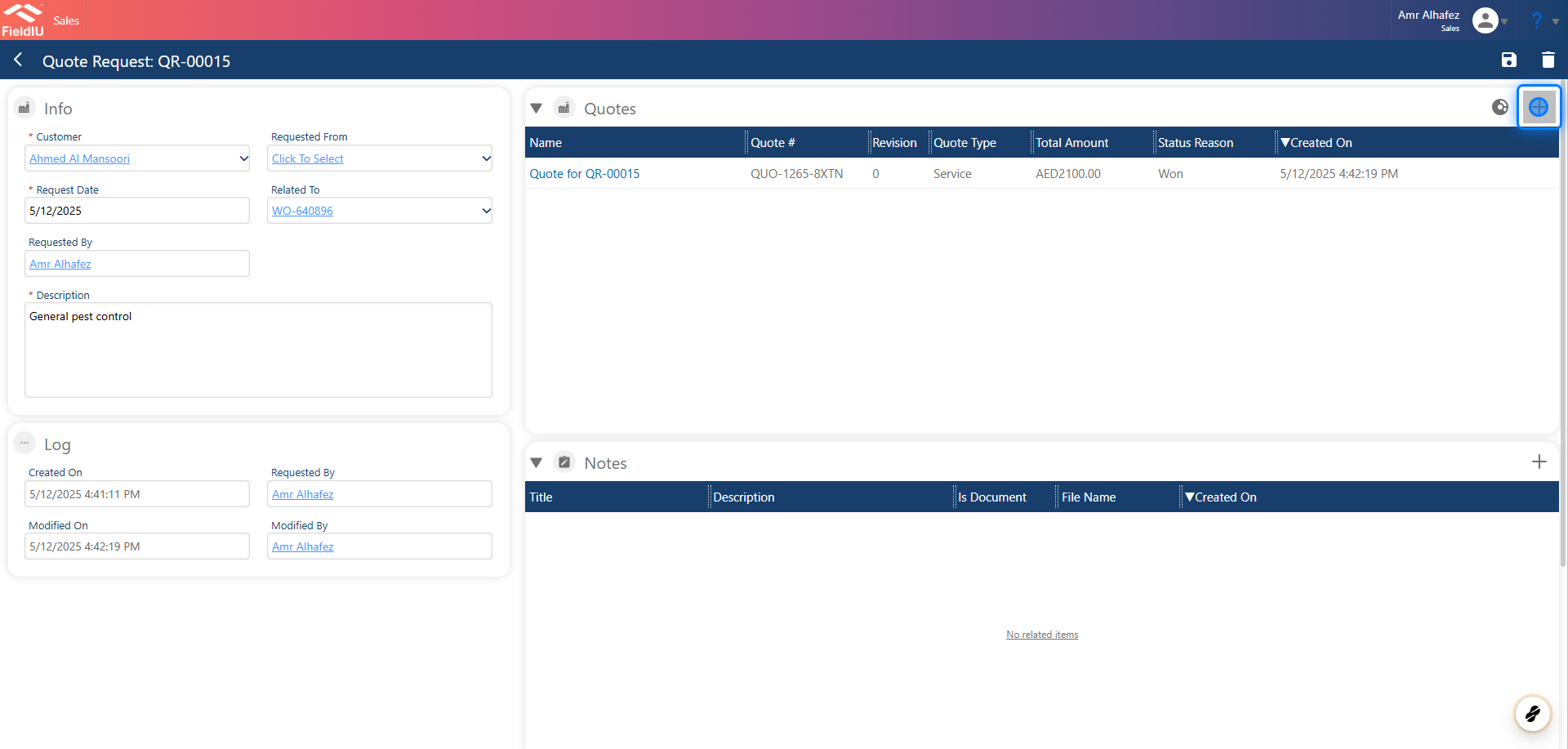
💡 Creating Quote
You can create the quote directly from the request, or you can find the requests in the Quote Request tab in the main menu.
Invoicing Site Visit
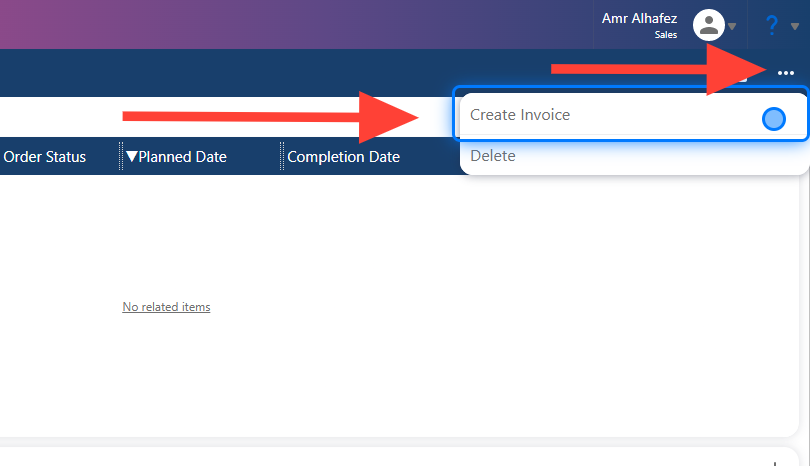
10. Invoicing Site Visit
Simply click on the three dots button and select Create Invoice , and the invoice will automatically will be created .
11.
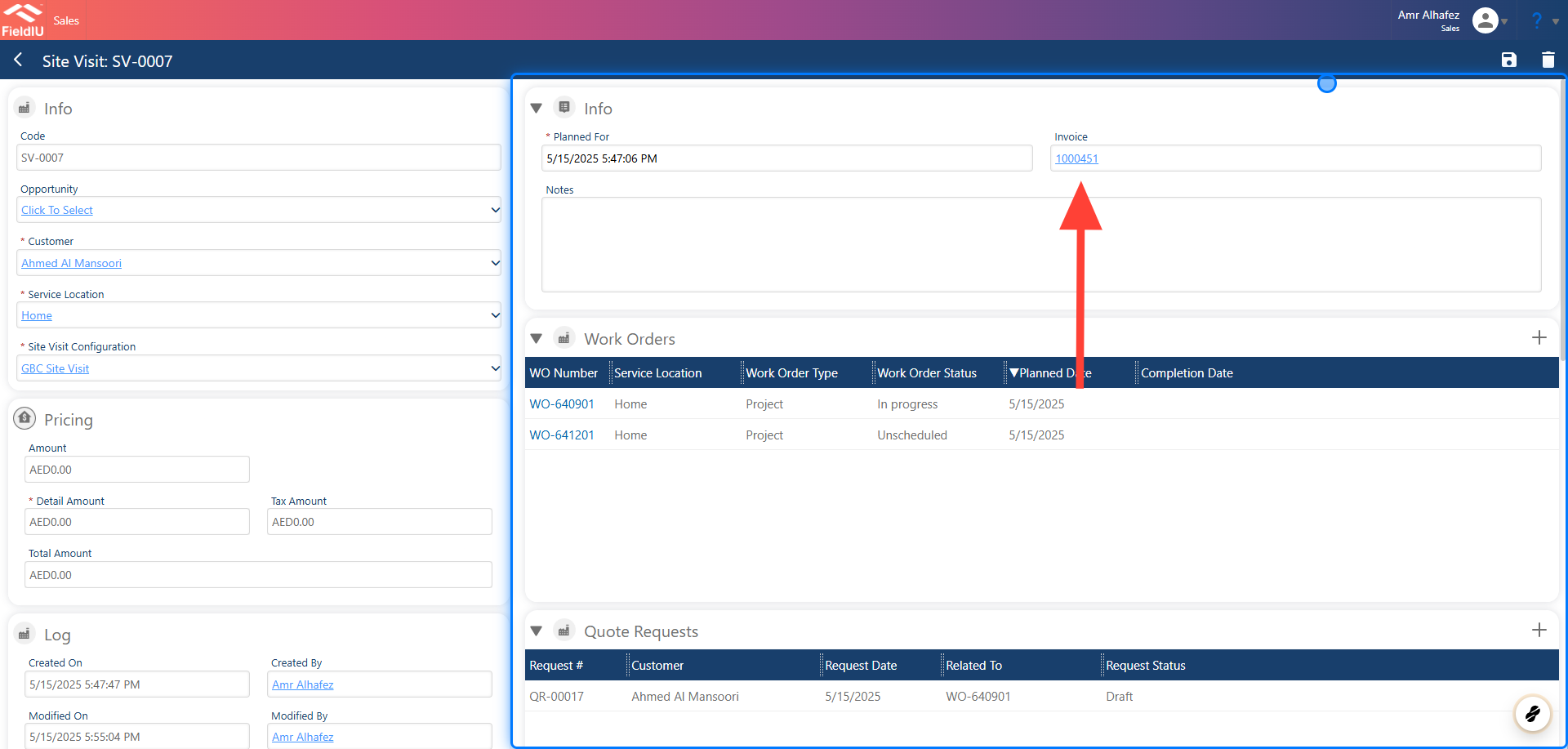
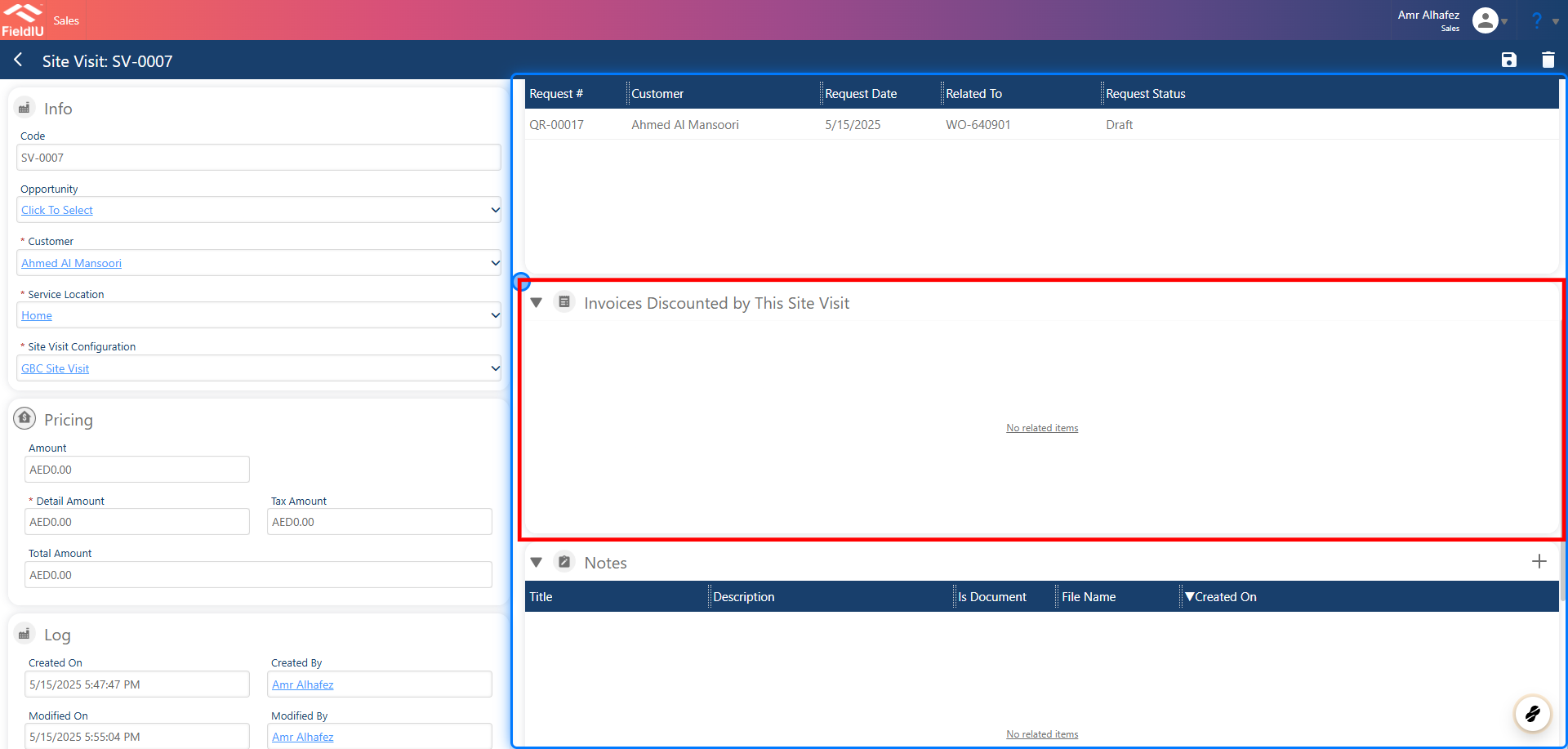
12. Discounted Invoice
If the "Amount Can Be Included in Main Service Value" option is enabled in the Site Visit Configuration, then once the project is invoiced, the site visit amount will be automatically discounted from the total. You will find the invoice that includes the discount related to this site visit in this section.
 �����������������������