

Payment Links
A payment link is a secure hosted checkout URL that lets a customer pay an invoice online through one of the configured payment gateways (Tap, Paymennt, or Stripe). This page explains how to generate a payment link, what happens when the customer pays, how to record one payment that covers multiple invoices, and the current limitations to be aware of.
1. Open the Invoice
Open the Sales app, then from the sidebar menu select Transactions > Invoices and open the invoice you want to get paid online.
The invoice must be open (has a remaining amount). Payment links are generated per invoice.
2. Create Online Invoice
Inside the invoice, open the Action menu and select Create Online Invoice.
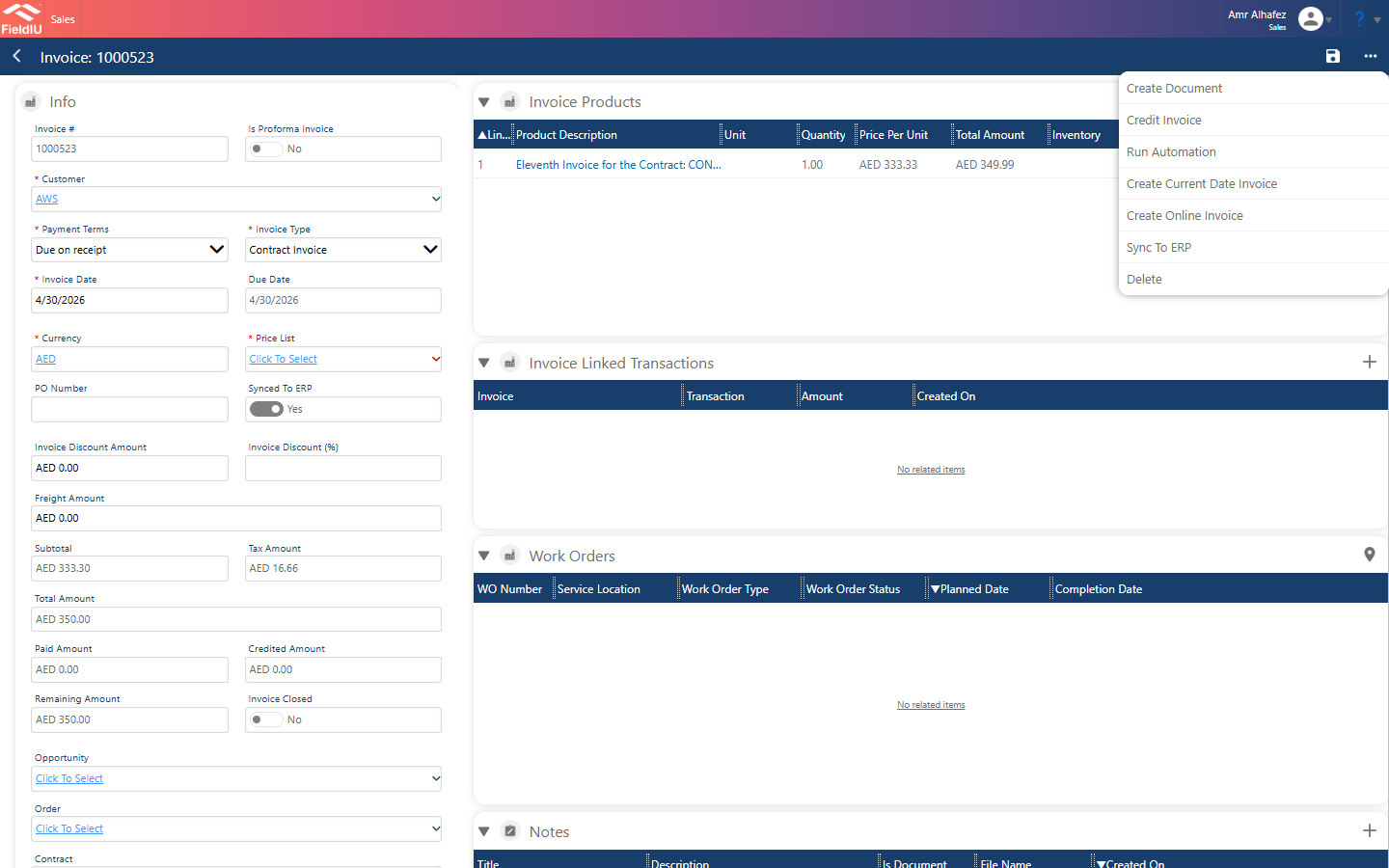
The system immediately contacts the payment gateway and creates a Payment Gateway Transaction record, then opens it for you.
The invoice's remaining amount is reserved the moment the link is created — the Remaining Amount goes to zero while waiting for the customer to pay.
3. Payment Gateway Transaction
The Payment Gateway Transaction record holds everything about the online payment:
- Name — the invoice number
- Customer
- Gateway Provider — Stripe / Paymennt / UTap (Tap)
- Transaction URL — the hosted payment link to send to the customer
- Transaction Id — the reference on the gateway side
- Status Reason — Draft > Finalized > Paid (or Voided / Inactive)
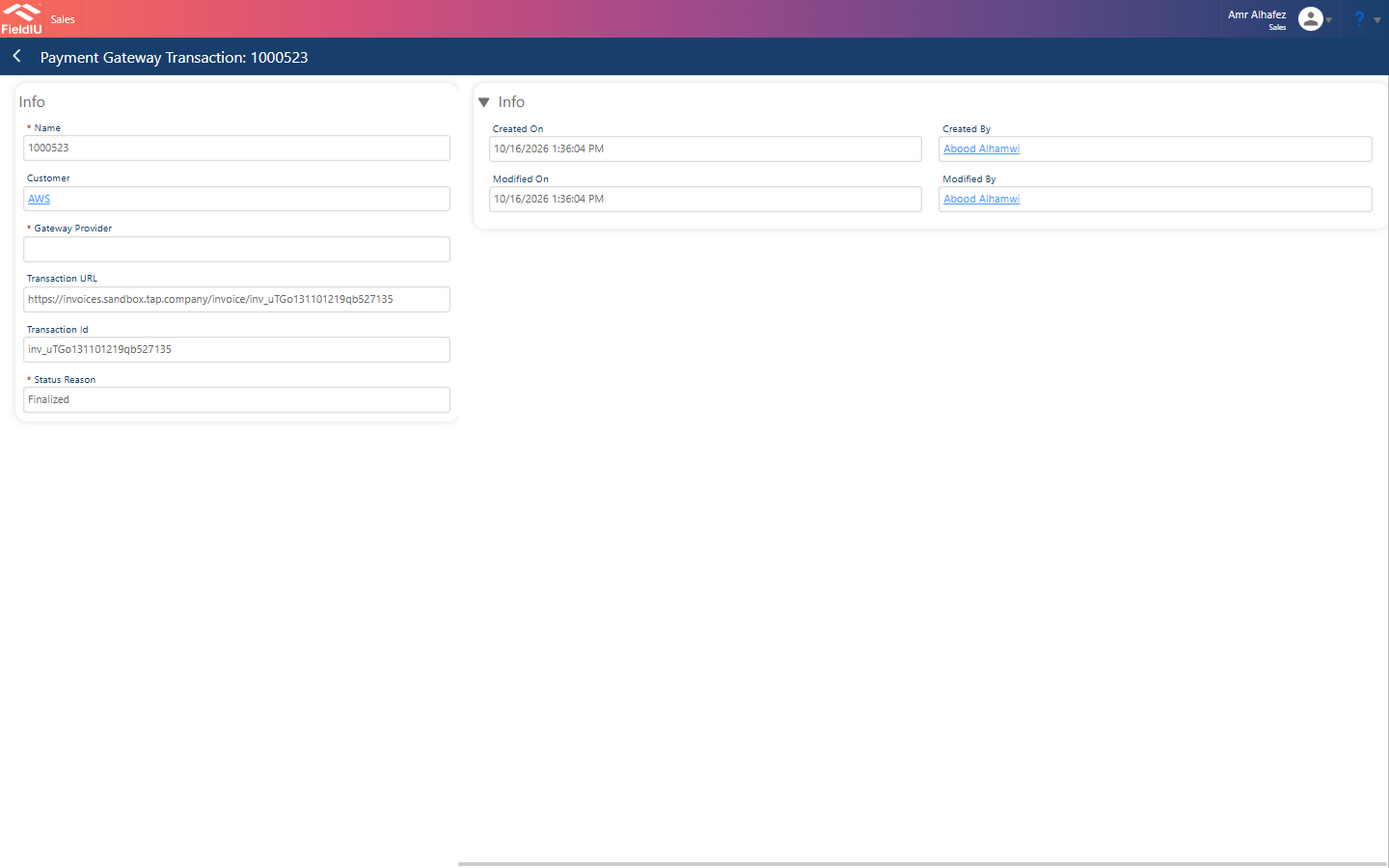
The Transaction URL is the payment link — copy it and send it to the customer (email, WhatsApp, etc.). The link is also written back to the invoice's Payment URL field.
4. What Happens When the Customer Pays
Once the customer completes the payment on the hosted page, a gateway webhook notifies FieldIU and the system automatically:
- Sets the transaction status to Paid
- Creates a Payment record with the method Online Payment
- Links the payment to the invoice and updates the invoice's Paid Amount / Remaining Amount
No manual data entry is needed after the customer pays.
5. One Payment Covering Multiple Invoices
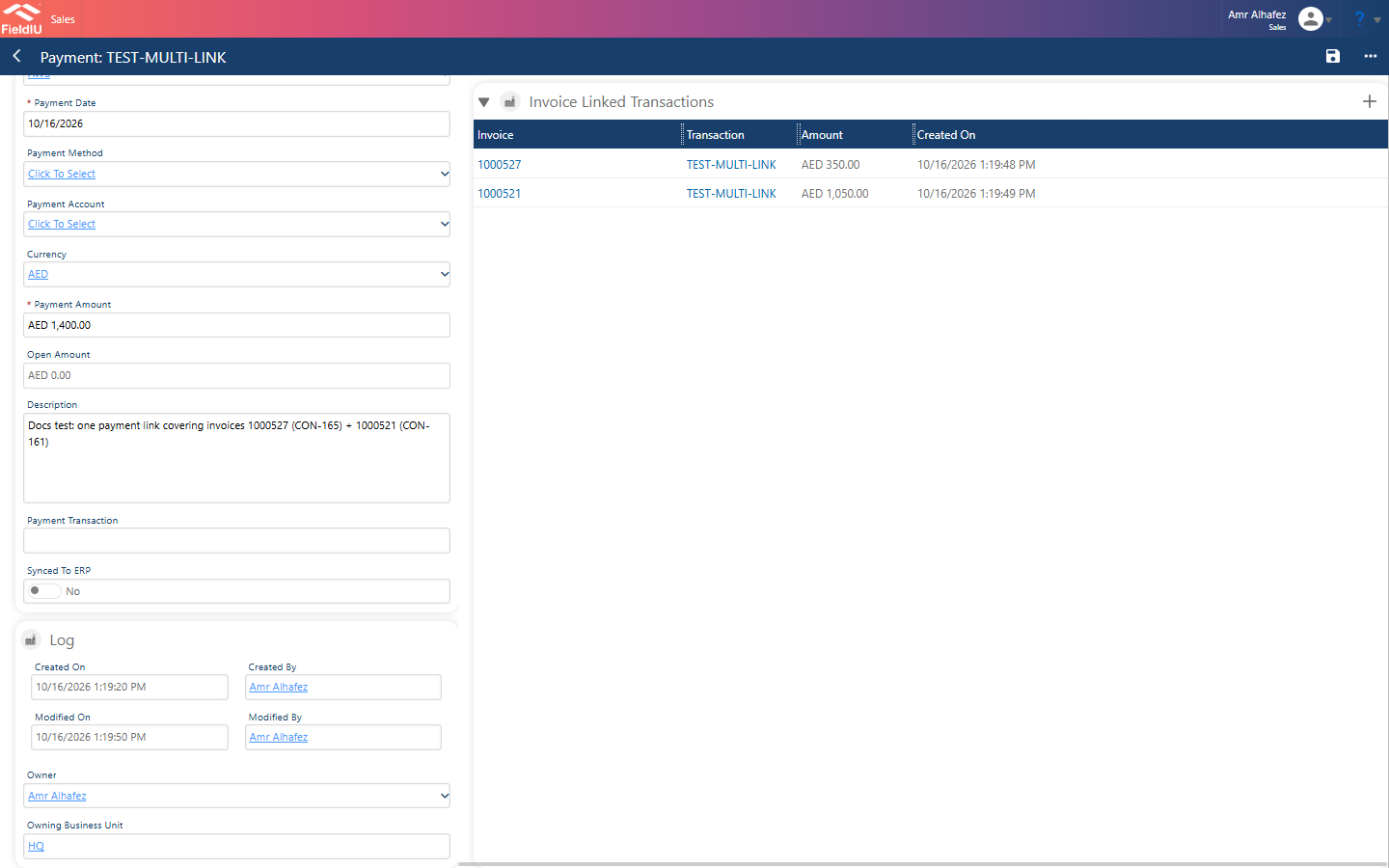
If a customer pays a lump sum that covers several invoices (for example invoices from two different contracts), record it as a Payment and link it to all the invoices:
- Go to Transactions > Payments and create a New Payment (see Payments).
- Enter the Payment Amount as the total lump sum, and select the payment method (for a bank transfer or cheque, choose the matching method).
- Save, then in the Invoice Linked Transactions section add one line per invoice: select the Invoice and enter the Amount to allocate to it.
Invoices can come from different contracts — the only requirement is that they belong to the same customer as the payment. The payment's Open Amount shows what is still unallocated; it cannot go below zero, and each linked amount cannot be greater than the payment amount.
Current Limitations
The following are not supported today (verified on the current version). They are documented here as candidates for a future upgrade.
-
One payment link for multiple invoices. Create Online Invoice generates a link strictly for a single invoice — the checkout amount is always that invoice's remaining balance. There is currently no way to send one online payment link that settles several invoices (from the same or different contracts) in one lump-sum payment. The customer must receive and pay one link per invoice.
-
No "Create Payment Link" action on the payment record. A payment can hold allocations to many invoices, but its Action menu only offers Create Document and Delete. It is not possible to generate a gateway checkout link for the payment's total amount.
-
Gateway transactions carry no amount. The Payment Gateway Transaction record has no amount field — the checkout amount is always derived from a single invoice. A combined checkout cannot be created manually either.
-
Reserved ≠ paid. Creating the online link zeroes the invoice's Remaining Amount immediately (the amount is reserved), not when the customer actually pays. Keep this in mind when reporting on outstanding receivables.
Future upgrade idea: add a Create Payment Link action to the Payment record that generates a gateway checkout for the payment amount and, once paid, settles all invoices linked through Invoice Linked Transactions. The data model (payment + invoice linked transactions) already supports this — only the link-generation action is missing.