

Invoice Settings
💡 Invoice Settings
The main idea behind invoice settings is to configure your preferences for invoices. For example, you can choose whether or not to print a proforma invoice, specify how you want the proforma invoice to be named, and customize other related options.
1. Access
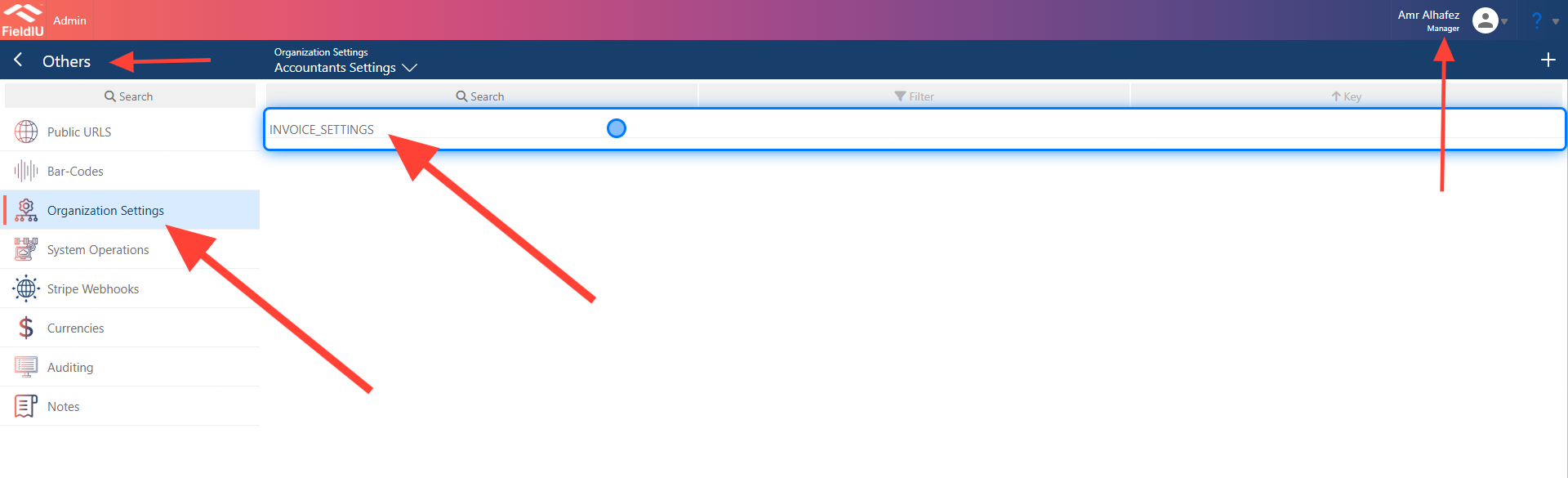
To access the Invoice Settings, open the Manager app, then from the side menu, select "Other," followed by "Organization Settings," and finally "Invoice Settings."
2. Invoice Settings Main Screen
The Invoice Settings have two sections. The right section is for the settings, and all our work will be done in this settings section.
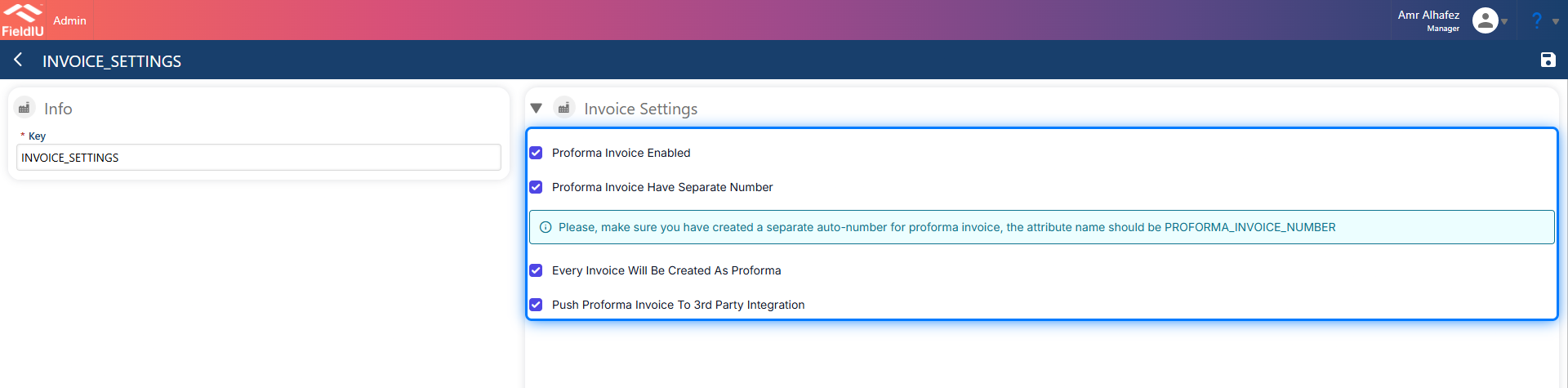
⚠️ DON'T CHANGE KEY VALUE
Once you change the key value, the settings will not be effective.
3. Invoice Settings
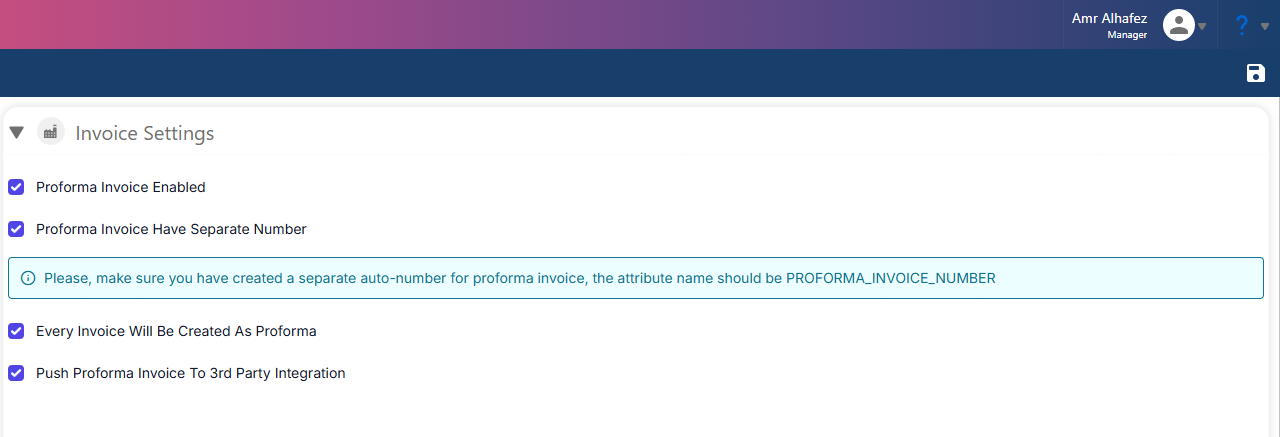
In the Invoice Settings section, we have 4 selectors:
-
Proforma invoice Enabled : If you want a proforma invoice in the system, you must select this option.
-
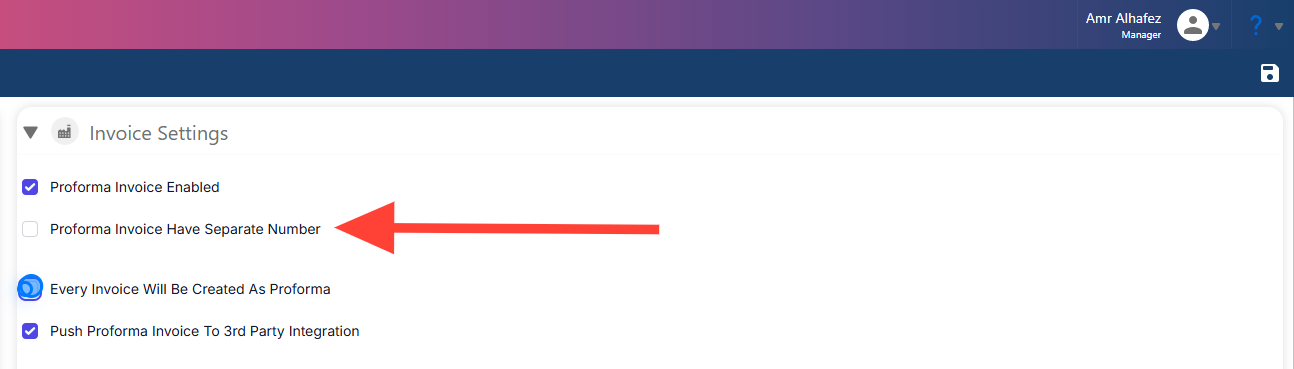
Proforma invoice Have separate Number : If this option is selected and a proforma invoice is created, it will take a separate name. When it’s converted to a tax invoice, it will take the original number sequence.
-
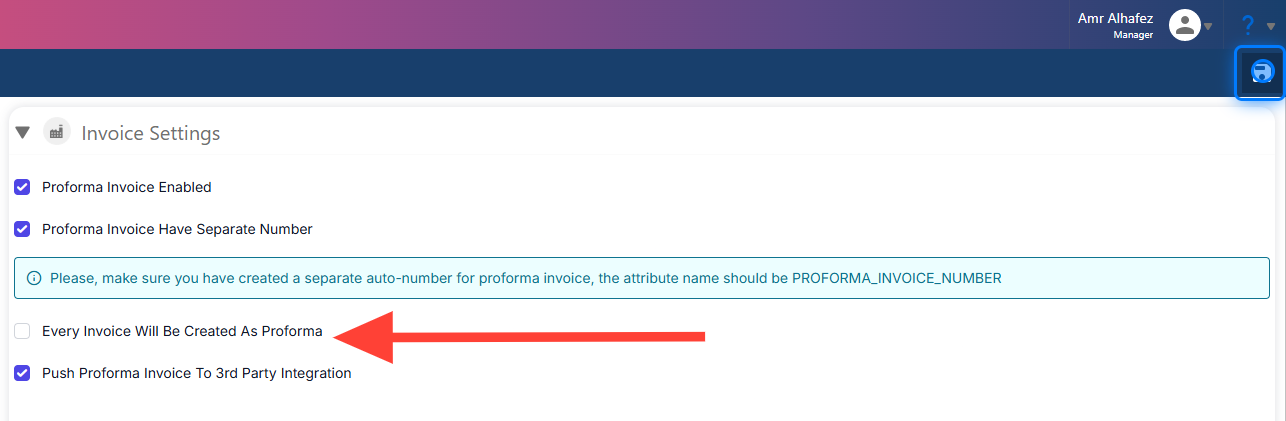
Every Invoice Will Be Created As Proforma : If this is on, every time you create an invoice, it will first be a proforma invoice, and then you’ll need to change it to a tax invoice. If it’s off, the system will ask you whether you want to create a proforma invoice first or directly create a tax invoice.
-
Push Proforma Invoice To 3rd Integration : If you have any integration with a 3rd-party software for invoices, the proforma invoice will be sent to it if this option is selected.
4. Example
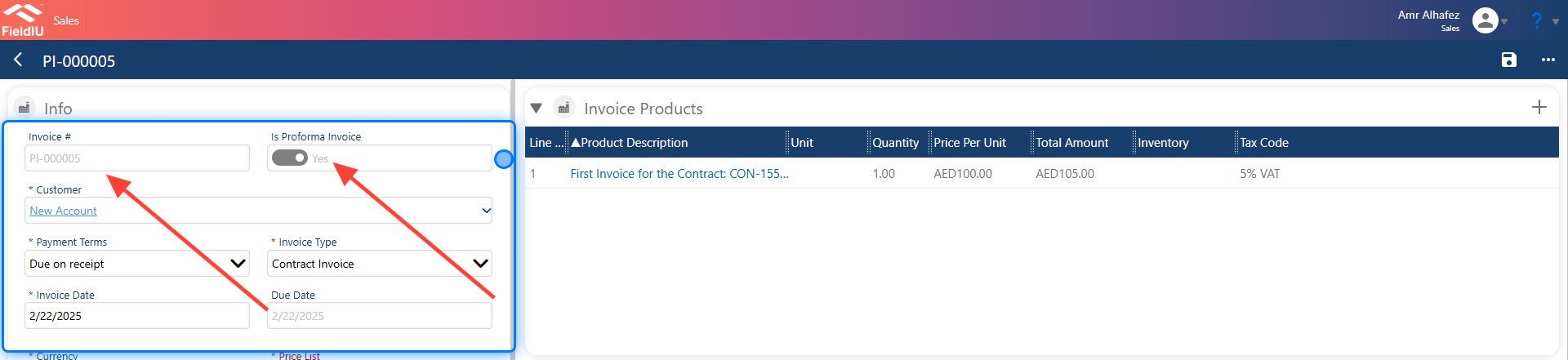
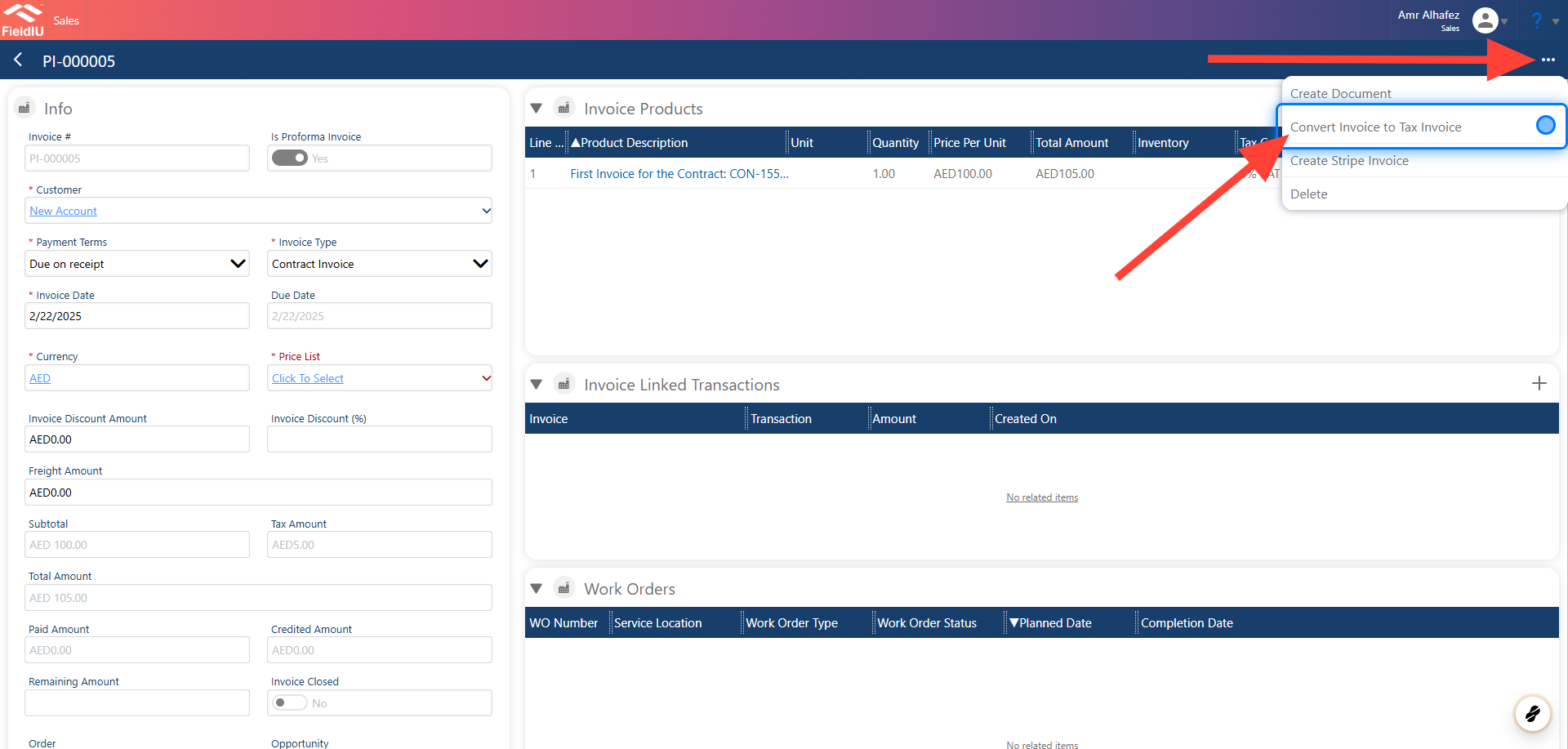
In this example, we have selected the settings: Proforma invoice Enabled & Proforma invoice Have separate Number .
As you can see, the "Proforma invoice" button is selected as "Yes," and the invoice number starts with "PI-" to refer to the proforma invoice.
5. Converting Invoice to Tax Invoice
By clicking on the 3 dots button and selecting Convert Invoice to Tax Invoice , it will convert the proforma invoice to a tax invoice.
6. Example
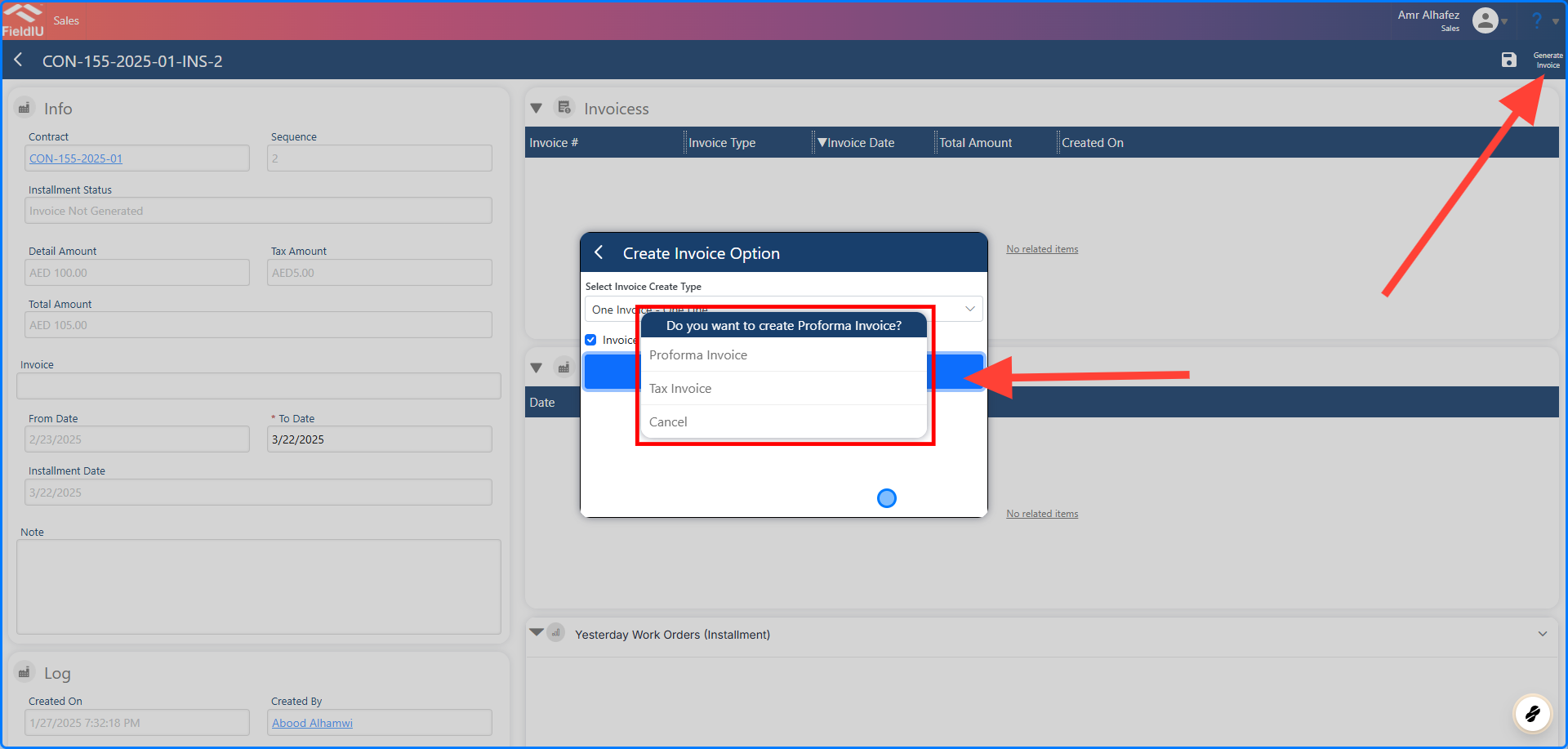
Let’s see what will happen if we do not select Every Invoice Will Be Created As Proforma . In this case, the system will prompt you to choose the type of invoice you want to create. It will ask whether you want to create a proforma invoice first or directly create a tax invoice.
7. Choosing the Invoice Type During Generation
It will ask for the invoice type once we start generating it, giving you the option to choose between creating a proforma invoice or a tax invoice.
8. Example
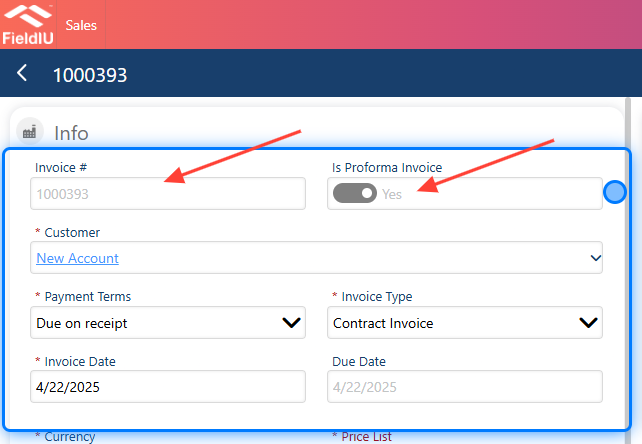
Let’s see what will happen if we do not select Proforma invoice Have separate Number . In this case, the system will assign the proforma invoice number the same sequence as the tax invoice number.
9. Invoice Number
As you can see, the invoice number does not start with "PI." It is taking the tax invoice number sequence directly, even though it is a proforma invoice.
 �����������������������