

Users
Reset User Password
⚠️ This Feature Is for System Admin Only!
Here You Can Add & Edit :
User Information
Passwords
Roles
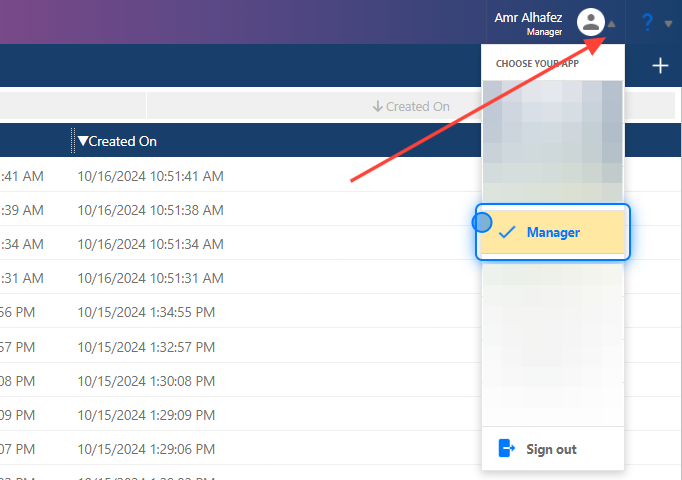
1. Manager App
Select the Manager App So You can Access The Administrator Dashboard
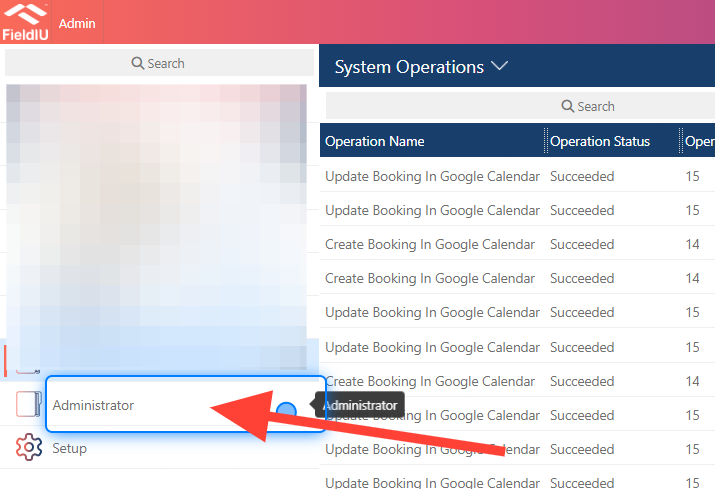
2. Click on Administrator
From The Side Bar Click on Administrator
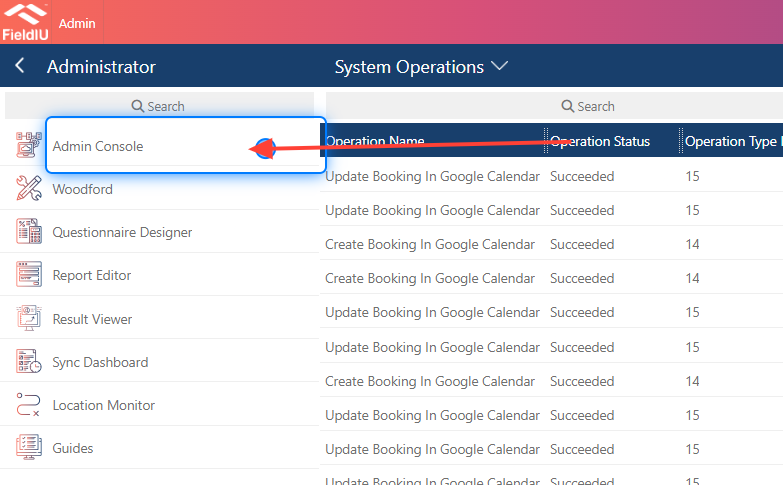
3. Click on Admin Console
Select The Admin Console
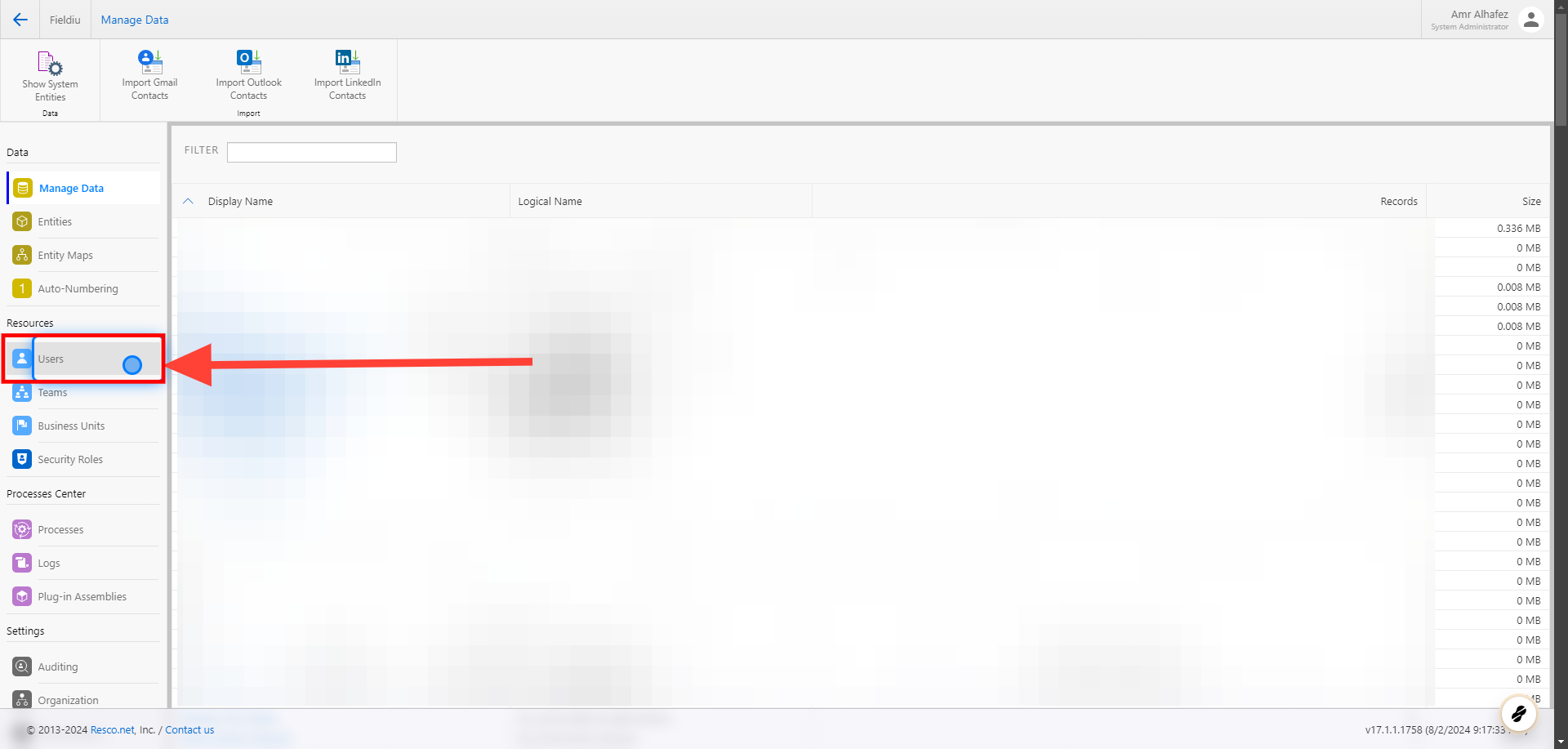
4. Click on Users
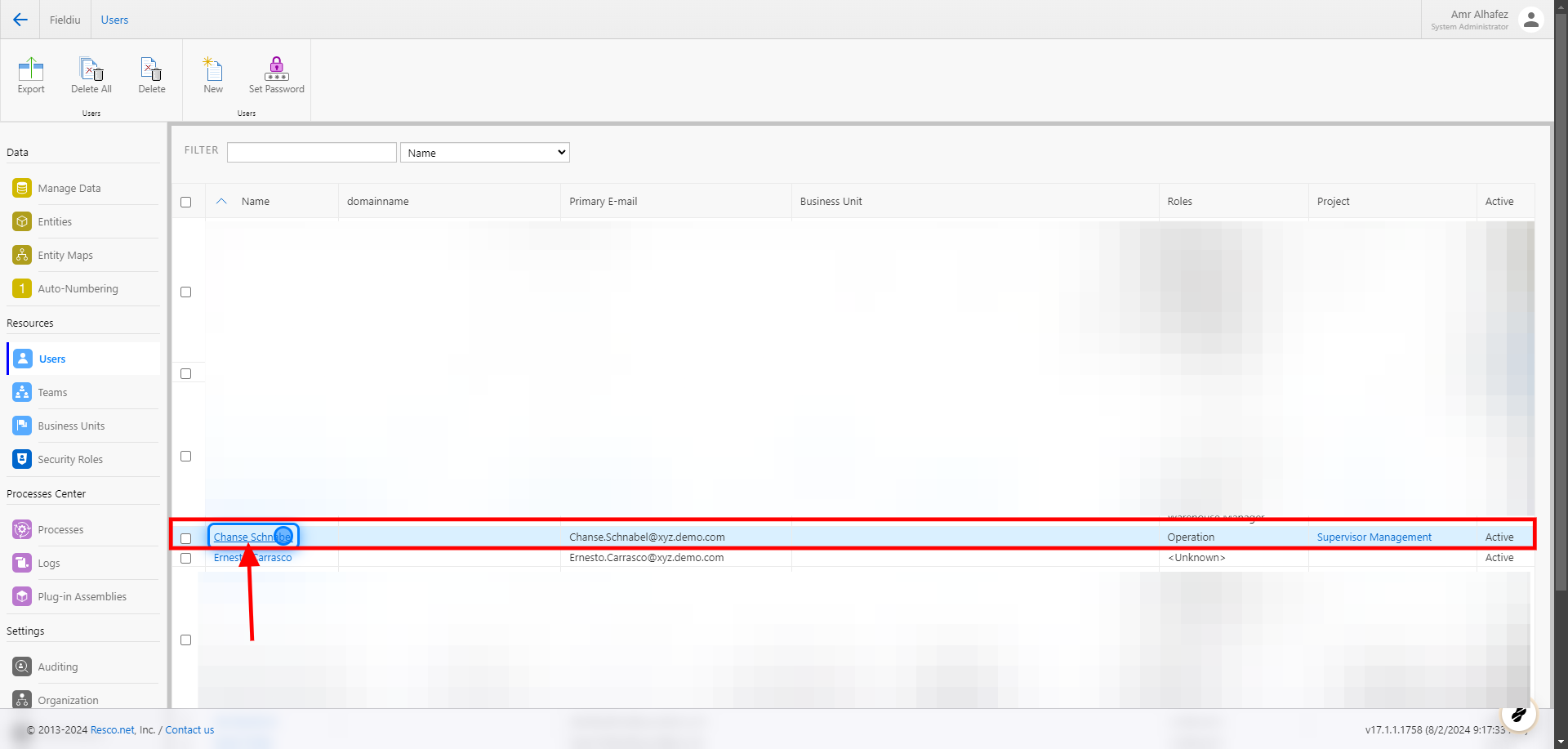
5. Select The User
Here you can find a list of all the system users.
Select the
6. User Information
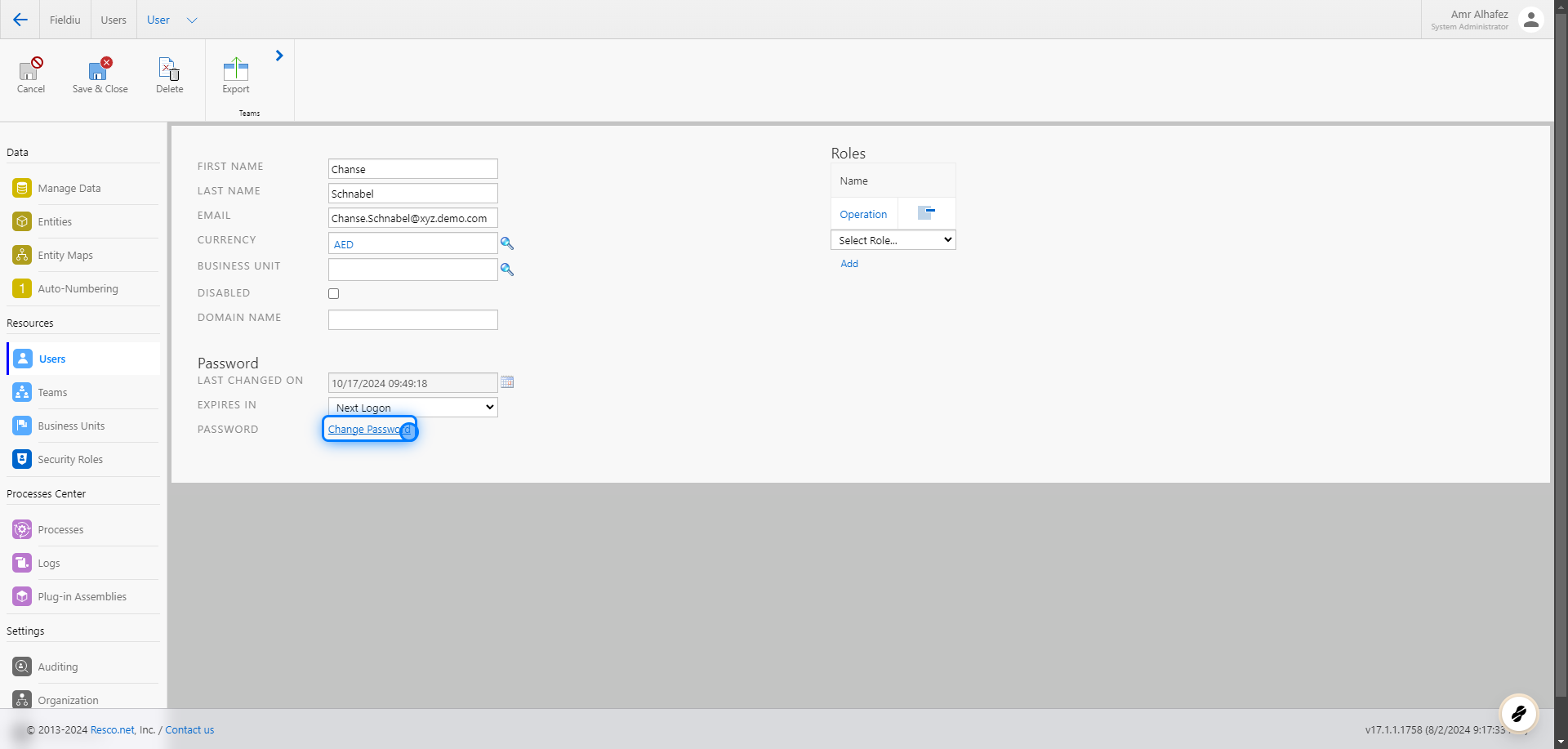
Now you have all the information for the user. The most important details are:
-
First Name
-
Last Name
-
Email Address
-
Password
-
Roles (Permissions)
7. Change Password
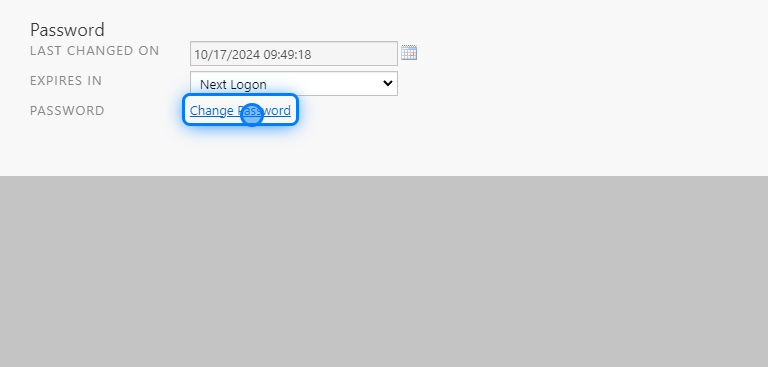
To change or reset the user password, click on the "Change Password" button.
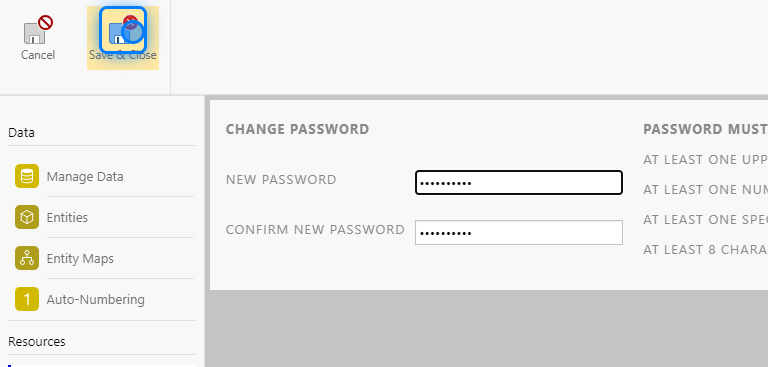
8. Enter The New Password
After you click on "Change Password," a new window will appear where you can enter the new password for the user.
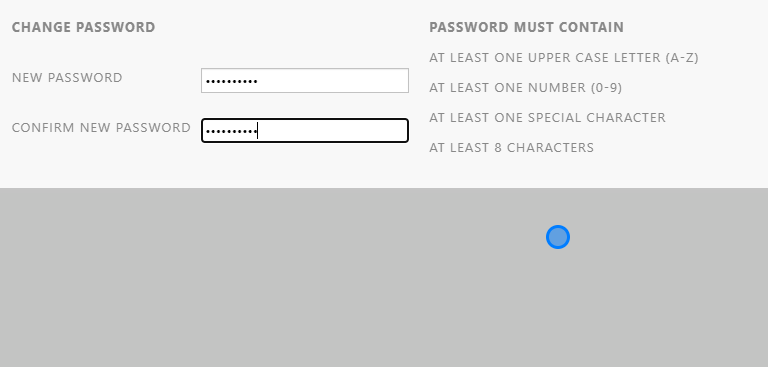
⚠️ Password must contain
At least one upper case letter (A-Z)
At least one number (0-9)
At least one special character
At least 8 characters
For Example ( ABC123abc@ )
!! Use Strong Password Only !!
9. Save & Close
Save & Close The New Password Screen
💡 Expiry
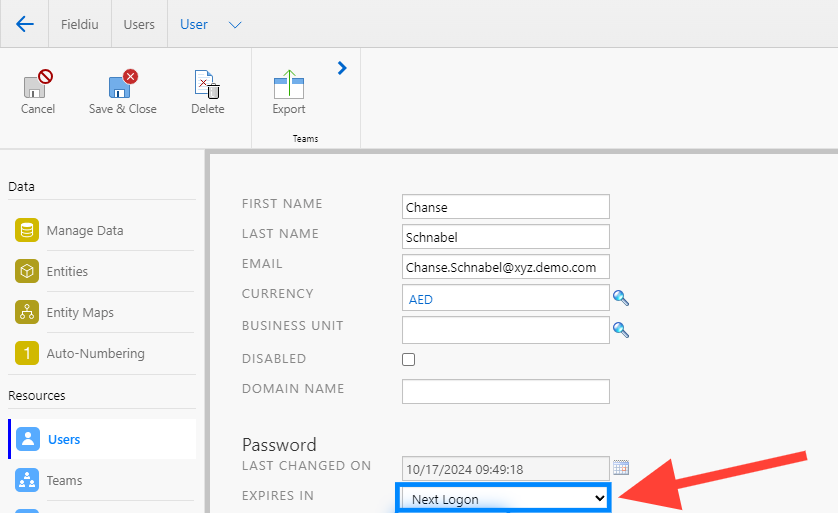
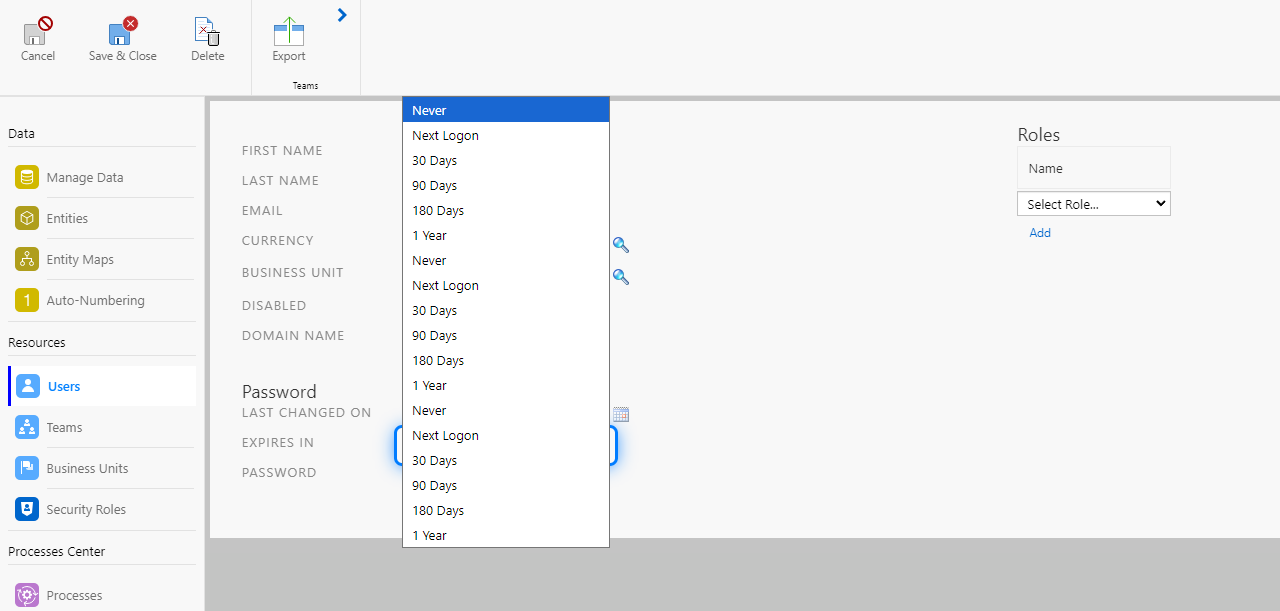
You can add an expiry for the password for enhanced security, choosing either a specific period of time, the next logon, or setting it to never expire.
10. Click On Expiry
11. Select the specific period
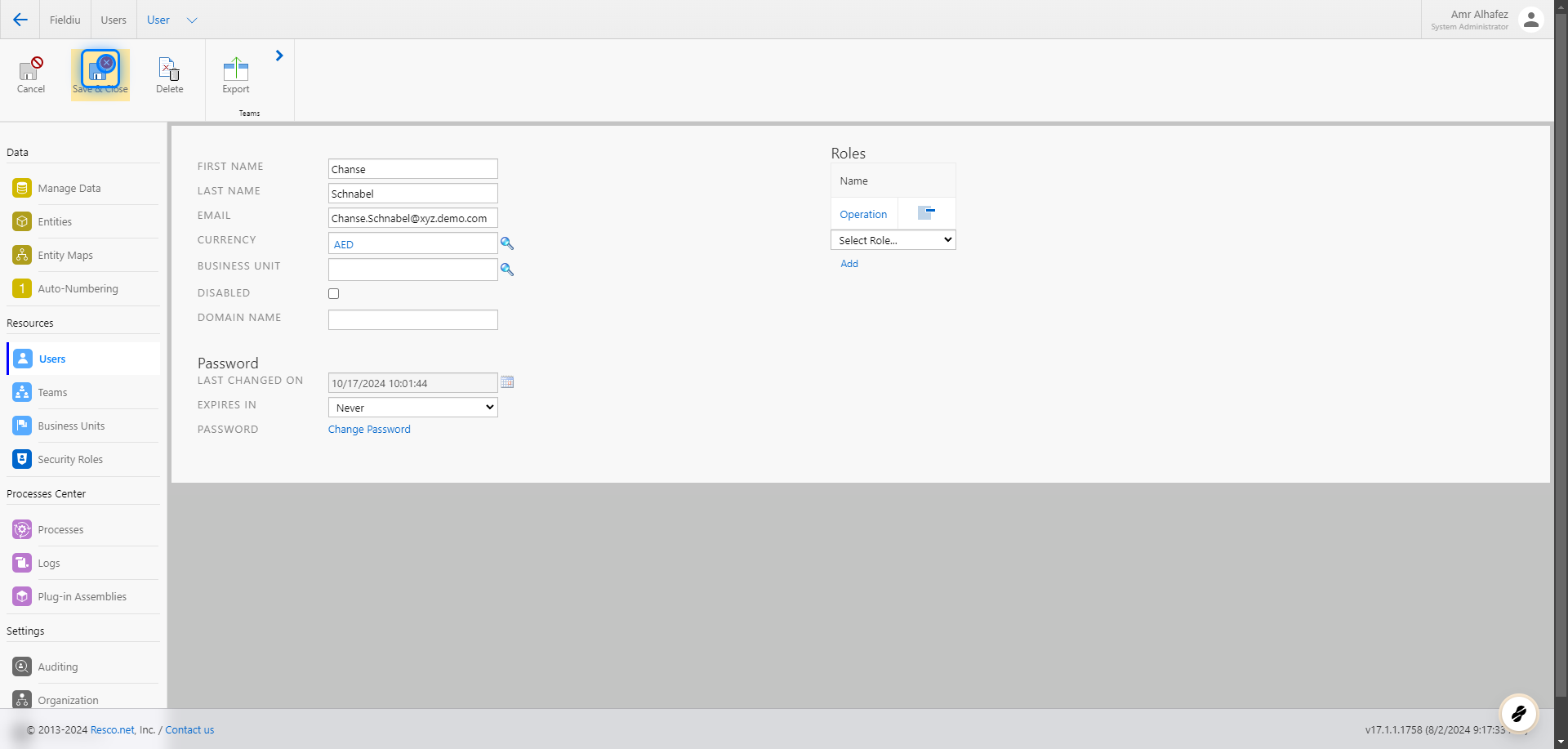
12. Save & Close
Save & Close The User Screen
 �����������������������