

E-Mail Templates
Access E-Mail Templates
1. Manager App
To access the Email Templates editor, you need to open the Manager App.
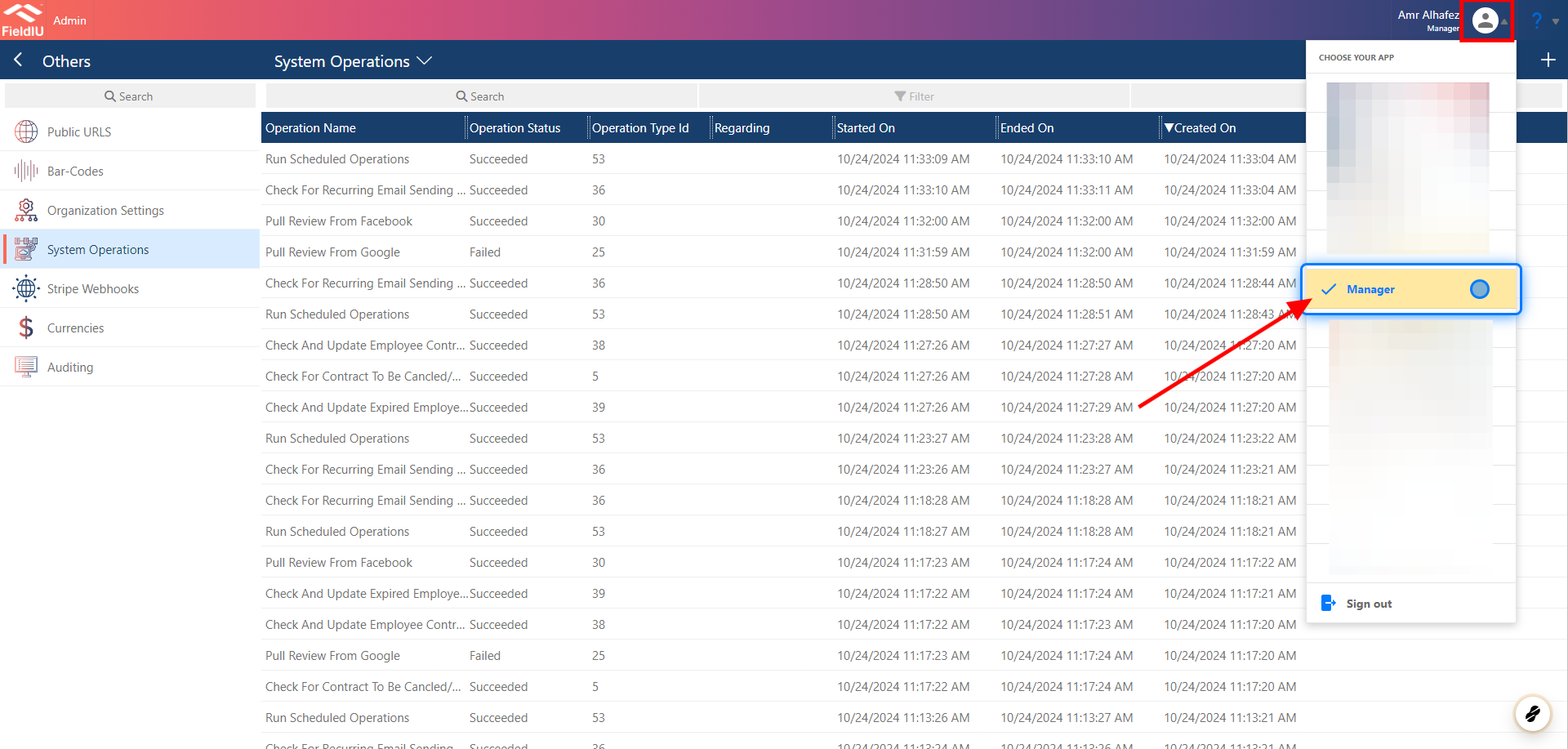
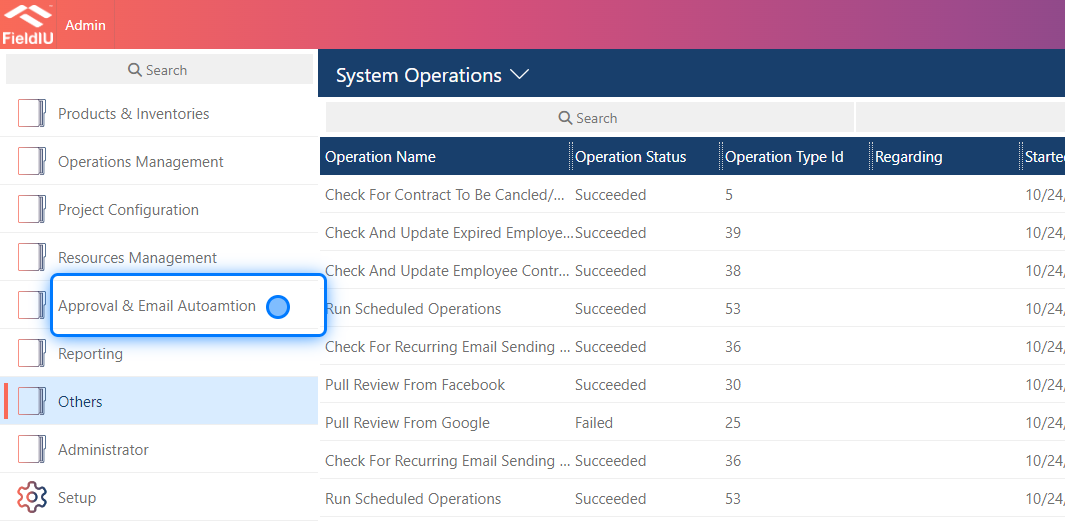
2. Click on Approval & Email Autoamtion
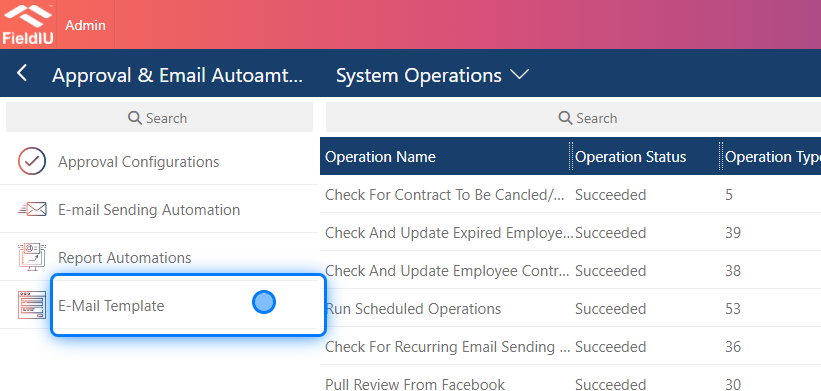
3. Click on E-Mail Template
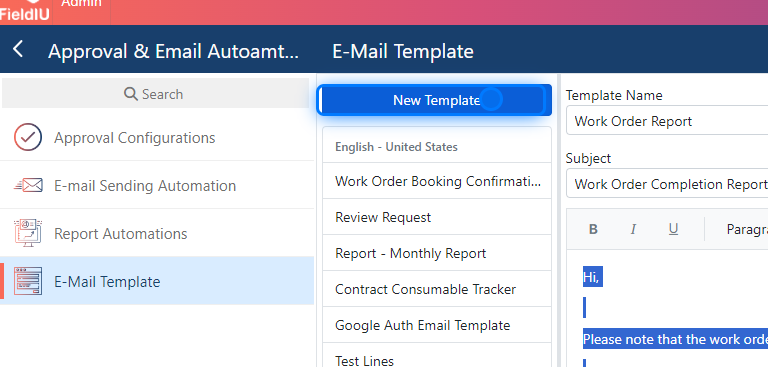
Creating New Template
4. New Template
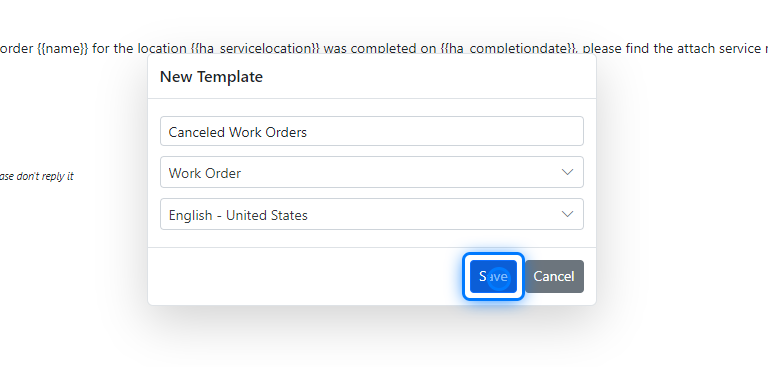
5. Template Details
Now, just insert the main details into the new template:
-
Enter the template name.
-
Select the entity you want to pull data from.
-
Choose the template language.
-
Save
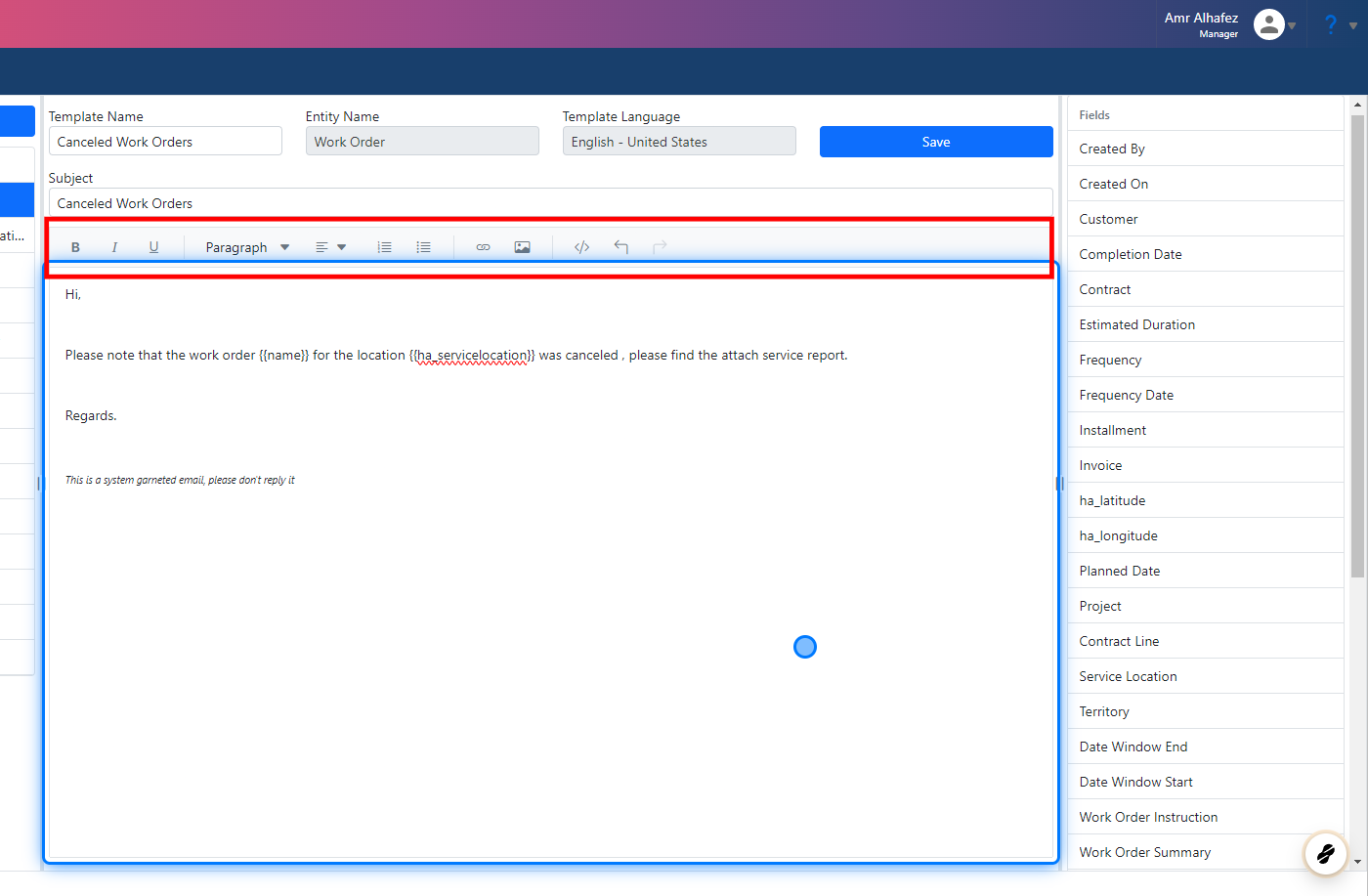
6. Template Subject & Body
Type the subject and your email template. You can use the text editor tools to customize your text.
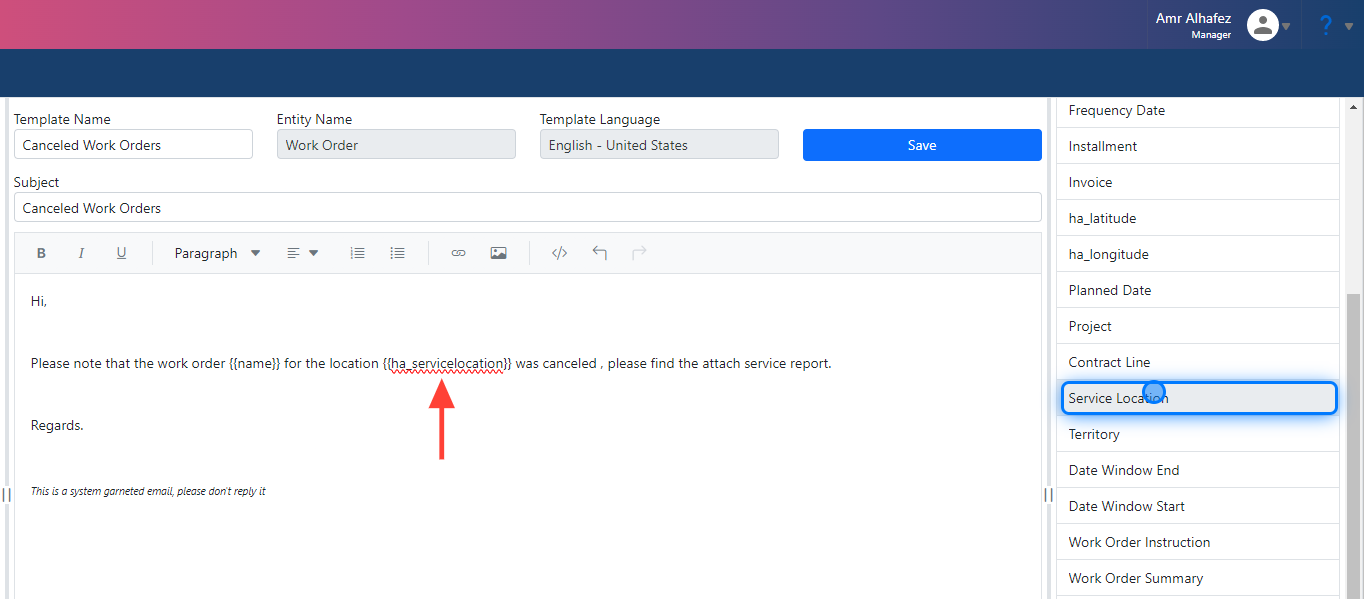
7. Use Fields
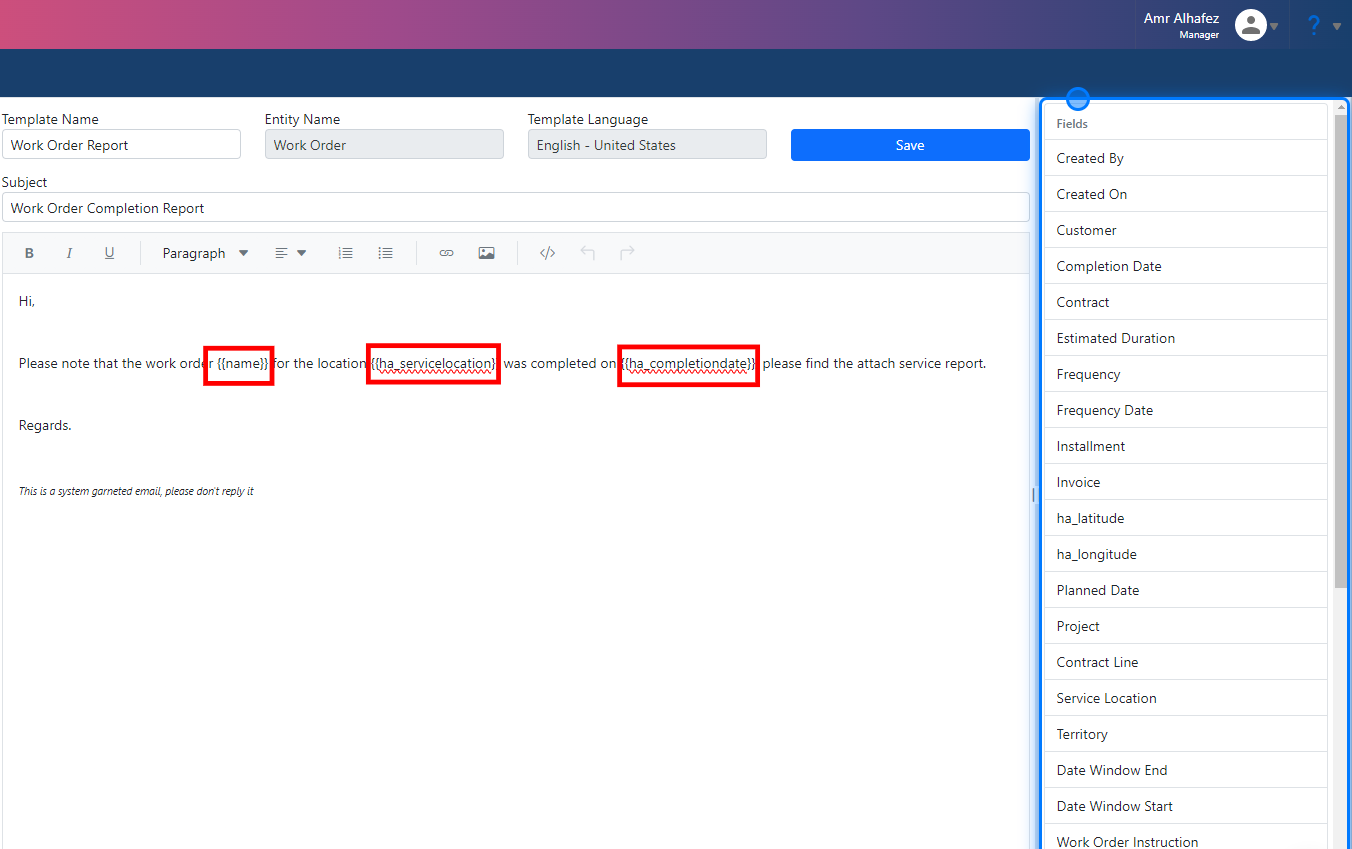
By simply clicking on the field we want, it will appear directly in the body template as code. For example, the Service Location field will show as "{{ha\_servicelocation}}".
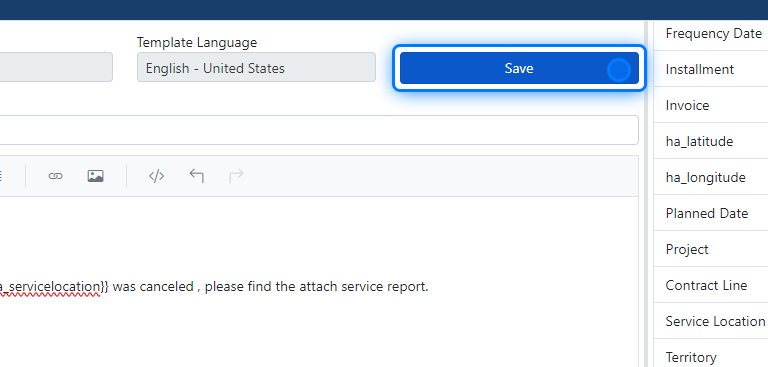
8. Save
Now that we've finished, we need to save the template. Click the "Save" button to ensure all your changes are stored properly.
E-mail Template Editing
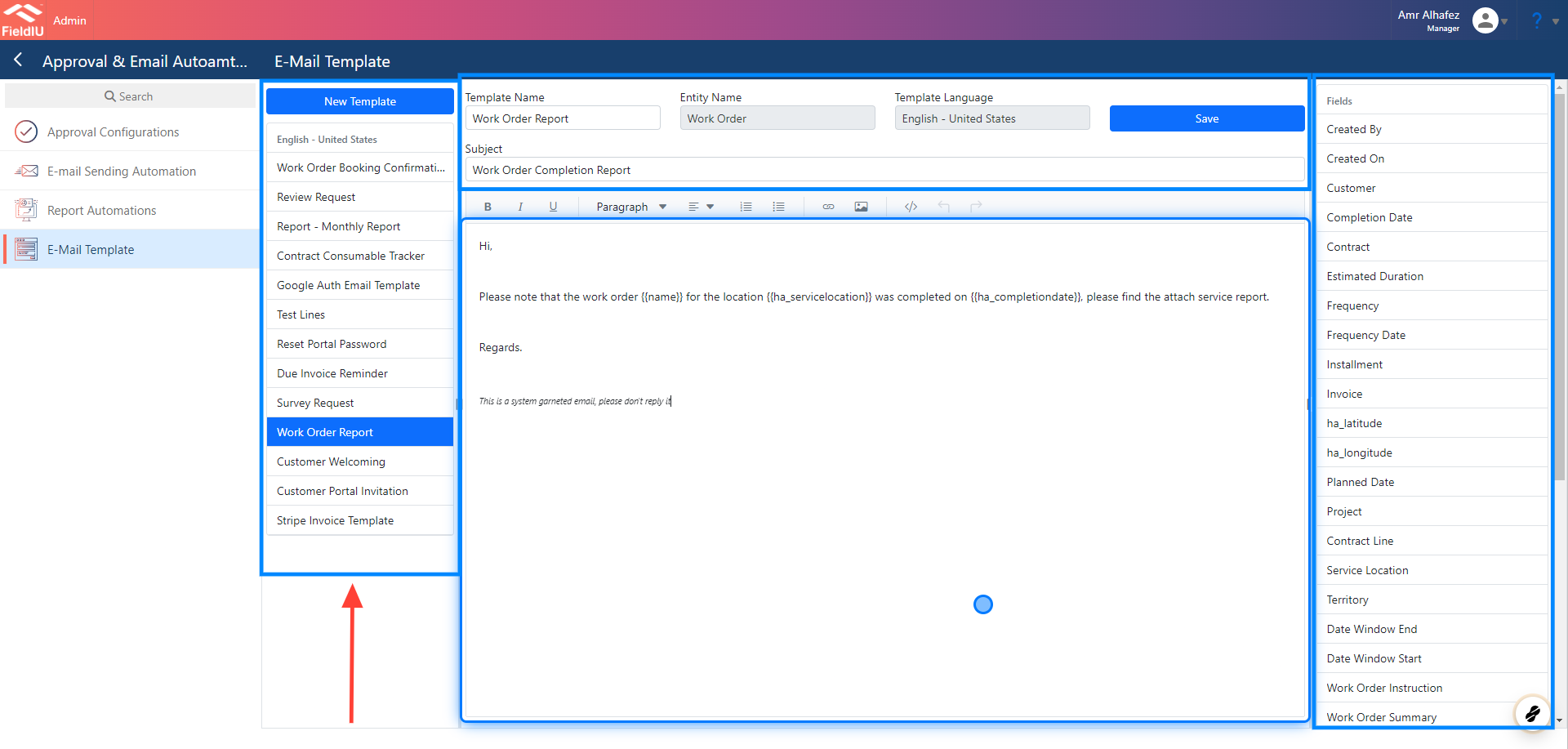
9. E-Mail Template Window
We can select the template we want to edit from the side bar.
10. Subject & Body
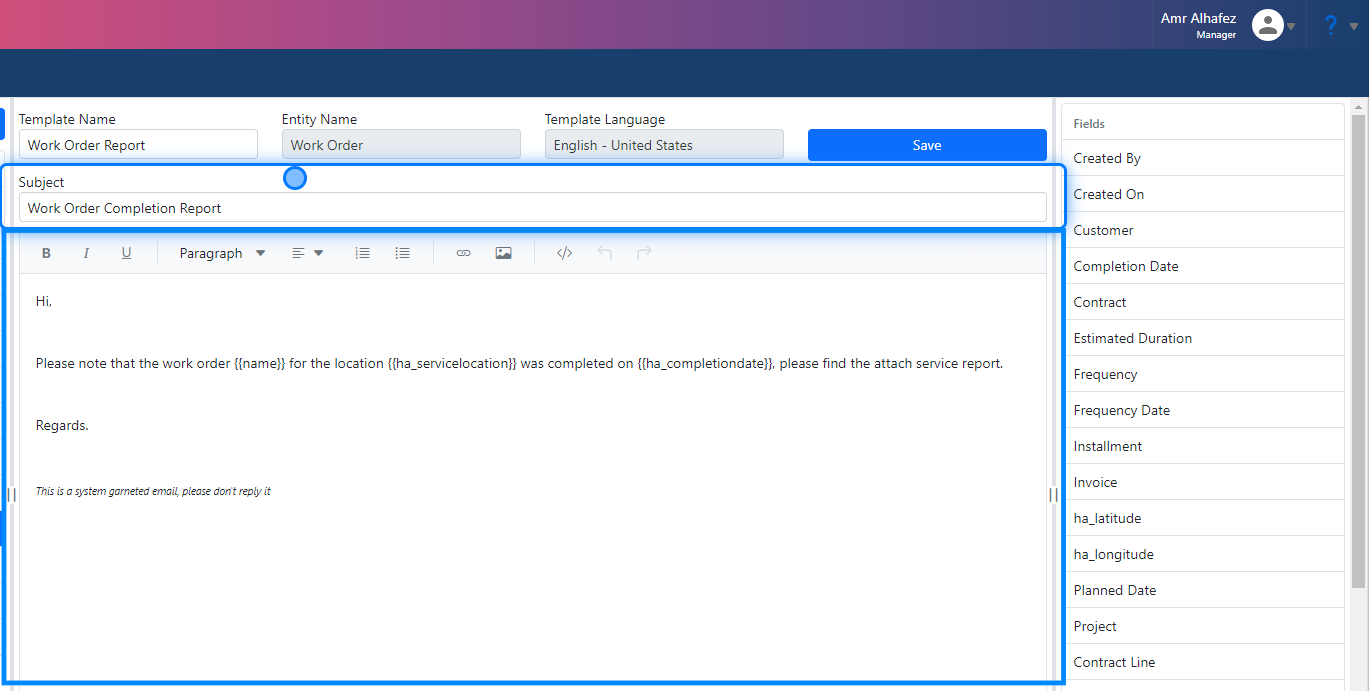
We can find the subject area where we can add the email subject, and there's a body area where we can write whatever we want in the email.
11. Fields
The fields are for the entity we selected for the email—the entity we want to pull our data from. In our example, we have the Work Order entity, and we used the Work Order Name field along with the Service Location and Complexation date fields in our body template.
We can use these fields by simply clicking on them, and they will appear in the body template as code.
⚠️ Don't forget to save your work!�����������������������