

Resource Management
💡 What is Resource Management?
Resource Management is the section where you can manage all resource-related details, including holidays, territories, and more.
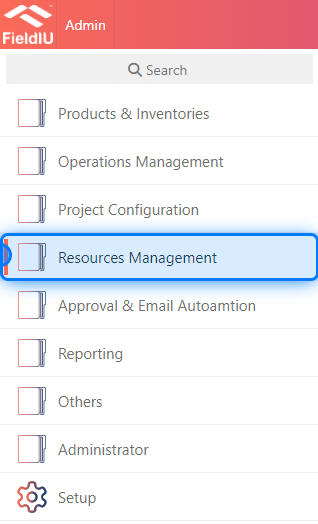
1. Where you find it ?
You can access the Resource Management section from the side menu by clicking on 'Resource Management.'
2. What's Inside ?
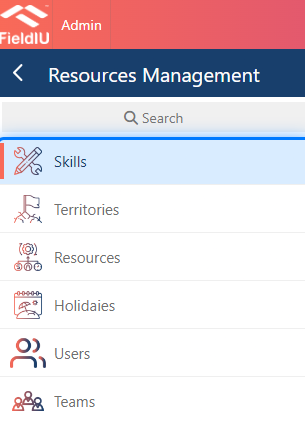
In Resource Management, we have the following sections: Skills, Territories, Resources, Holidays, Users, and Teams. In each section, you can add, edit, delete, or view the lists. Let’s explain them one by one.
Skills
💡 What is skills ?
The Skills section is used to create new skills for a resource and assign them accordingly. It helps you identify the skills each resource has, allowing you to assign work orders that require specific skills to the appropriate resource.
3. Main Screen
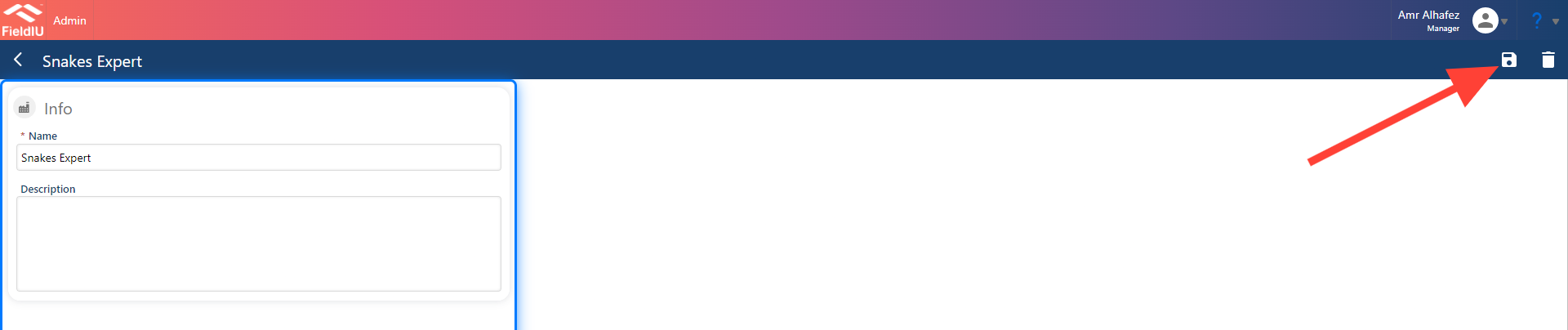
To create a skill, simply enter the skill name and optionally add a description. Then, click 'Save'.
Territories
💡 What is Territories?
The Territories section is used to create territories and assign them to your resources. It helps you organize your resources and easily identify which areas or territories each resource covers.
4. Main Screen
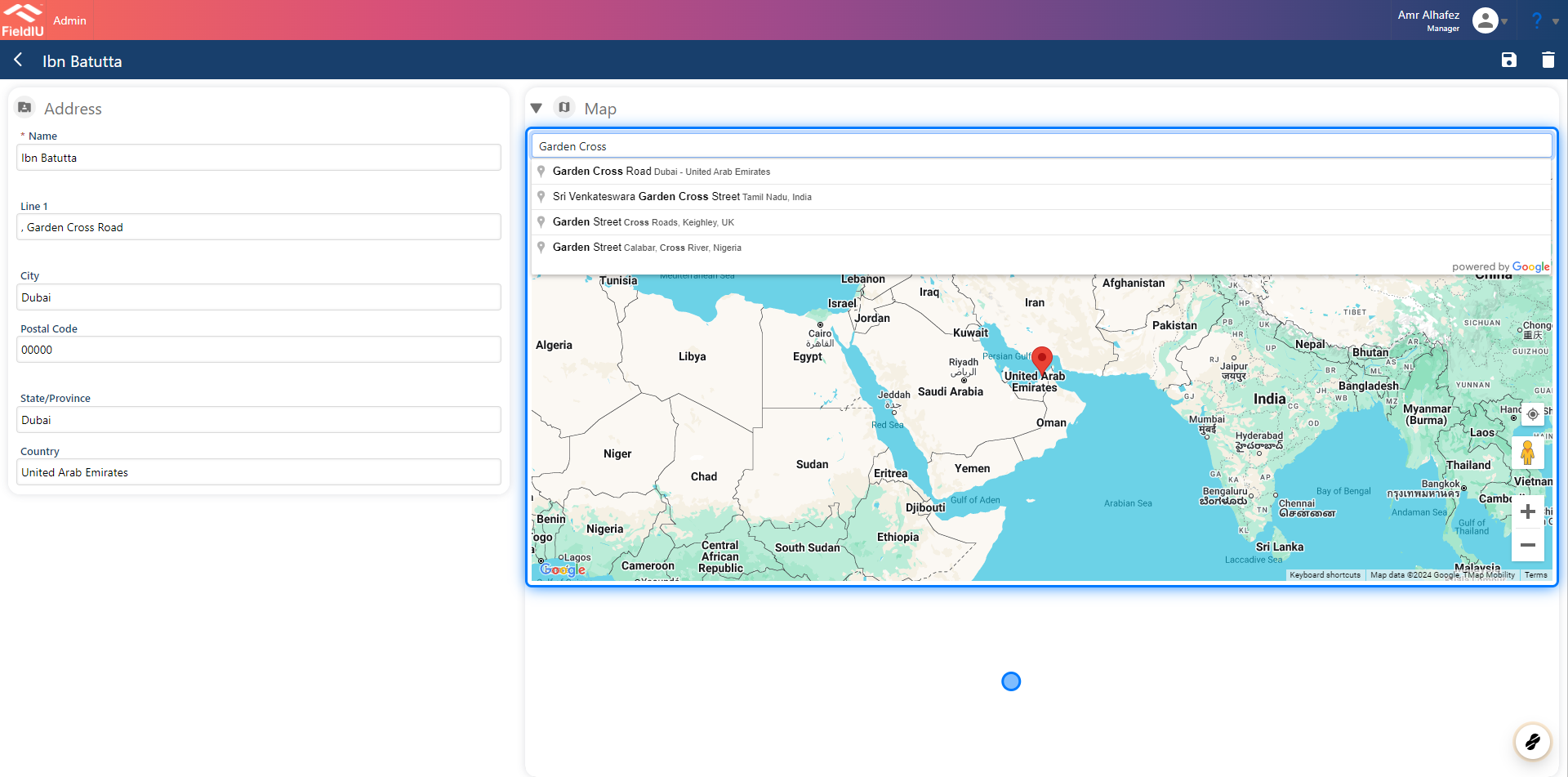
To create territories, you can either fill in the fields manually or enter an address and select it from the map, which will automatically populate the fields.
Resource
💡 What is Resource ?
A resource can be either an employee within the company or an outsourced employee. While all employees can be considered resources, not all resources are employees.
5. Main Information Section
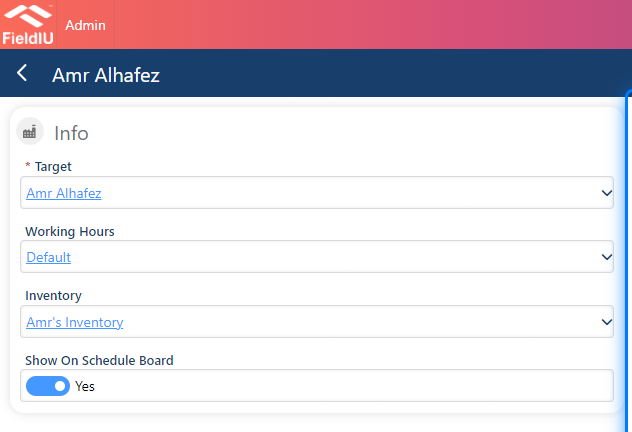
In the Resource Main Information section, you need to fill in the following:
-
Target : Select the type of resource, whether it's an employee, user, or contact . This is Required
-
Working Hours : Choose the working hours for the resource (you must define these first). This is optional .
-
Inventory : You can assign inventory to the resource, which is optional .
-
Show on Schedule Board : Choose whether you want the resource to appear on the schedule board or not."
6. Resource Details Section
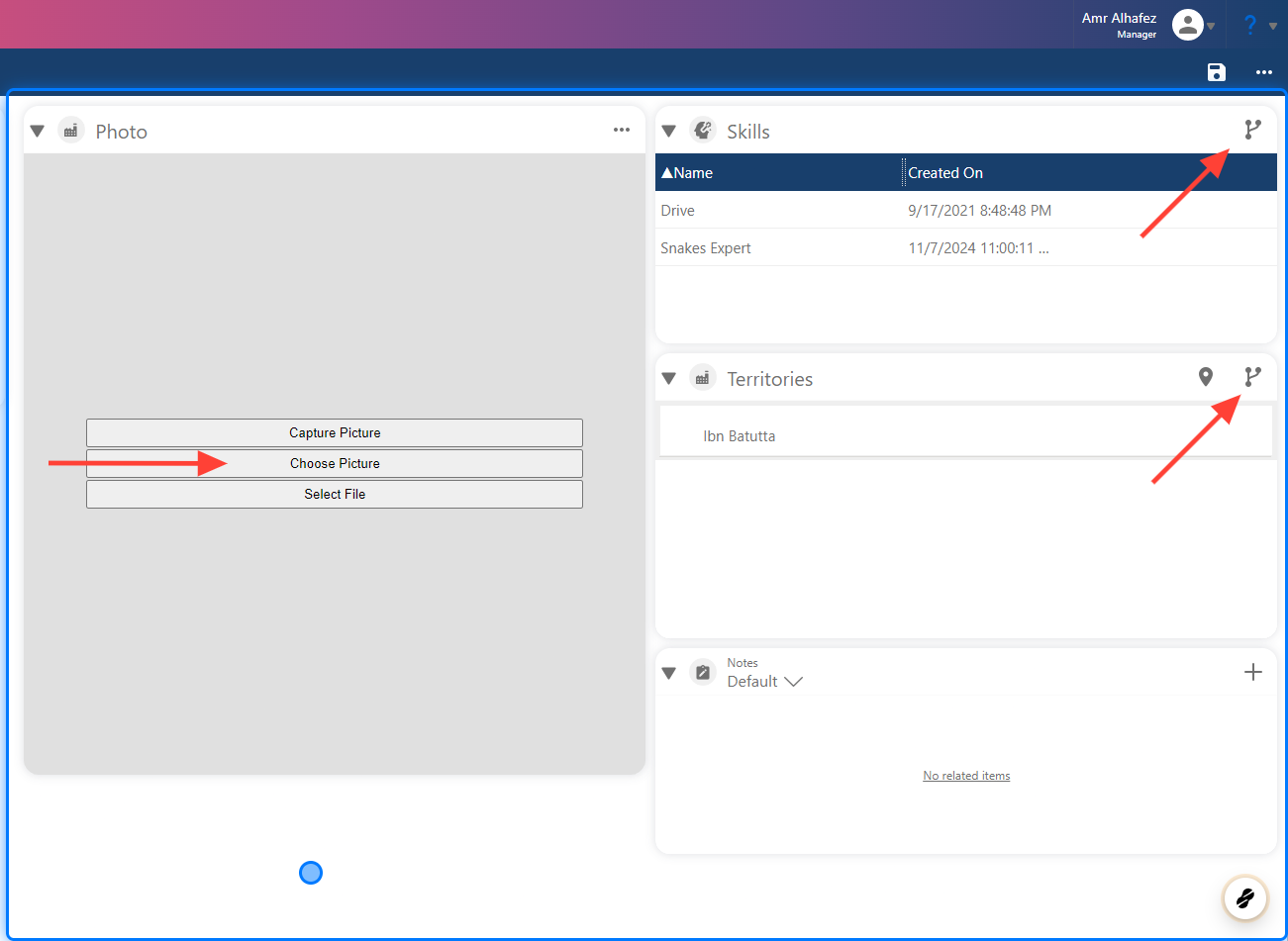
In this section, you can add an image for the resource by clicking the 'Choose Picture' button. You can also assign skills and territories to the resource by clicking the link icon and selecting the desired options to assign.
Holidays
💡 What is for ?
In the Holidays section, you can add holidays to your system. This information will be useful across various applications, including HR, Accounting, and Operations. For example, if you schedule a work order or booking on a holiday, such as New Year's Day, the system will provide a warning message to alert you.
7. Main Screen
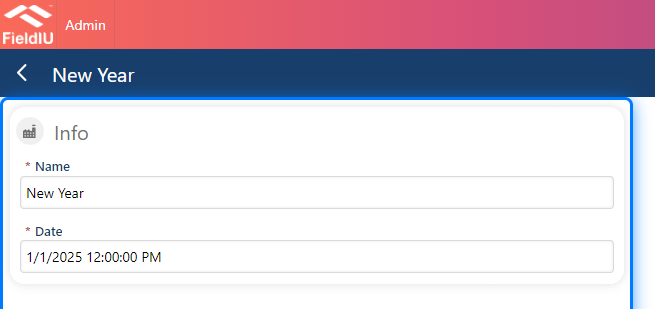
To create a holiday, simply enter the holiday name and select the date.
Users
💡 What is for ?
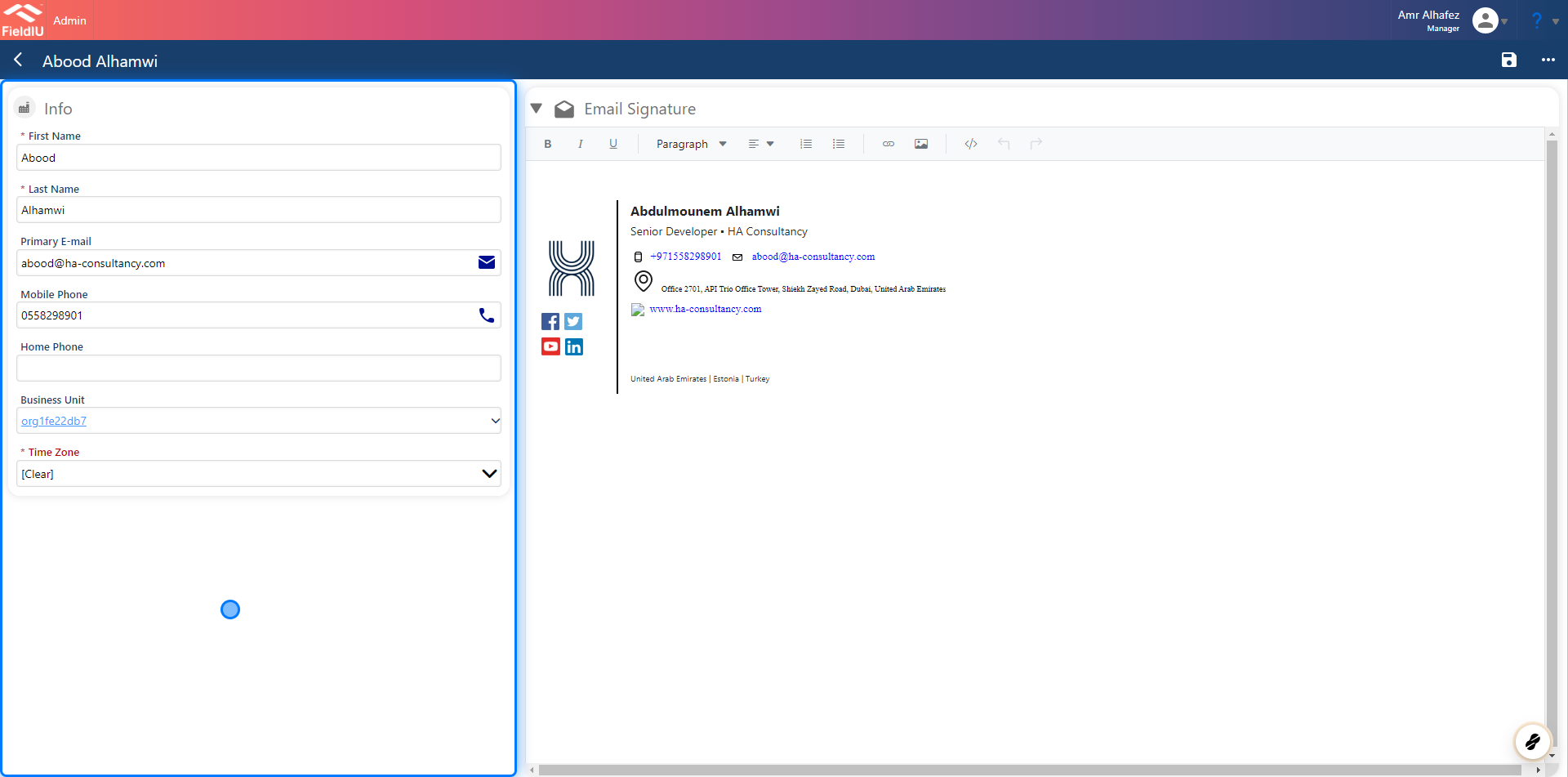
The User section is used to manage users within the system. You can add details such as their number, email, business unit, and time zone.
You can also add an email signature for the user, as shown in the next image.
8. Click on highlight
⚠️ Save !!
Don't forget to save your work once you have finished filling in the details.�����������������������