

Price Lists
💡 Price Lists
The price list is where you define the prices for your products. It allows you to create offer lists without modifying the default prices of the products.
1. Access
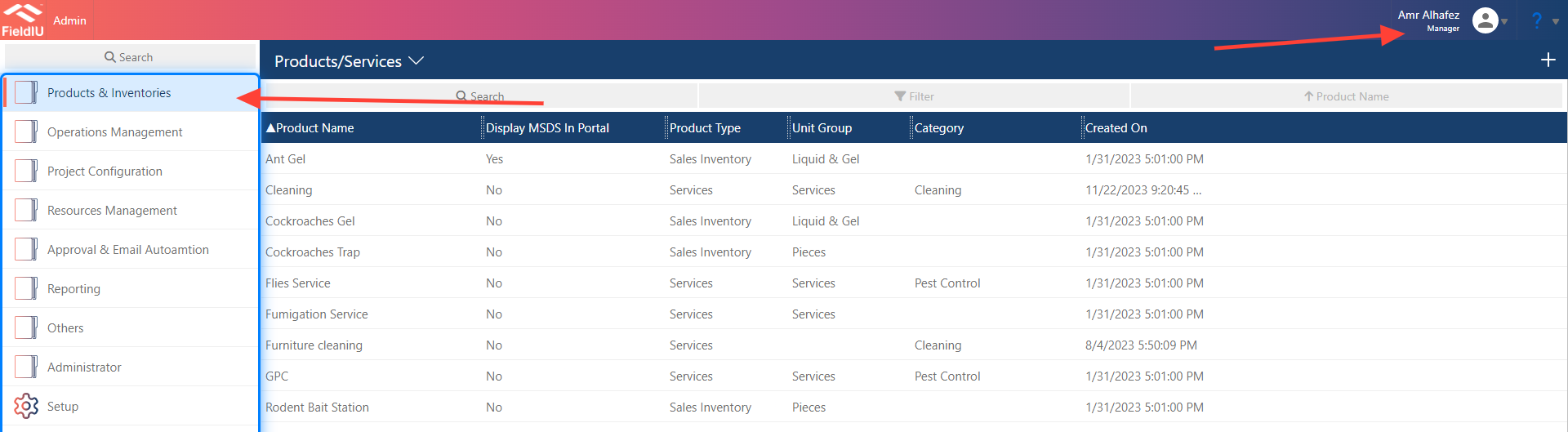
You can access the Products Dashboard from the Manager App only. In the side menu, you’ll find the 'Products & Inventories' tab. Simply click on it to open all the tools related to products and services.
2. List , Create , Edit
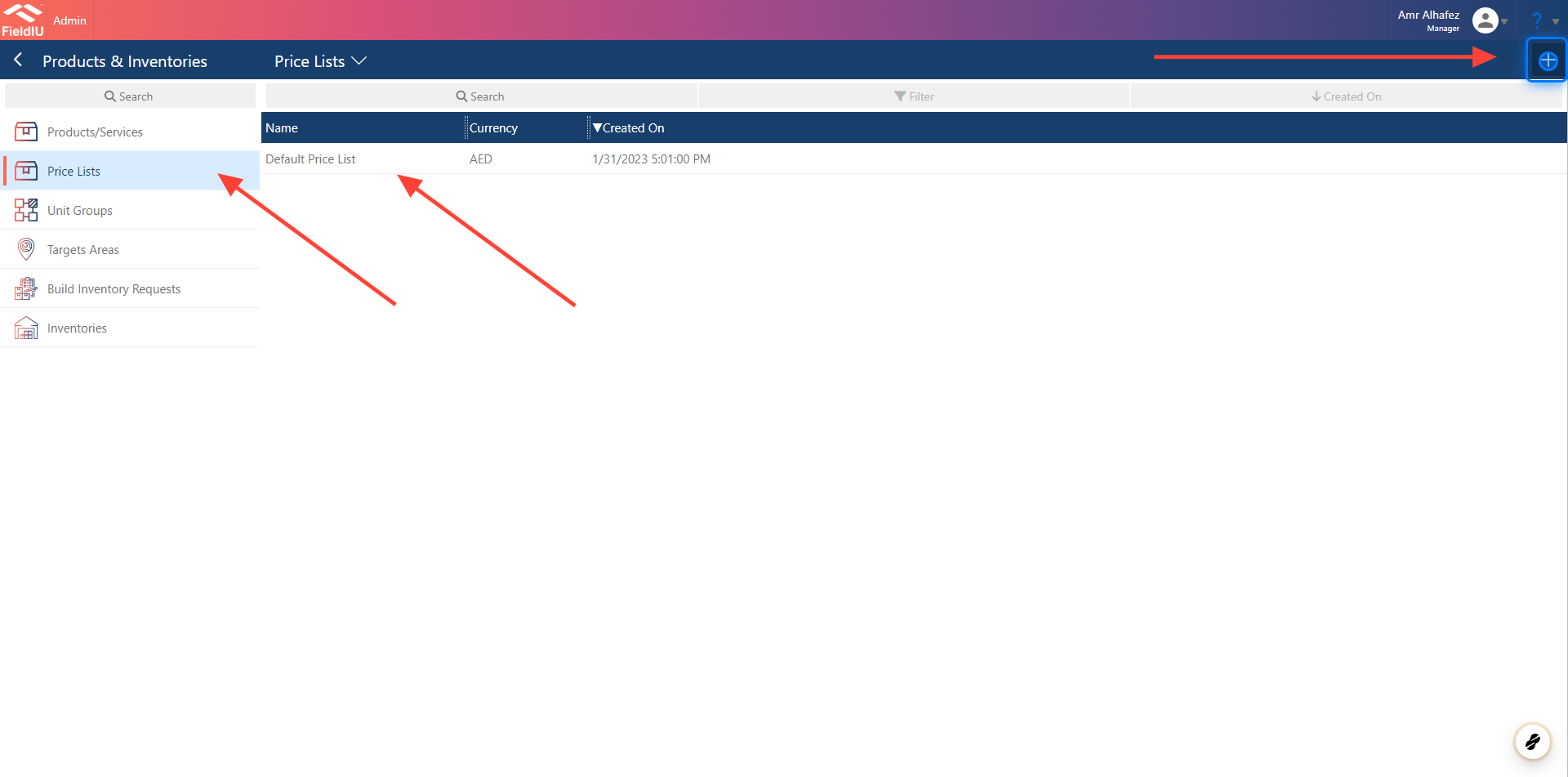
To view your Prices Lists, click on the 'Price List' button. The list of products will appear. You can easily click on any list to edit it, or create a new list by clicking the '+' button in the top right corner.
3. Main Information
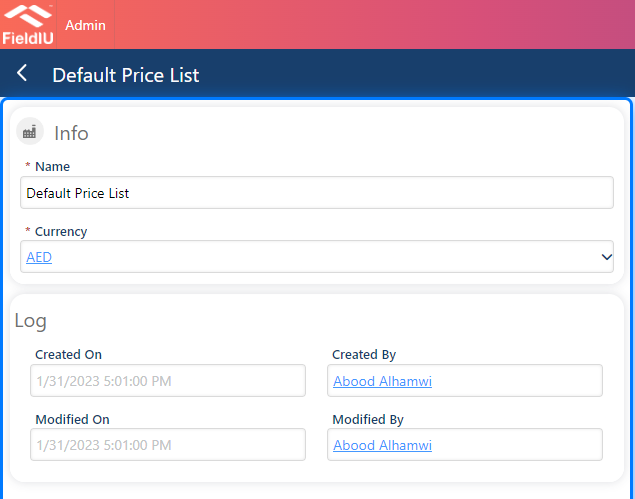
To create a new price list, you’ll need to enter a name for the list and select the currency for the list.
4. Price List Items
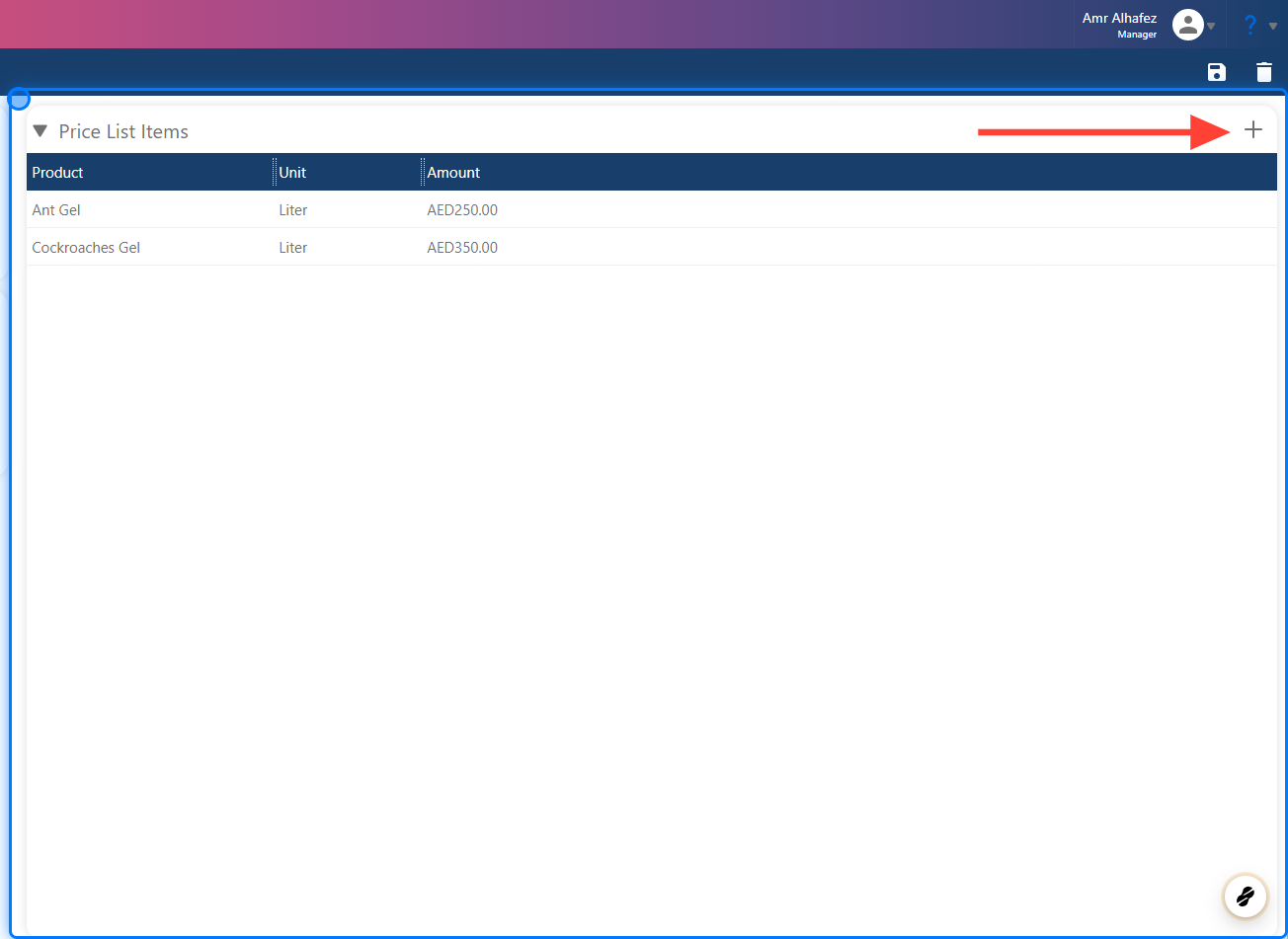
This section shows all the products included in the list. To add a new item, simply click the '+' button in the top right corner.
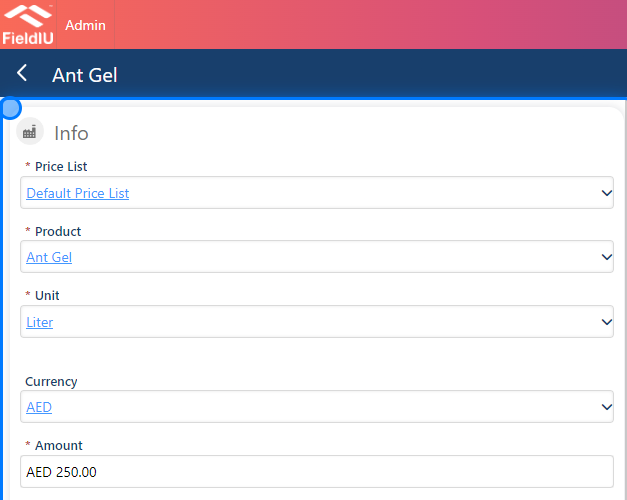
5. Price List Items Details
To add a new item to the list, you need to fill in the fields and provide all the mandatory information."
-
Price List : The price list you want to add the item to will be pre-selected for you.
-
Product : Select the product you want to add to the list.
-
Unit : Choose the unit for the product.
-
Currency : Select the currency for the newly added item.
-
Amount : Enter the price of the product in this list.
⚠️ Save !!
Please remember to save your changes.�����������������������