

Operation Management
💡 Operation Management
In operations management, we can control various operational items in the system, such as:
Activity Types
Management Points Type
Insects
Findings
Task Template
Scope Template
Contract Consumable Tracker"
Activity Types
1. What is Activity Type?
An activity type refers to the different categories of activities carried out by customer companies. Examples include cafés, offices, factories, and warehouses. Defining activity types is essential as it helps streamline both the sales and operational processes, ensuring that services and resources are tailored to the specific needs of each activity type.
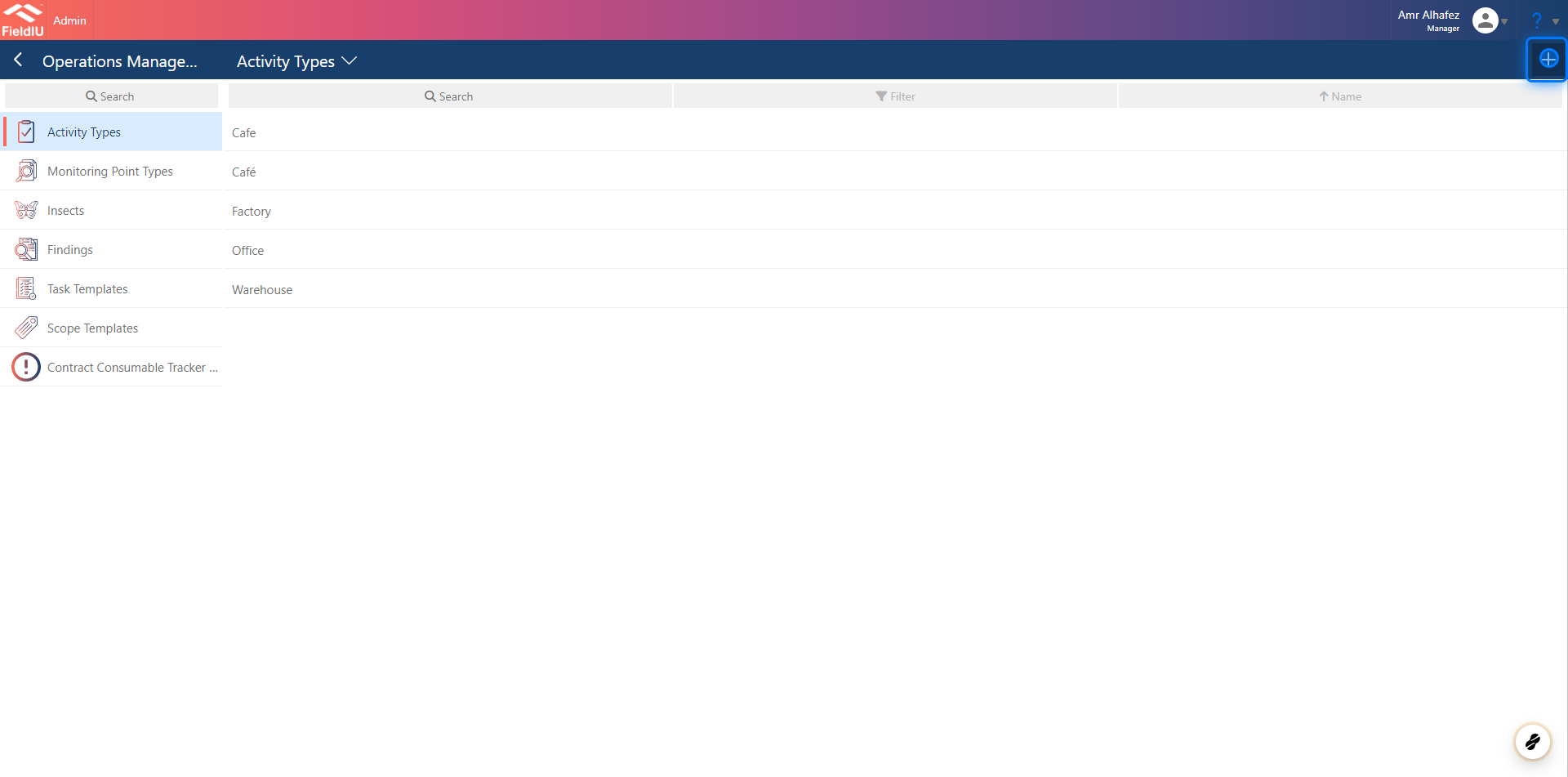
2. Creating Activity Type
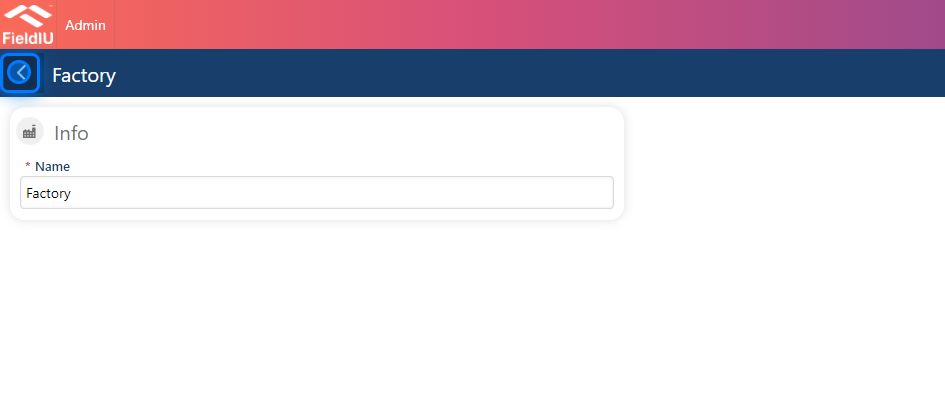
To create an activity type, all you need to do is enter a name for the activity type.
💡 Monitoring Points Type
You can refer to the Monitoring Points Type documentation for more details.
Insects
3. What is an Insert?
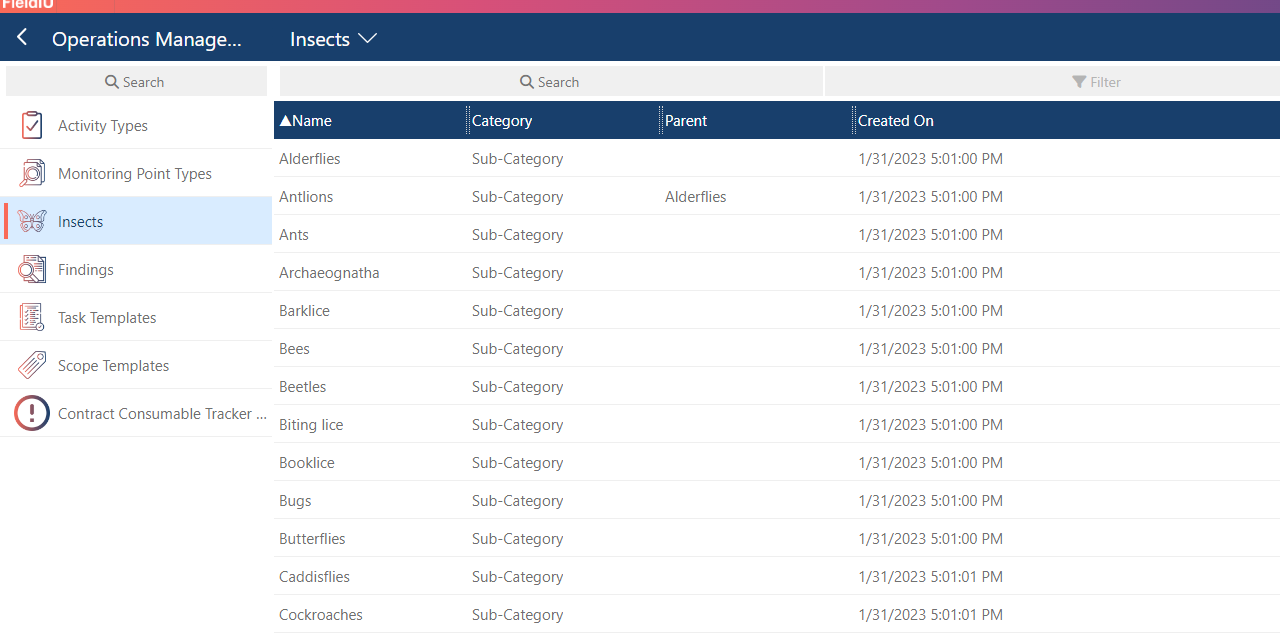
Insect is where you define the Insect within your system.
4. Creating
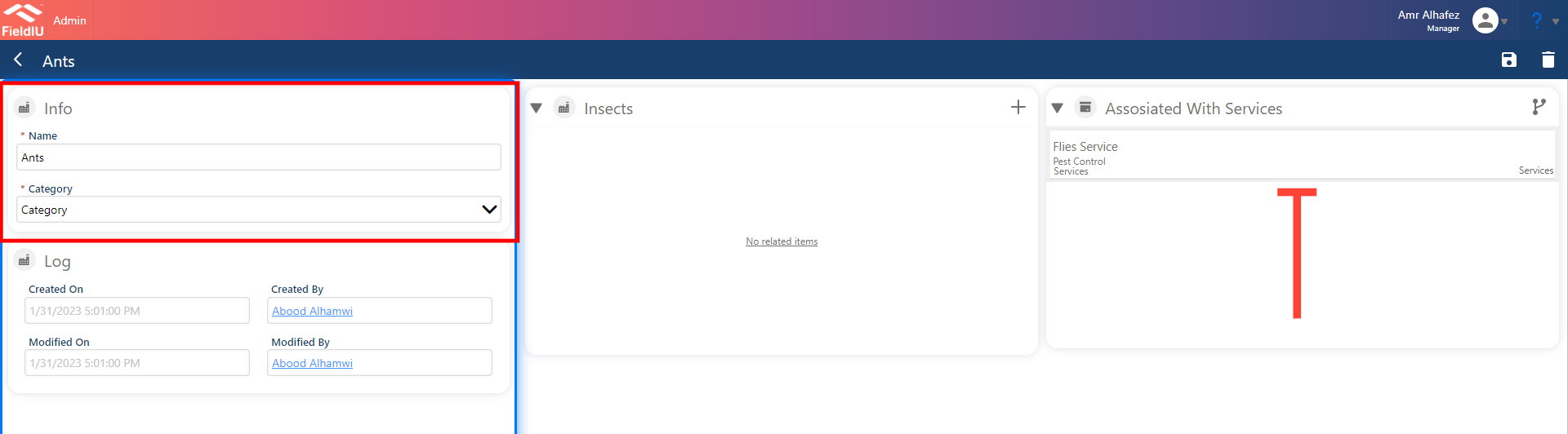
Once you want to create an insect, you need to insert the name of the insect and select whether it is a main category or a subcategory.
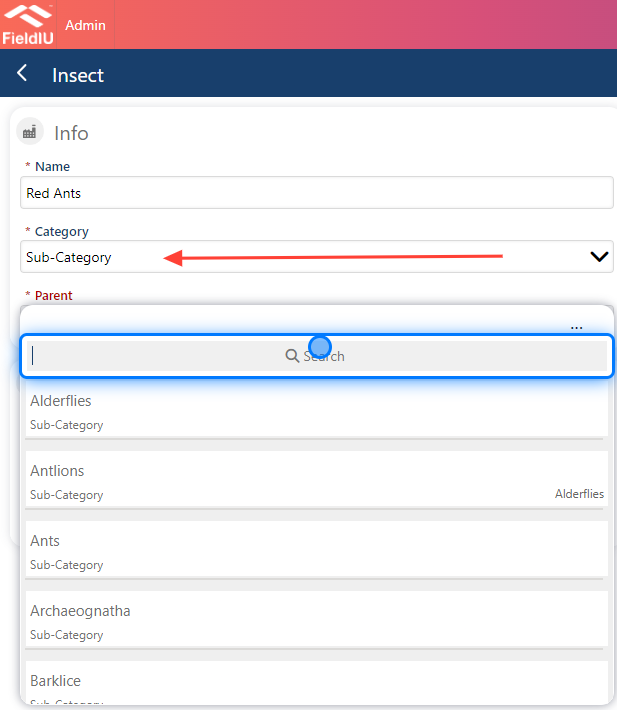
For example, you can create "Ants" as a category and "Red Ants" as a subcategory, then select "Ant" as the main category. You can also select the associated services related to the insect.
5. Adding Insects to category
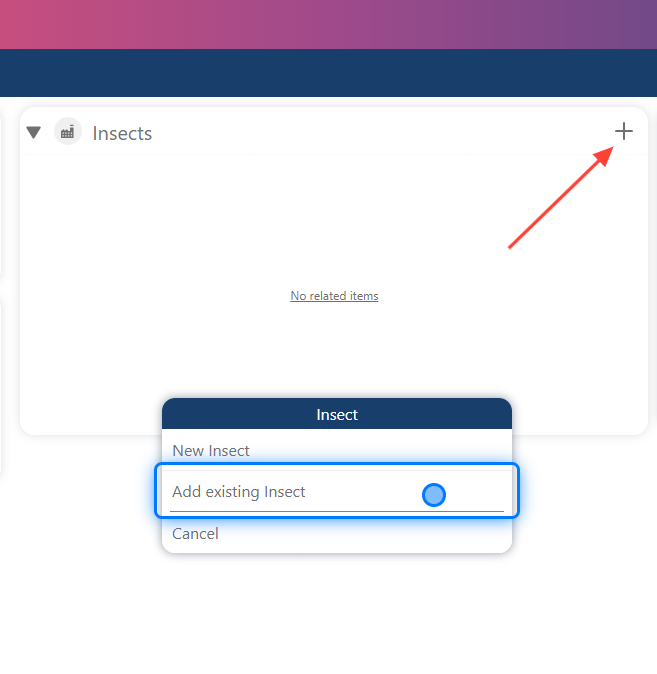
You can add a new insect to a category by clicking the + button in the insect section and selecting whether you want to add a new insect or an existing insect.
6. Sub-Category
As explained earlier, you can add an insect as a subcategory and select the parent category as the main category
Findings
7. What is Findings?
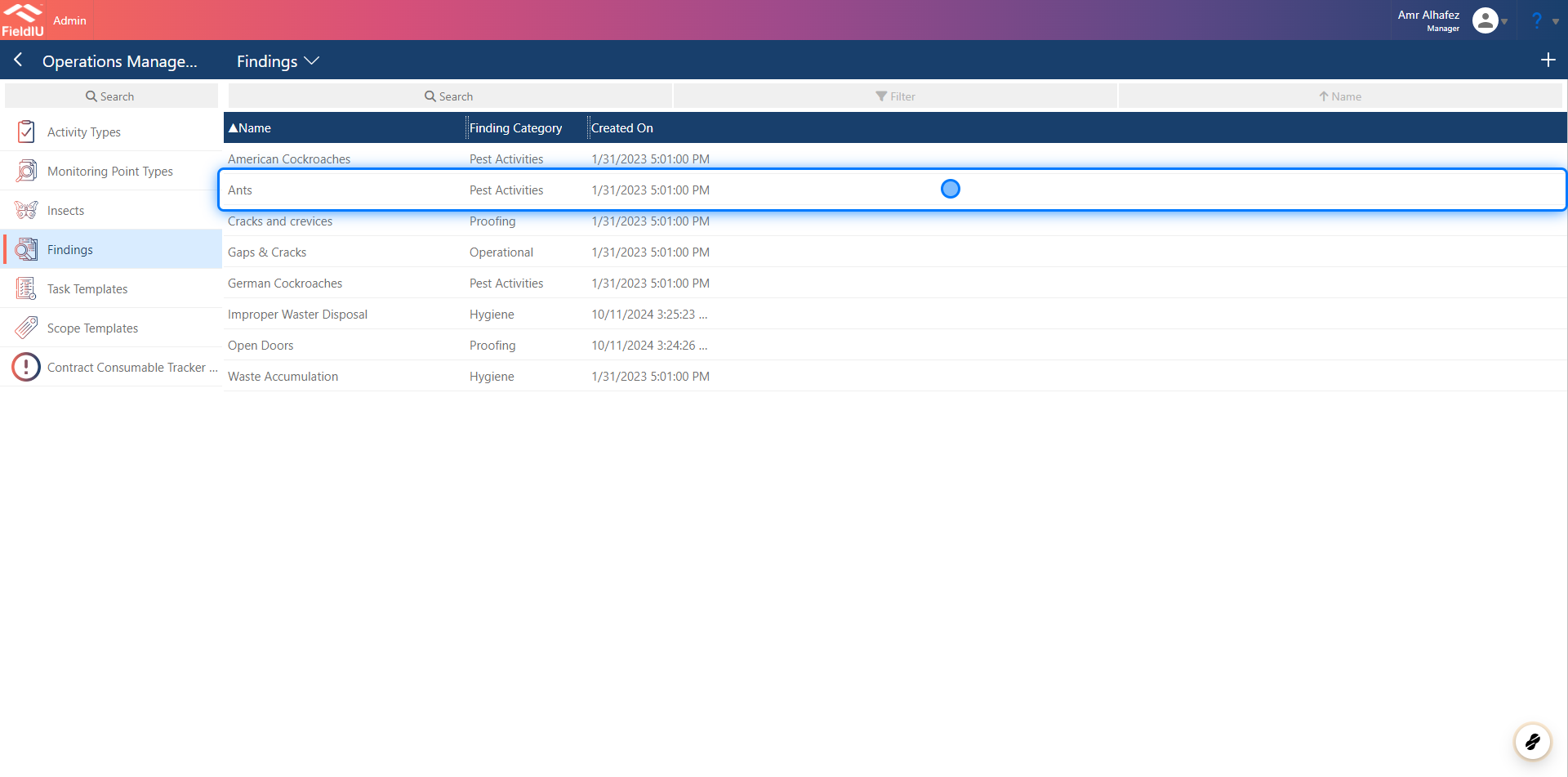
Findings refer to observations made by field staff at a location, such as pest activity, hygiene, proofing, and operational issues. You can define and record all these findings here.
8. Creating New Finding
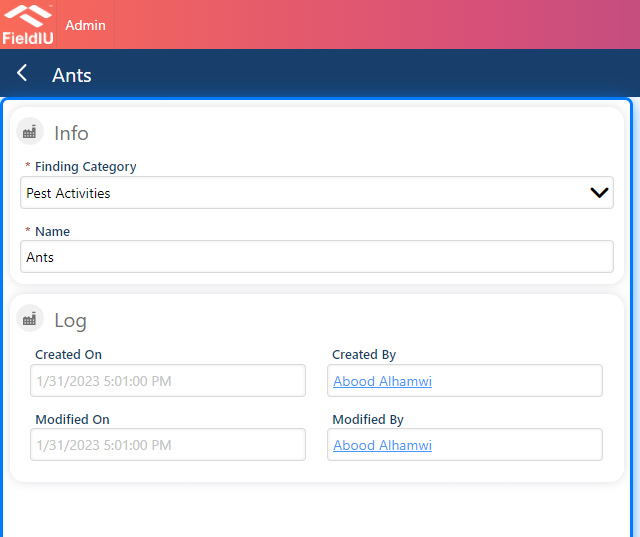
To create a new finding, all you need to do is select the finding category:
-
Pest Activities
-
Operational
-
Proofing
-
Hygiene
-
Storing
Then, insert the name of the finding.
"Finding categories is already defined in the system"
Task Template
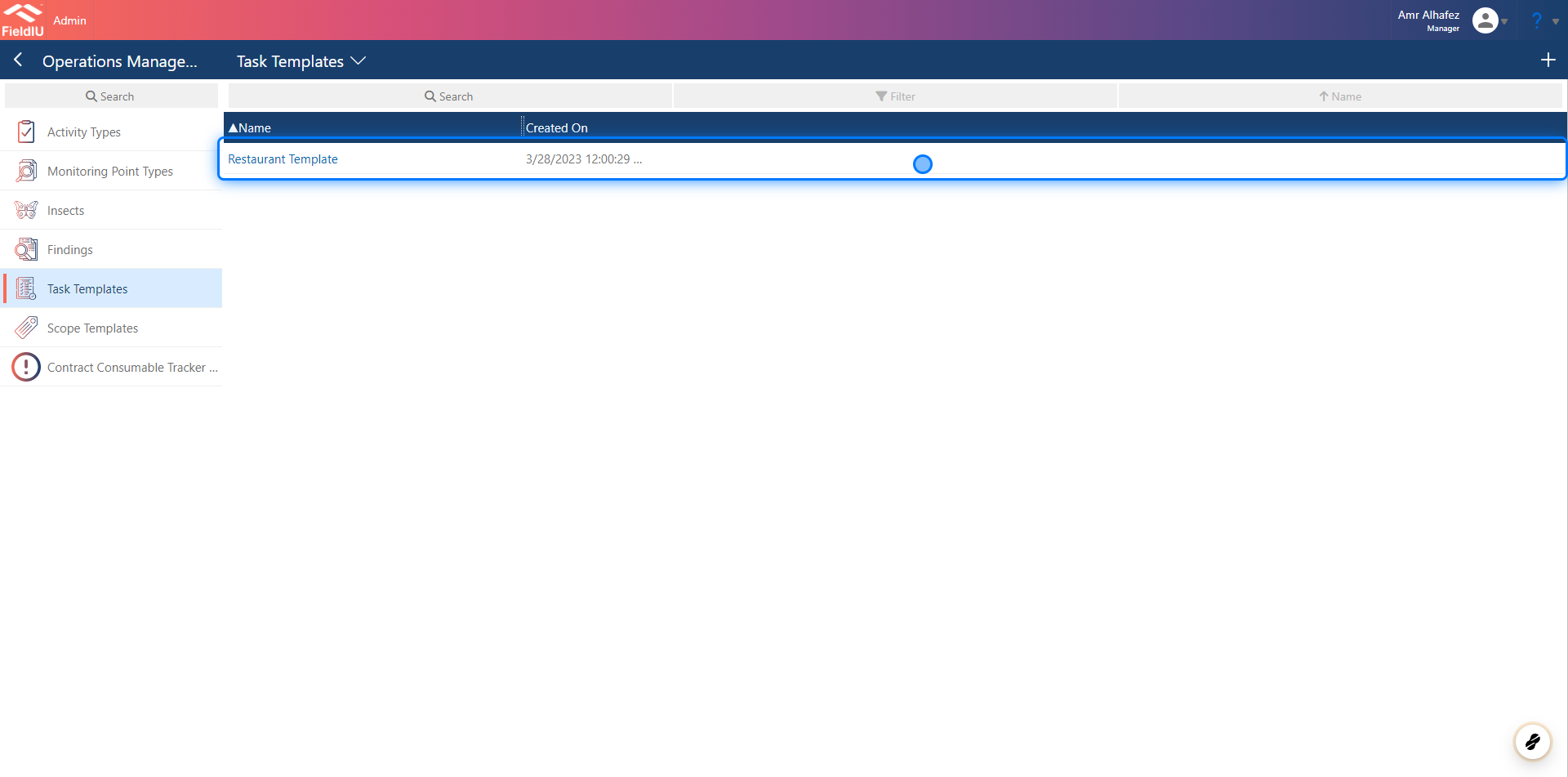
9. What is Task Template?
The Task Template is where you define tasks for the field staff to perform once they arrive at the location.
10. Creating New Task Template
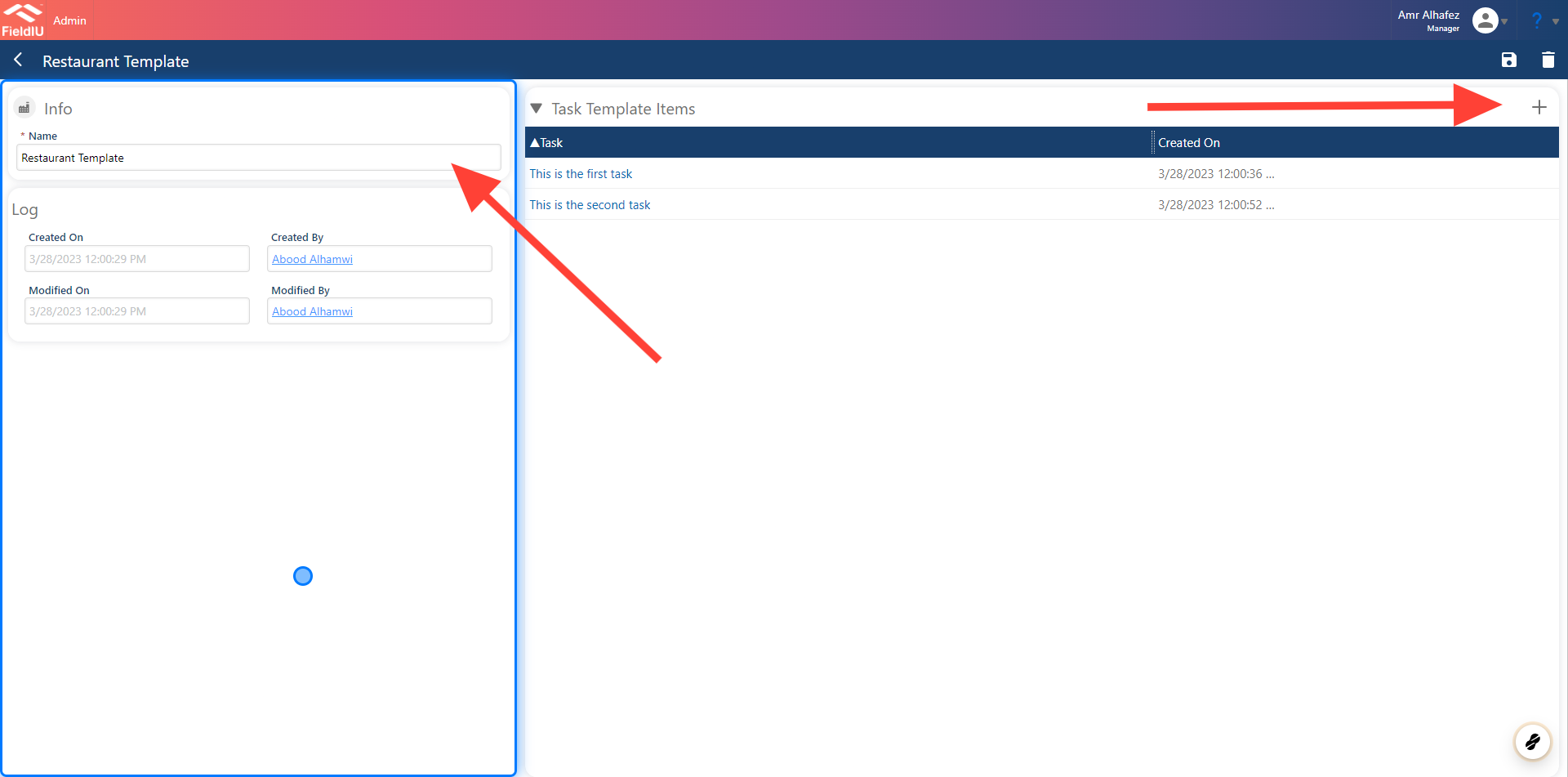
To create a new task template, insert a name for the task and start adding the individual tasks.
11. Adding Task
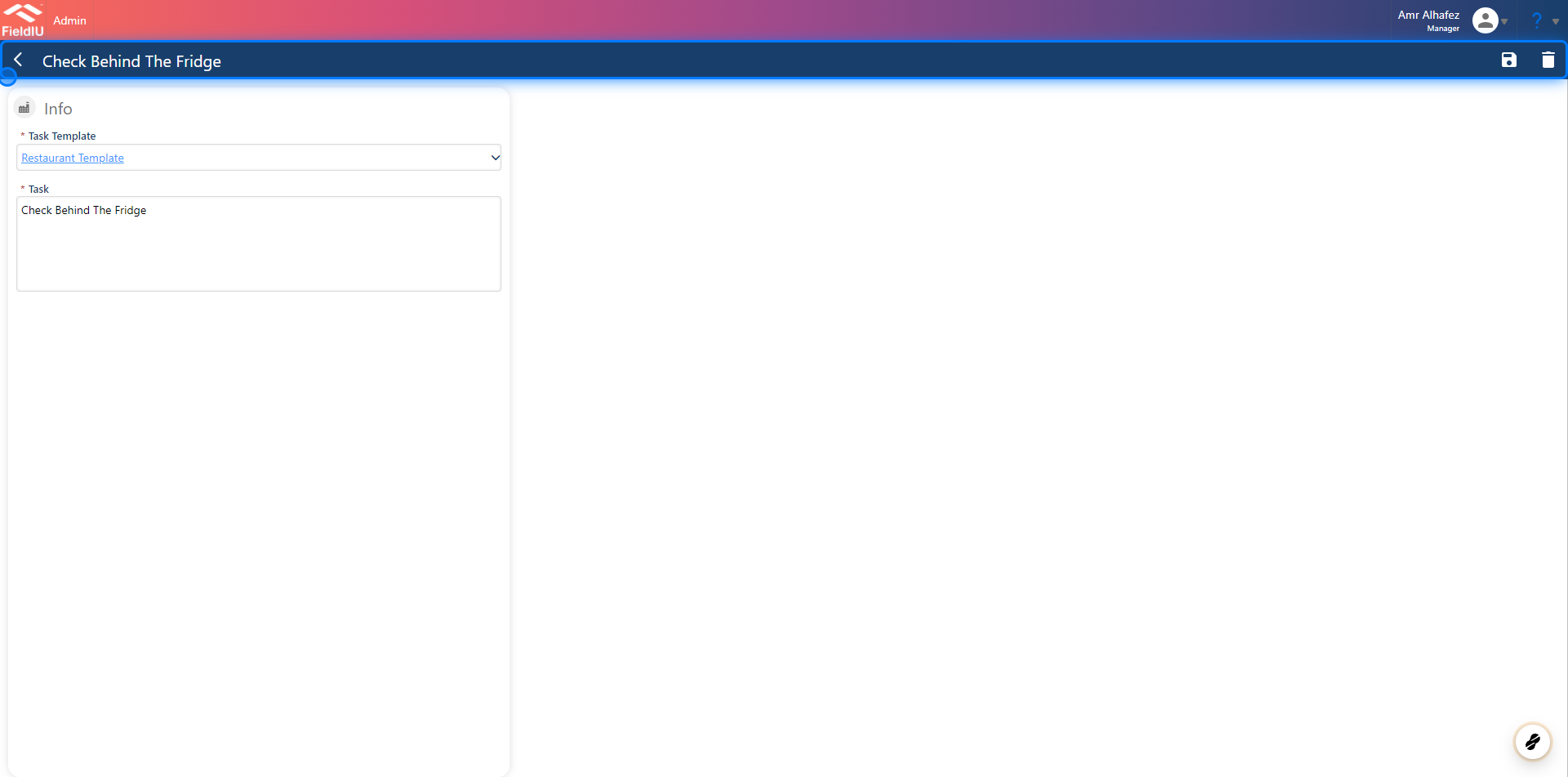
All you need to do is add the task.
⚠️ Save !!
Please remember to save your changes.
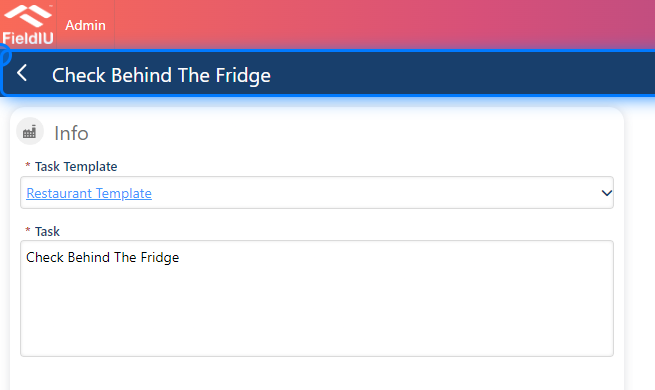
12. Click on highlight
Scope Template
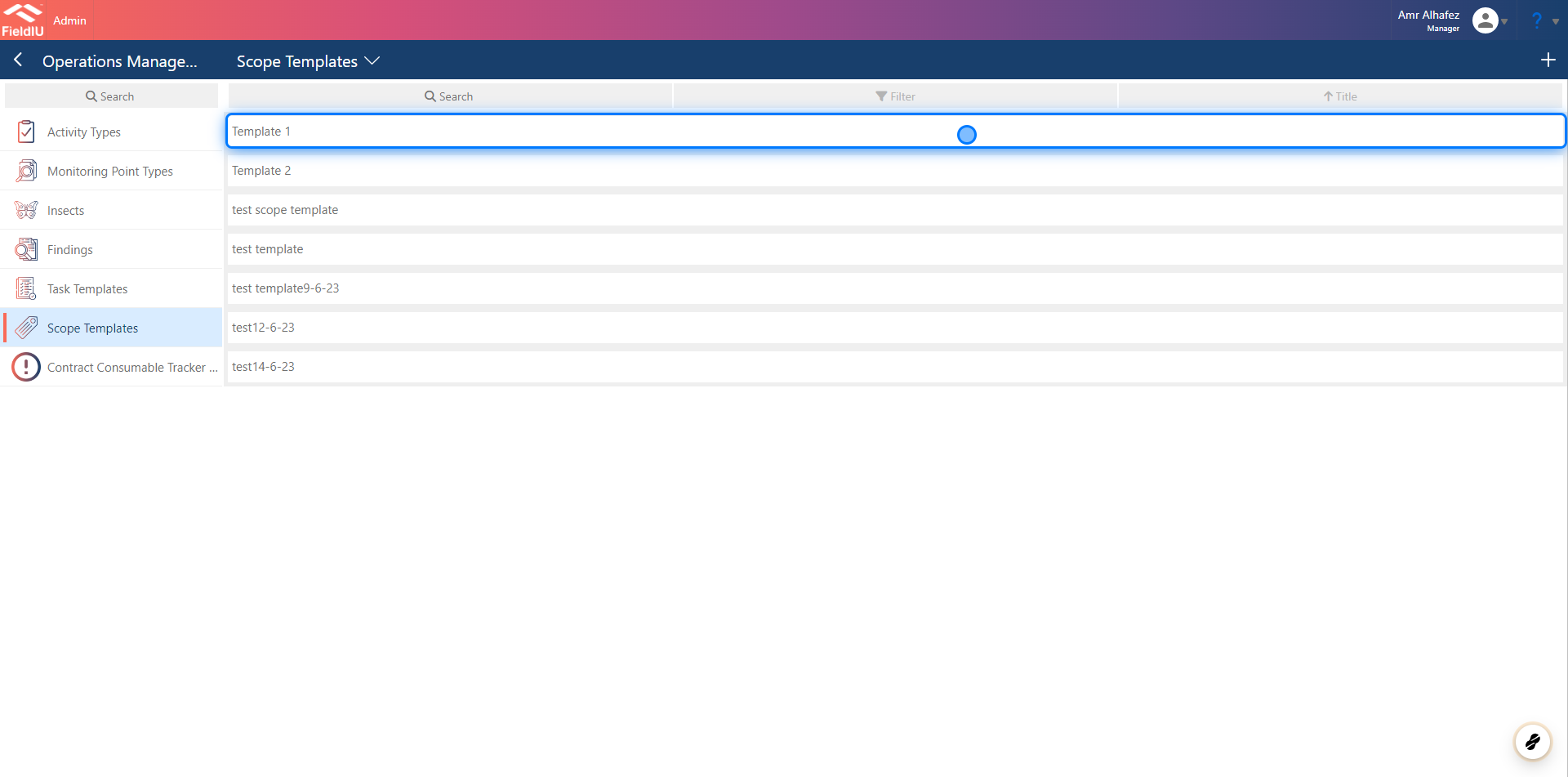
13. What is Scope Template ?
Scopes define what the field staff needs to focus on. You can also assign scopes for specific periods of time, such as for each work order, monthly, Twice in Month , etc.
14. Main Information
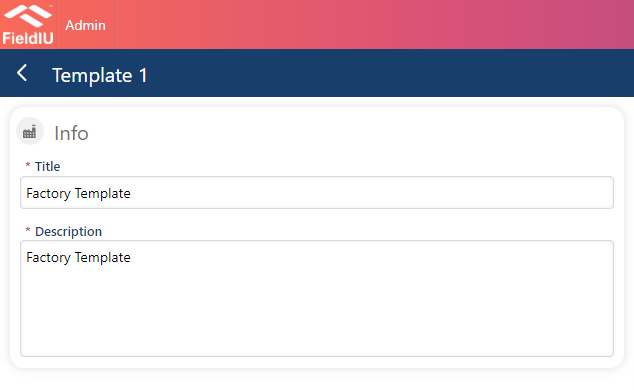
To create a new scope, the first thing you need to do is add a name and description for the template, then save it.
15. Insects & Tasks
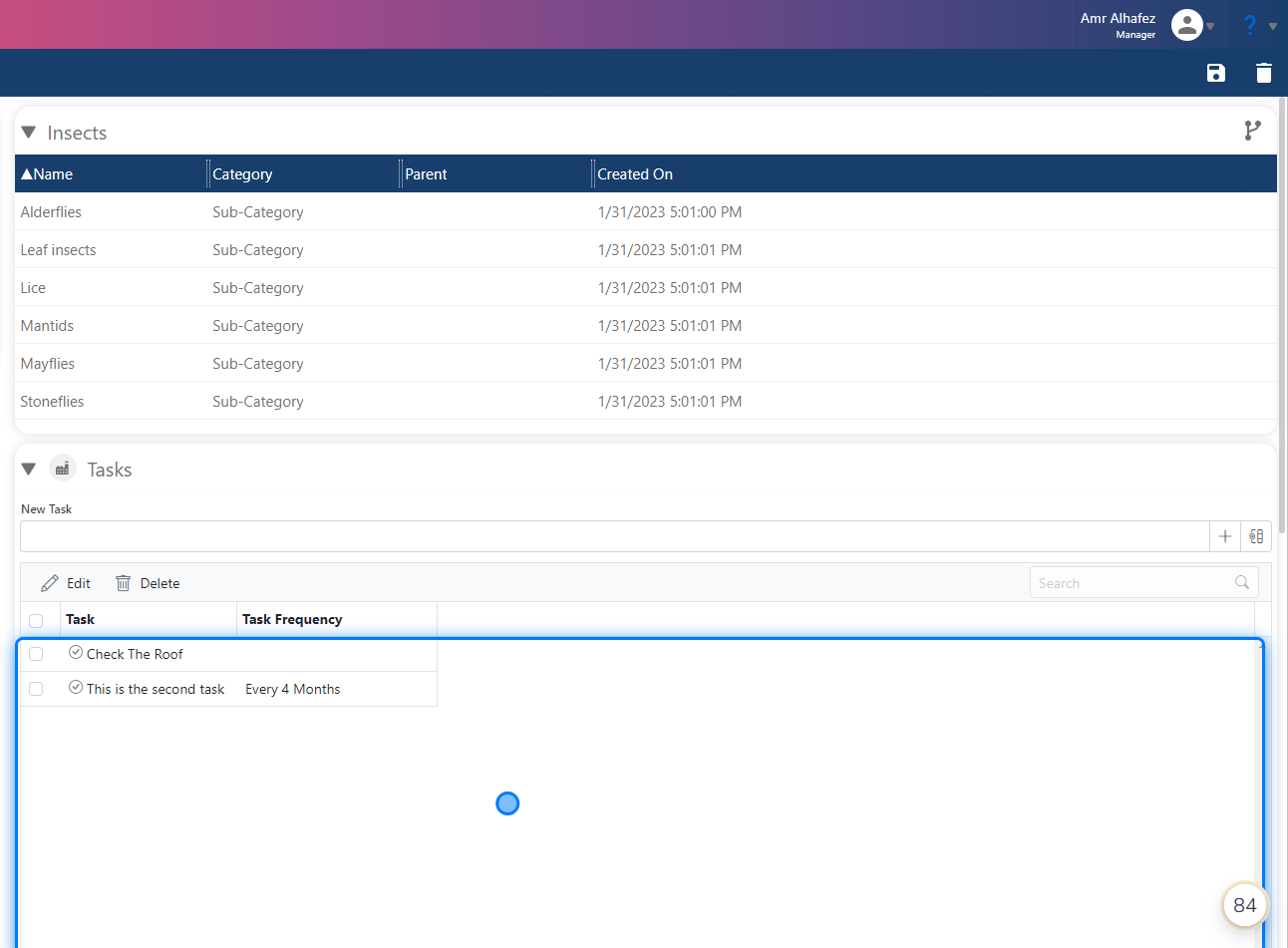
Tasks
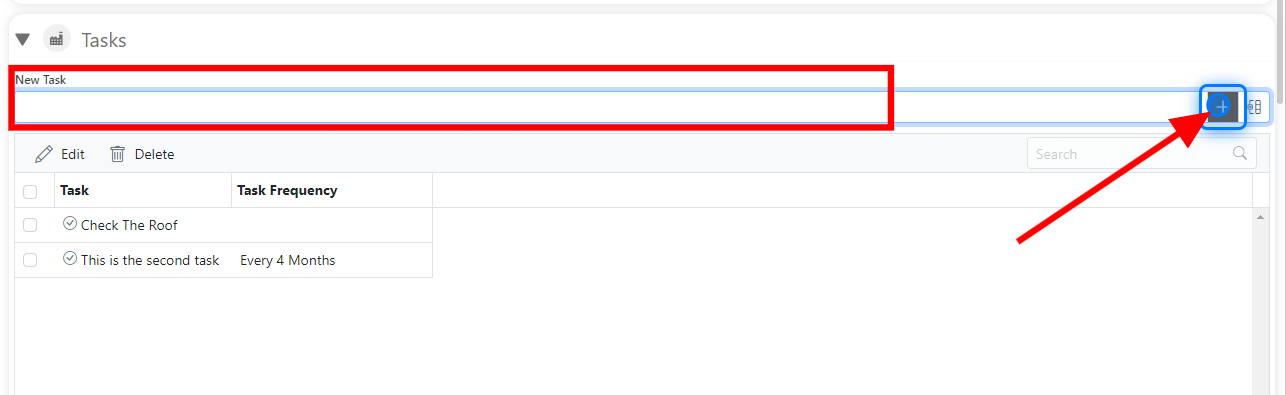
16. Creating New Task
All you have to do is type the task and click the + button.
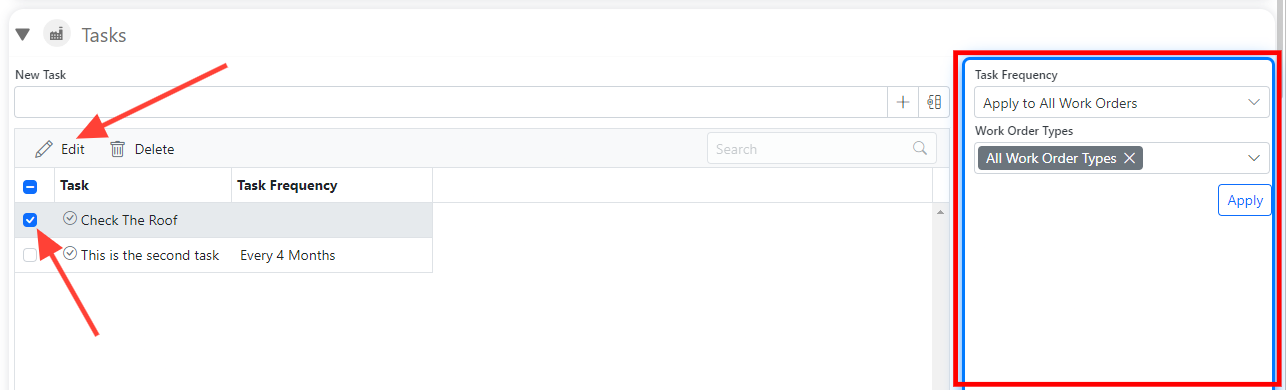
17. Edit Task
To edit a task and add frequency:
-
Select the task you want to edit.
-
Click the "Edit" button.
-
A new window will open where you can set the frequency.
18. Task Frequency
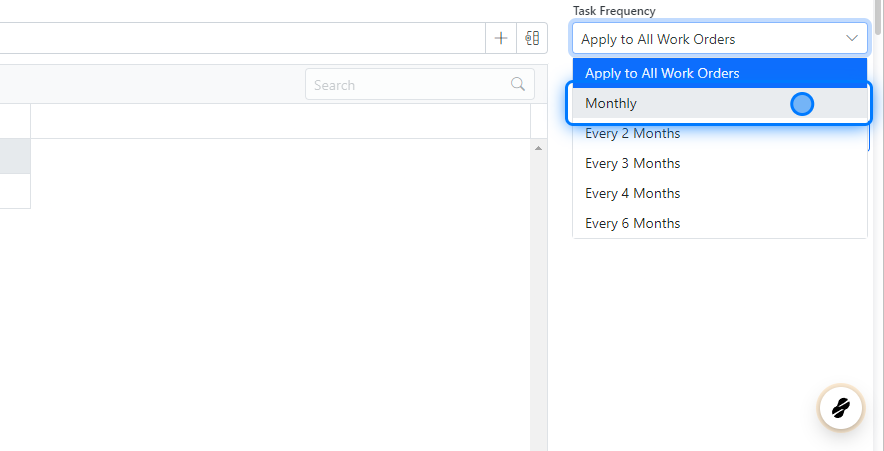
You have certain frequencies to choose from for the task:
-
Apply to all work orders
-
Monthly
-
Every 2 months
-
Every 3 months
-
Every 4 months
-
Every 6 months
19. Work Order Types
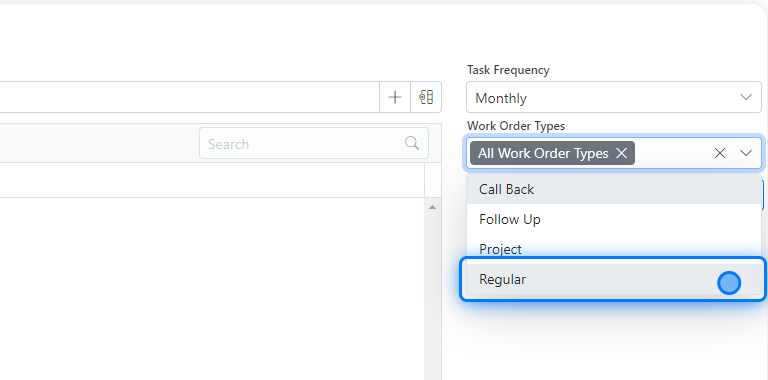
You can also assign the task to a specific type of work order, regardless of the type:
-
Call back
-
Follow up
-
Project
-
Regular
You can select one ore more at the same time
⚠️ Save !!
Please remember to save your changes.
Contract Consumable Tracker
💡 What is Contract Consumable Tracker ?
The Contract Consumable Tracker is a tool that helps you track how much has been consumed in each contract and provides notifications when a specific limit is reached.
For example, it can send a notification when 80% of the consumables have been used.
This tool helps you effectively monitor consumables in contracts
20. Creating Consumable Tracker
You only need to insert a name for the tracker and save it, and it will be created.
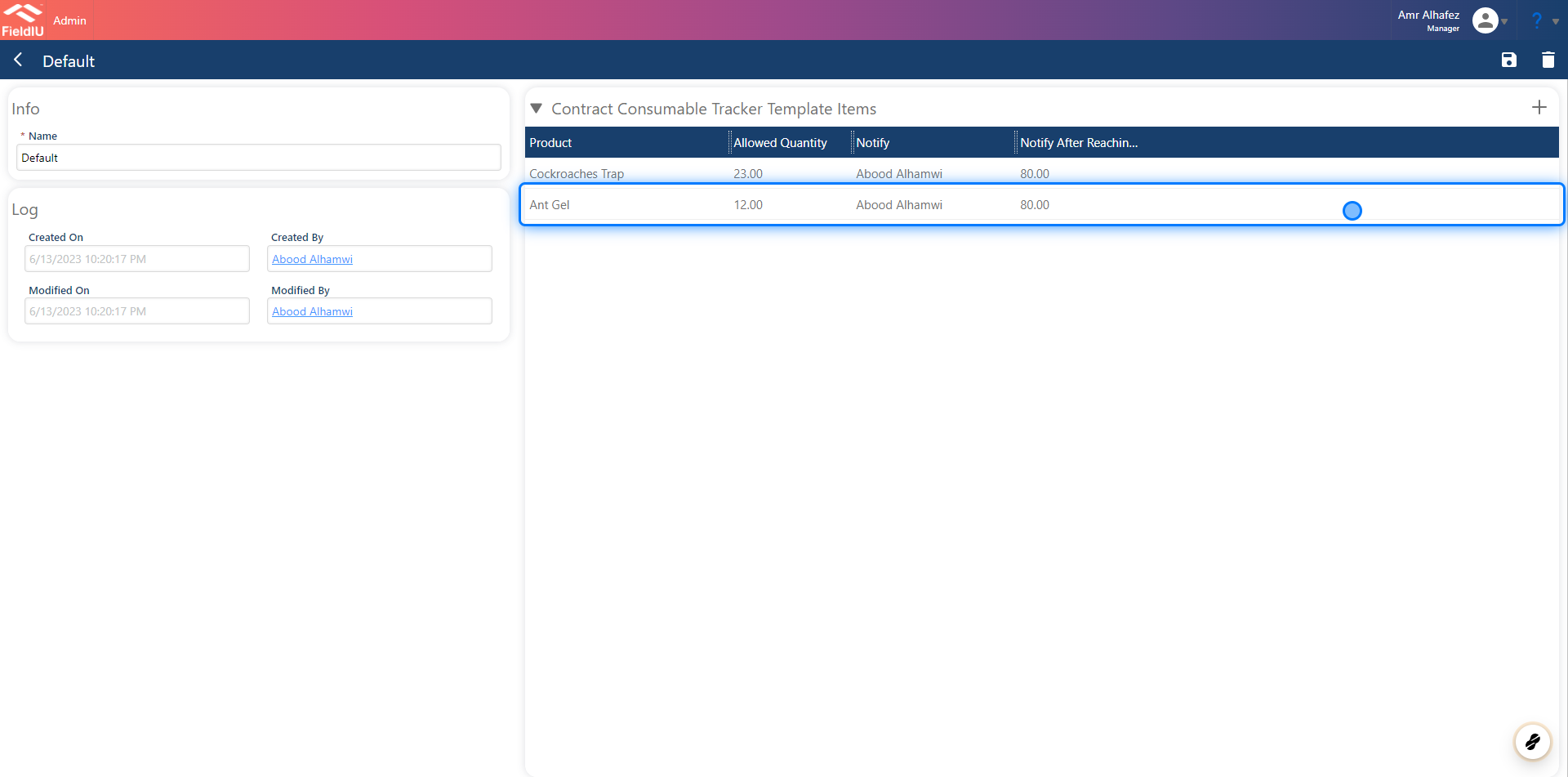
Additionally, a new section will appear where you can insert the items you want to track.
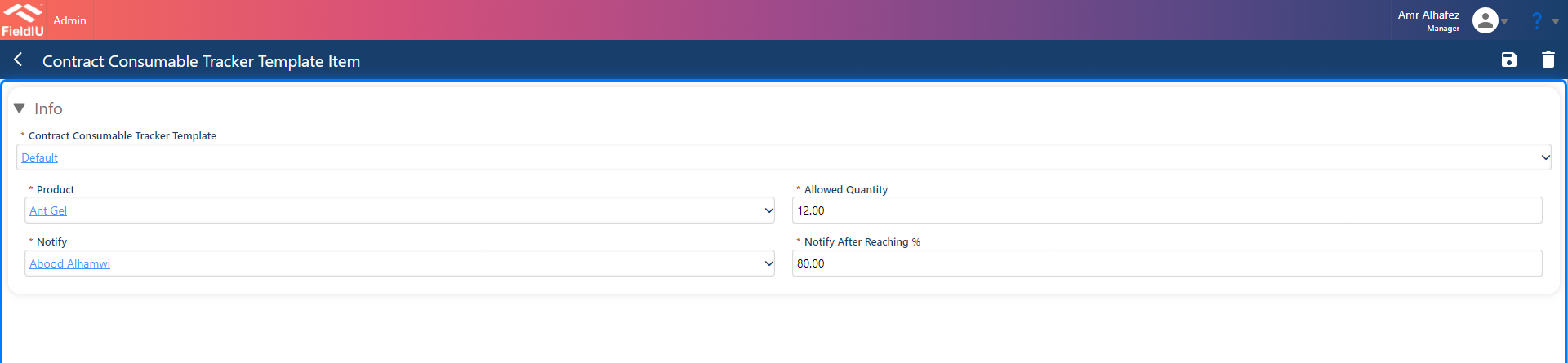
21. Insert Tracked Item
n the tracked items section, you will add the items you want to track. For example, we selected "Ant Gel."
You will also need to add the following details:
-
Allowed quantity for the contract
-
Notify: Select the user who should receive the notification
-
Notify after reaching: Specify the percentage at which the notification should be triggered
⚠️ Save !!
Please remember to save your changes.�����������������������