

Invoice Export Requests
💡 Invoice Export Requests
Invoice Export Requests is a tool designed to help export invoices easily in a single operation.
How To Access It ?
1. Click On Reporting
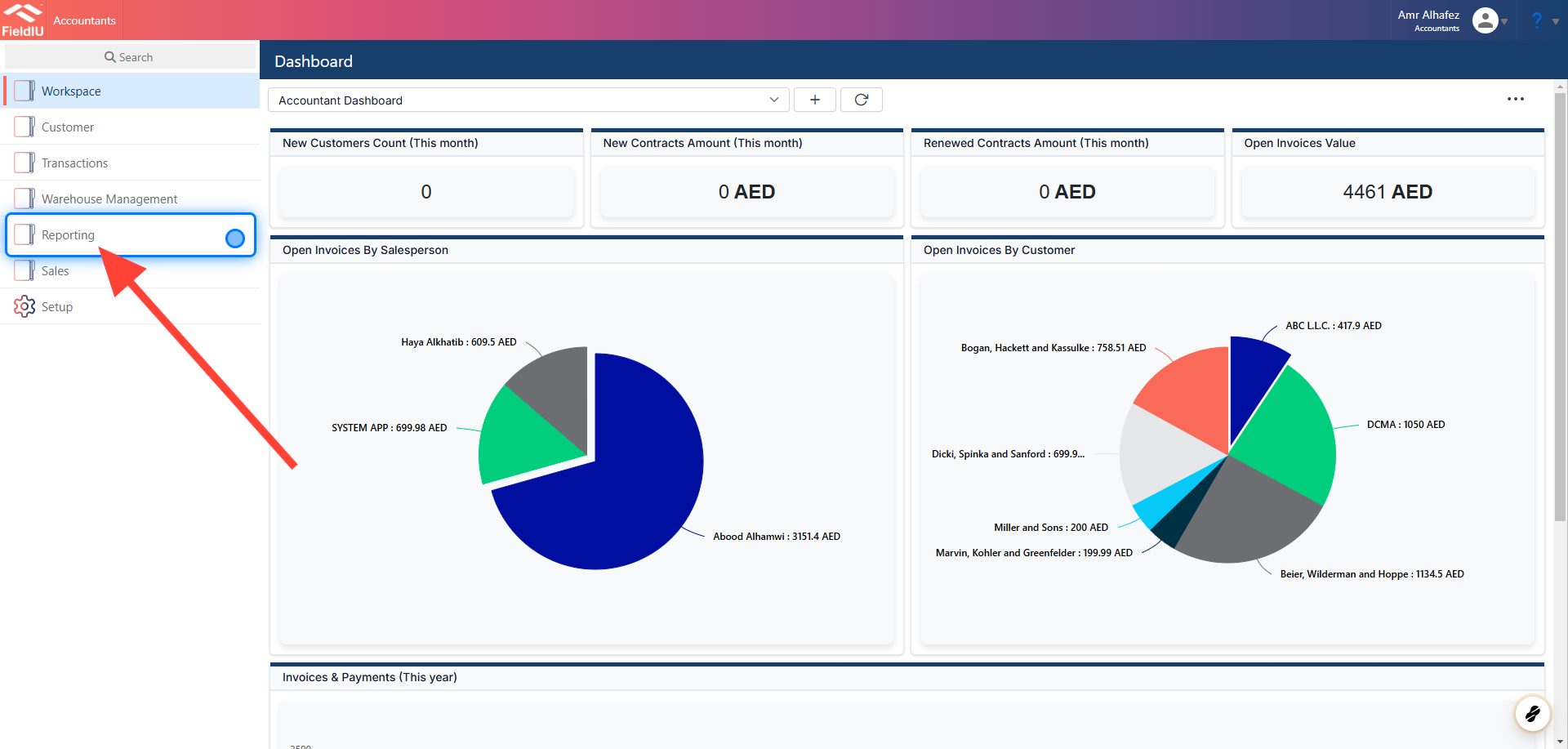
2. Click Invoice Export Requests
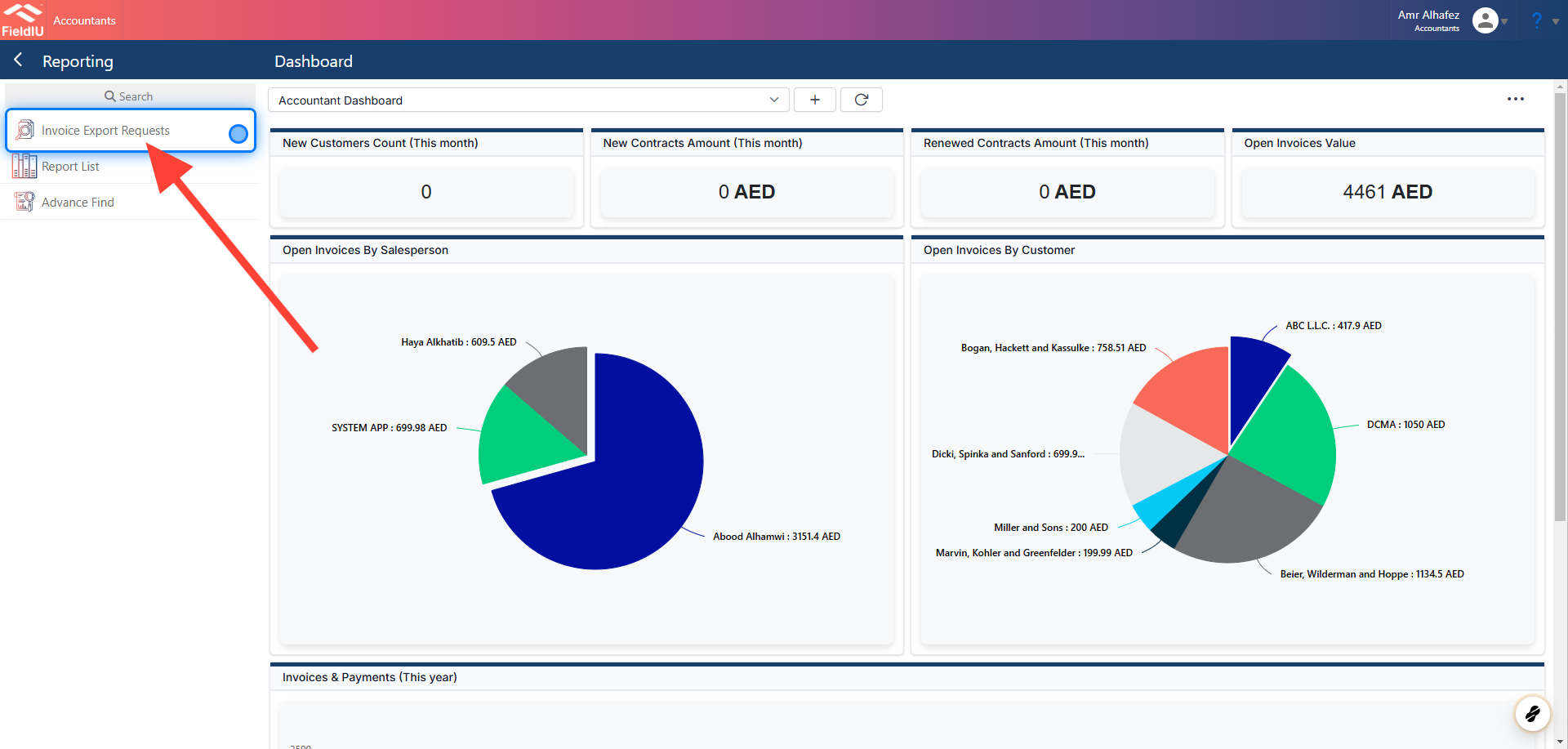
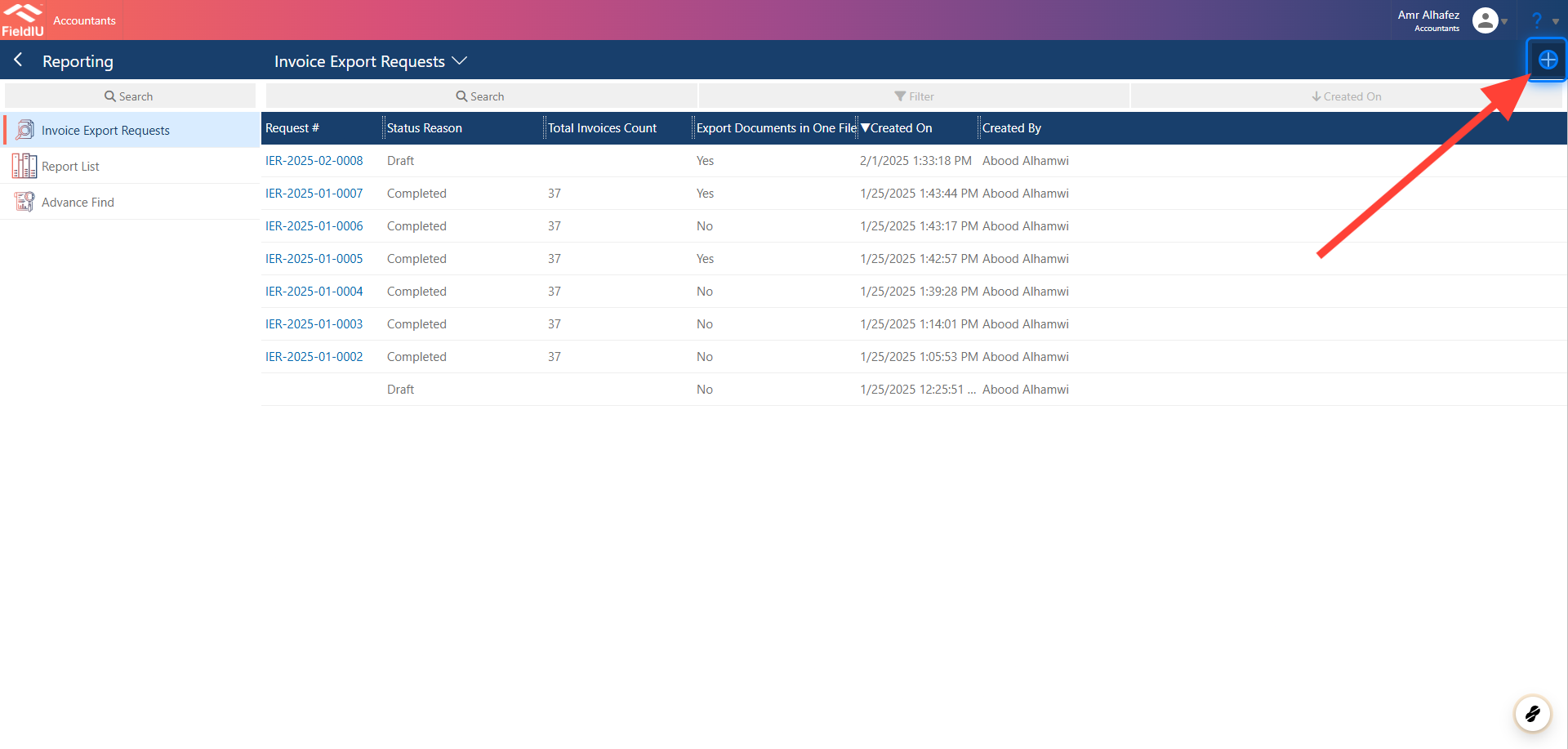
3. Add New & Old Requests
You can add a new request by clicking the + button to create a new request, or you can select an existing record to view it.
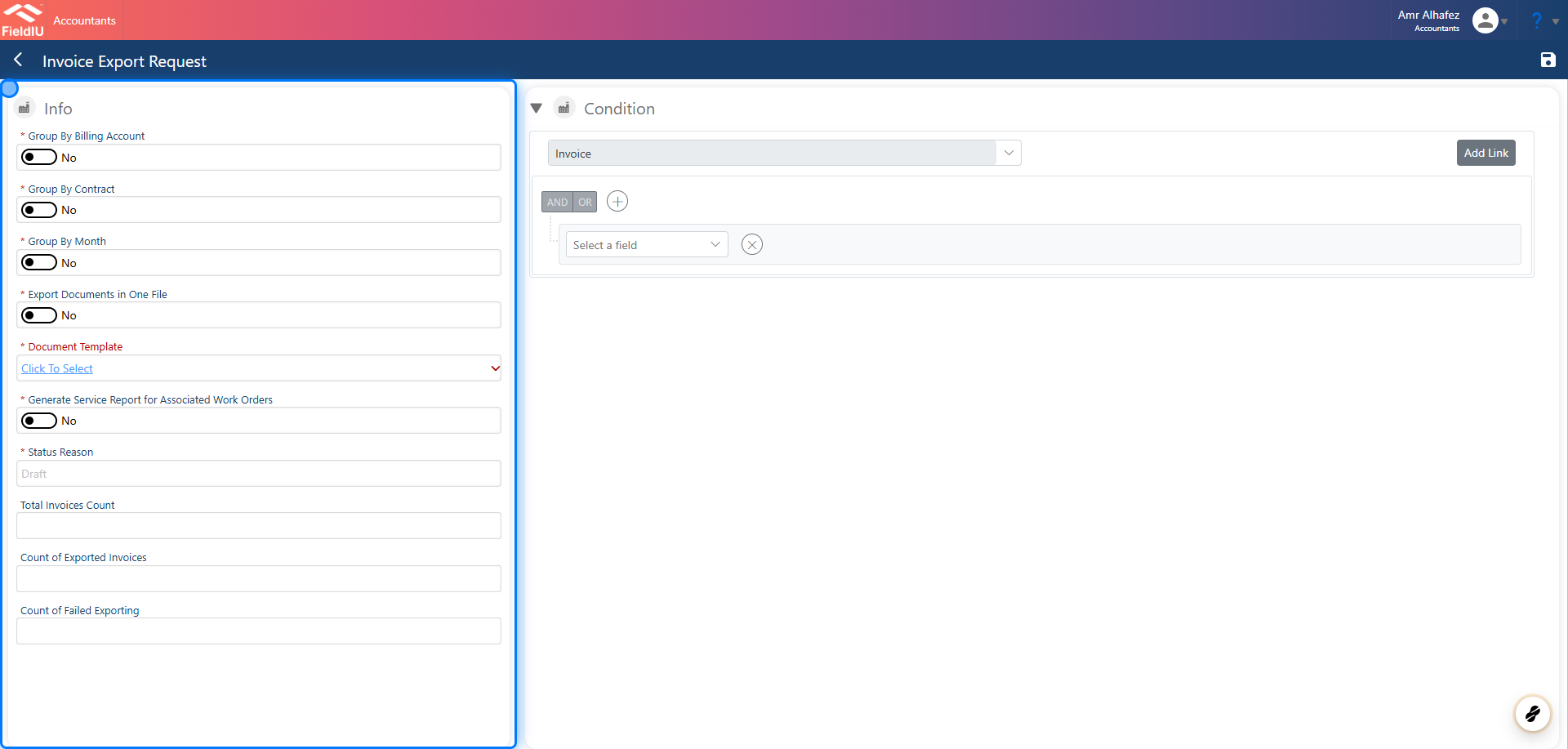
4. Main Screen
On the main screen, you’ll find two sections: one for the main request information and the other for the invoice conditions, allowing you to more specifically select the invoice you want.
5. Grouping
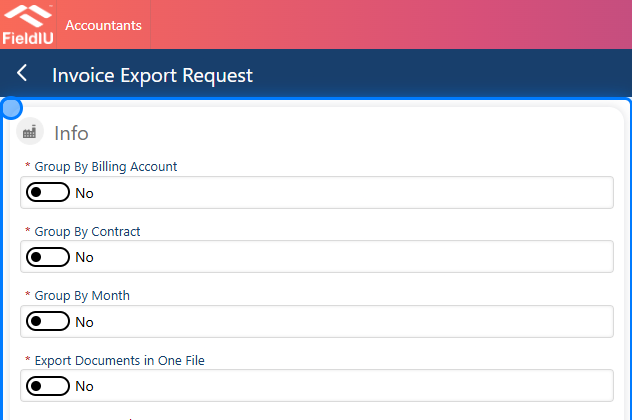
In the grouping settings, you have three options that will organize the invoices into folders based on the selected group setting:
-
Group by Billing Account
-
Group by Contract
-
Group by Month
Additionally, we offer the option to export all documents into a single file.
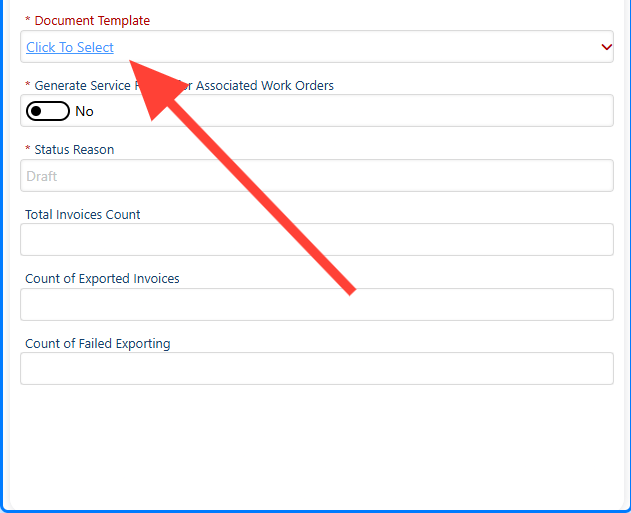
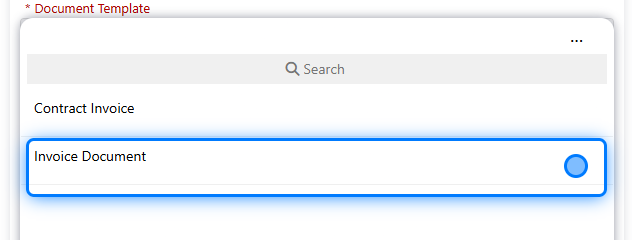
6. Select the Document Template
You can select the invoice template you want to export.
7.
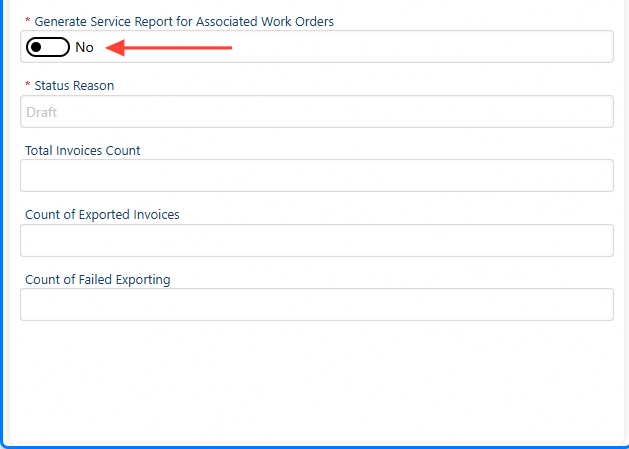
8. Generate a service report for the associated work orders.
Additionally, we have the option to generate a service report for the associated work orders.
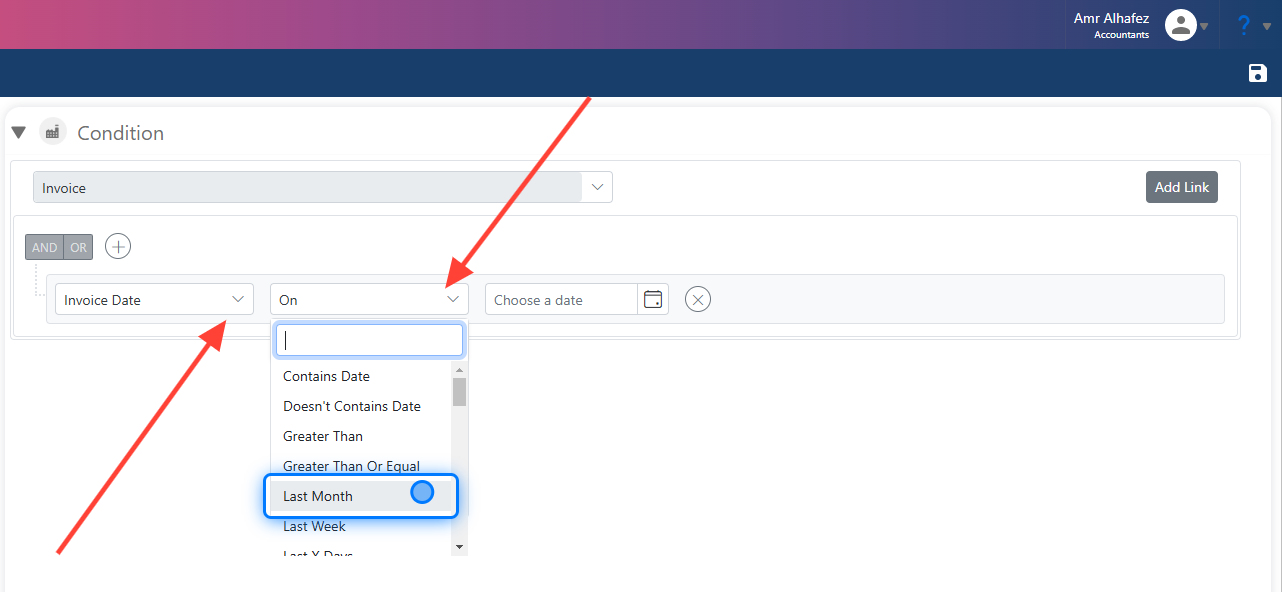
9. Conditions
You can add any condition you want for the invoices. For example, in this case, we will filter or set a condition to include only invoices from the last month.
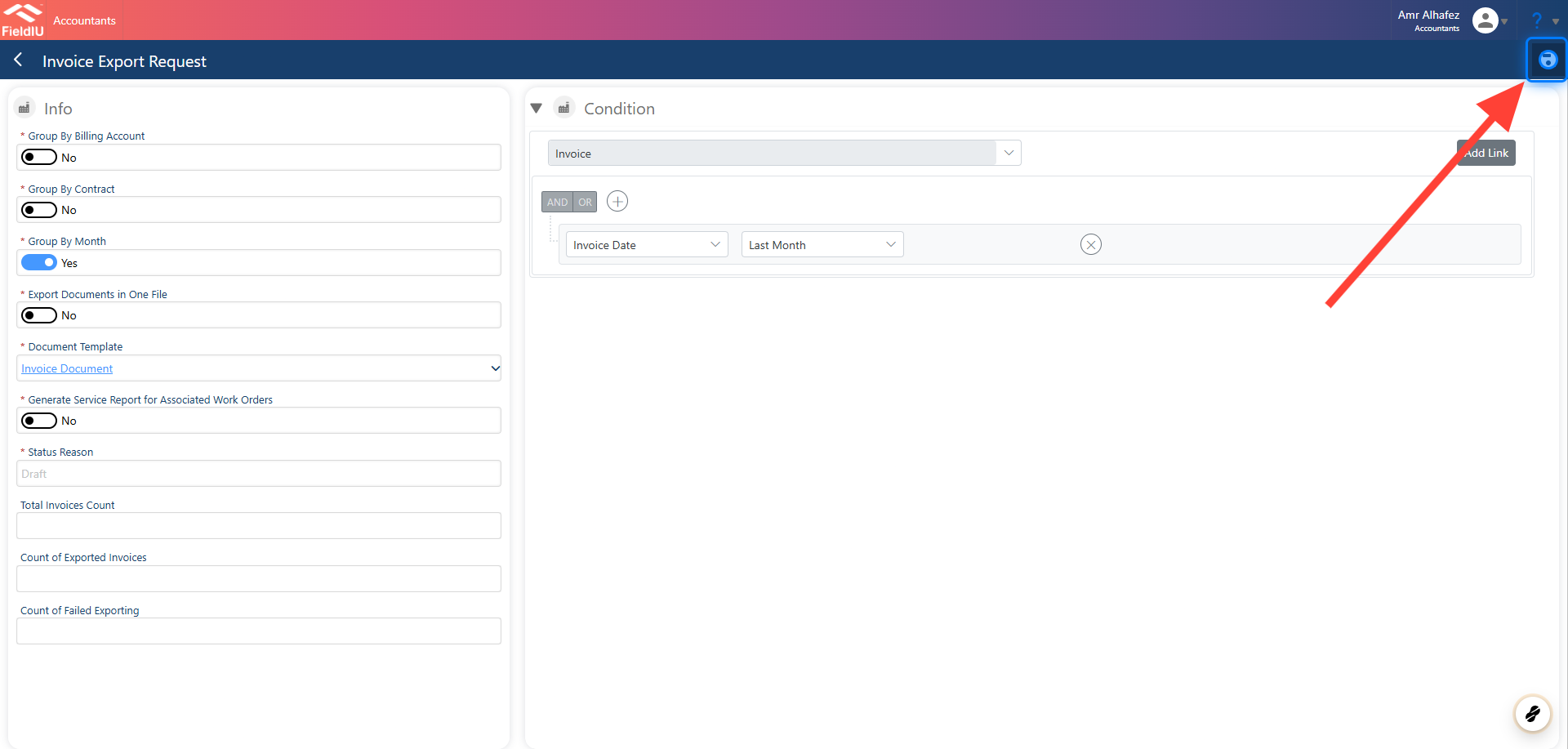
10. Save
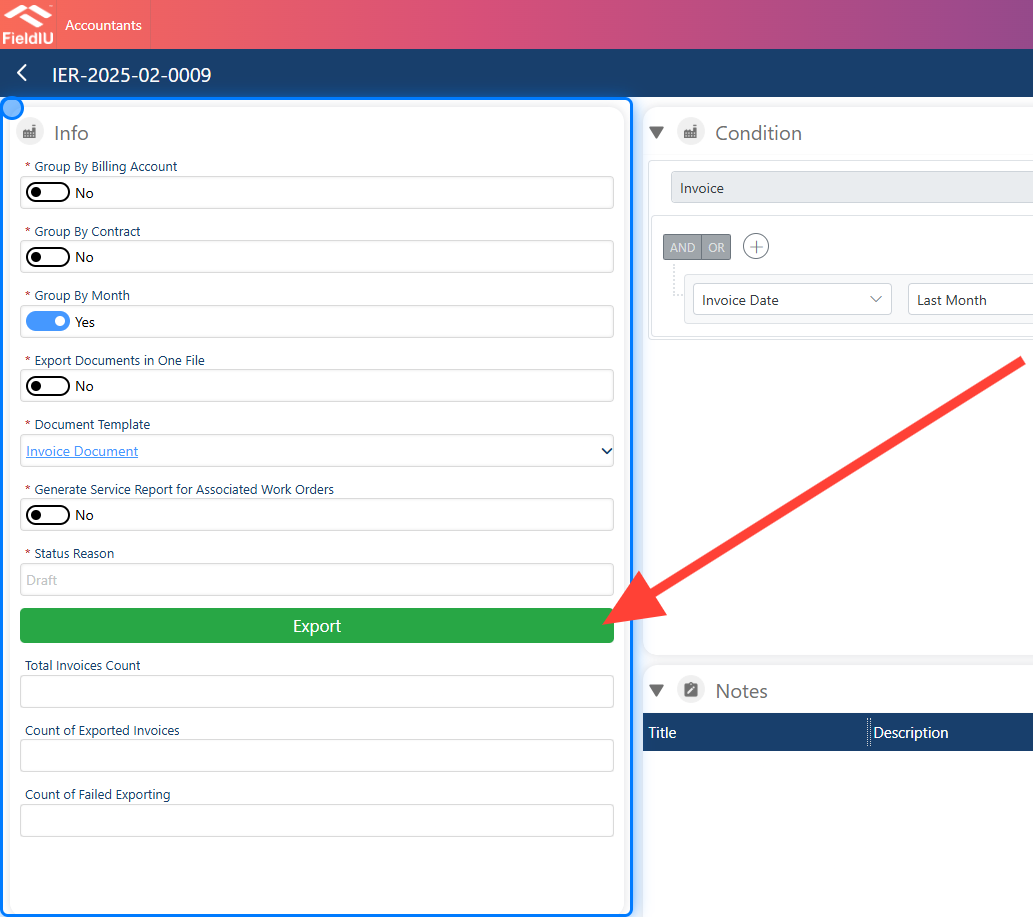
11. Export
Once the request is saved, the system will display the export button, which you can use to start the export process.
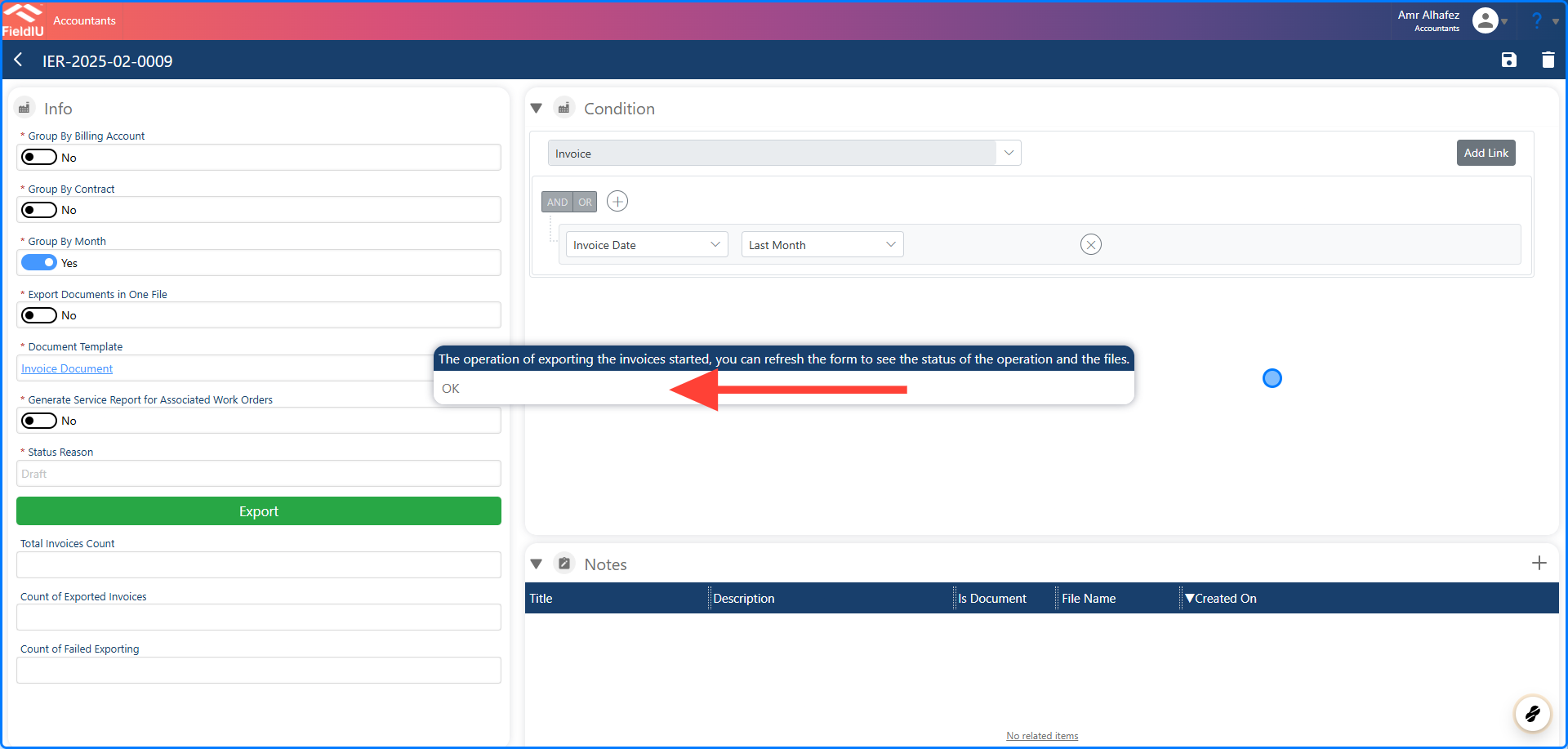
12. Confirm
Once the export process starts, a new dialog will appear notifying you that you can close the page, and the system will continue the process automatically.
13. Status
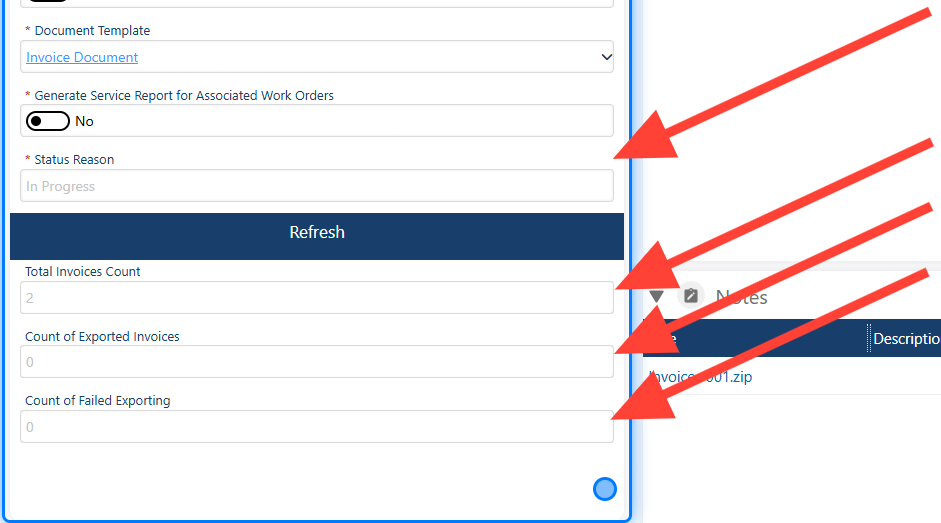
Now, you can see the status of the request, whether it’s in draft, in progress, or completed. Additionally, there are counters where you can view:
-
Total Invoice Count
-
Count of Exported Invoices
-
Count of Failed Exports
14. Download Files
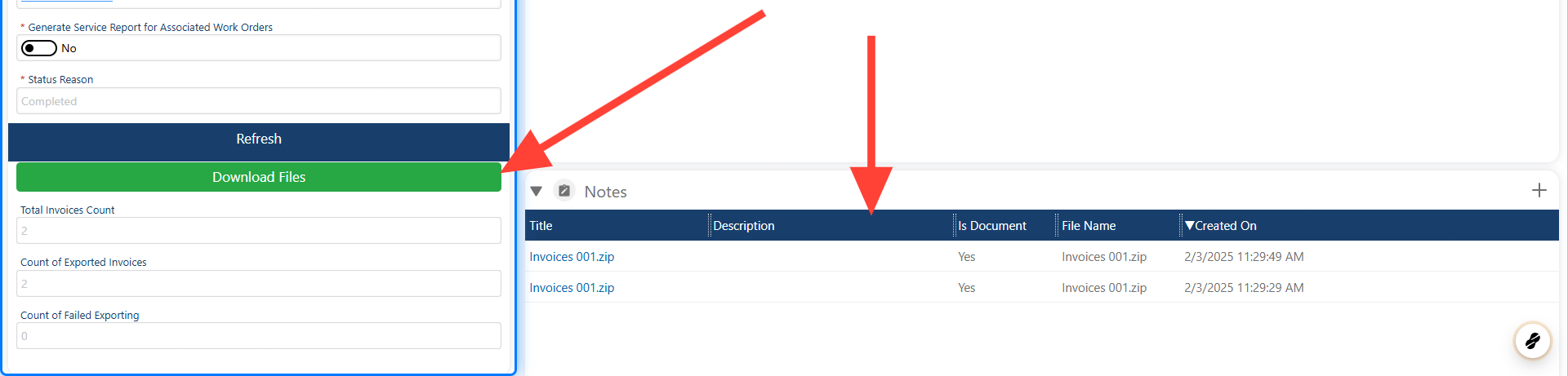
Once the request is complete, the 'Download Files' button will appear, allowing you to see and download the files that have been generated for you.
 �����������������������