

Work Order Validation
is a tool that allows you to check work orders completed at the desk after the field staff have finished their work.
1. Where to find it?
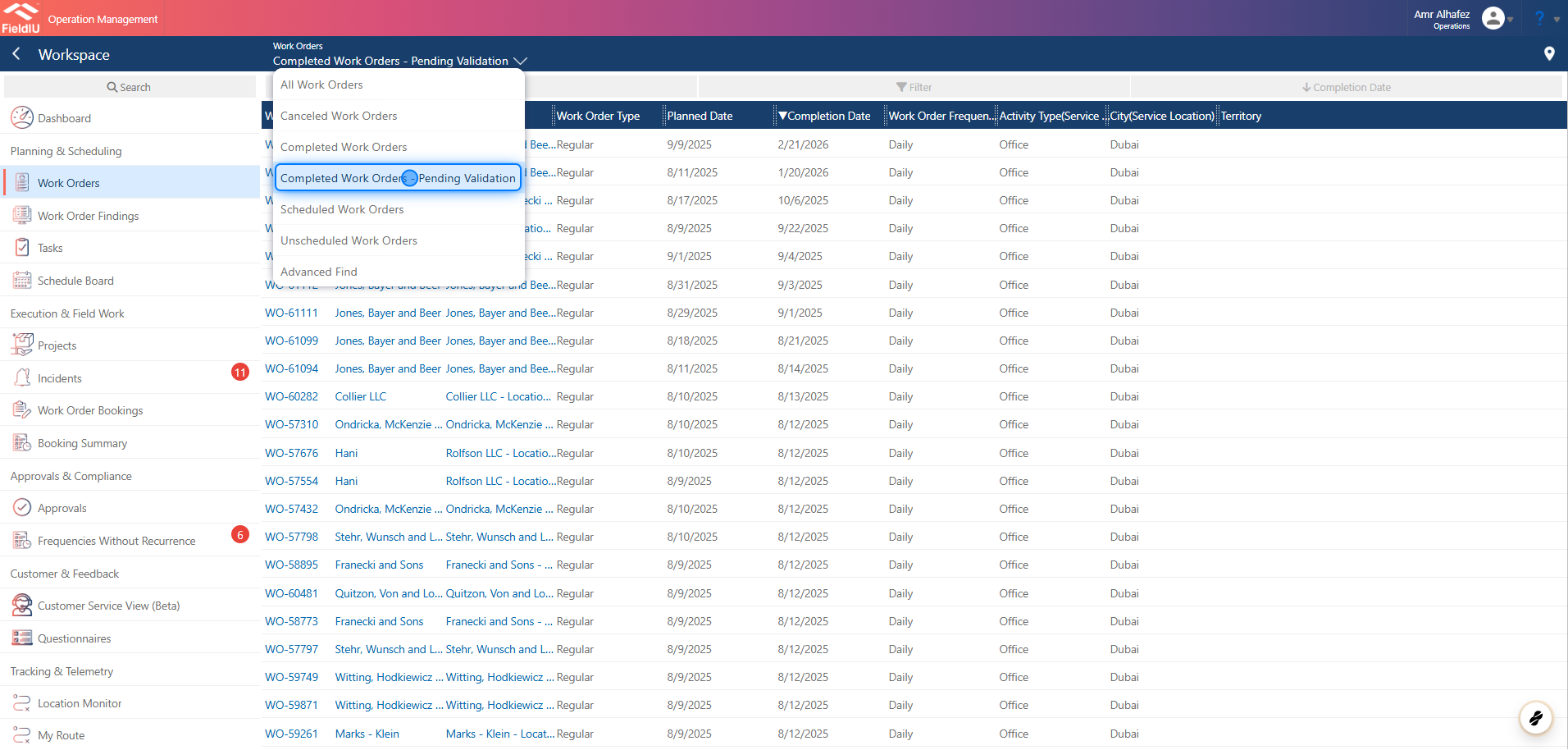
Once you open the Operations app and navigate to Work Orders from the side menu, click on the Views button, then select Completed Work Orders – Pending Validation .
Once you click on the view, the list will display only the work orders pending validation in the system. You can open a work order by clicking on it.
2. What will you find inside?
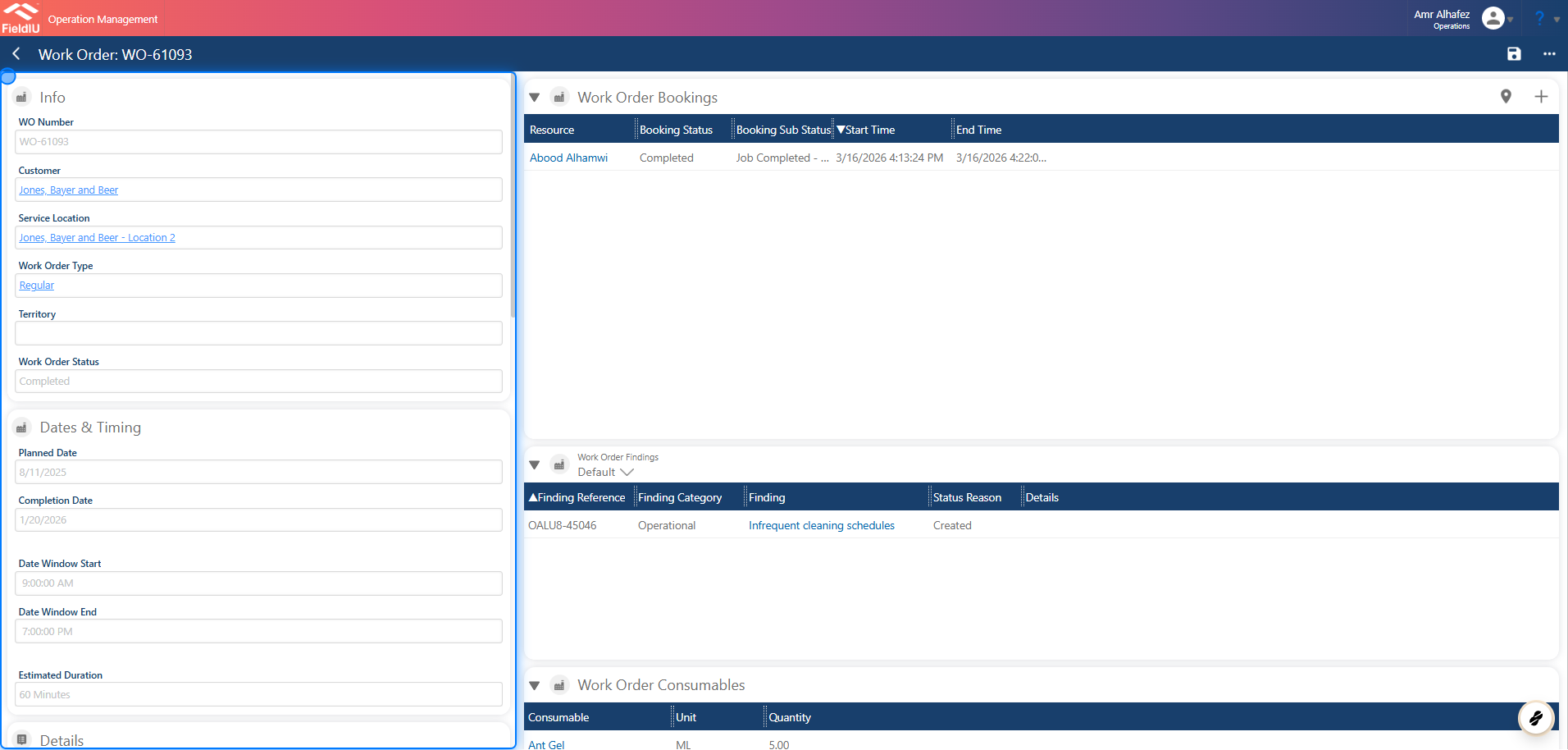
Once you open a work order, you will find all the related data for that work order. You can review different sections such as:
-
Work Order Bookings
-
Work Order Findings
-
Consumables
-
Work Order Services
-
Work Order Tasks
-
Readings Summary
-
Technician Comments
You will also see the main details of the work order, such as the name, completion date, and other key information.
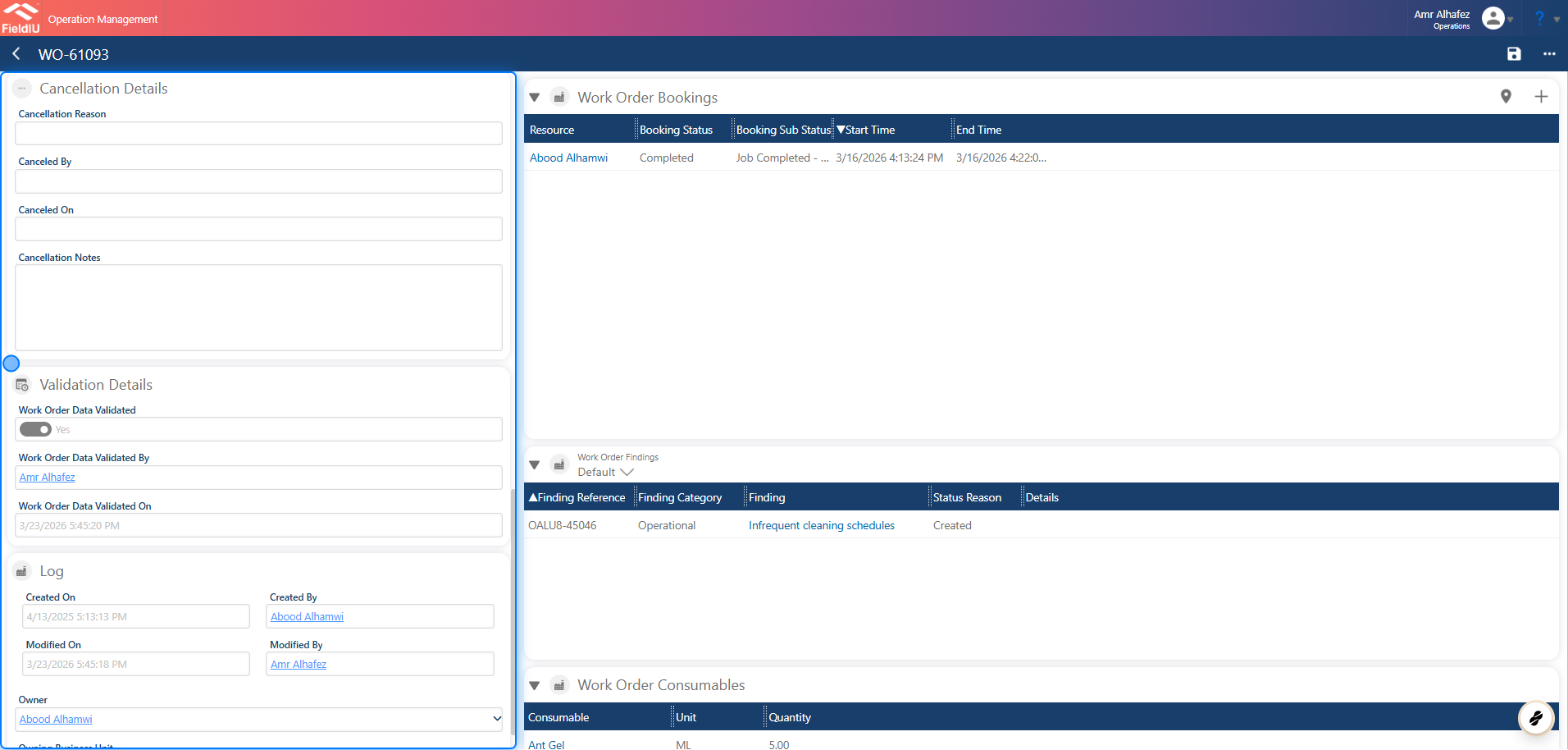
3. Validation Details Section
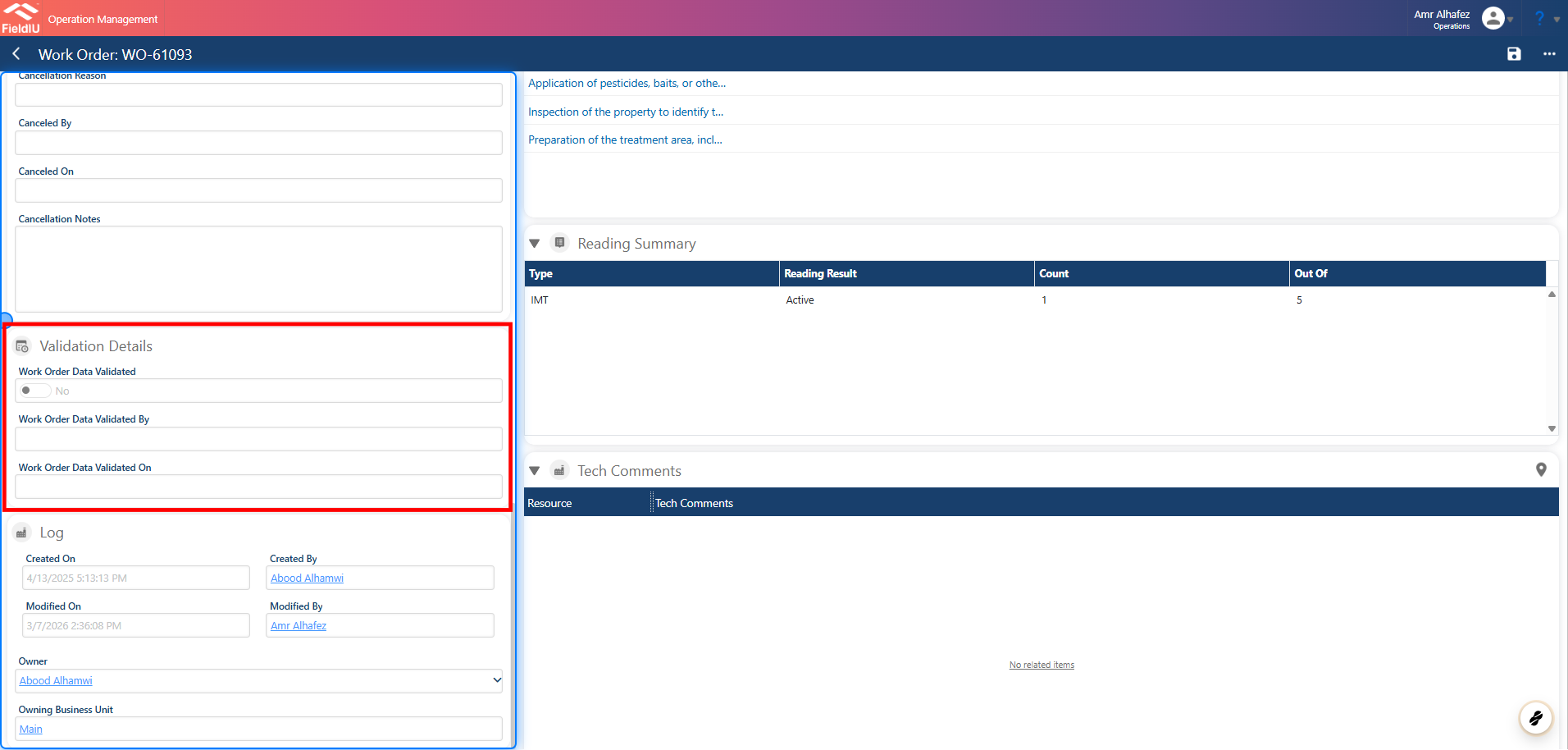
In this section, you can see whether the work order has been validated or not, along with who validated it and when it was validated.
4. Validating
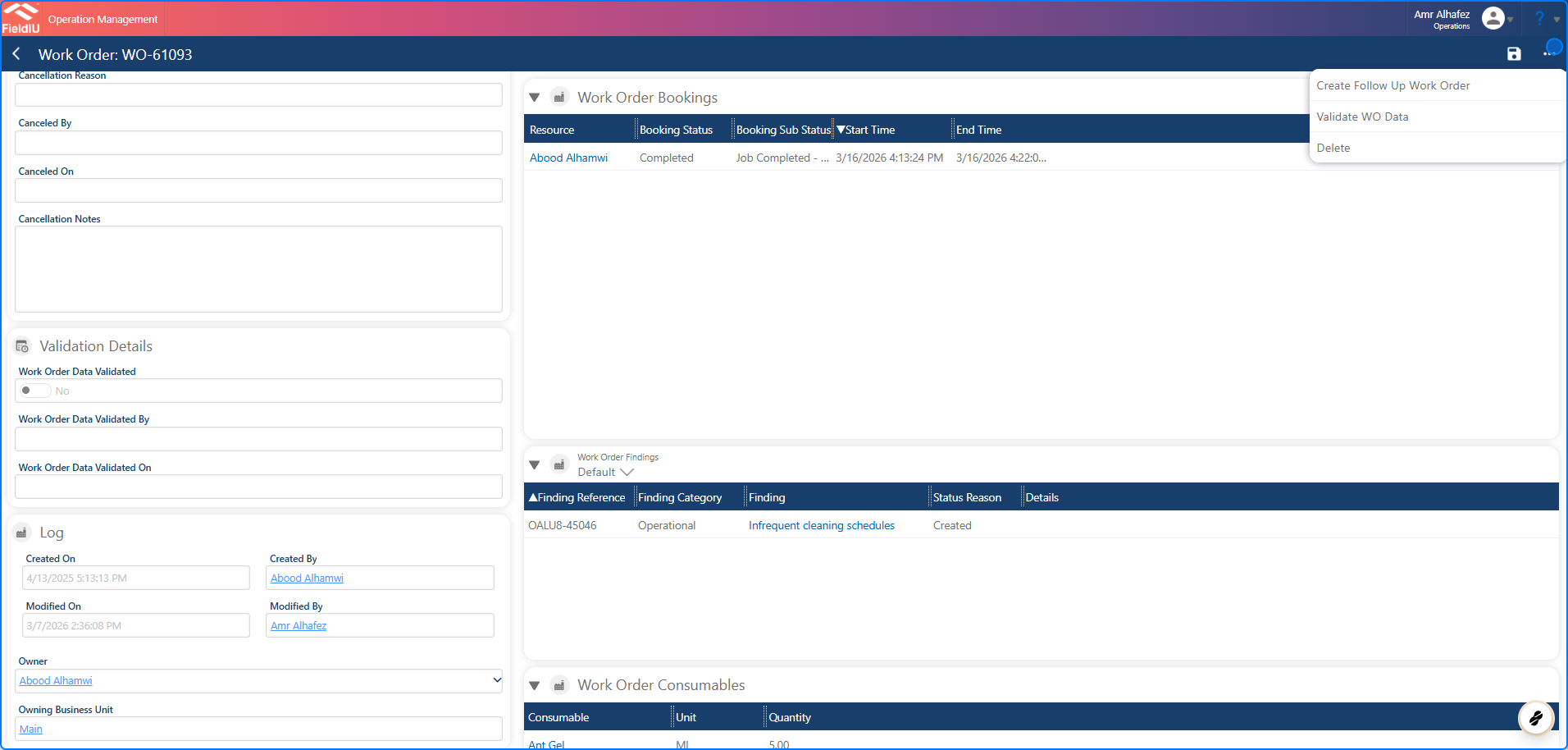
Once you finish reviewing the details, click on the three-dot menu button, then select Validate WO Data to validate the work order.
5. Confirm
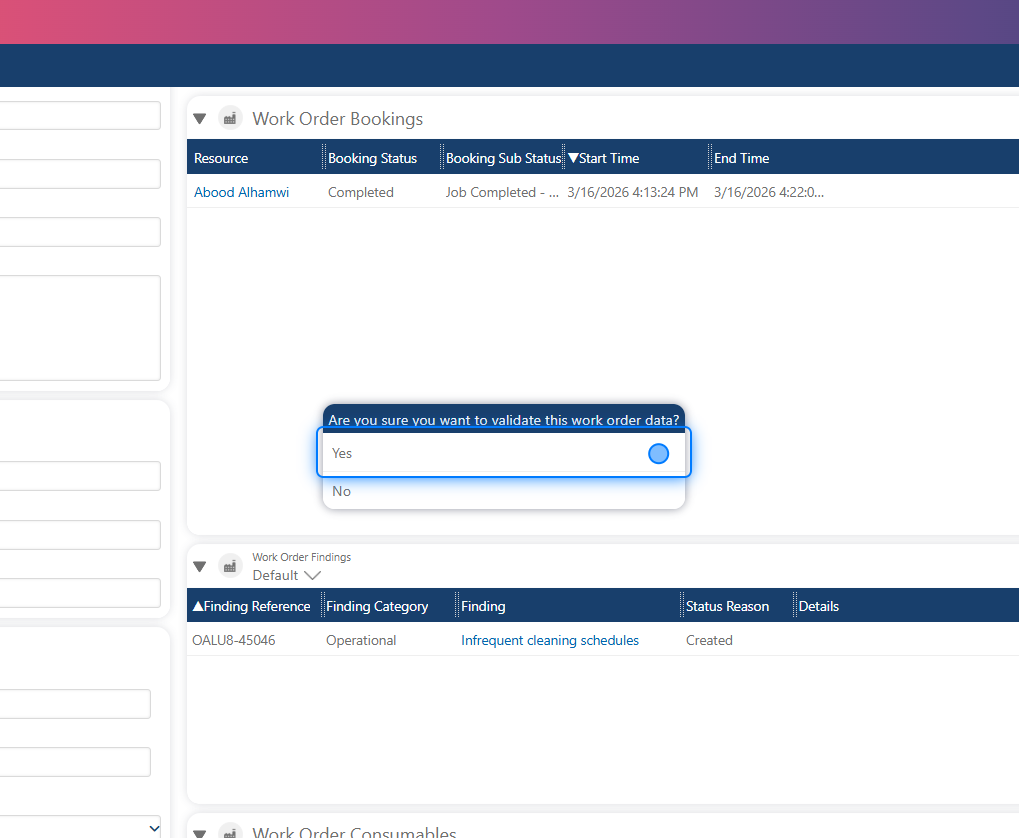
6. Validation Details Section
Once you confirm, the work order will be validated, and the Validation section will be updated with the details, including Validated By and Validated On . The work order will then be removed from the Pending Validation view.
💡 Associate Automation
You can associate automation with this field—for example, to automatically send the report to the customer once it’s validated�����������������������