

Incidents
💡 What is Incidents ?
An incident refers to any event or issue reported by a customer following a pest control service. This could include a callback for follow-up services or when a pest problem persists or was not fully resolved during the regular visits. Incidents are typically logged when the customer experiences a problem that requires additional attention outside the scope of the initial service, such as a recurrence of pest activity or an unresolved pest issue.
1. Creating New Incident
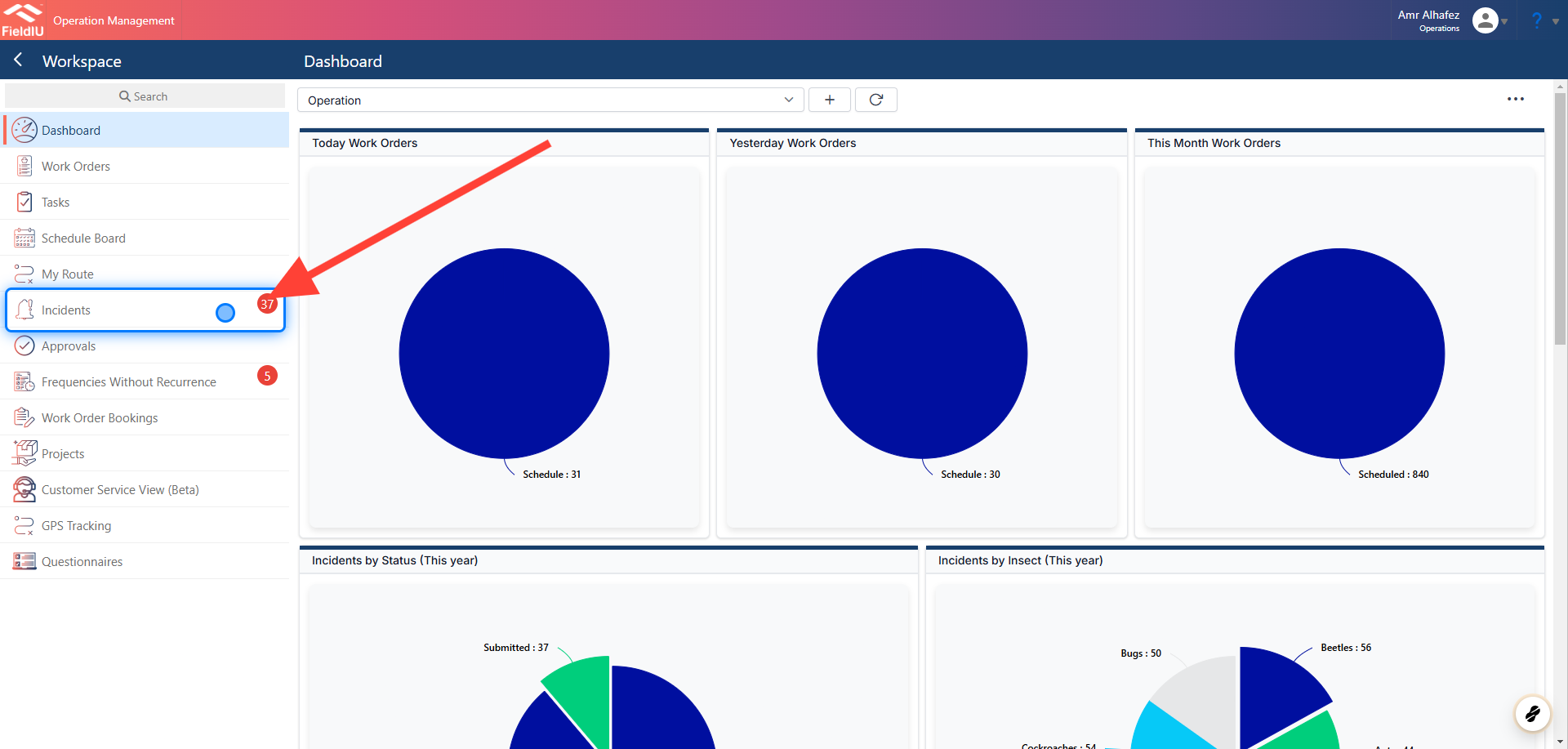
You can find the incidents in the sidebar menu.
2. Main Screen
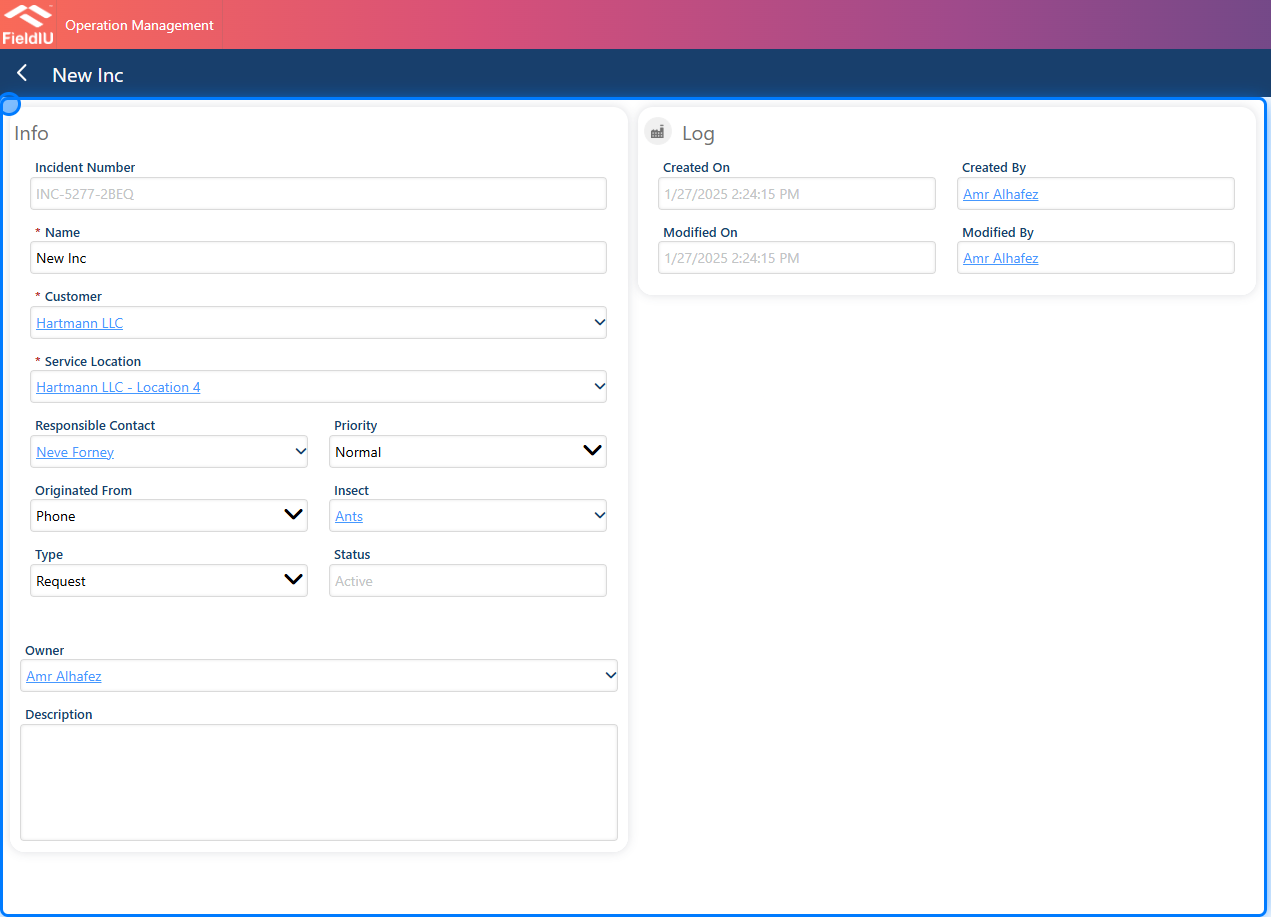
Once you create a new incident, you have to insert the main data for the incident:
-
Name
-
Customer : Just select the customer.
-
Service Location : Select the service location for the customer that has the incident.
-
Responsible Contact : You need to select the responsible contact.
-
Priority : Here, you can add the priority for the incident, whether it is High, Normal, or Low.
-
Originated From : Select how you were informed about the incident, whether it was from a phone call, email, or the customer portal.
-
Insect : Select the insect or pest activity.
-
Type : Here, you select the type of the incident, whether it was a question, problem, request, or other.
-
Status : View the incident status.
-
Description : If you have any description you'd like to add to the incident, you can insert it in the description field.
💡 Save
Once you save the incident, new sections and options will open for you.
3. Options
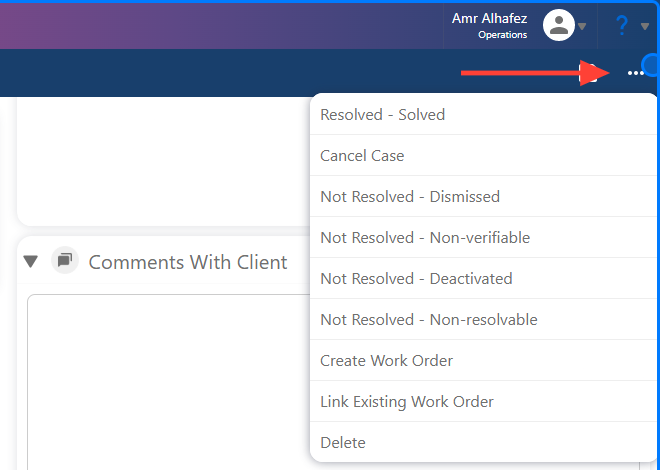
Now, once we save the incident, we have many options to deal with it:
-
Resolved - Solved
-
Cancel Case
-
Not Resolved - Dismissed
-
Not Resolved - Non-verifiable
-
Not Resolved - Deactivated
-
Not Resolved - Non-resolvable
-
Create Work Order : Here, you can create a work order ("visit") and schedule it.
-
Link Existing Work Order : Here, you can link the incident to an already existing work order.
4. Work Order Section
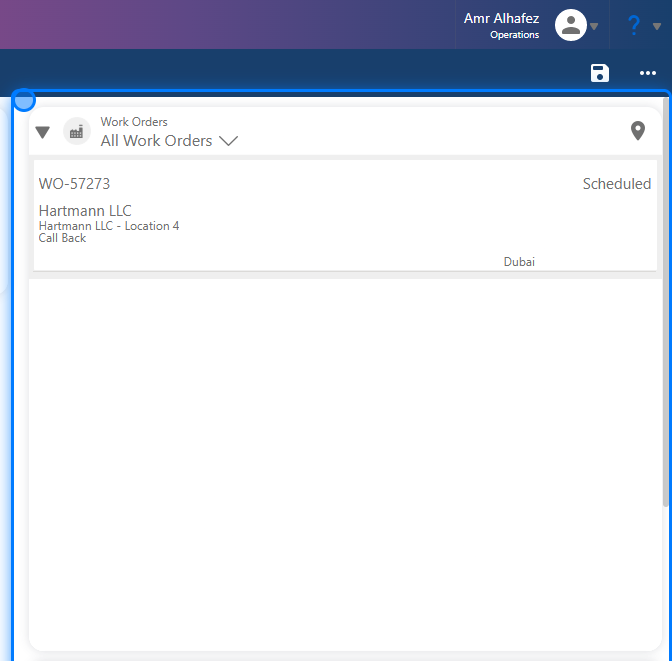
The Work Order section is where you will see the created work orders for this incident or the linked work orders associated with it.
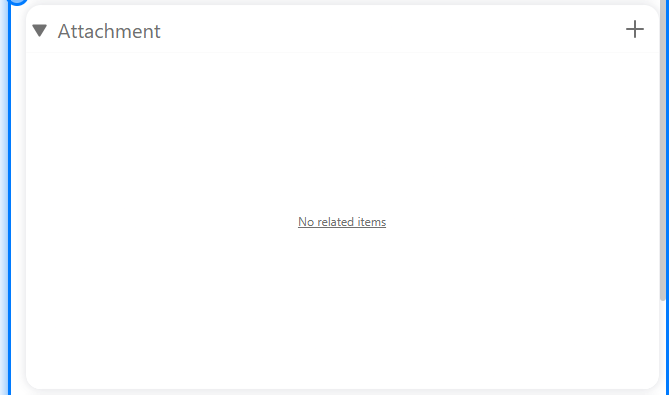
5. Attachment Section
In the Attachment section, you can add any files or images related to this incident.
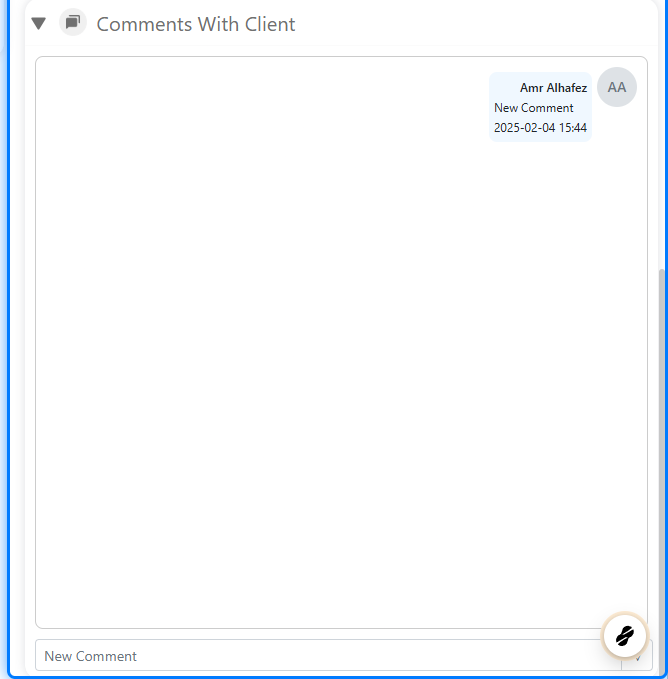
6. Comment Section
In the Comments section, you can add comments for the customer so they can see and respond to them from their portal access, if they have portal user access.
 �����������������������