

Portal Invitation
💡 What is Portal ?
The portal is where your customer can view all their contract details, services provided, findings, chemicals used during visits, and more. Next, we will show you how to send an invitation to the portal from your dashboard.
Assign Access To Portal
💡 Who Have Access ?
We have 2 types of permissions for portal access:
Permission that allows the customer to access the portal for a specific contract line only.
Permission that allows the customer to view all contract line details in the portal.
Assign Permission to Customer
💡 Contract Line Permission
1. Enter The Contract Line
Enter the contract line, then scroll to the right side to find 'Portal Contacts.
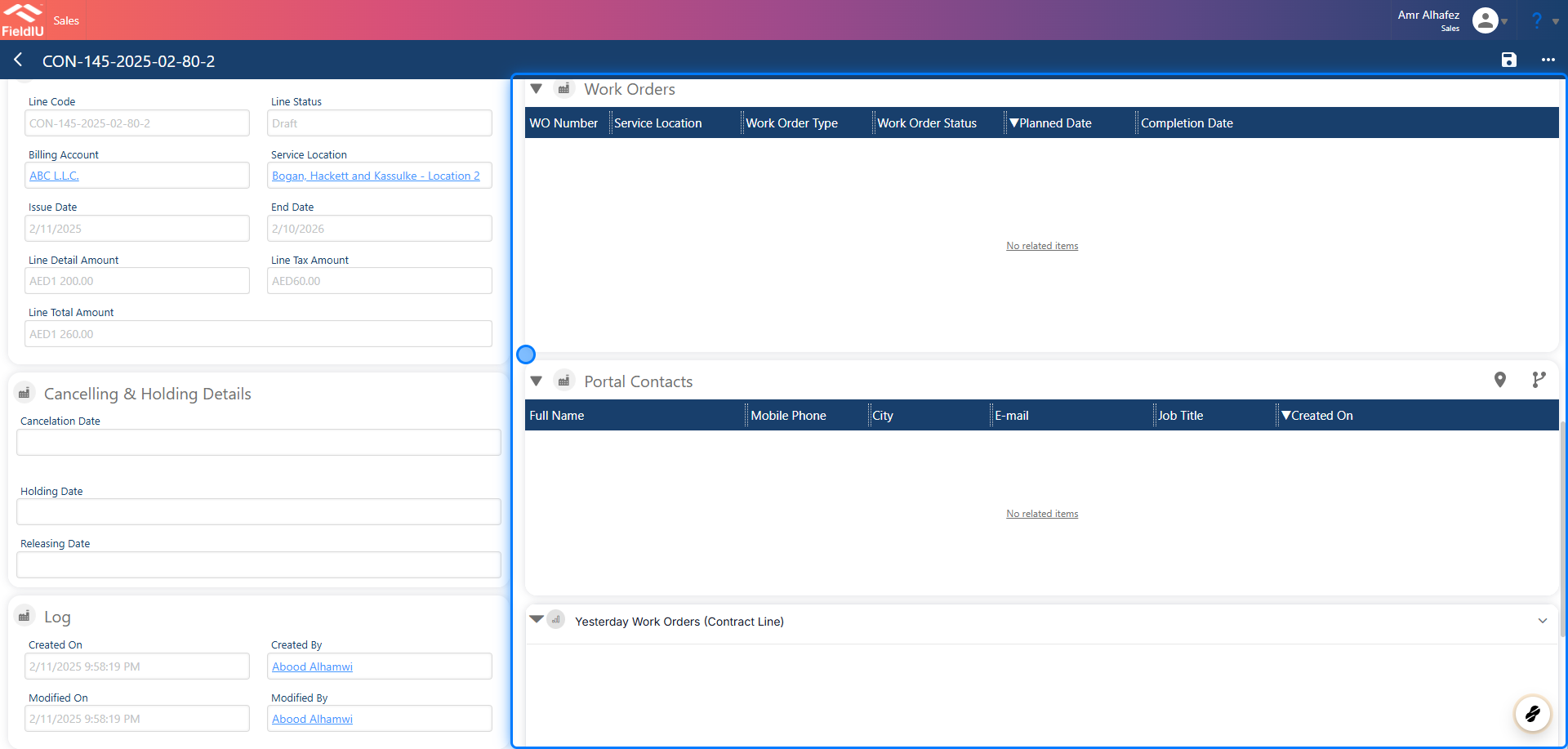
2. Link The Contact
Click on the link icon, then select the contact to whom you want to grant portal access for this contract line.
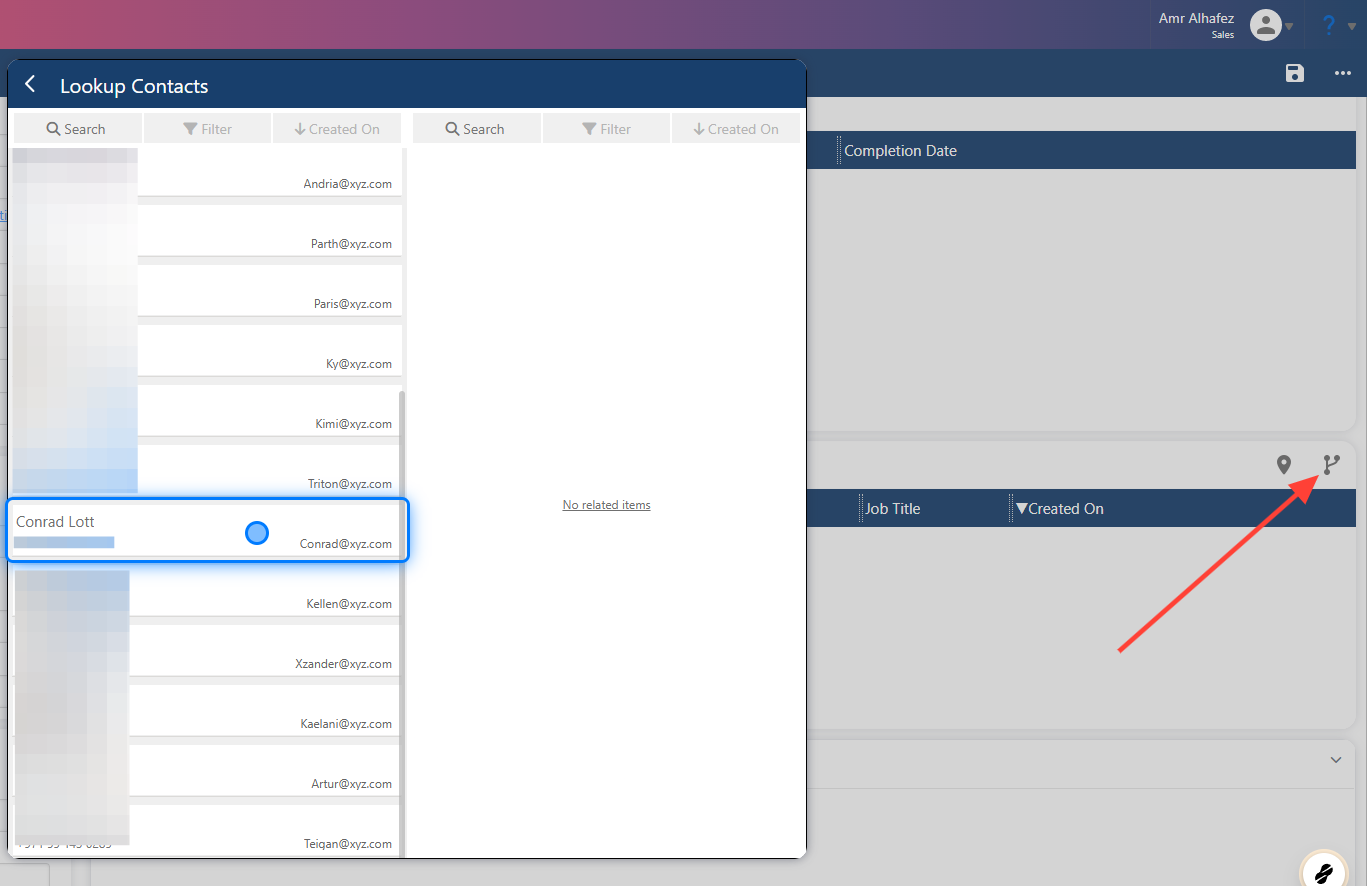
⚠️ SAVE
💡 Whole Contract Permission
3. Enter The Contract
Enter the contract, then scroll to the left side to find the 'Portal Settings' section.
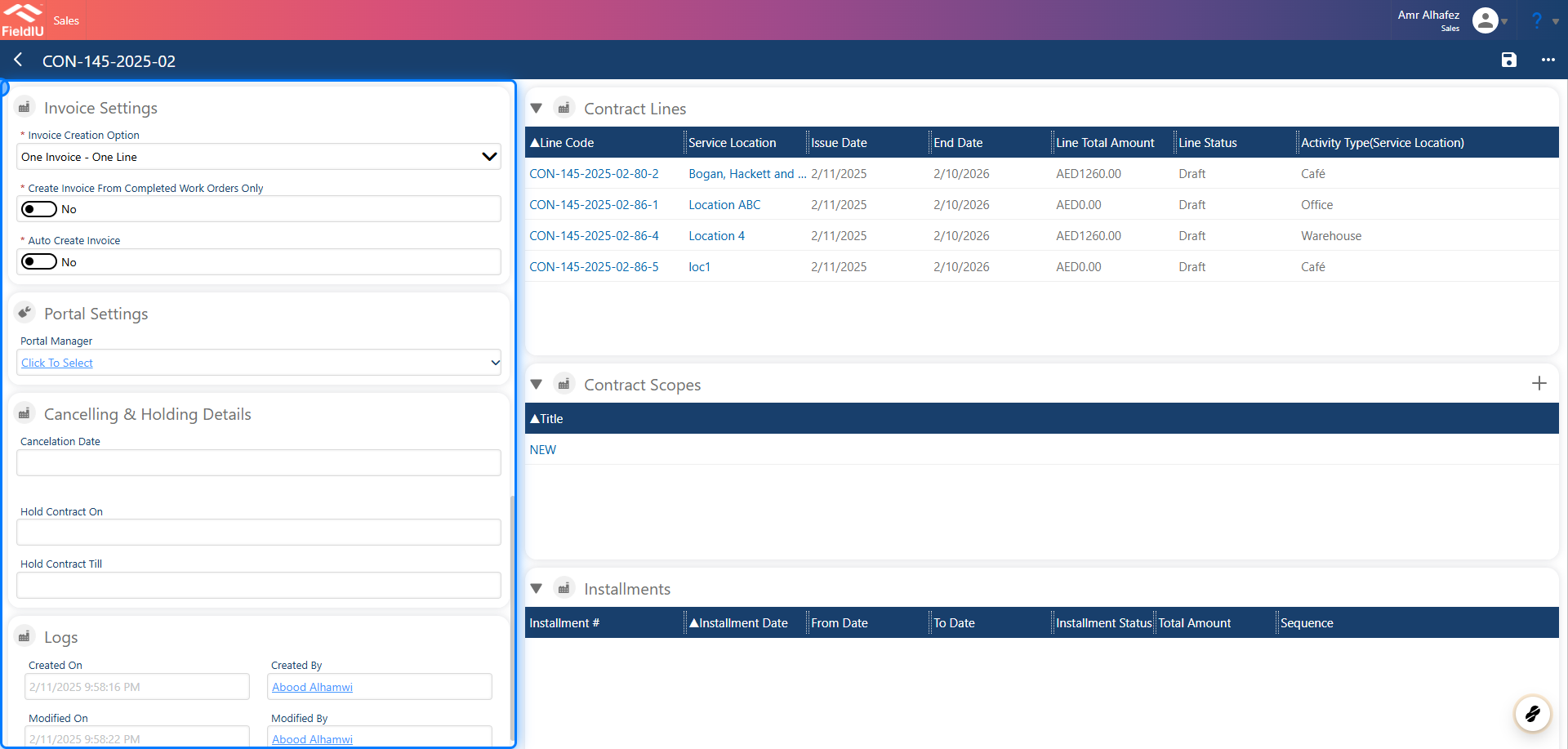
4. Select The User
Select the user who will be granted permission to access all the contract portal details.
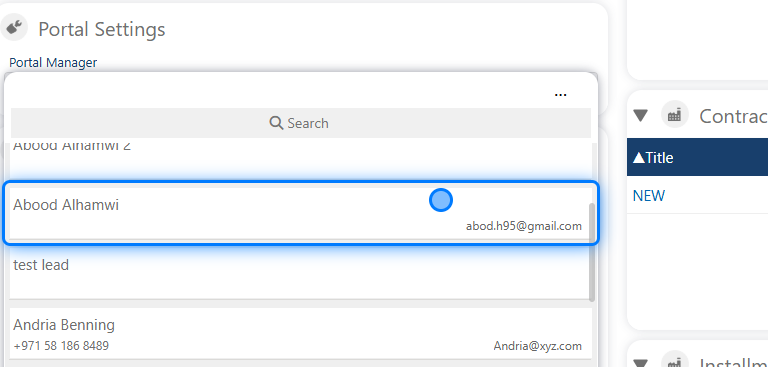
⚠️ Save
Sending Invitations
5. Access Portal Invitations
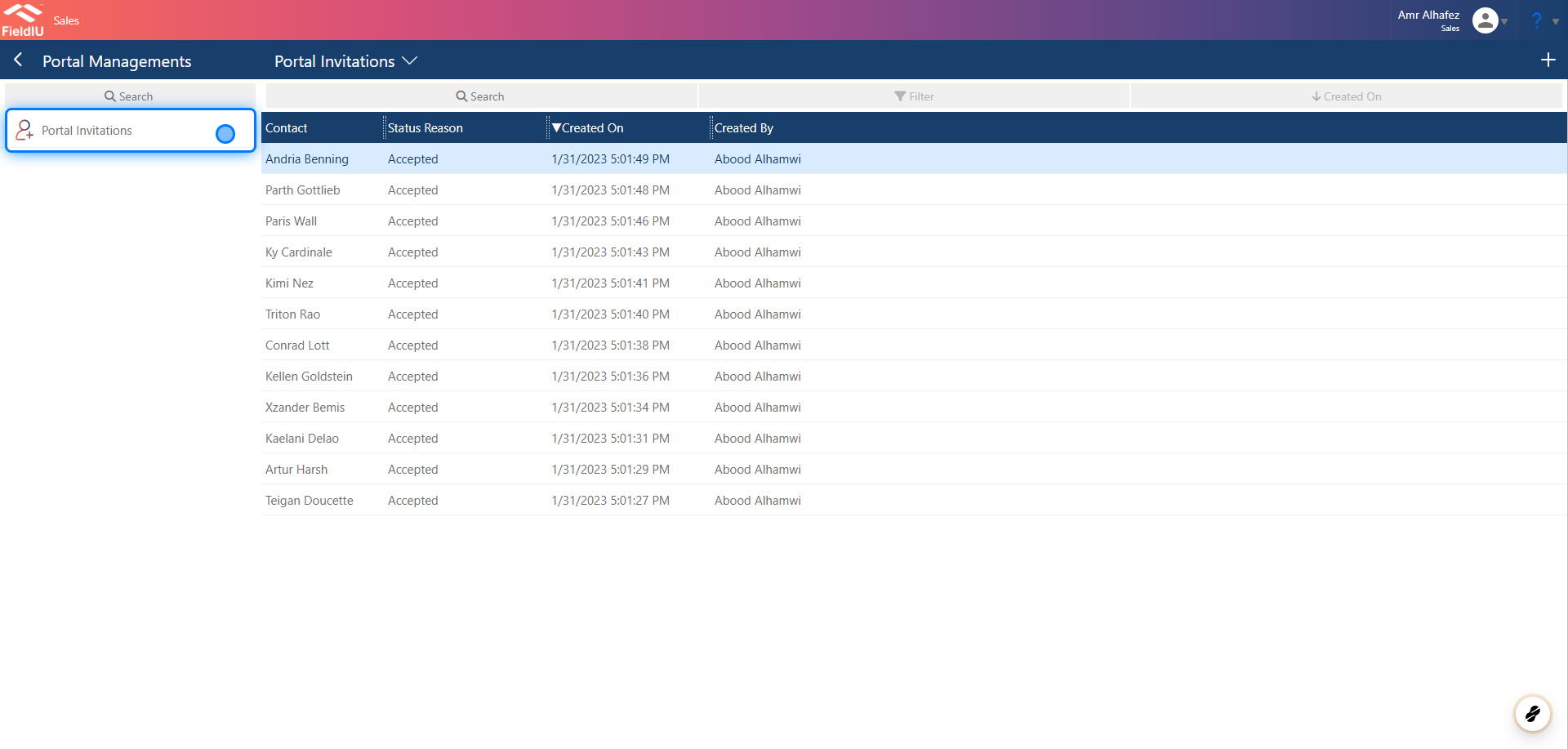
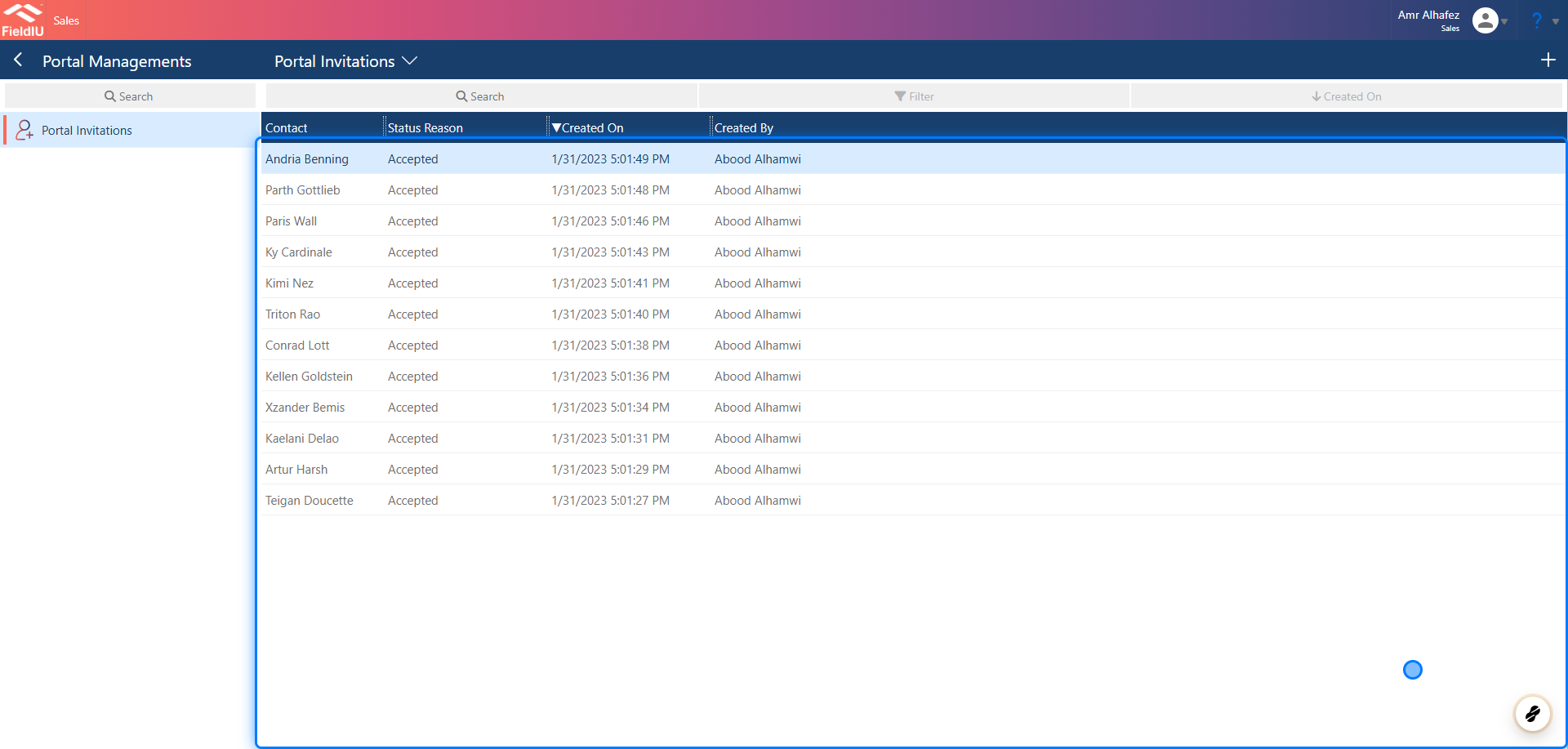
6. All Invitations
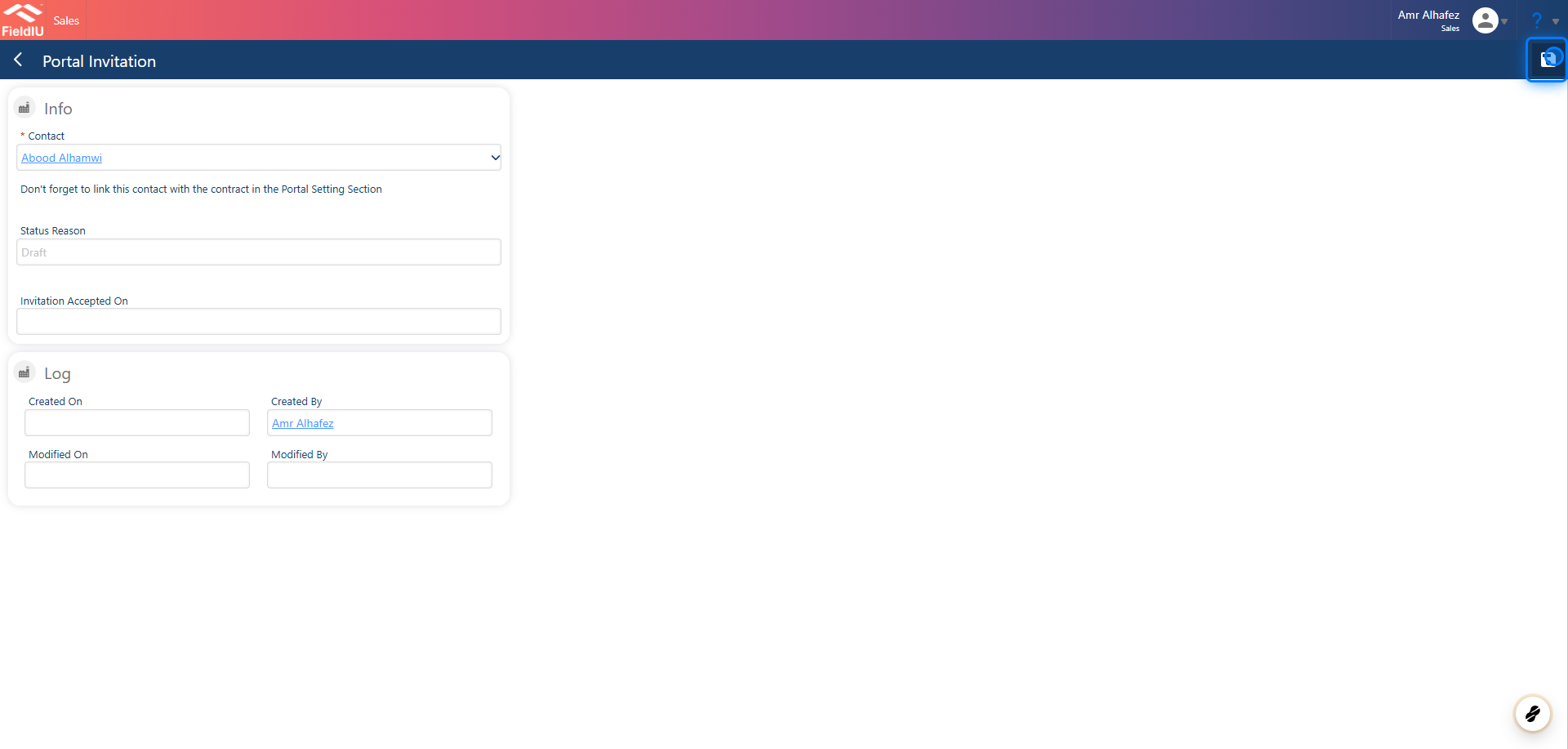
Here you can find all the invitations that you've sent , and create another invite request
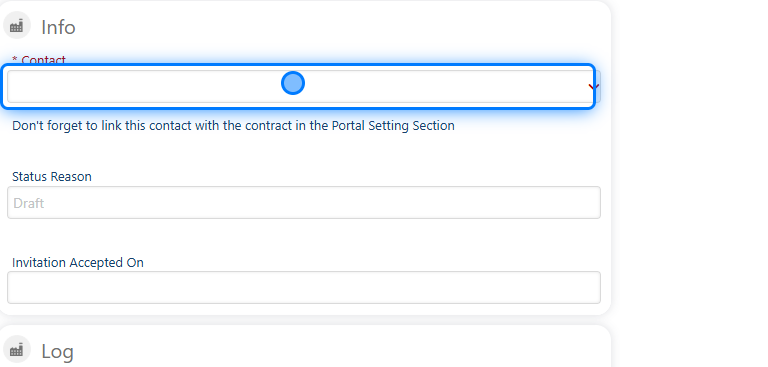
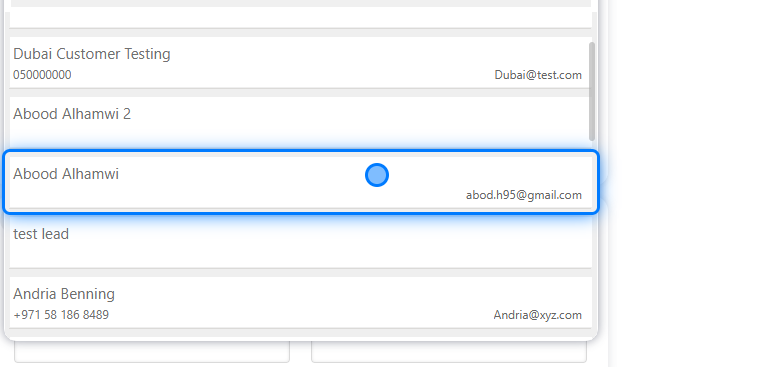
7. Select the contact
8.
9. Save
⚠️ Important
Don't forget to link this contact with the contract in the Portal Setting Section
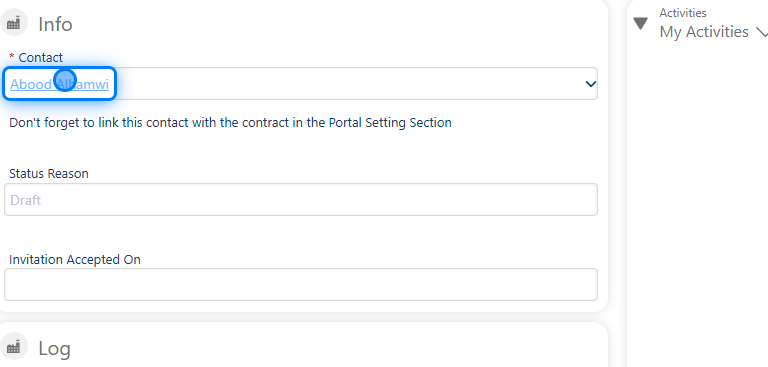
10. Click on the Contact
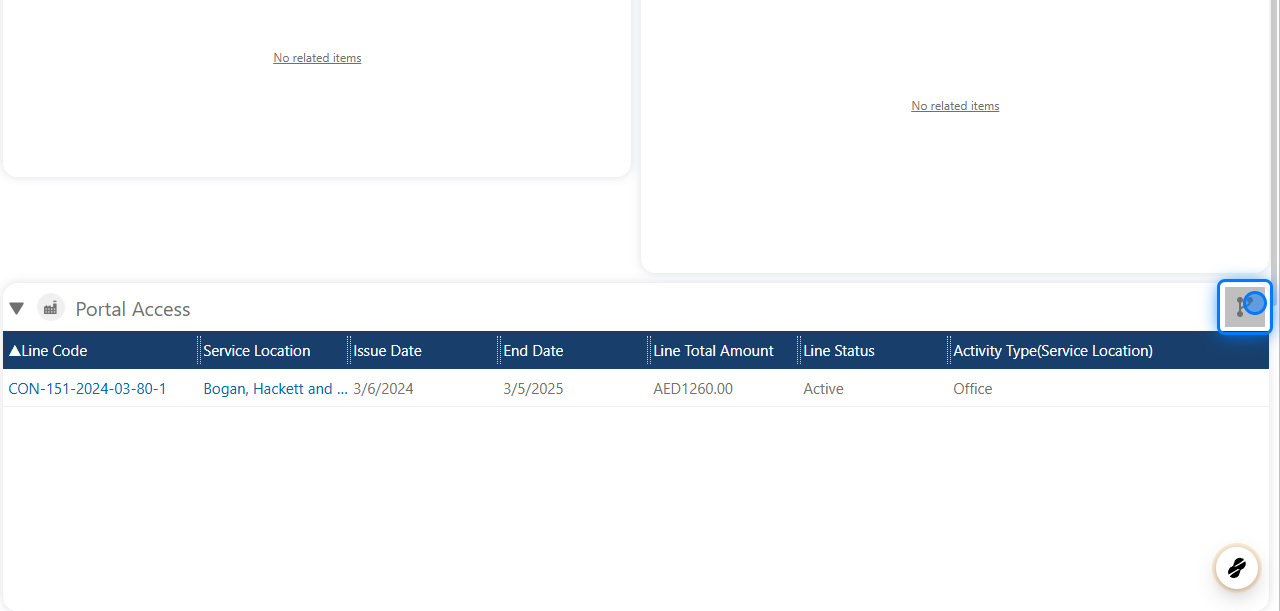
11. Link the Contract
From the Portal access section in the contact form , link the contract
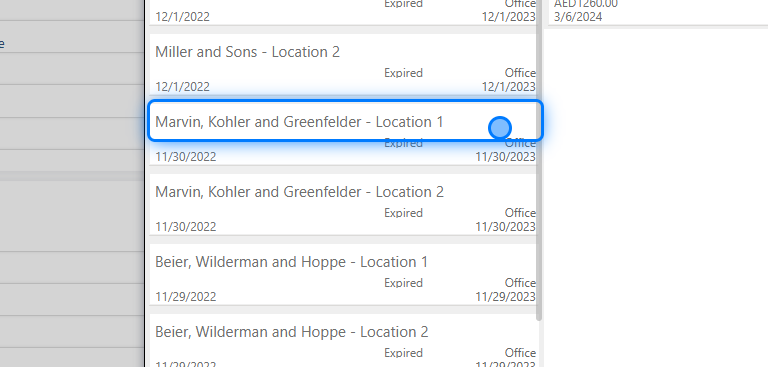
12. Select the contract
13. Save
Don't forget to save
Revoke And Invitation Accept
14. Invetation Accept
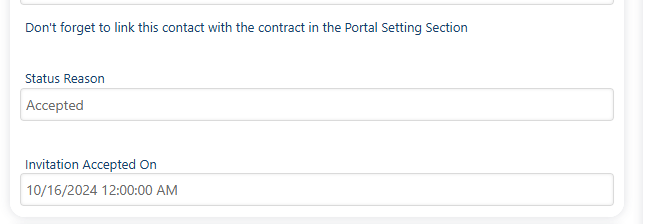
In the portal's Invitations forms, you can find the "Invitation Accepted On" field, which shows the date when the invitation was accepted.
15. Revoke invitation
You can also revoke the invitation, lock it, and change the contact’s permissions.
 �����������������������