

Trend Analysis
The Trend Analysis Tool provides a comprehensive way to visualize and analyze data trends based on your selected parameters. By choosing different Trend Types , such as Readings, Consumables, Findings, Work Order Status, and Completed Work Orders, you can generate detailed insights into various aspects of your operations.
1. Where it is ?
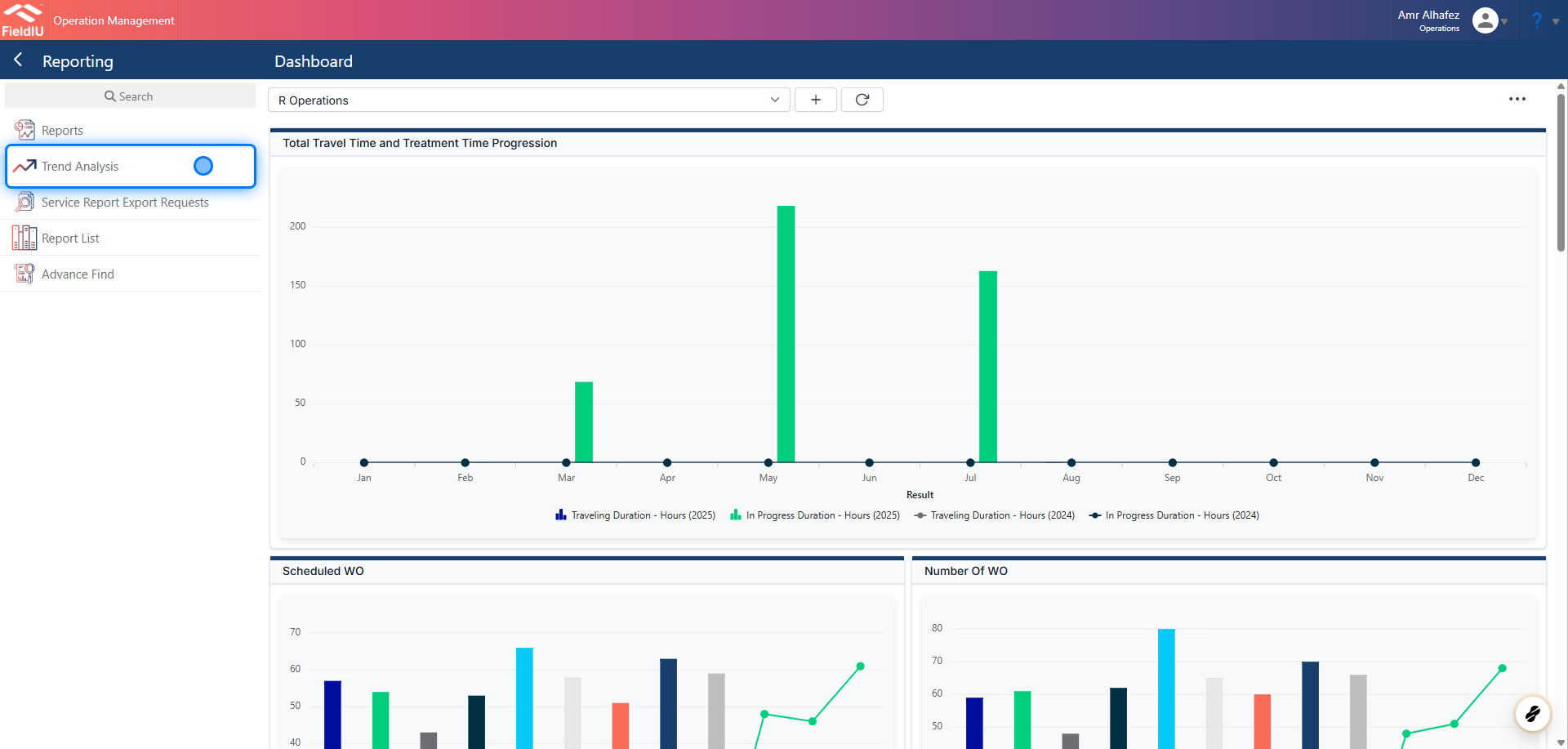
You can access the Trend Analysis tool from the Operations app under the Reporting tab in the sidebar menu.
2. Main Screen
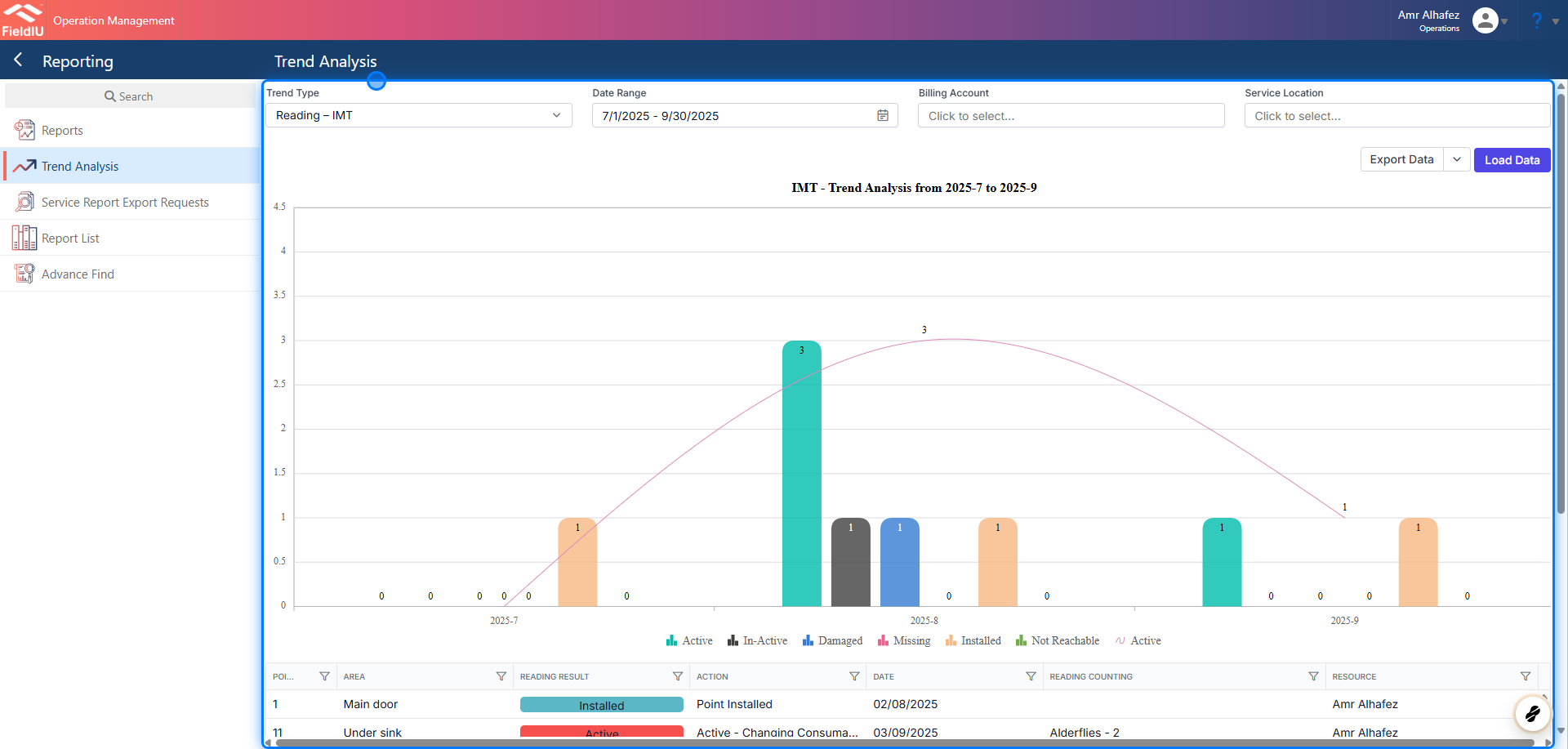
On the main screen, you will find the inputs necessary to generate your trend analysis:
-
Trend Type : Select the type of trend you want to analyze (Readings, Consumables, Findings, Work Order Status, Completed Work Orders).
-
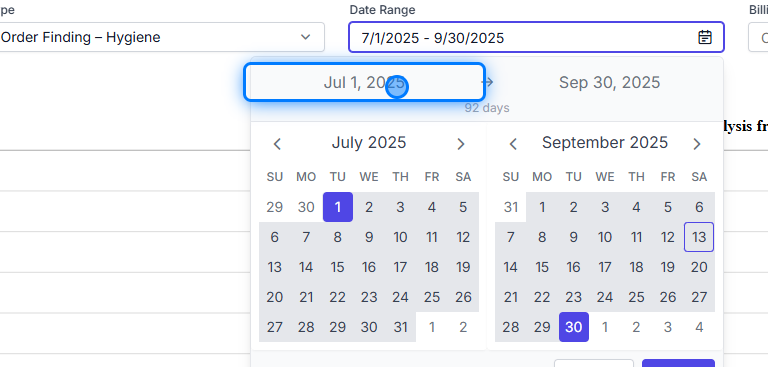
Date Range : Choose the range between two specific dates.
-
Billing Account : Specify the data for a specific customer.
-
Service Location : Specify the data for a specific location.
3. Trend Type
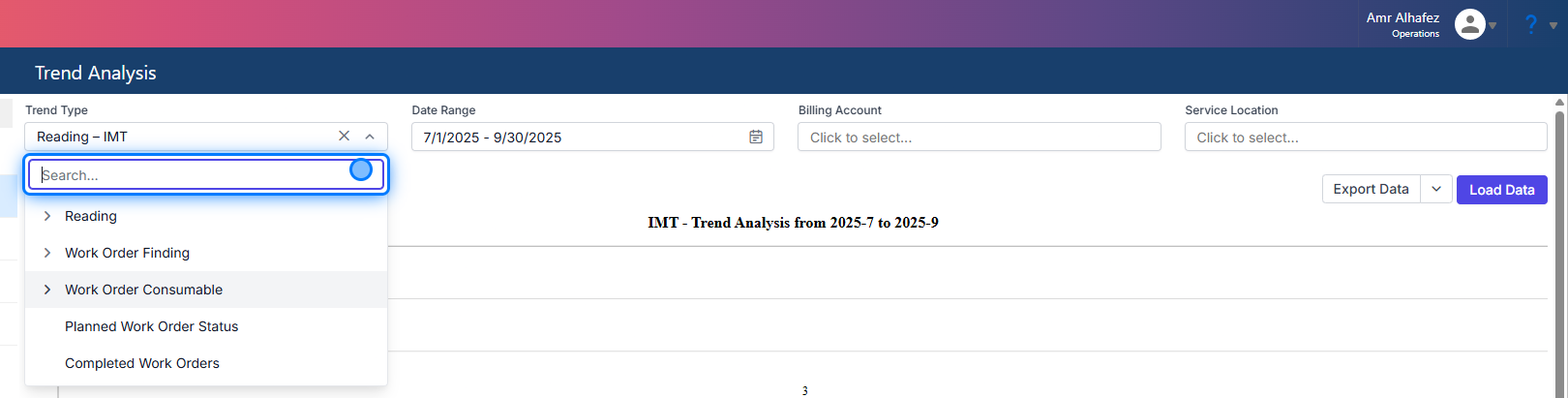
From the Trend Type, you can select the trend for weather readings (Reading Categories), Work Order Findings (Finding Category), Work Order Consumables (Products), Planned Work Order Status, or Completed Work Orders.
For Readings, Findings, and Consumables, you can choose either all or specific items.
4. Loading Data
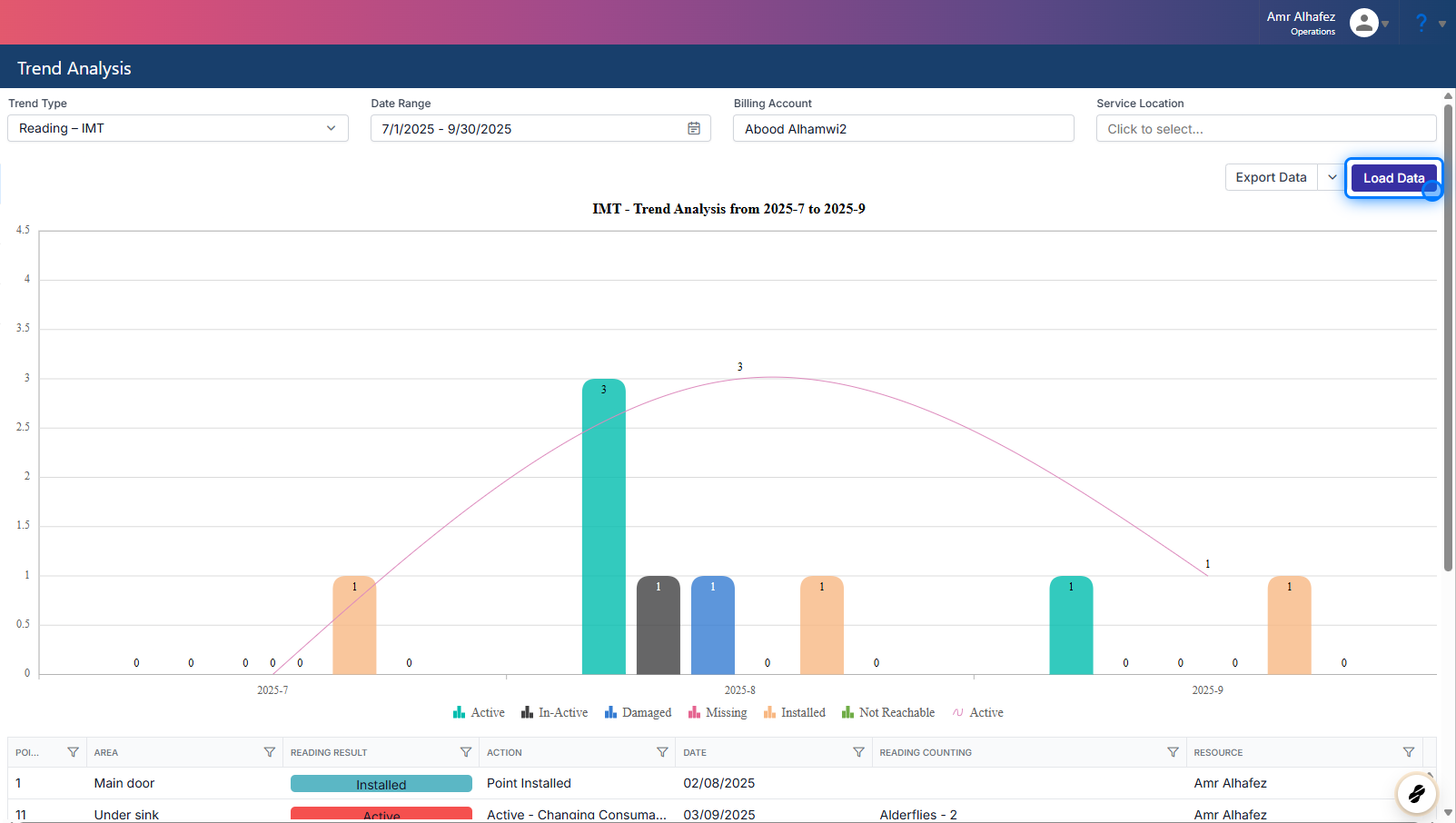
Once you’ve selected your inputs, simply click the 'Load Data' button to generate the report based on your selections.
The Generated Reports
💡
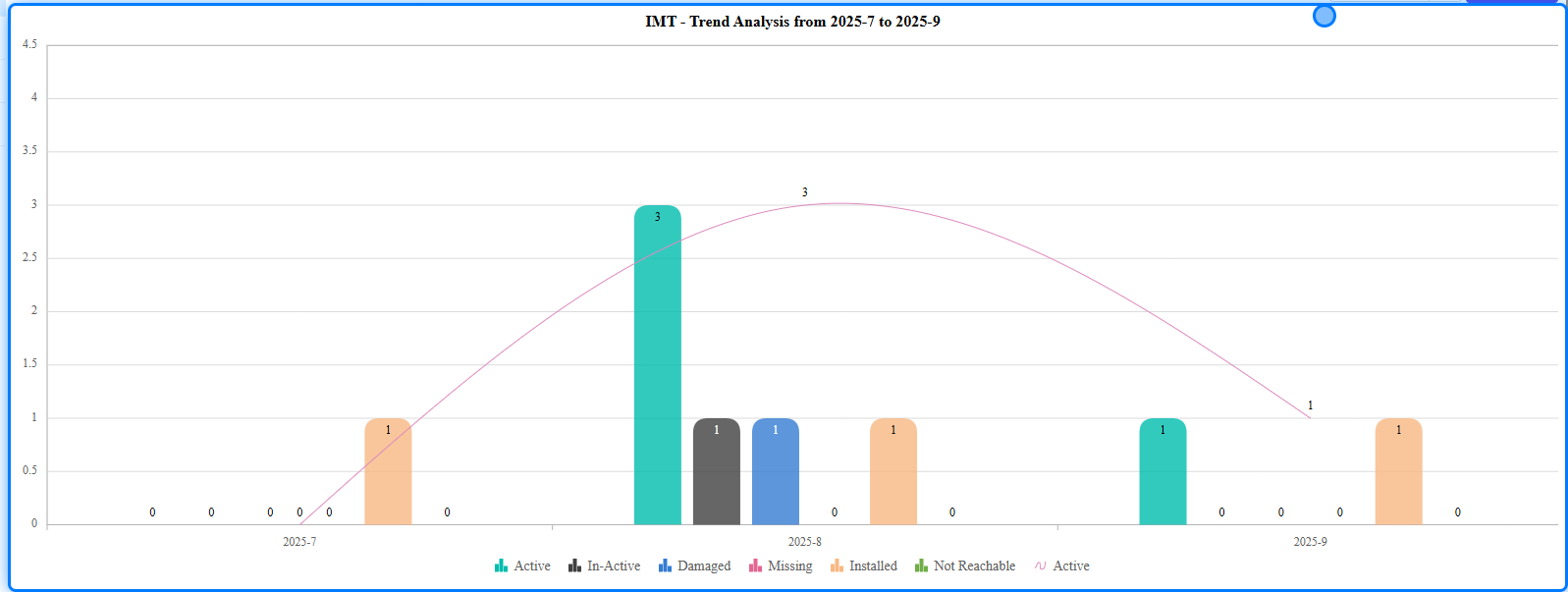
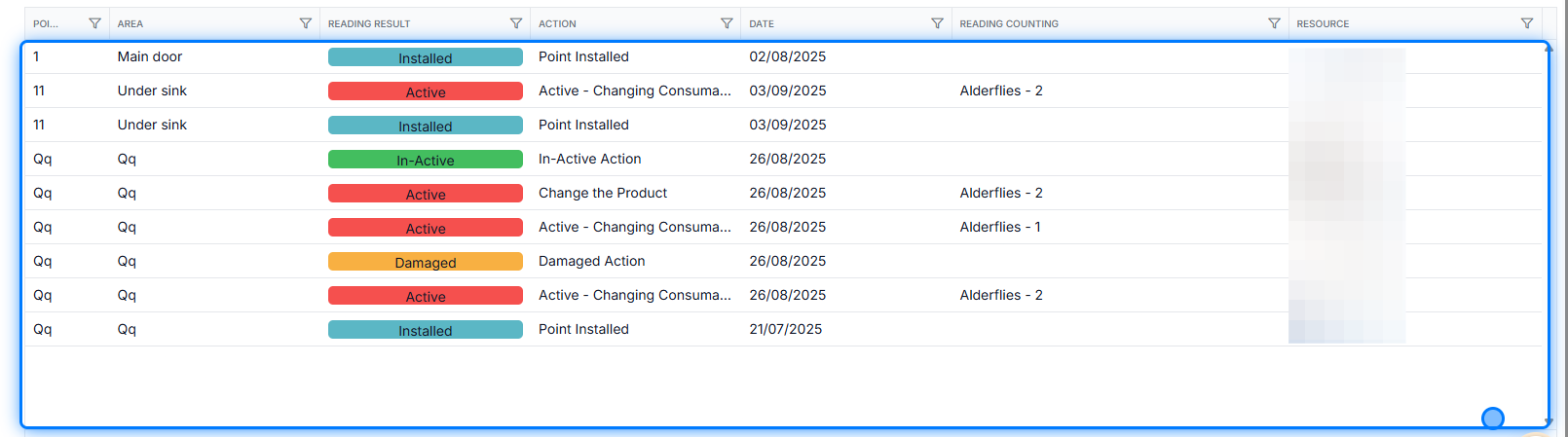
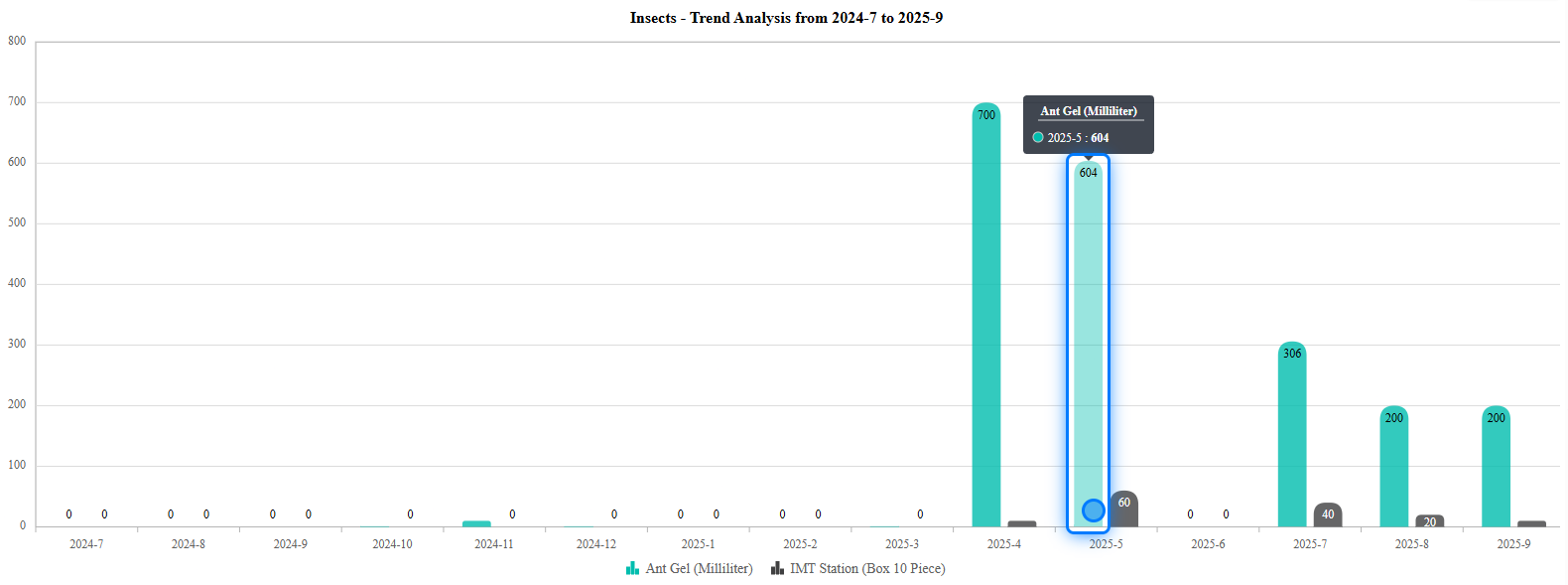
For each Trend Type, you will receive both a trend analysis chart and a data list.
5. Trend Chart
6. Data Lists
7. Click on Jul 1, 2025
8.

9.
 �����������������������