

Purchase Orders
1. Create Purchase Orders
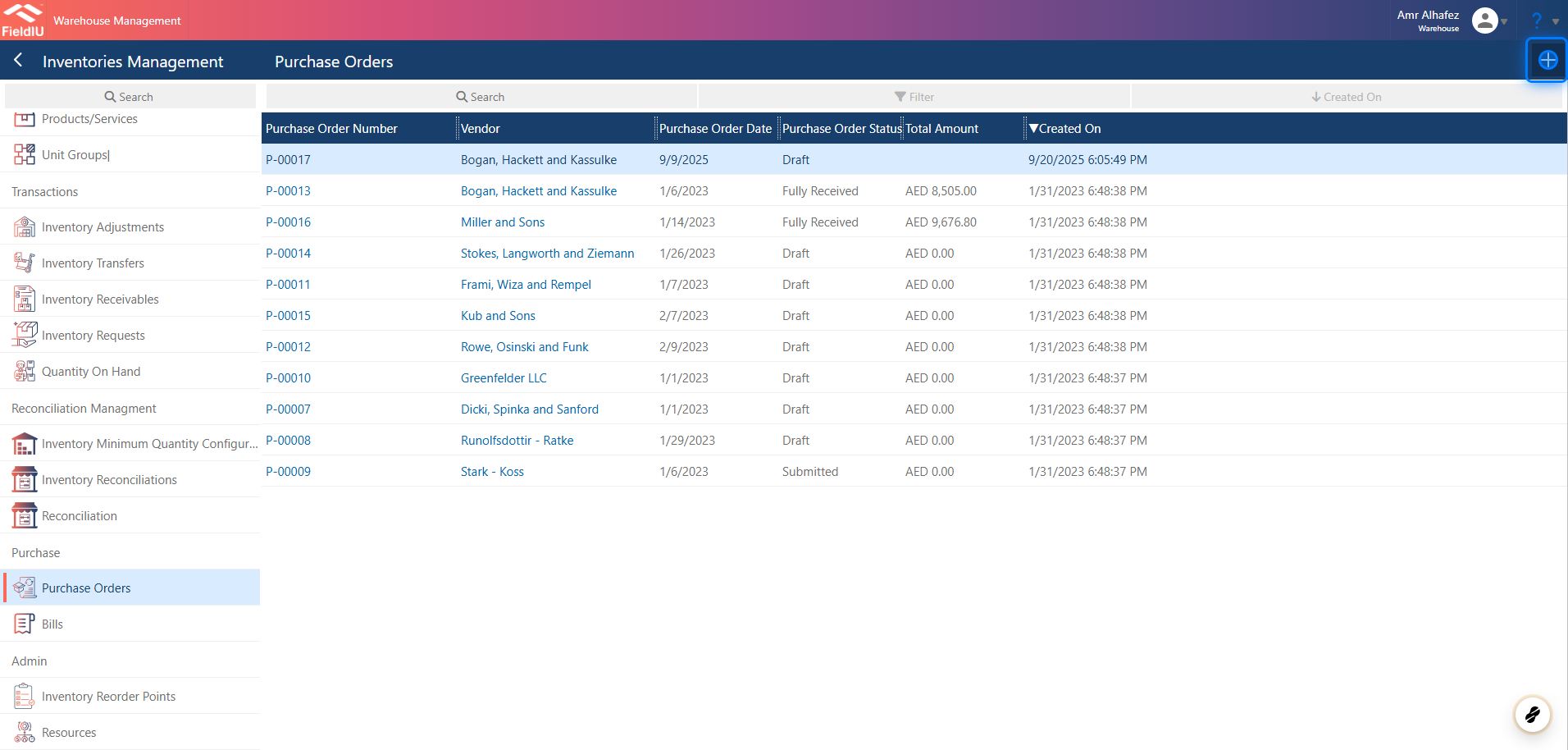
To access the purchase orders, open the Warehouse app. Then, from the side menu bar, click Inventory Management ; you will find Purchase Orders in the same menu.
You can create a new purchase order by clicking the + button, or you can enter any record by clicking on it.
2. Purchase Order Details
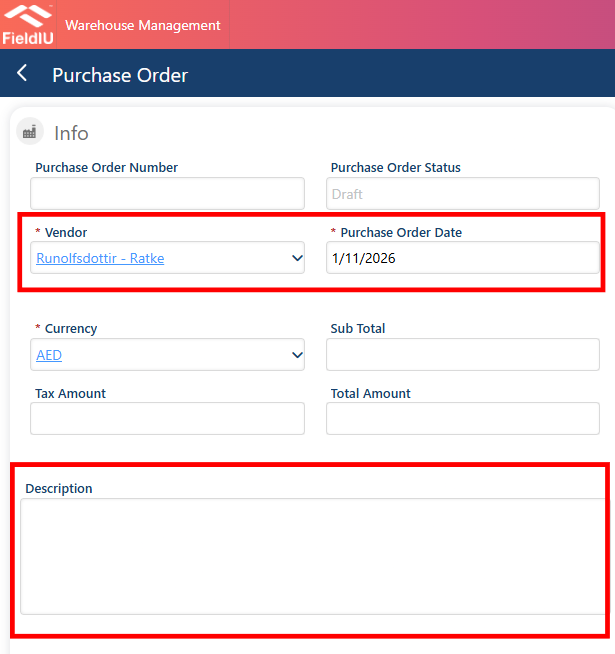
A new window will open for you to enter the purchase order details, including the vendor and purchase order date. Then click Save .
3. Click on highlight
4. Adding Purchase Order Products
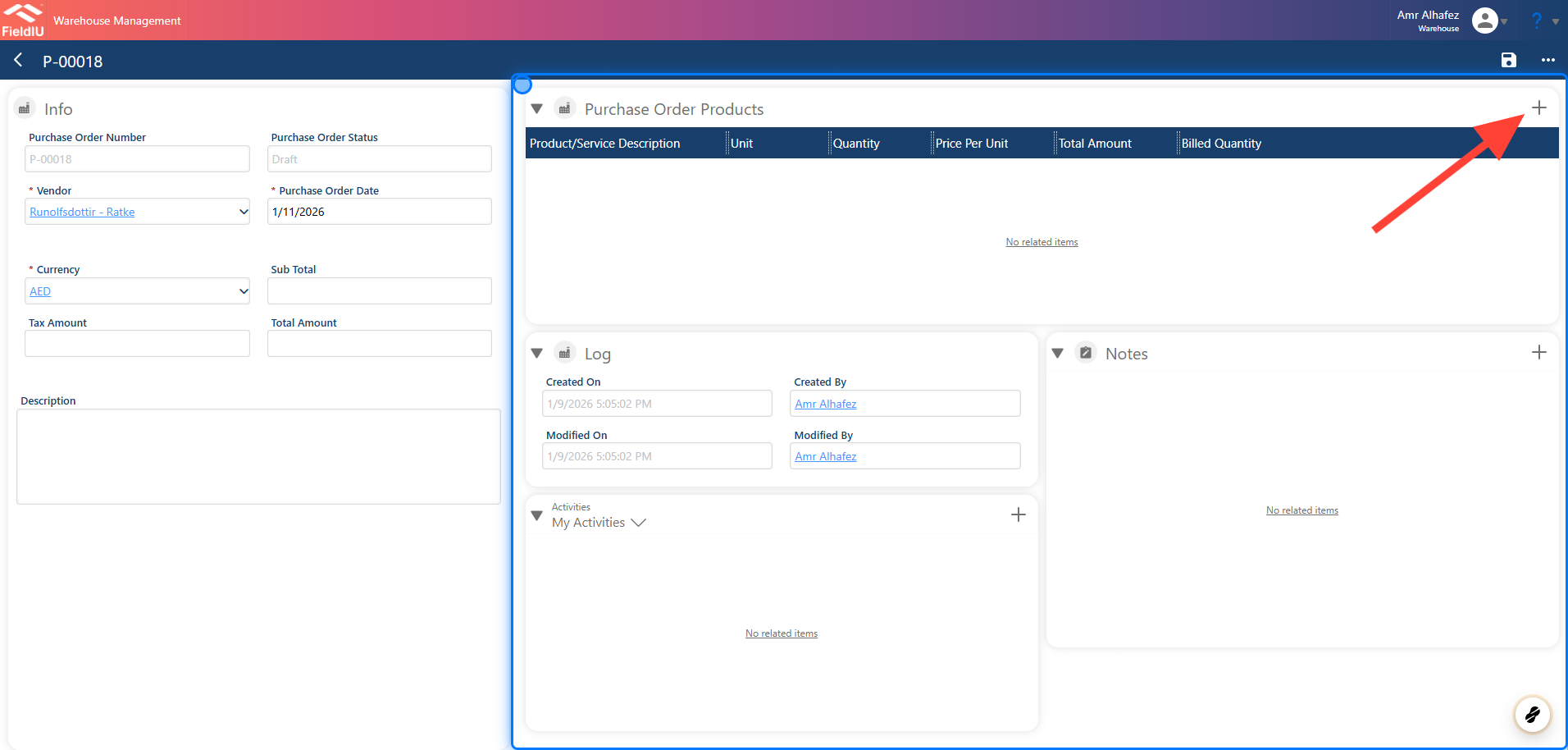
To add products to the purchase order, open the Purchase Order Products panel and click the + button to add new products.
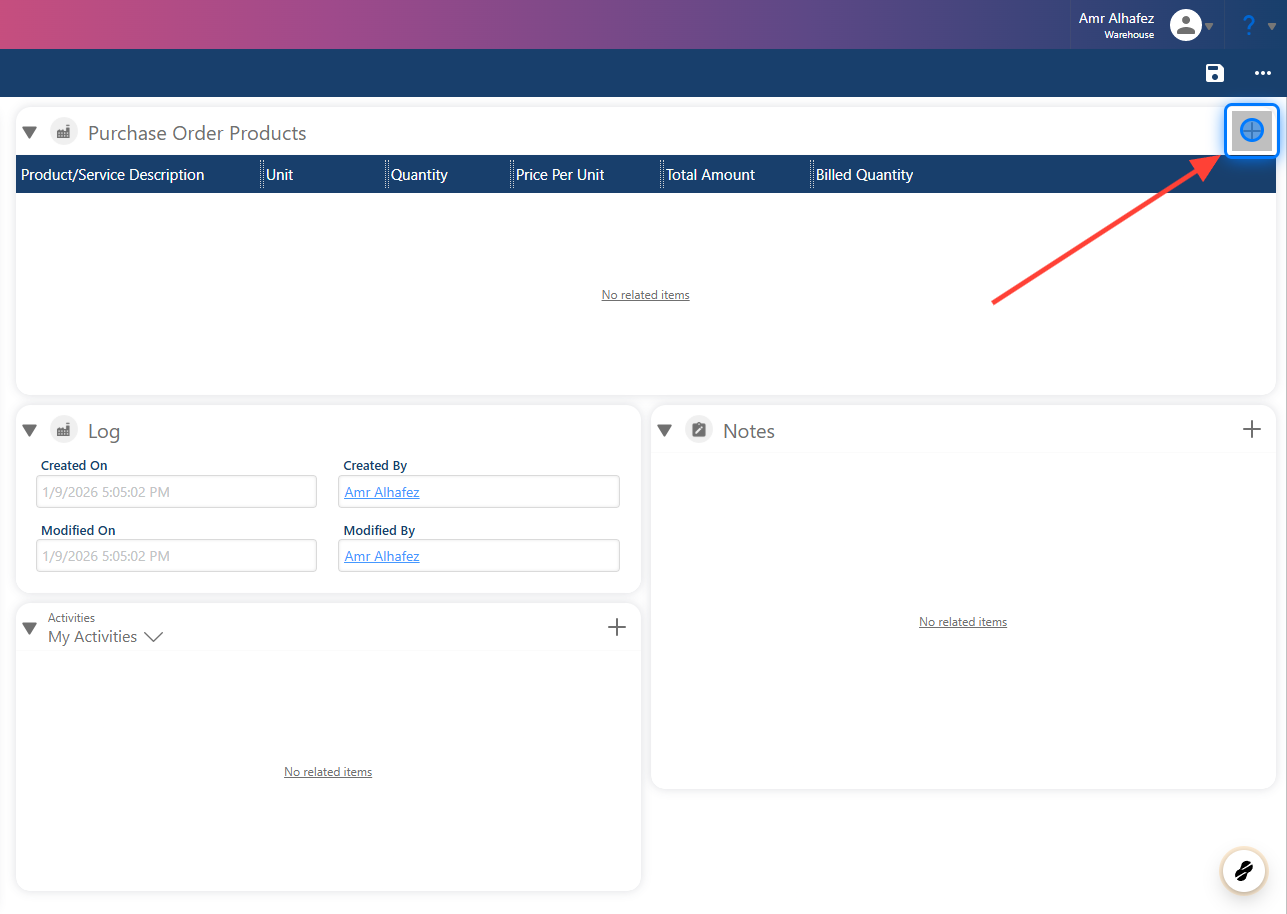
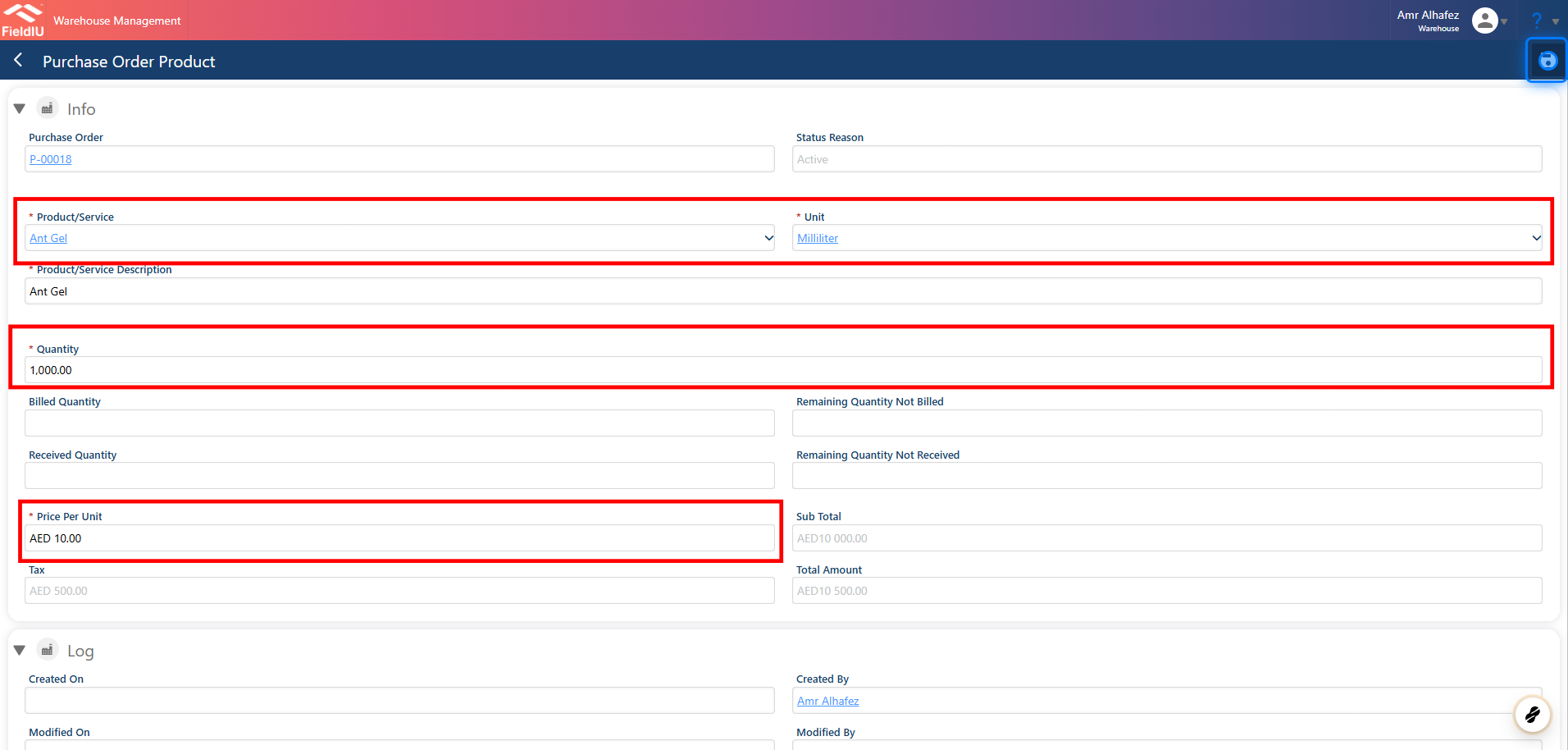
5. Fill in the product details.
6. Submit PO
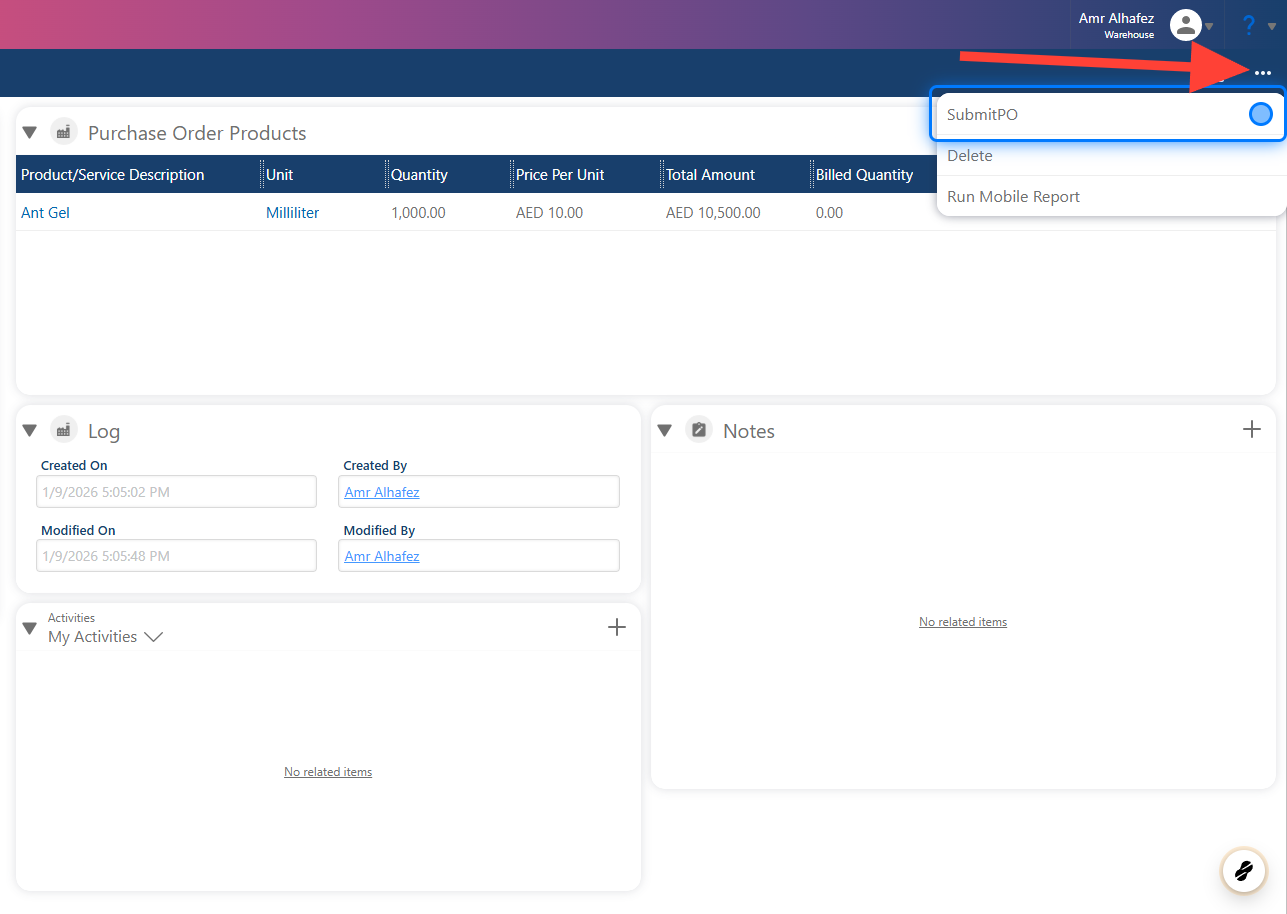
After you finish the purchase order, it will remain in Draft status until you submit it. To submit, click the three-dot button and select Submit PO .
7. Confirm Submit
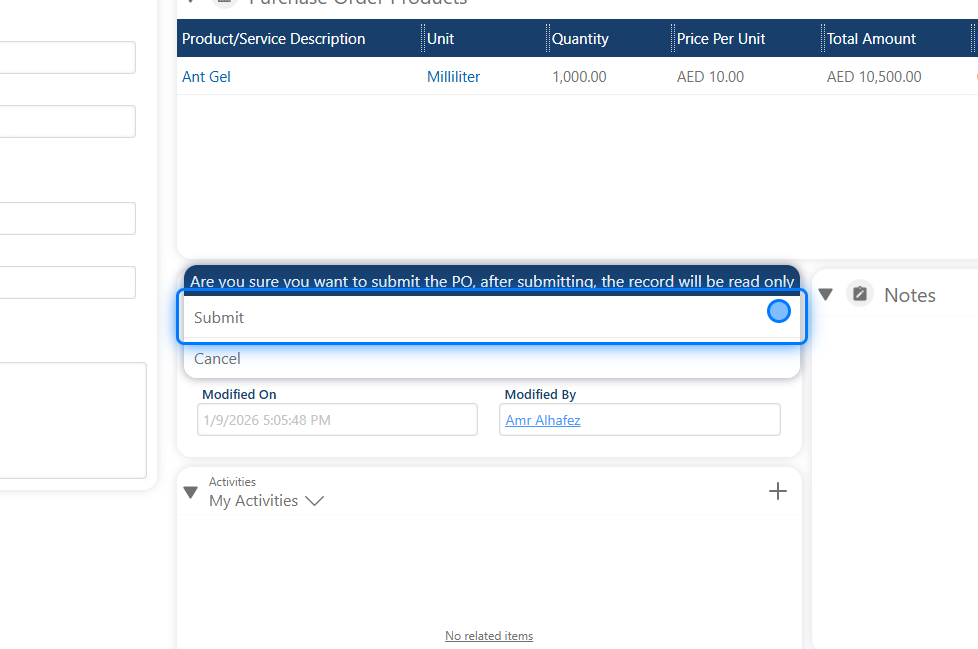
After you confirm, you can no longer edit the purchase order, and its status will change to Submitted .
 �����������������������