

Warehouse
Bill
1. Create New Bill
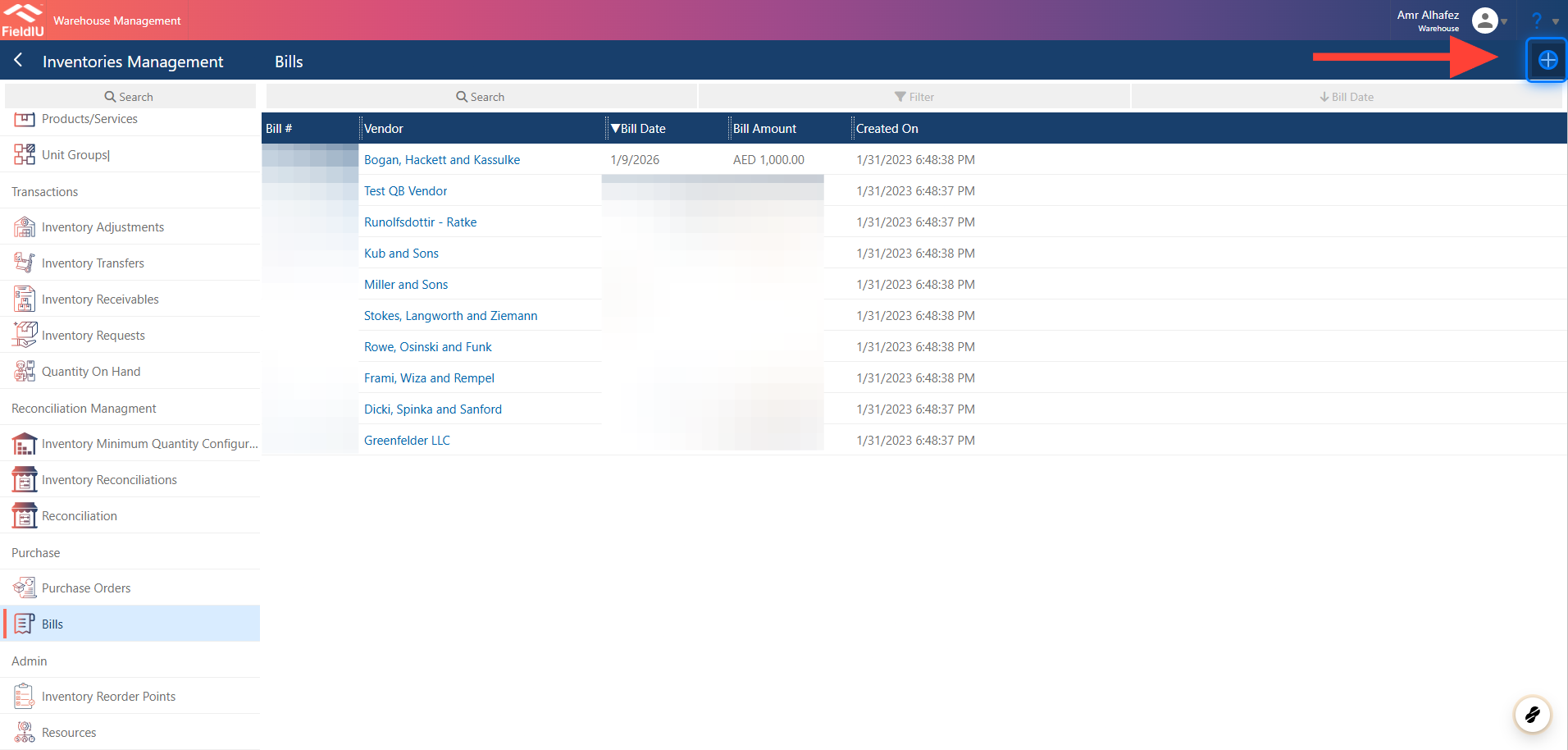
To create a new bill record, open the Warehouse app. From the side menu bar, open the Inventory Management tab. You will find the Bill option in the same menu.
You can create a new record by clicking the + button, or click on any existing record to open it.
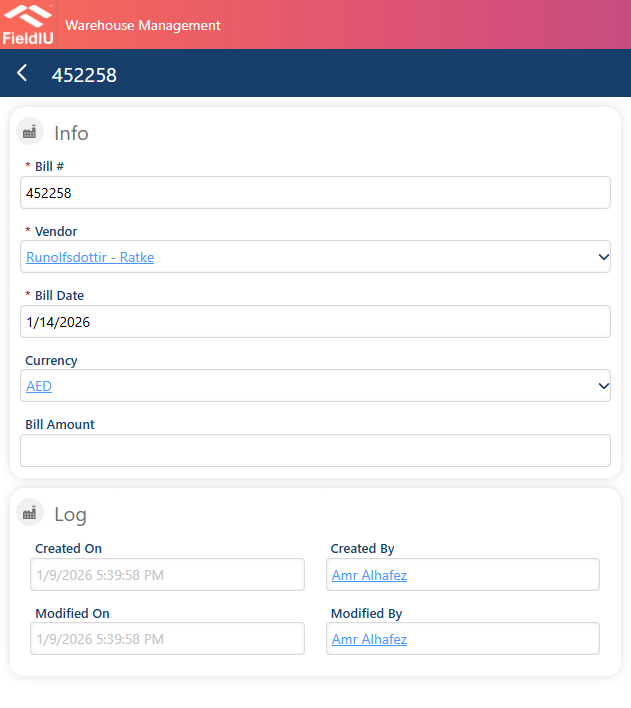
2. Fill in the form.
Select the vendor and the bill date.
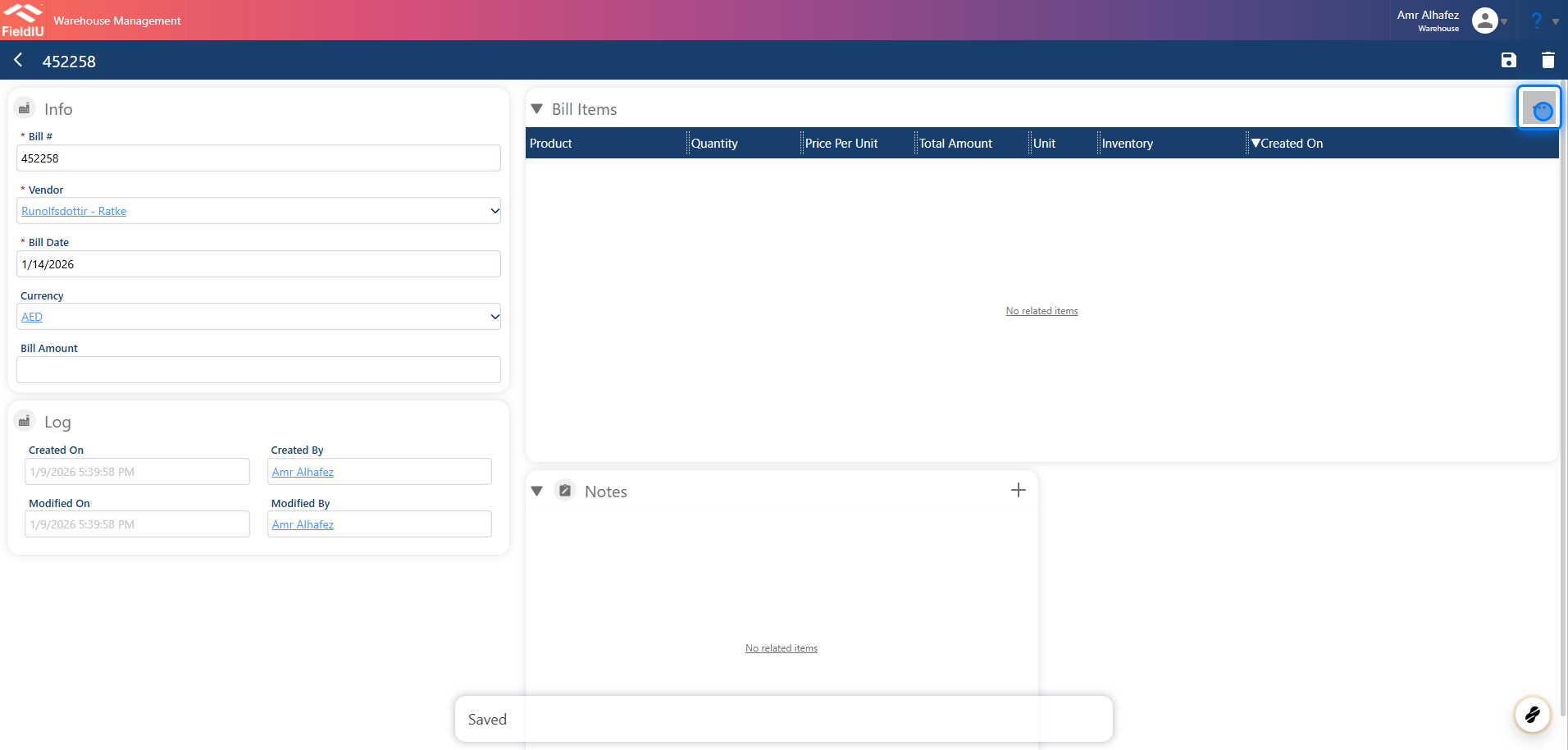
3. Adding Bill Items
Once you save the bill, a new section for bill items will appear. Click the three-dots button to insert items.
4. Select Action
You can add a new item, or add items from a purchase order.
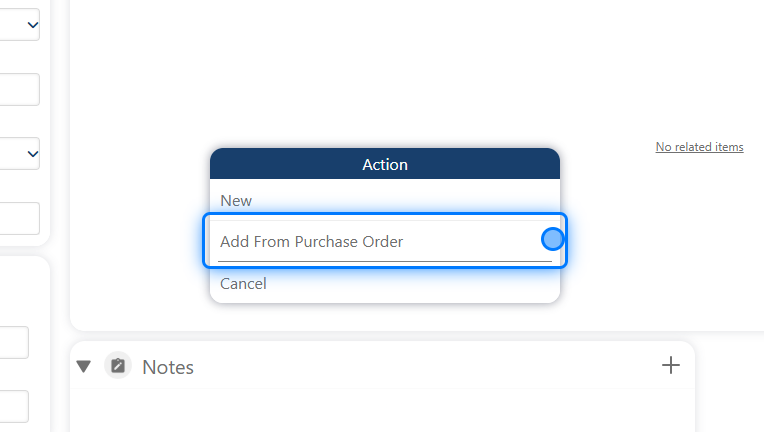
5. Selecting Items
Once you click Add from Purchase Order , select the items you want to insert.
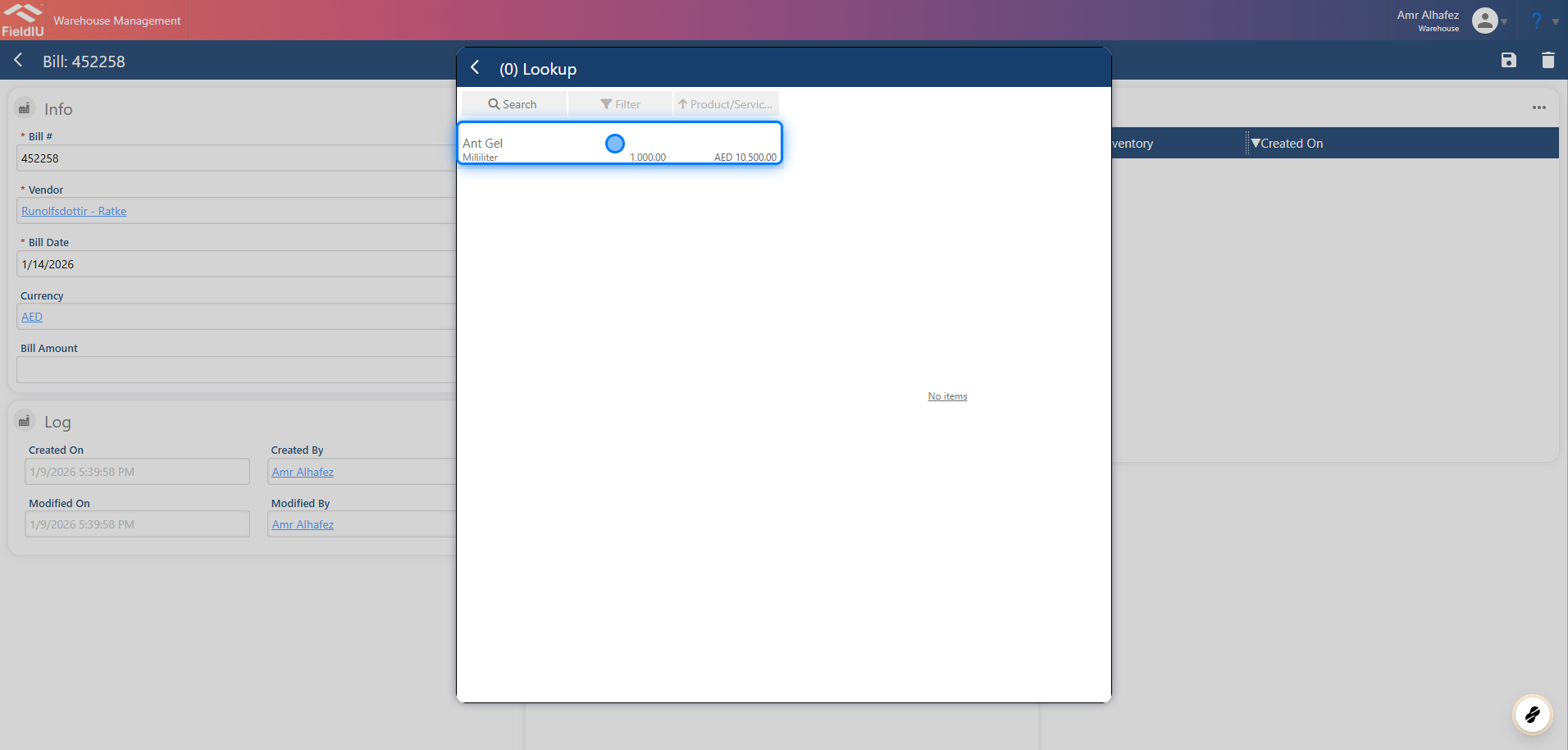
6. The items you selected will be inserted automatically.
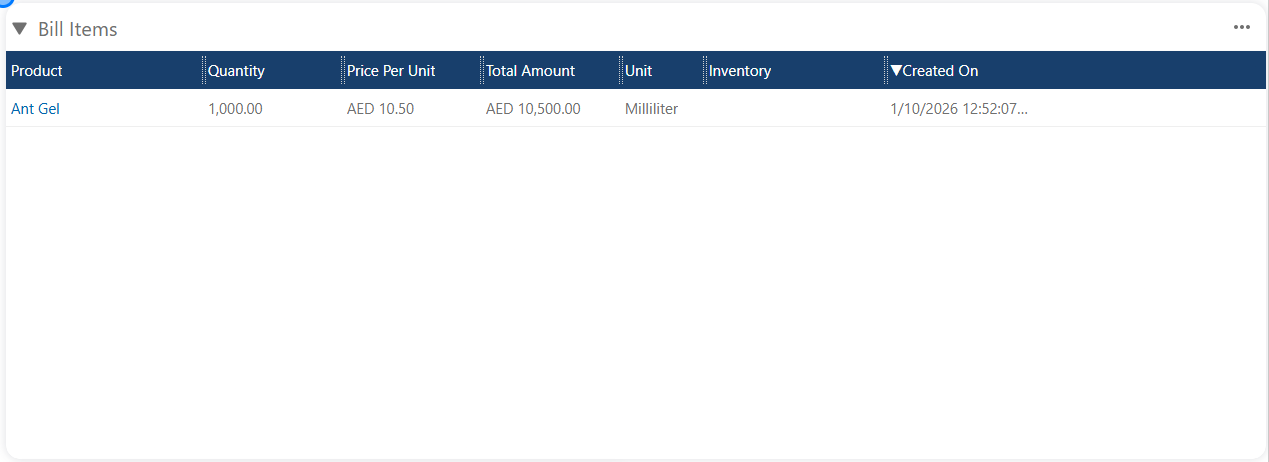
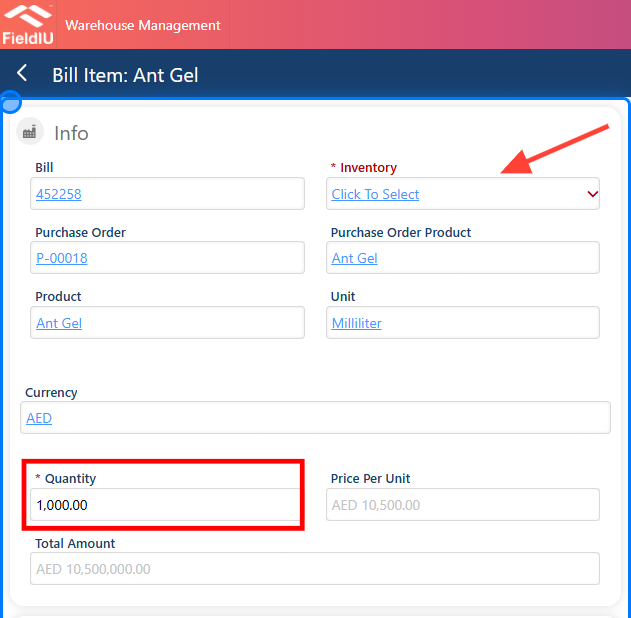
7. You can edit the quantities and selecting the Inventory by opening the item
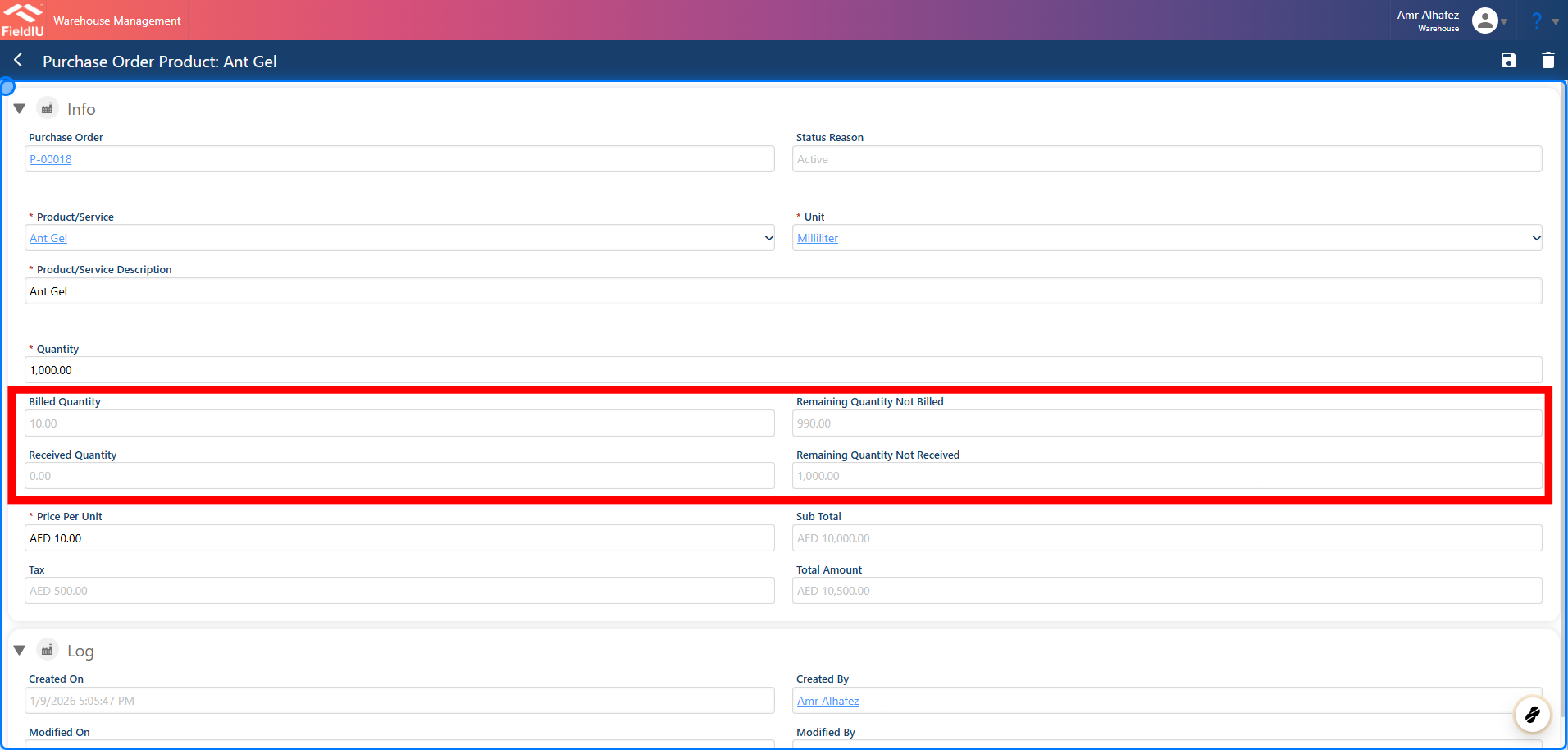
8. Billed Purchase Order Item
All details and items related to the purchase order will be reflected in the purchase order item itself.
 �����������������������