

Inventory Request
When a user wants to request items from another inventory, we use Inventory Request. This helps manage requests quickly and automatically creates Inventory Transfer records.
1. Create New Request
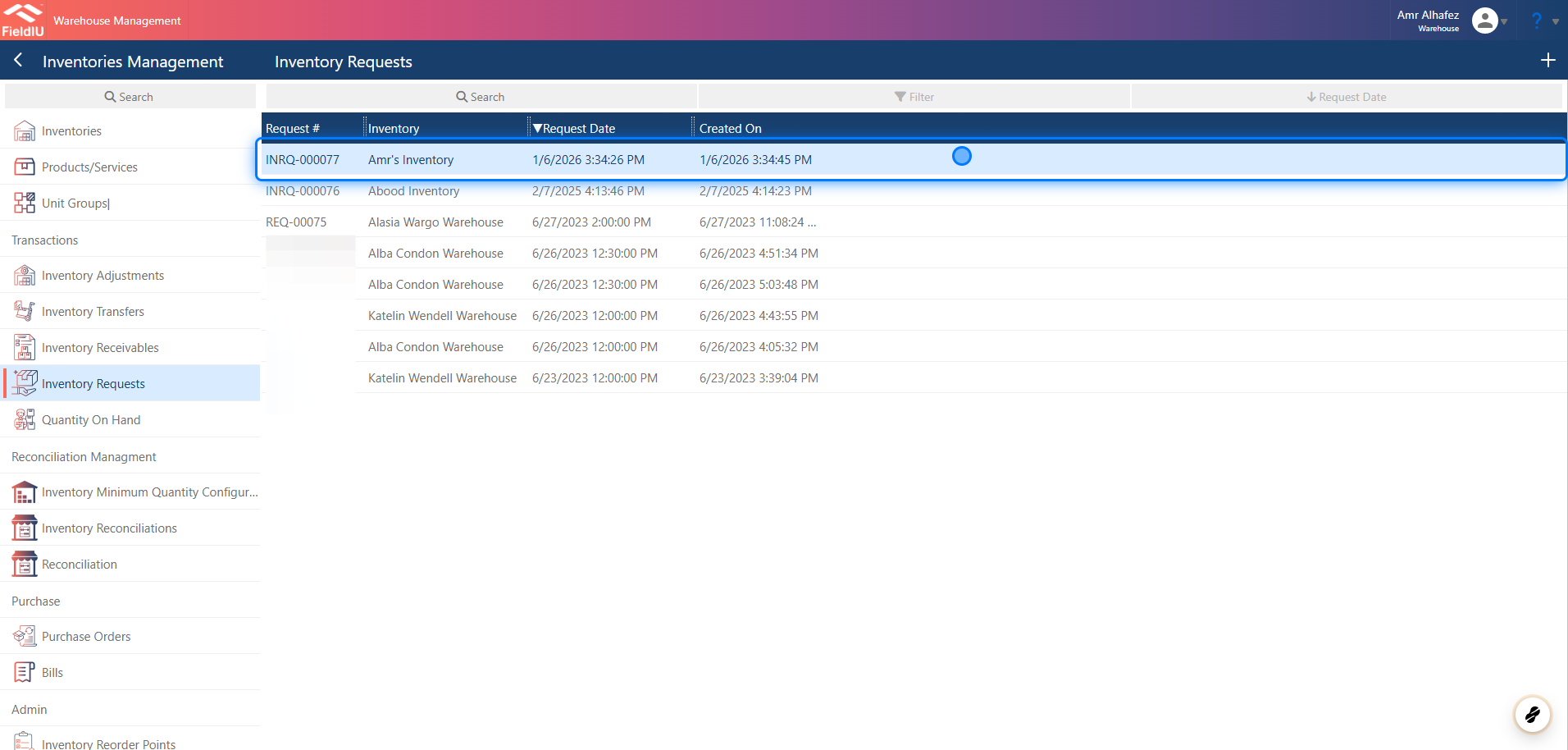
To create a new request record, open the Warehouse app. From the sidebar menu, click on the Inventory Management tab, then select Inventory Requests from the same menu. Click the + button to create a new request, or open an existing record by clicking on it.
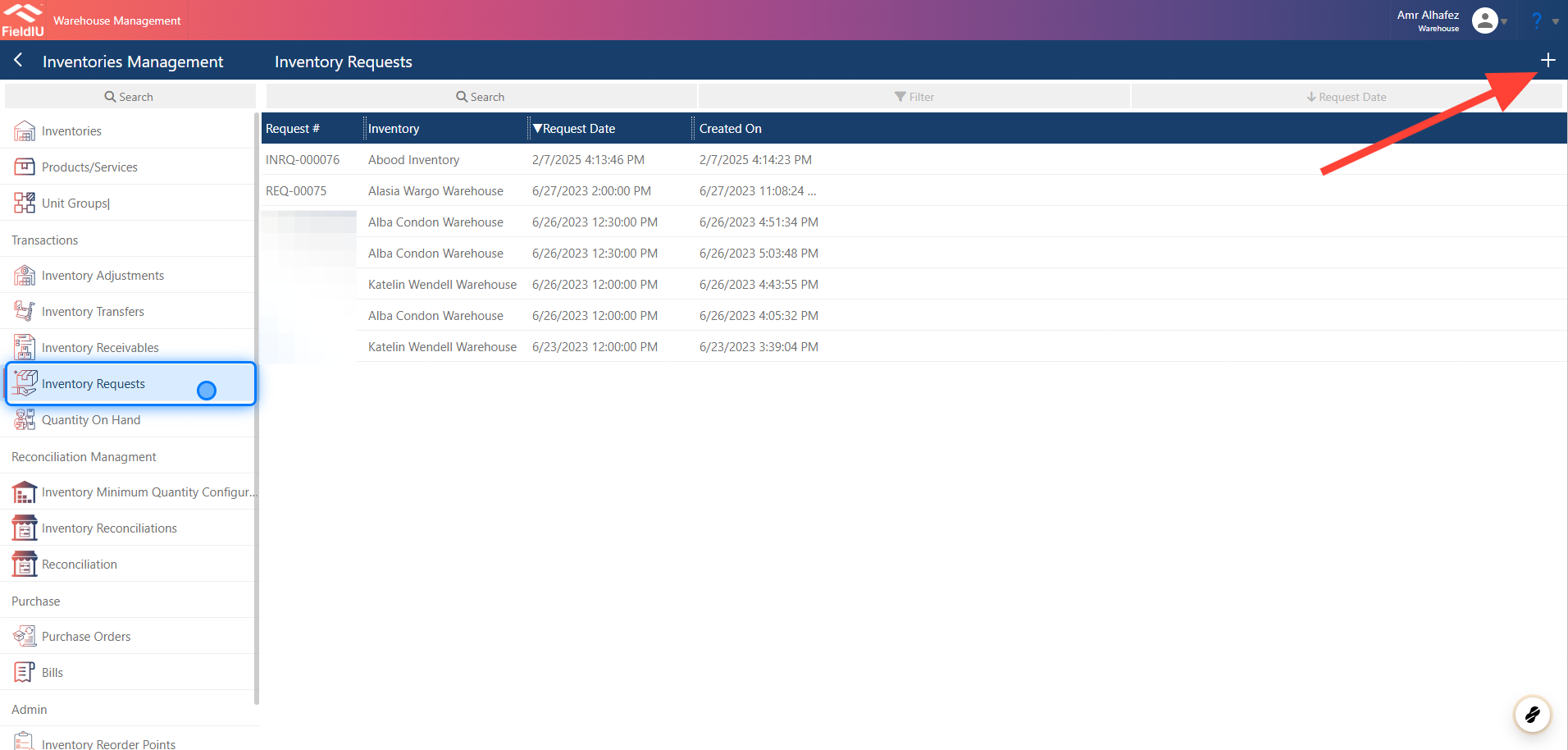
2. New Request
Once you click on Create, a new window will open. Fill in the form by selecting the source inventory (the date will be set automatically to the current date)
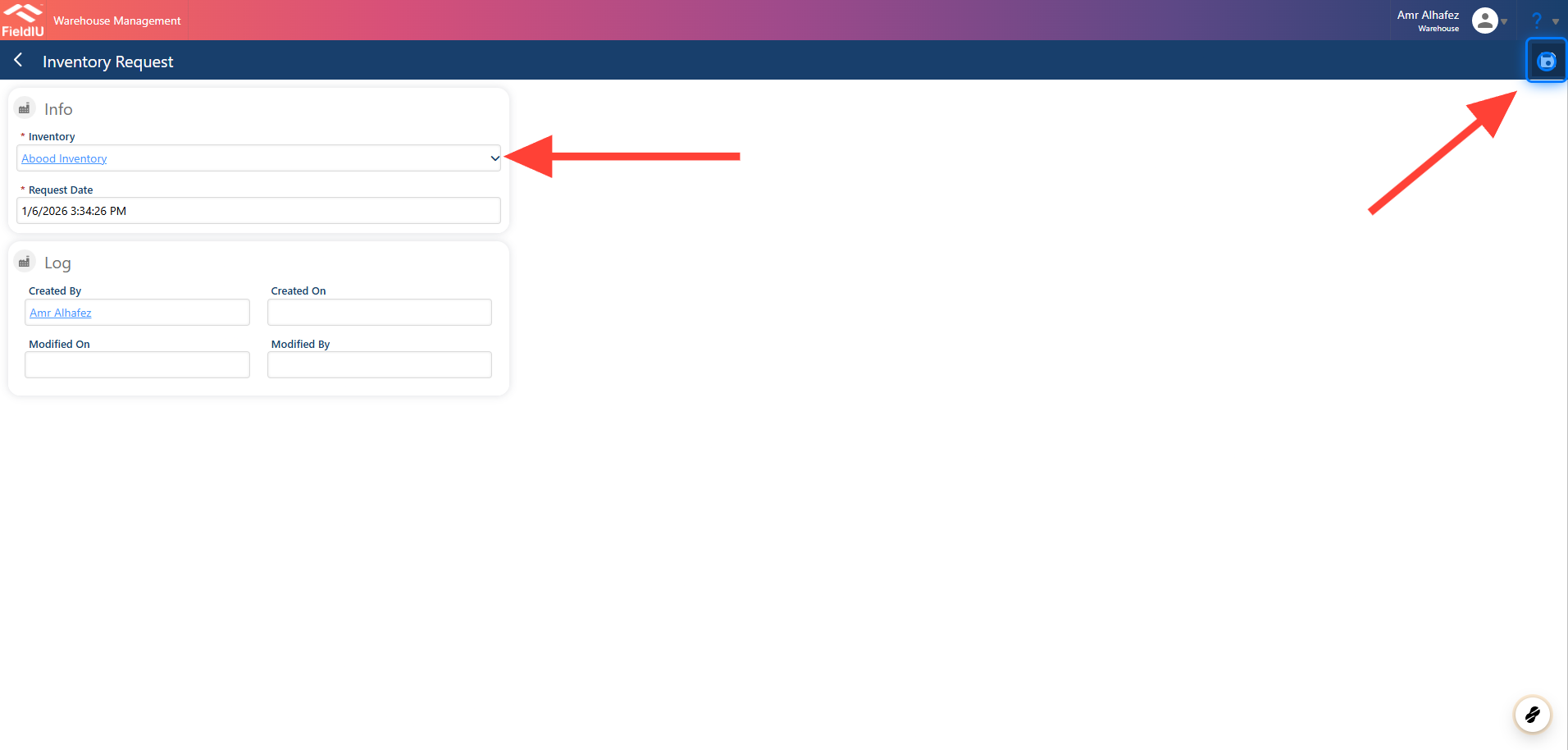
3. Adding Items
Once you save, you can add items to the request from the Inventory Request Item panel. Just click the + button to add a new item to the request.
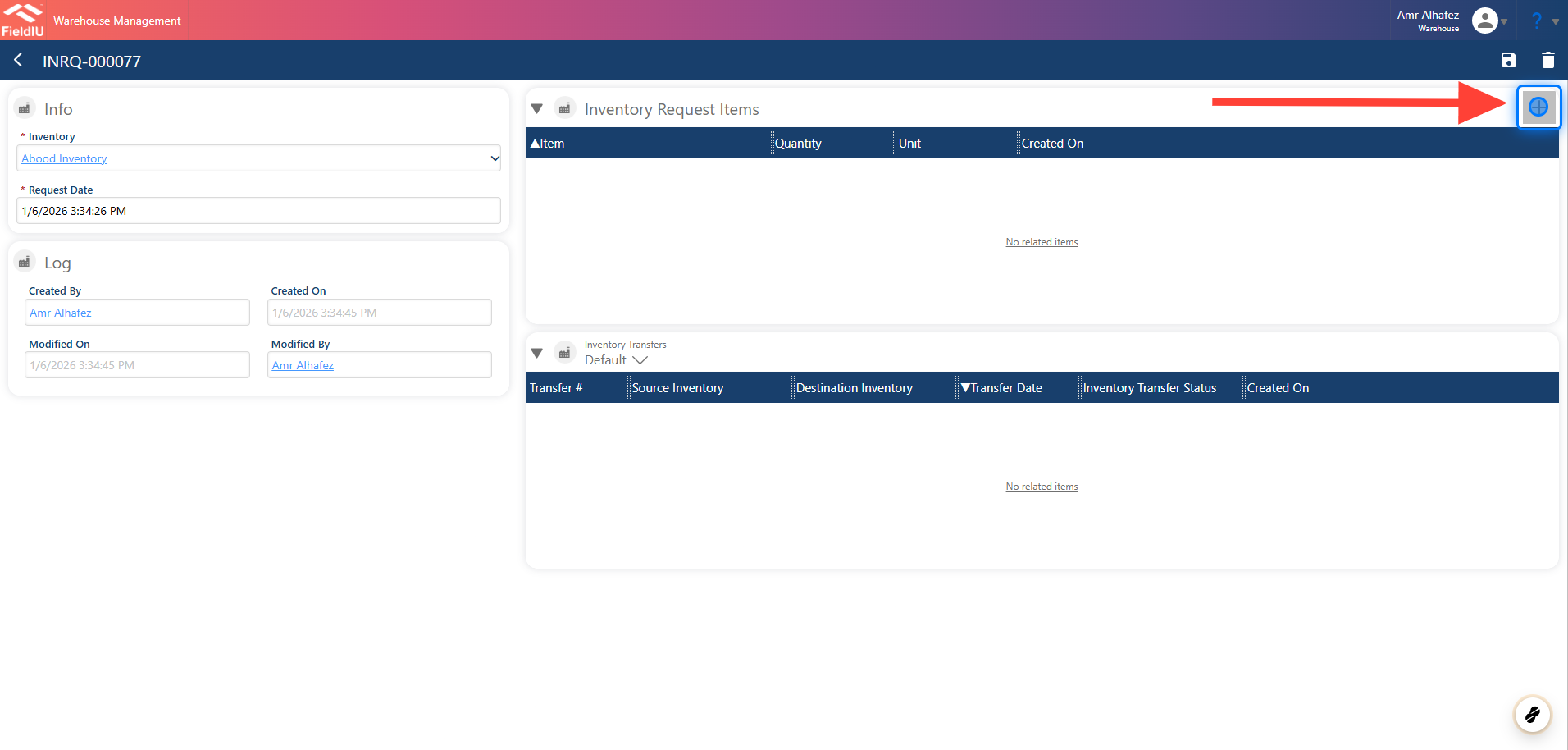
4. Fill The Item Details And Save
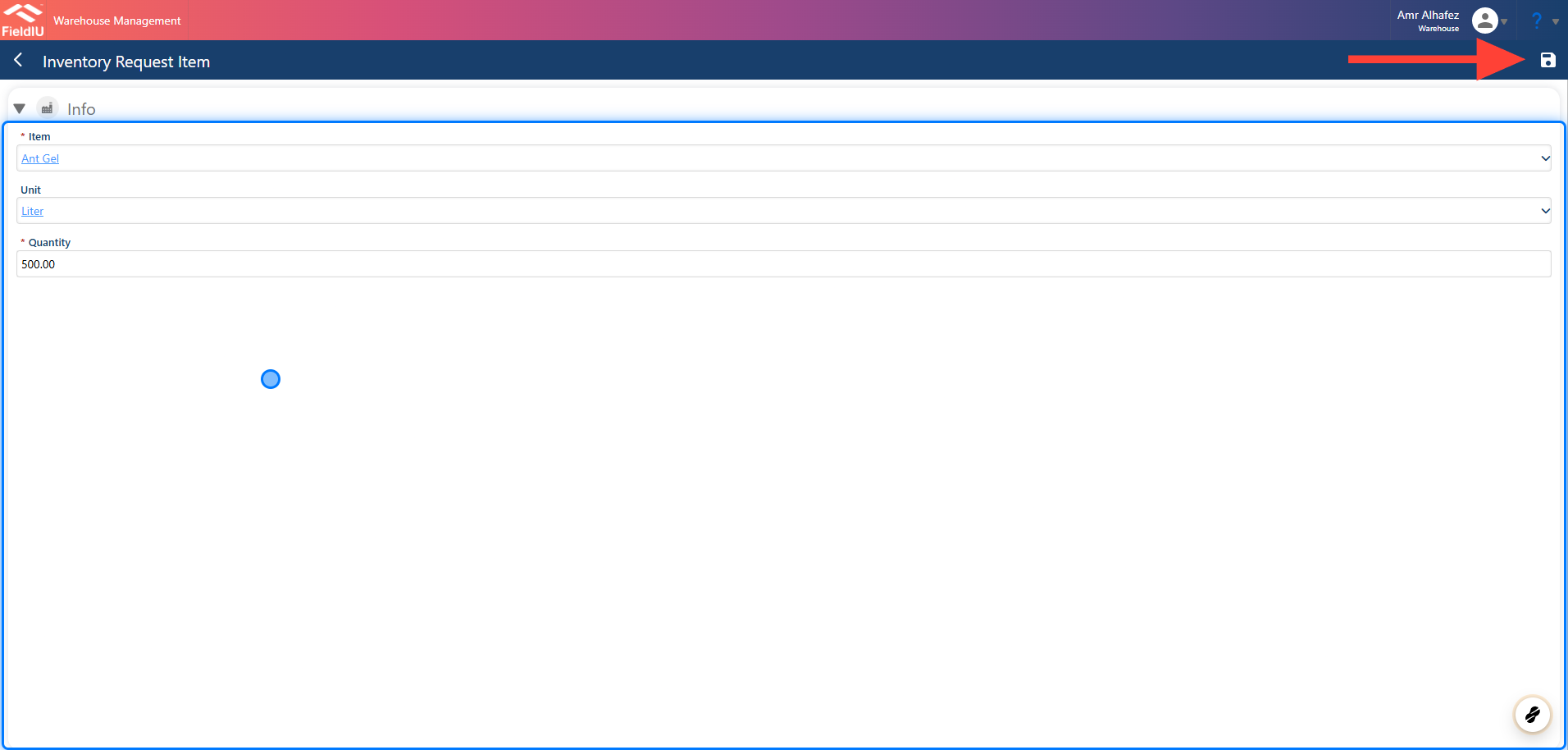
5.
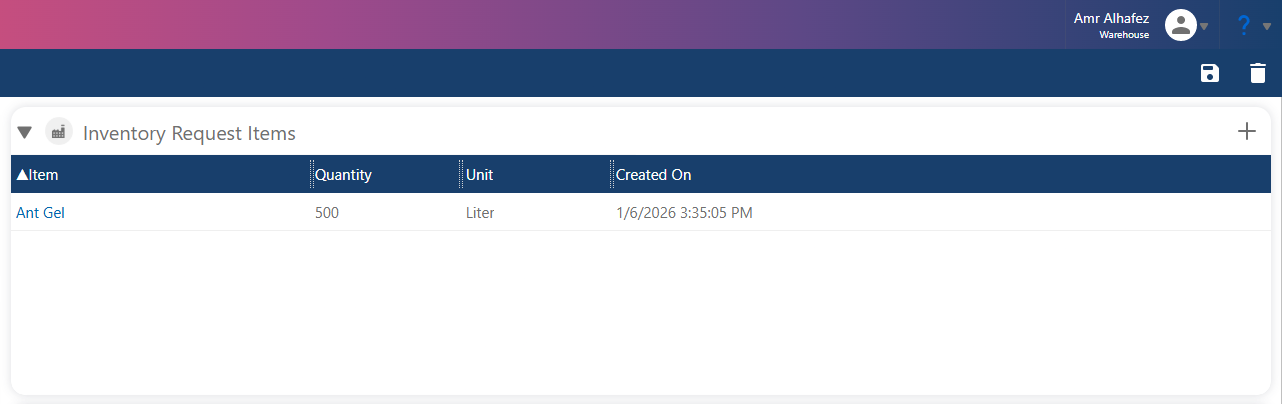
As you can see, the item is now listed in the Inventory Request Item panel.
💡 Sending The Request
Once you save the request, it will appear in the Source Inventory Owner’s Request List.
Submitting Inventory Request
6. Open The Request
The Source Inventory Owner should create the inventory transfer.
7. Create Inventory Transfer
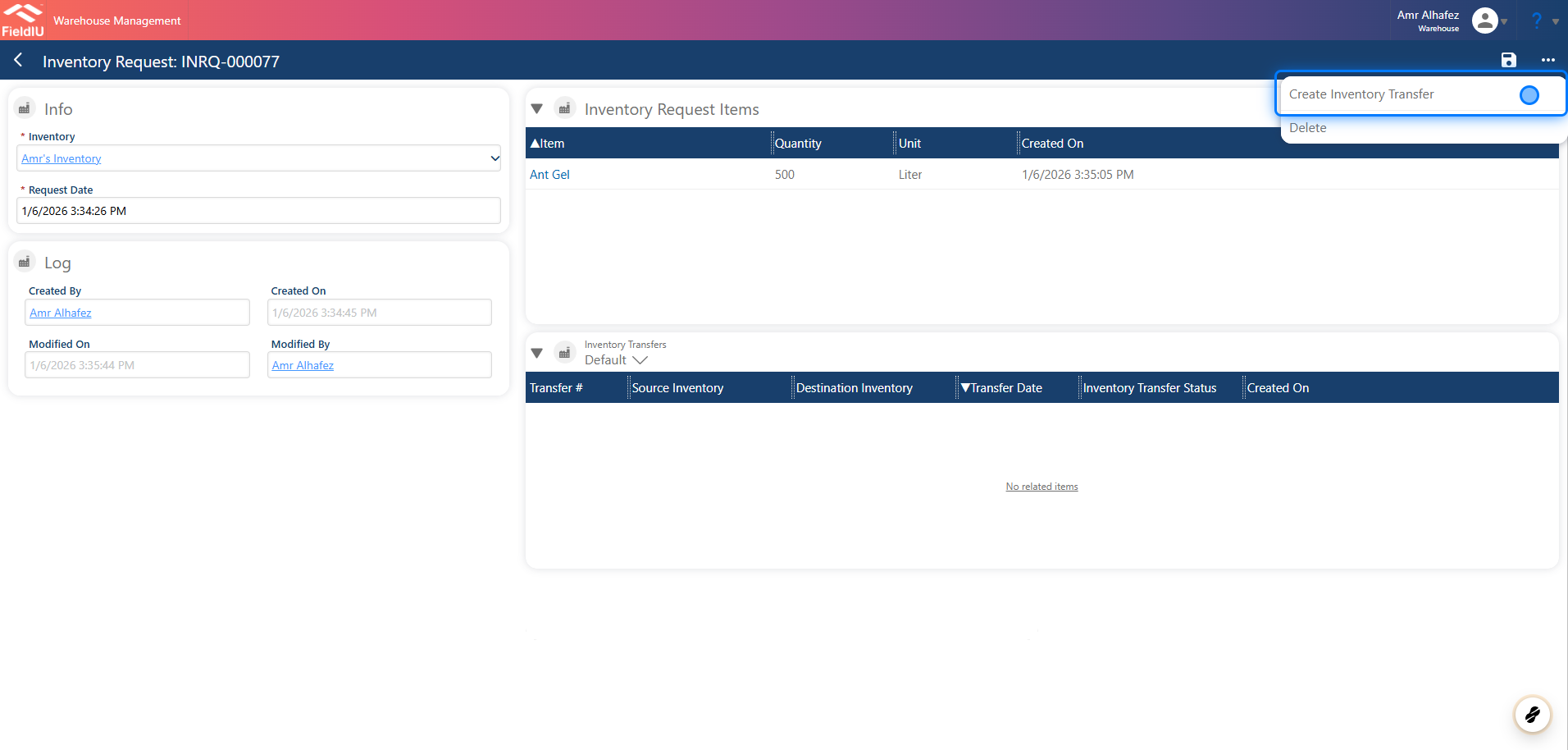
Click the 3-dots button, then select ‘Create Inventory Transfer.’
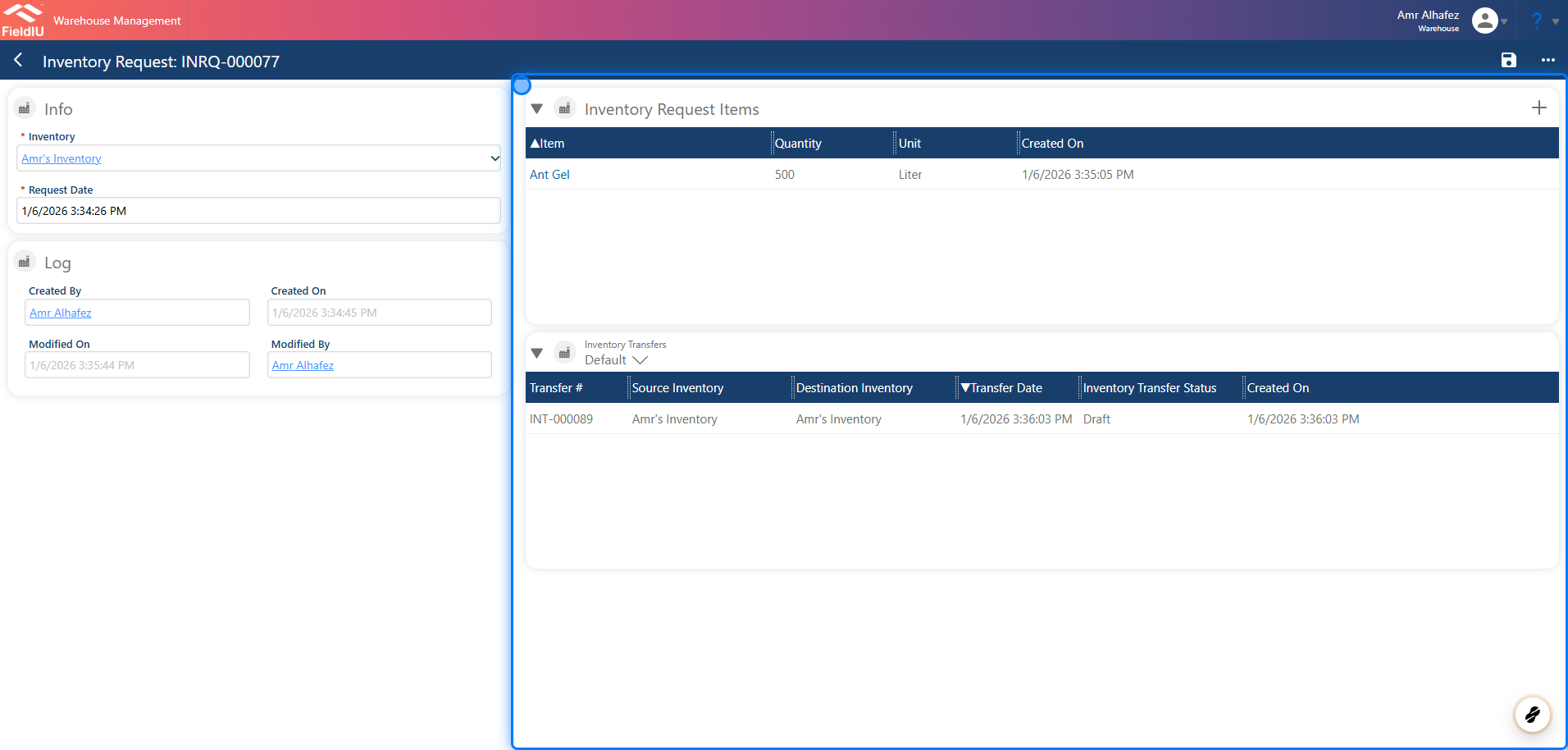
8. The System Will Automatically Create Inventory Transfer Record
 �����������������������