

Advanced Find "Readings Example"
💡 Reading Report
Here is an example of a report that provides the following information:
Work Order
Work Order Booking
Reading Name
Point Type
Action
Resource
We will group the report by:
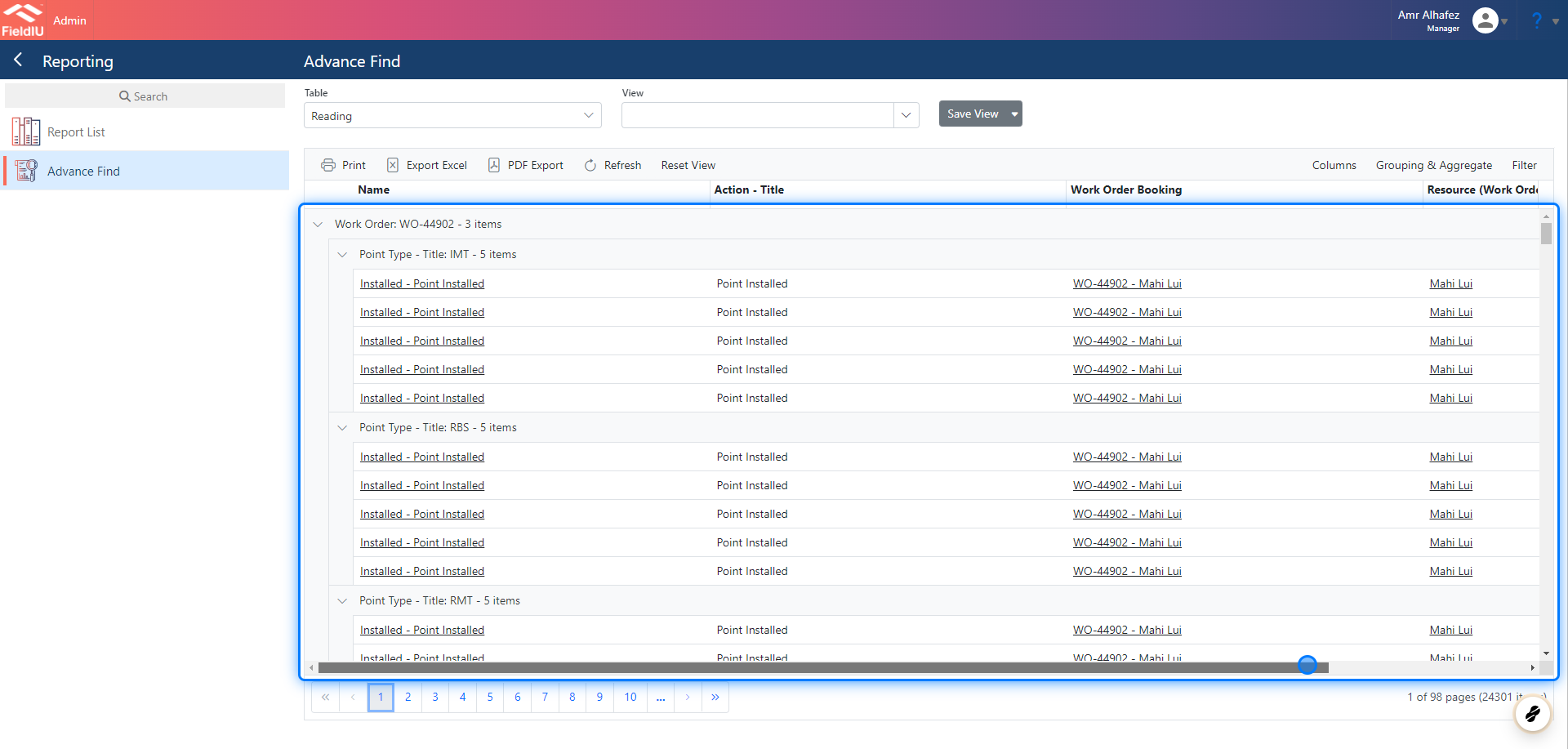
Work Order
Point Type
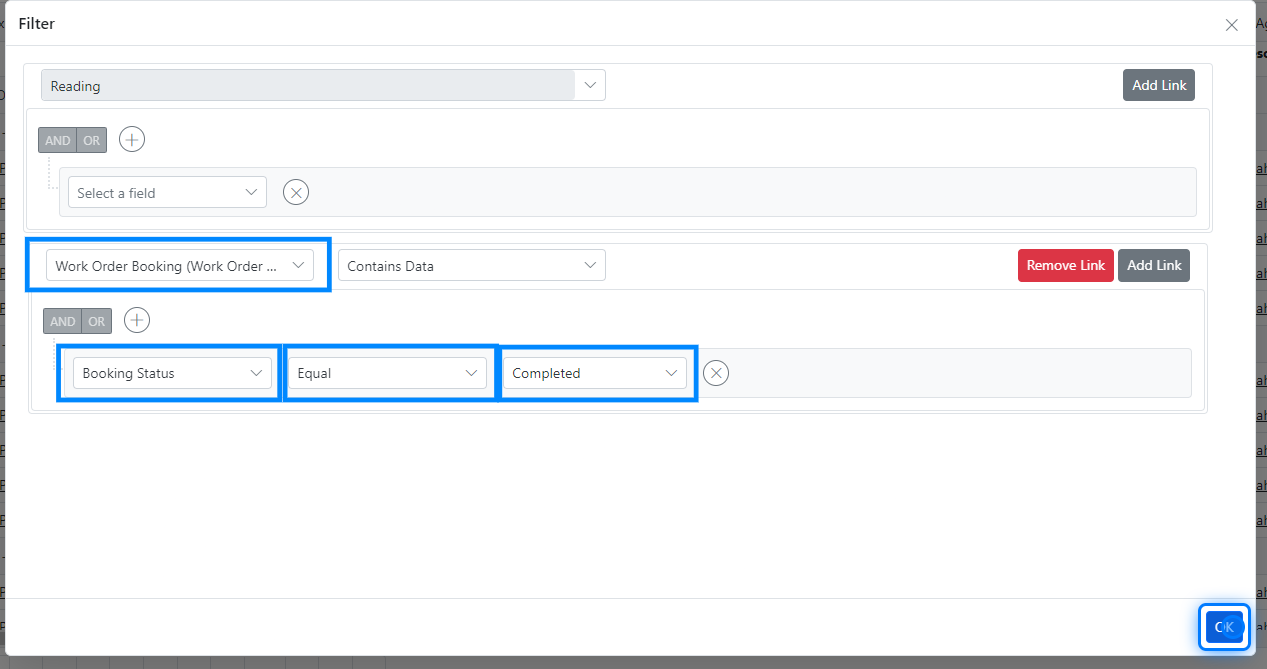
We will filter the report to include only completed work order bookings.
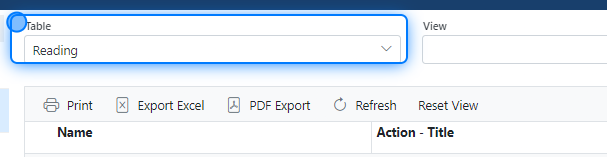
1. Select Reading Table
2. Selecting Columns
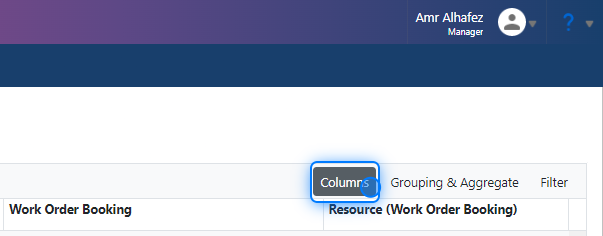
Simply click the columns button and select the columns you want.
3. Columns
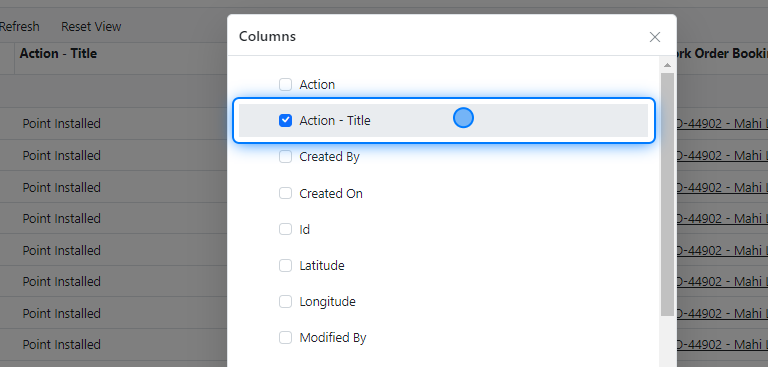
For our example, we will select the following:
Reading Table:
-
Work Order
-
Work Order Booking
-
Reading Name
-
Point Type
-
Action
From Work Order Booking (which is related to the Reading Table):
- Resource
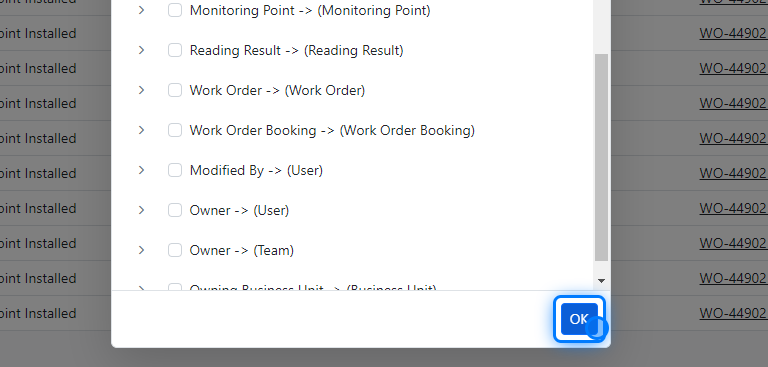
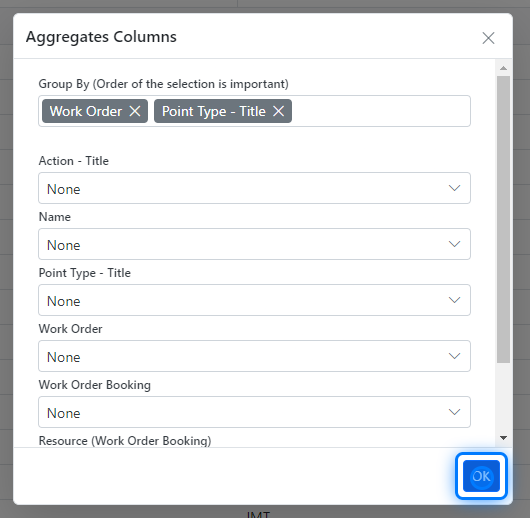
4. Click on OK
5. Grouping & Aggregate
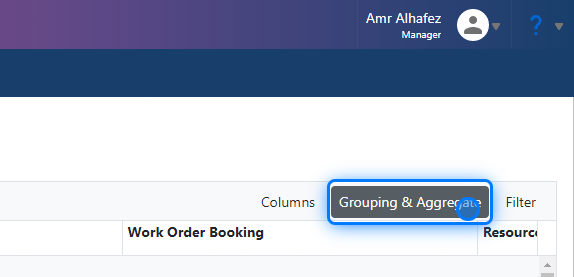
Now, let's group it by clicking on Grouping & Aggregate Button.
6. Grouping
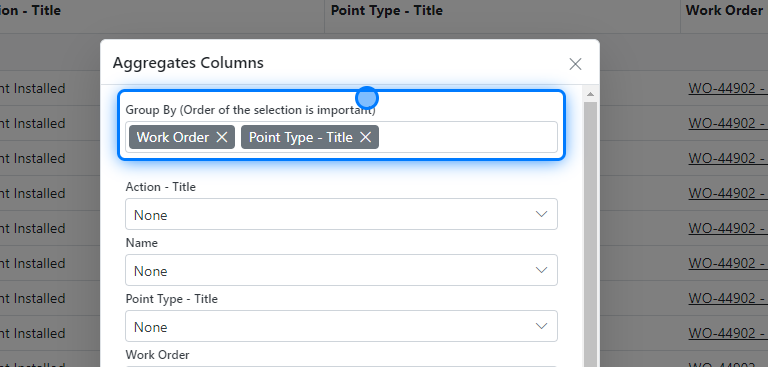
Group By:
-
Work Order
-
Point Type
7. Click on OK
8. Quick Review
It seems we have all the data we need in our example.
9. Filtering
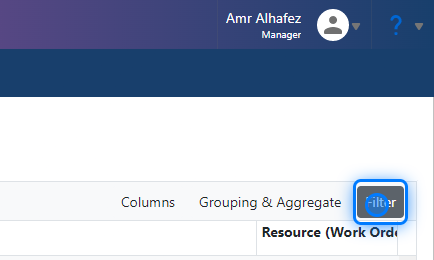
10. Creating Our Filter
Let’s set up our filter for booking status. We will apply the filter to show only records where the booking status is equal to "Completed."
💡 Linked Entity "Tables"
Since we have selected the Resource column from the Work Order Booking table (which is related to the Reading table), the Work Order Booking is already linked.
If we didn't select the Resource column but want to filter by booking status, we can click on the link button, select the Work Order Booking table, and set our criteria.
11. The Resault
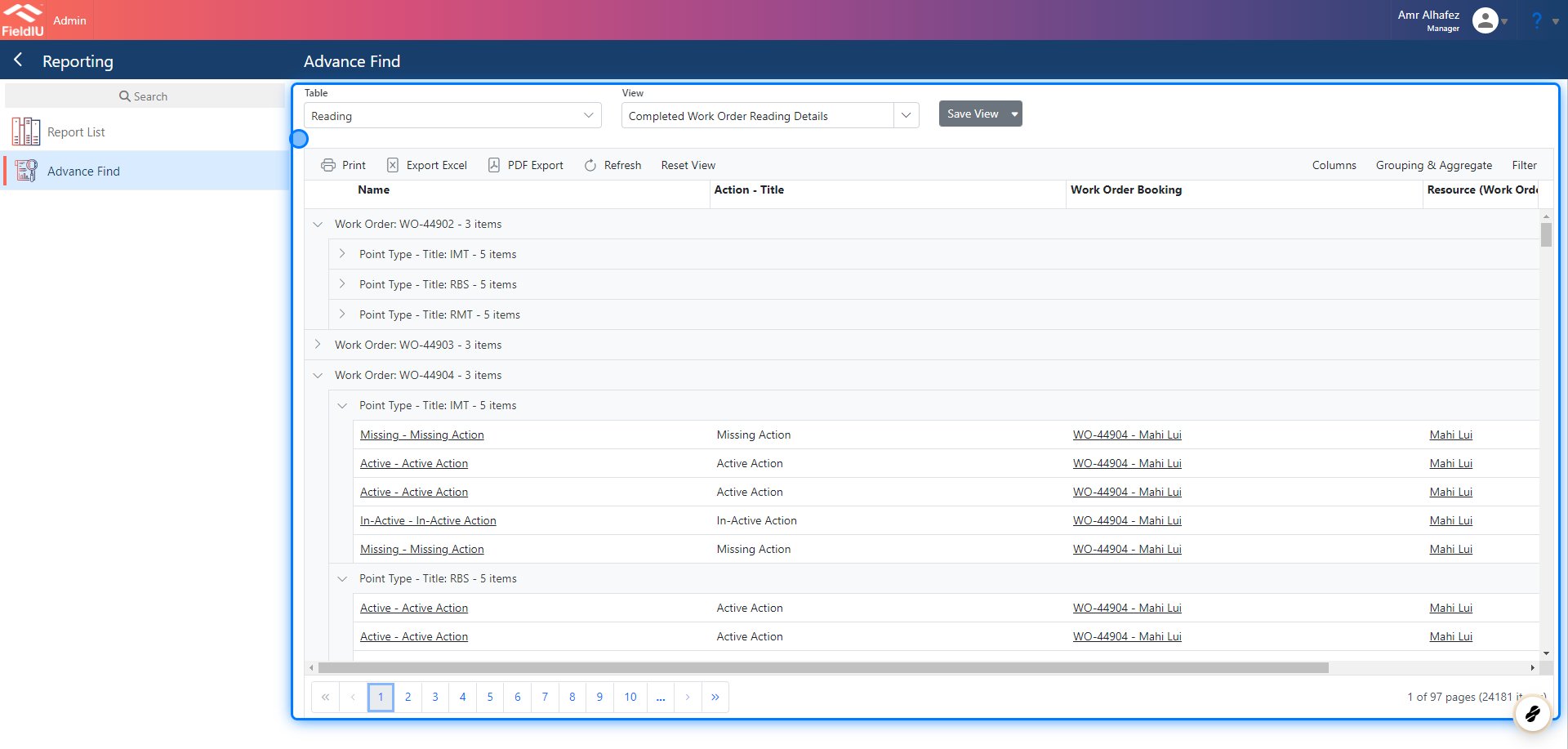
Now we have the report grouped and organized with the data we want, and it is ready to export or print.
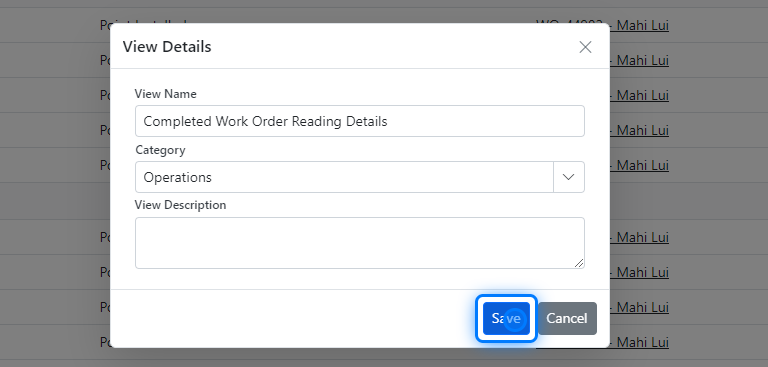
12. Don't forget to save your Report.
 �����������������������