

Customer Portal Findings
1. Login Page
2. Customer Portal Findings
Once you enter the portal, you can find the Work Order Findings list in the side menu bar.
The Findings list offers several views to help you filter and manage entries effectively:
-
All Findings
-
Waiting for Customer Action
-
Customer Requested to Close
-
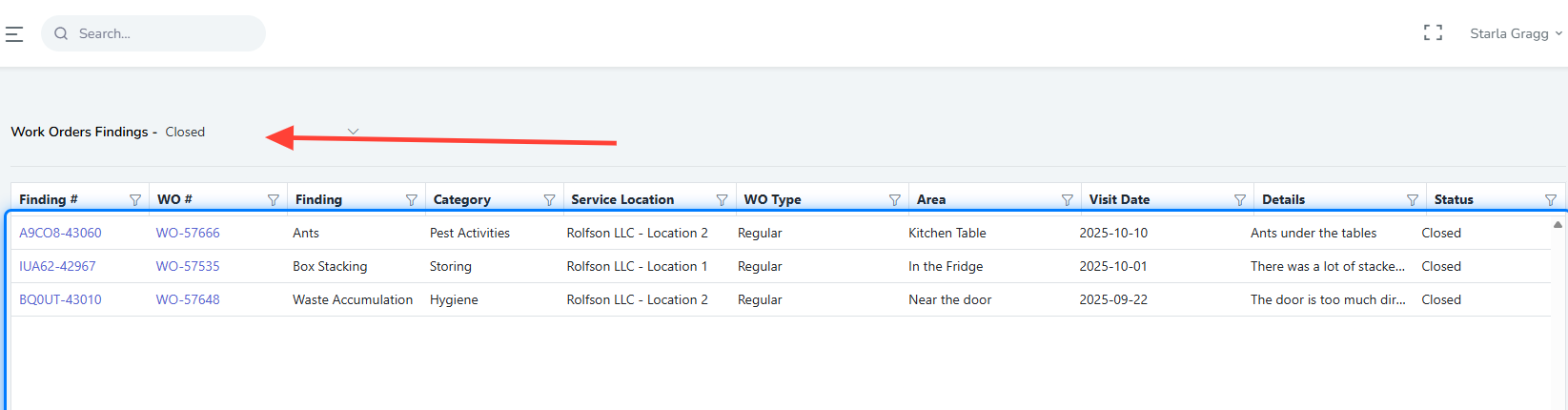
Closed
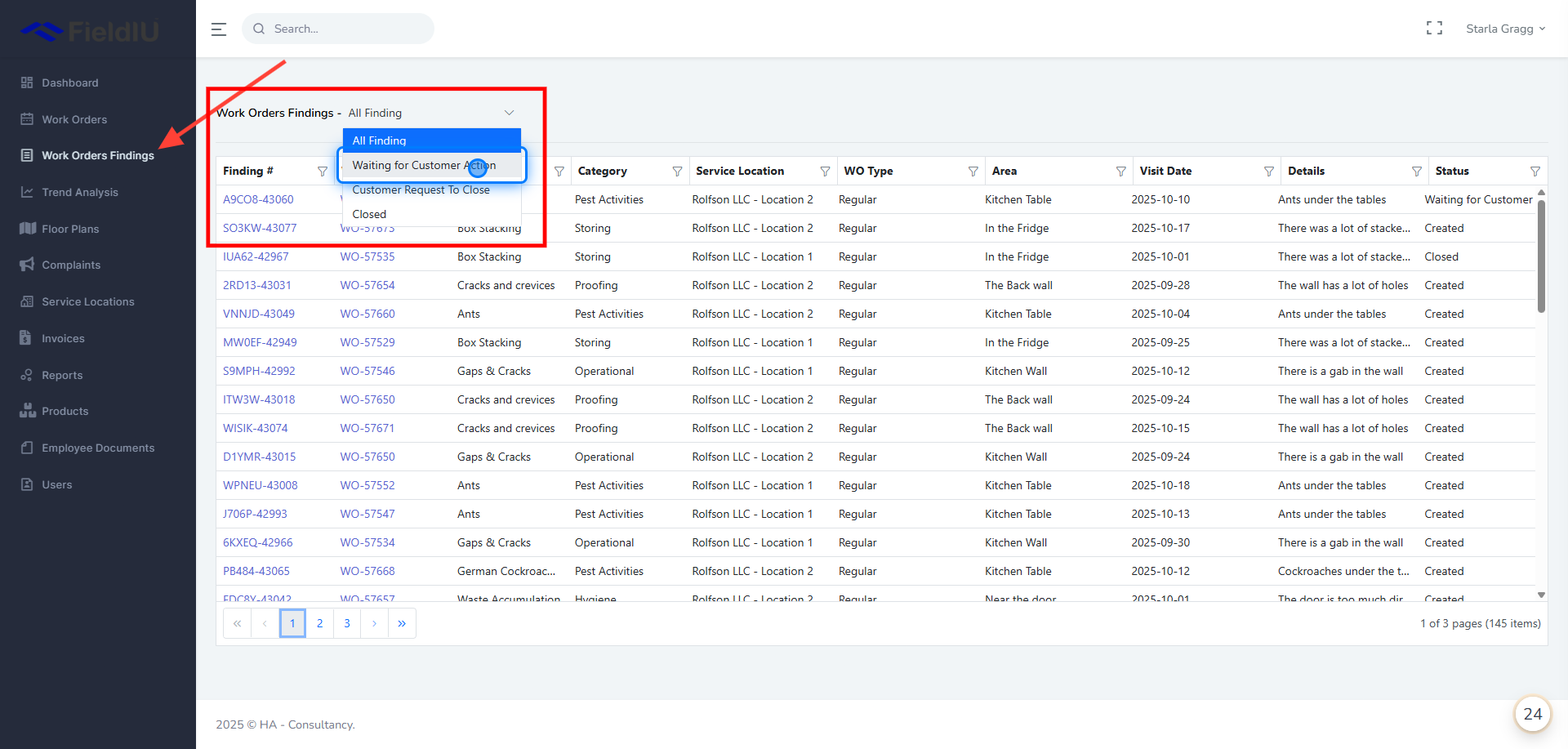
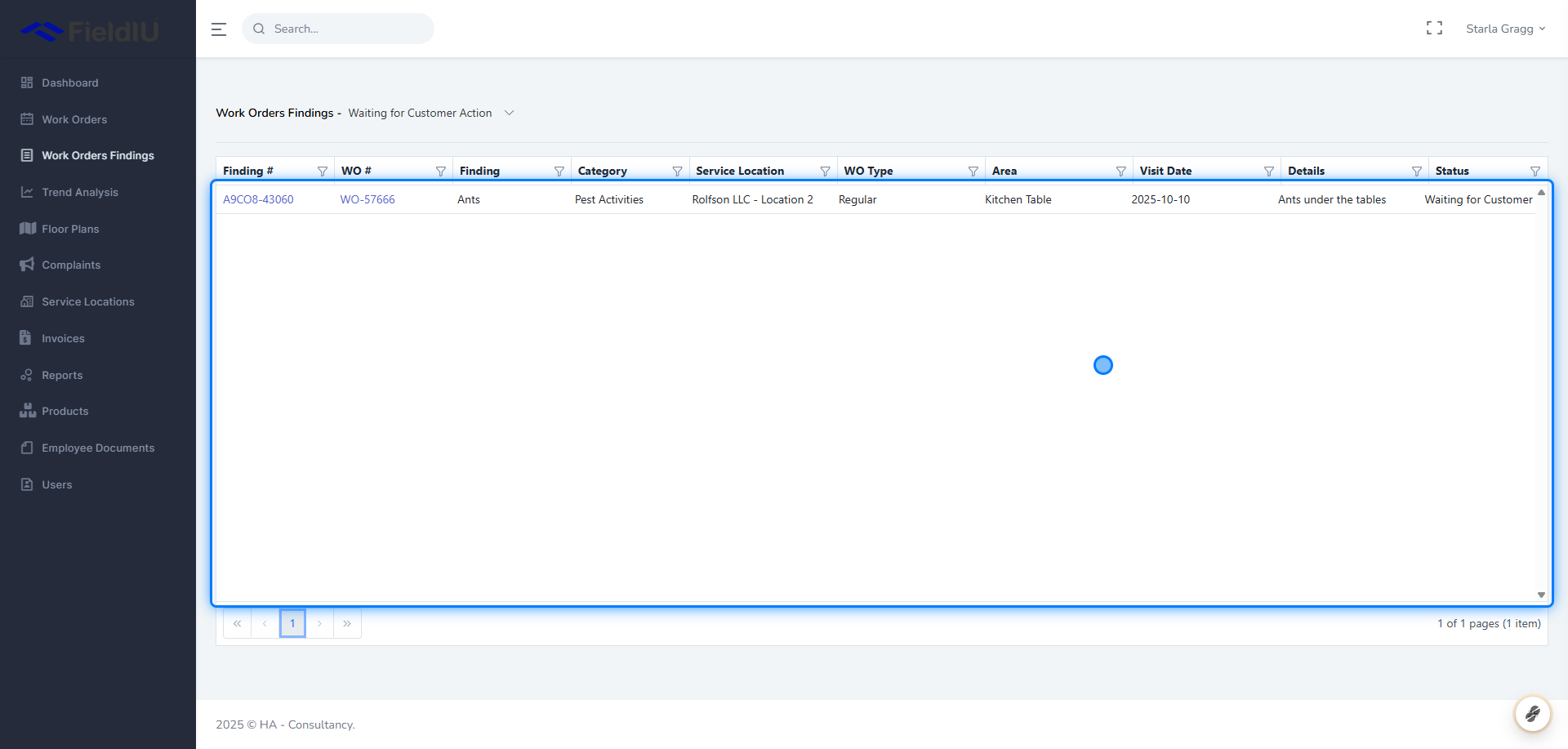
3. Select the Work Order Findings list
Then choose the findings you want to review.
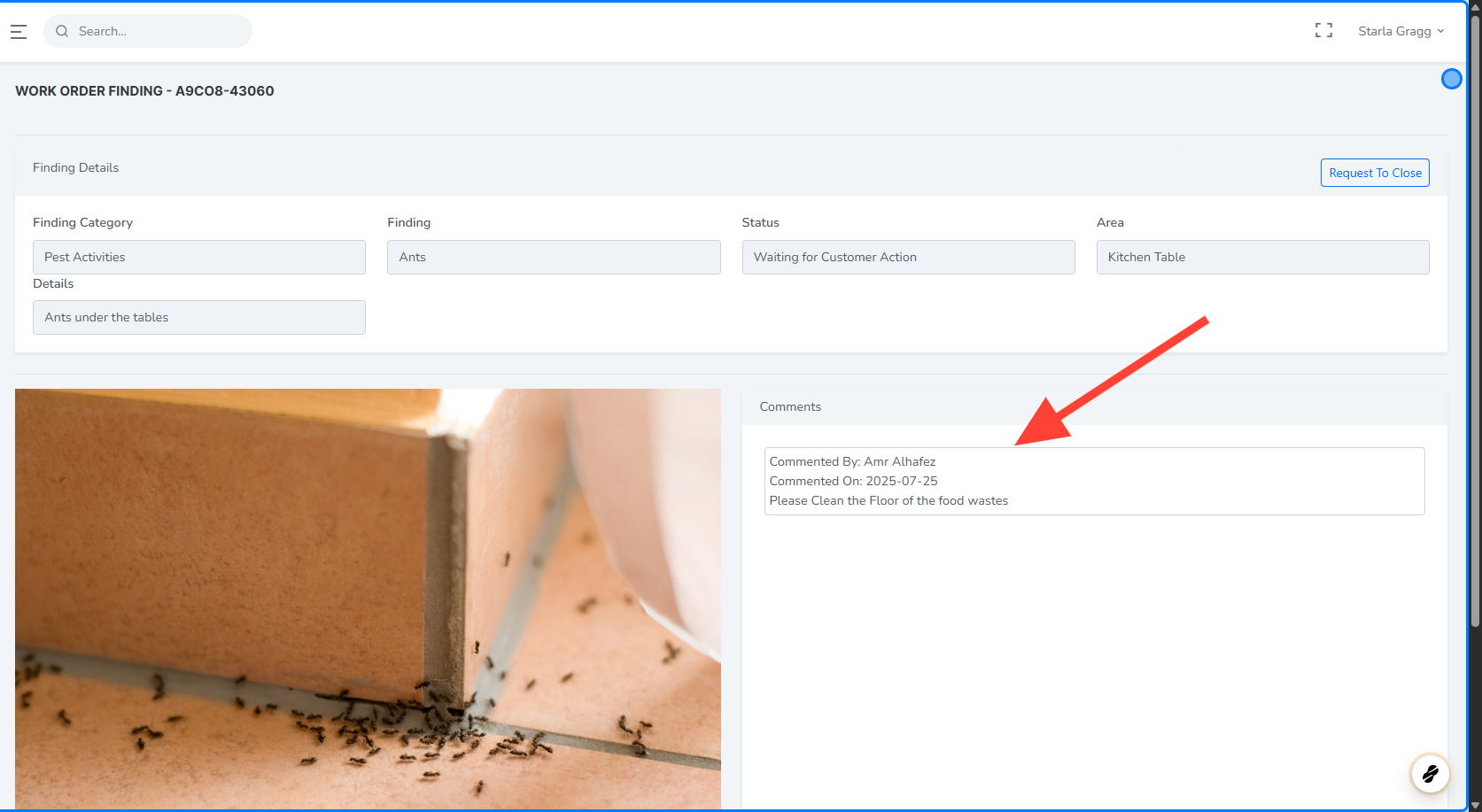
4. Finding Interface
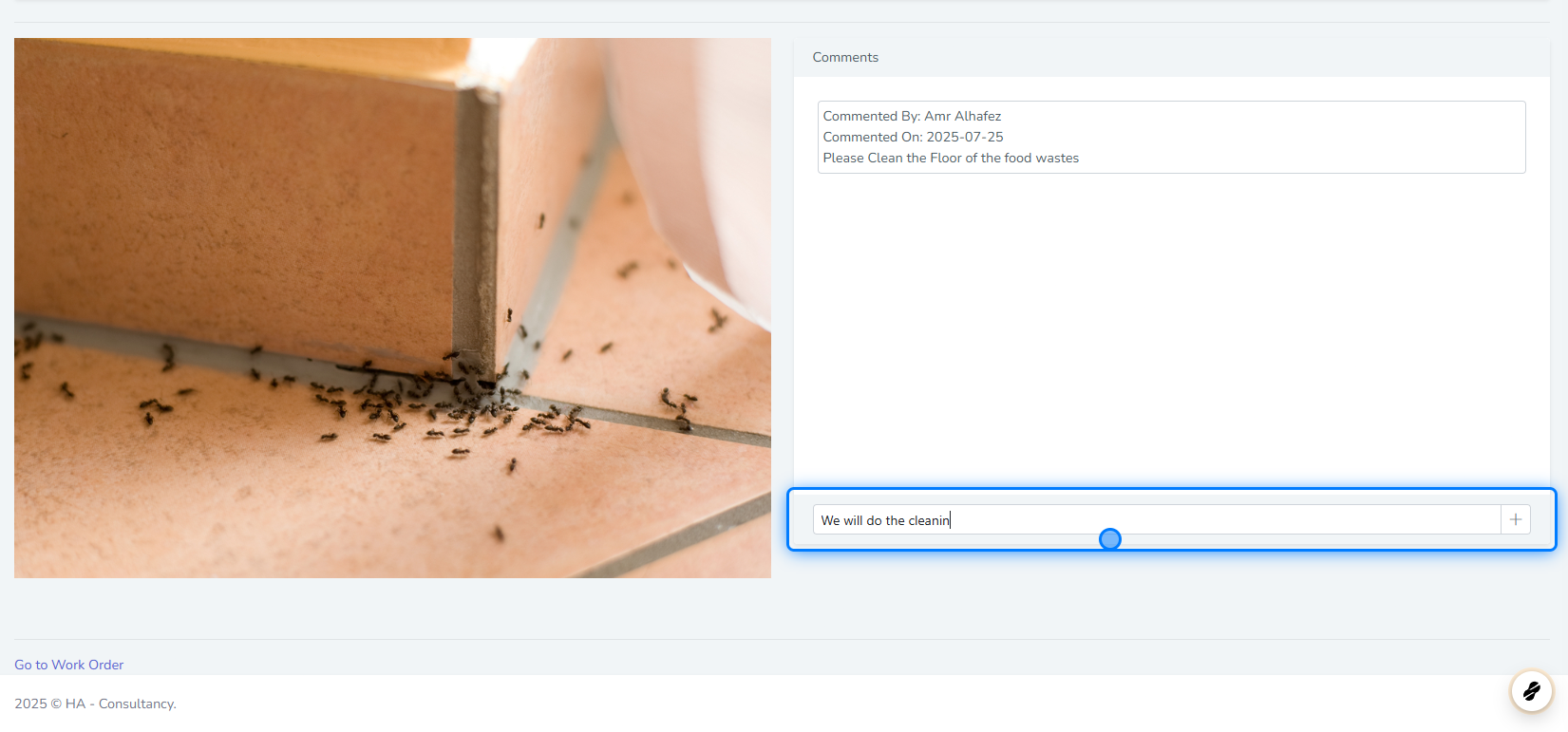
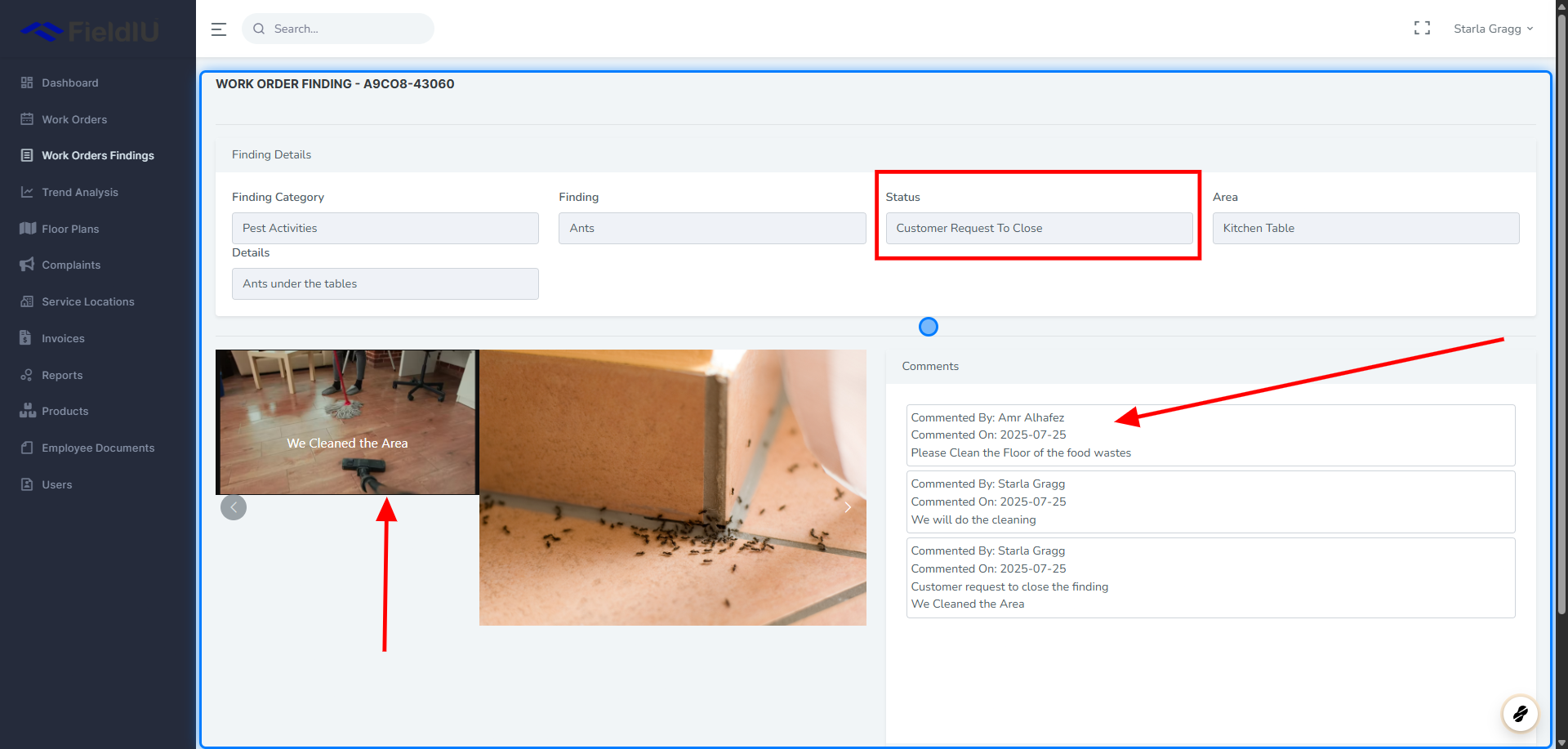
Once you select the desired finding, you can view all its details and the comments made by the Operations Manager, and you can also reply to them.
5. Submitting Comments
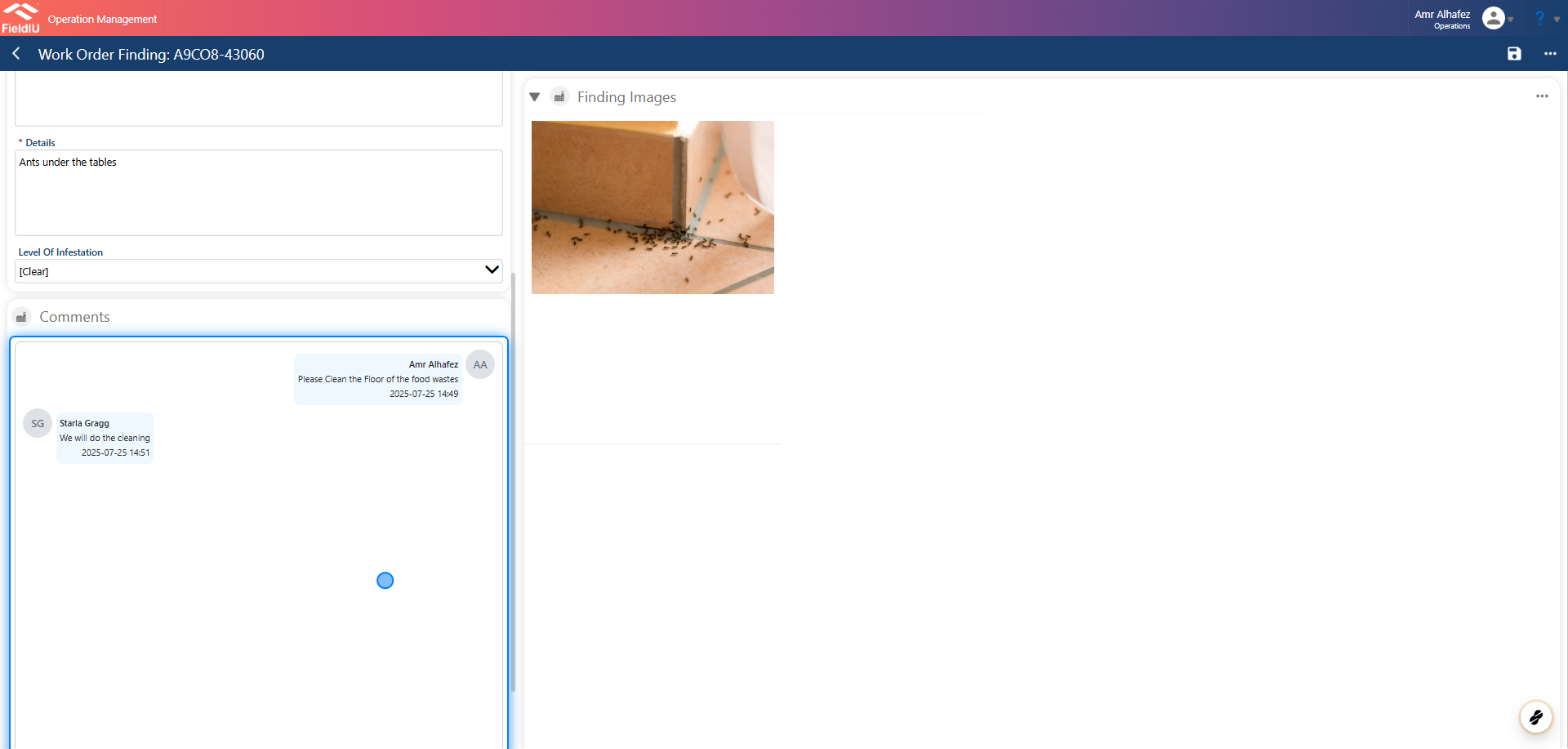
6. How is the Comment shows on the Operations side
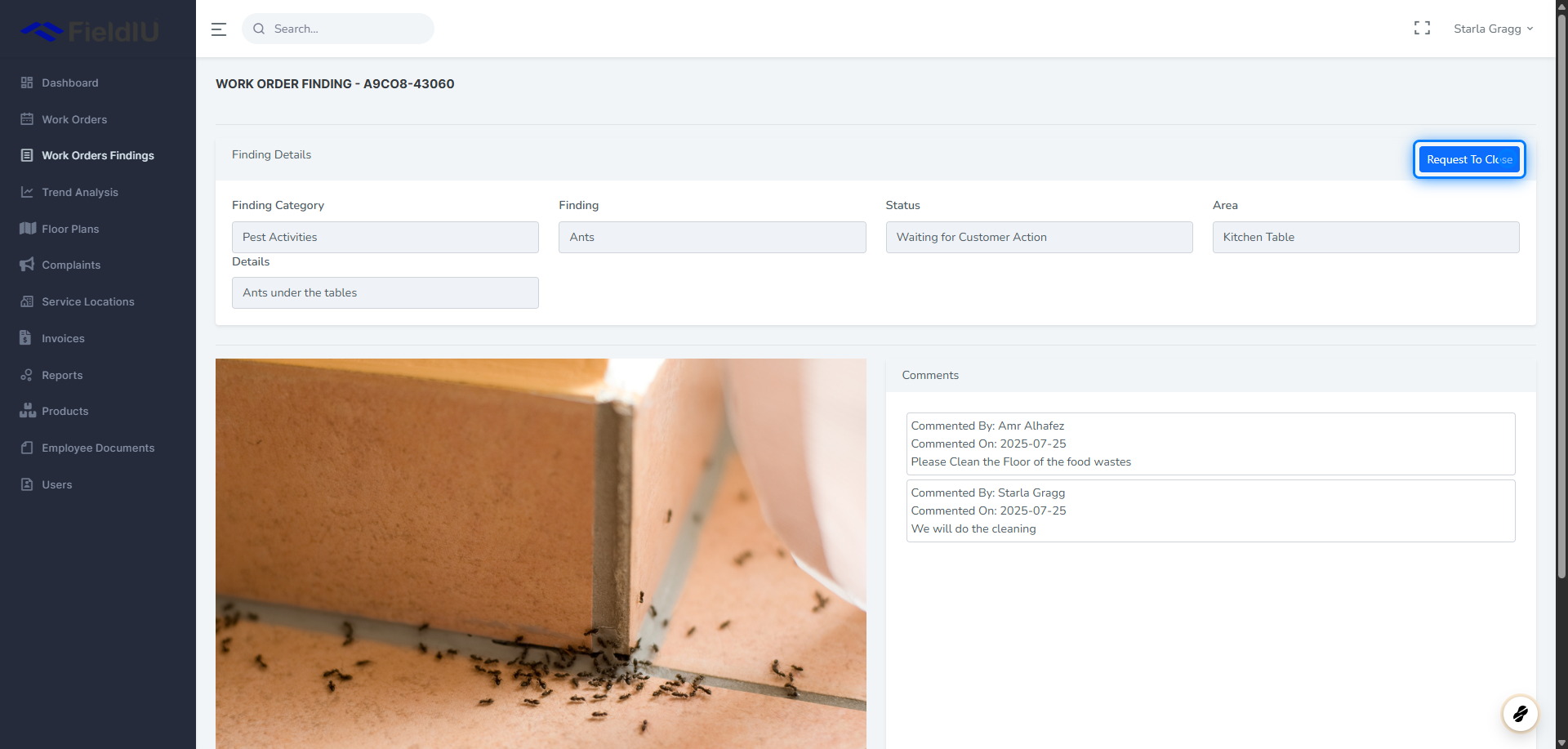
7. Request To Close
Once you have completed the actions requested by Operations, close the finding by clicking the 'Request to Close' button.
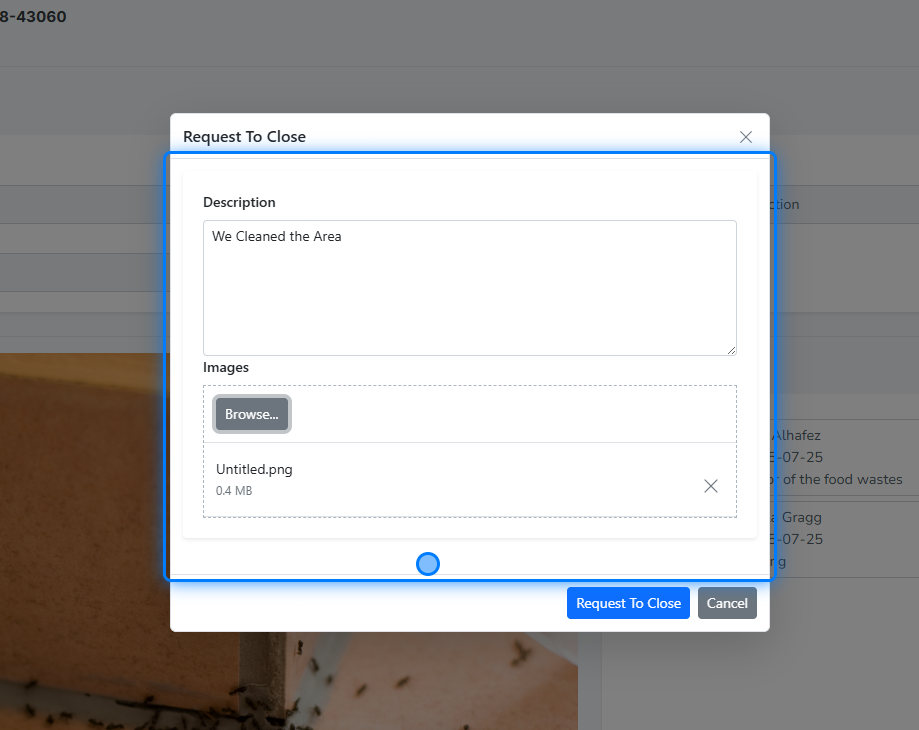
8. Add Your Description and Upload an Image
9. The Changes
As you can see, the status has been updated, and both the image and description have been submitted to the Operations team.
10. Closed Findings
You can now see that the finding you closed is listed under the 'Closed Findings' view.
 �����������������������