> ## Documentation Index
> Fetch the complete documentation index at: https://docs.fieldiu.com/llms.txt
> Use this file to discover all available pages before exploring further.
# Vendors
### 1. Access To Vendors
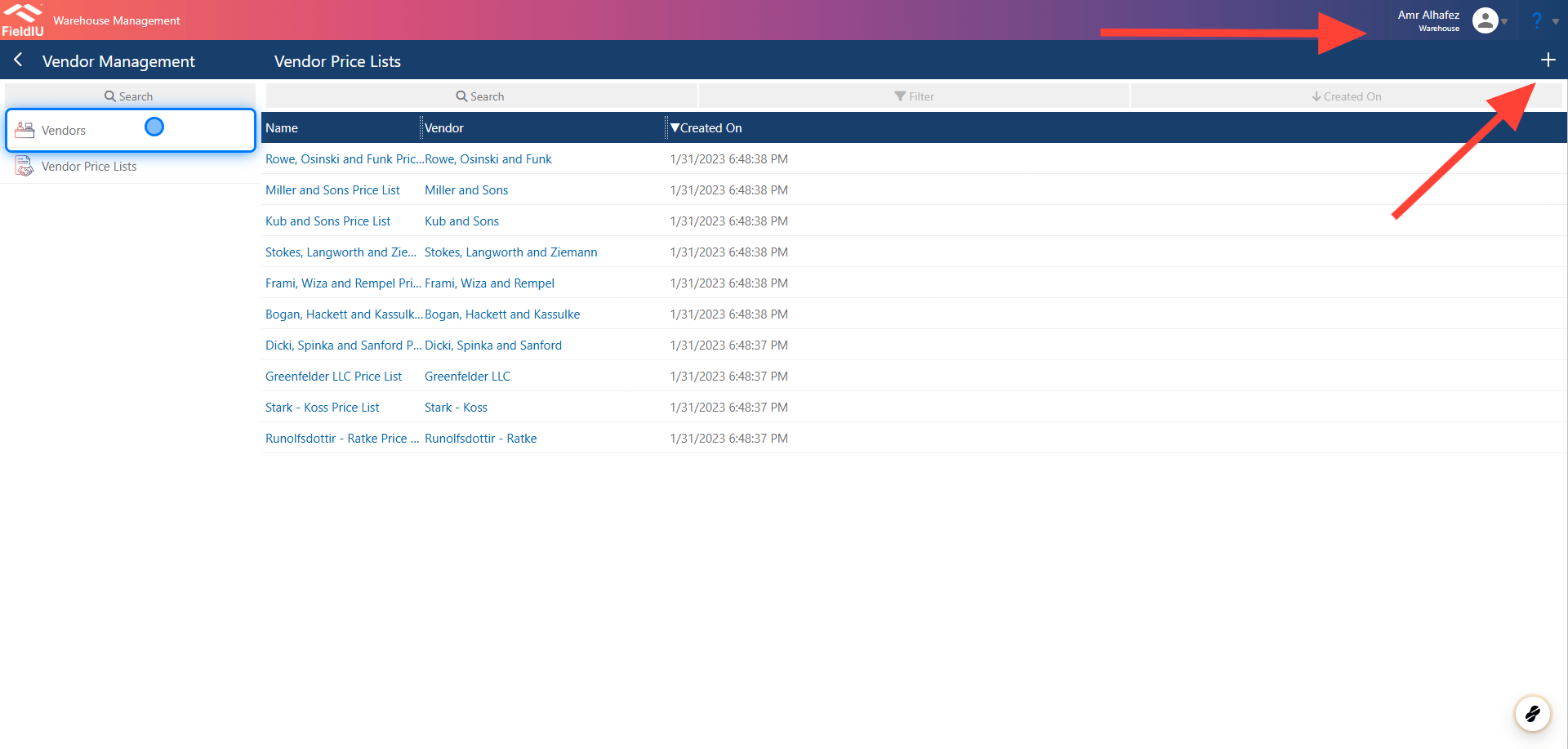
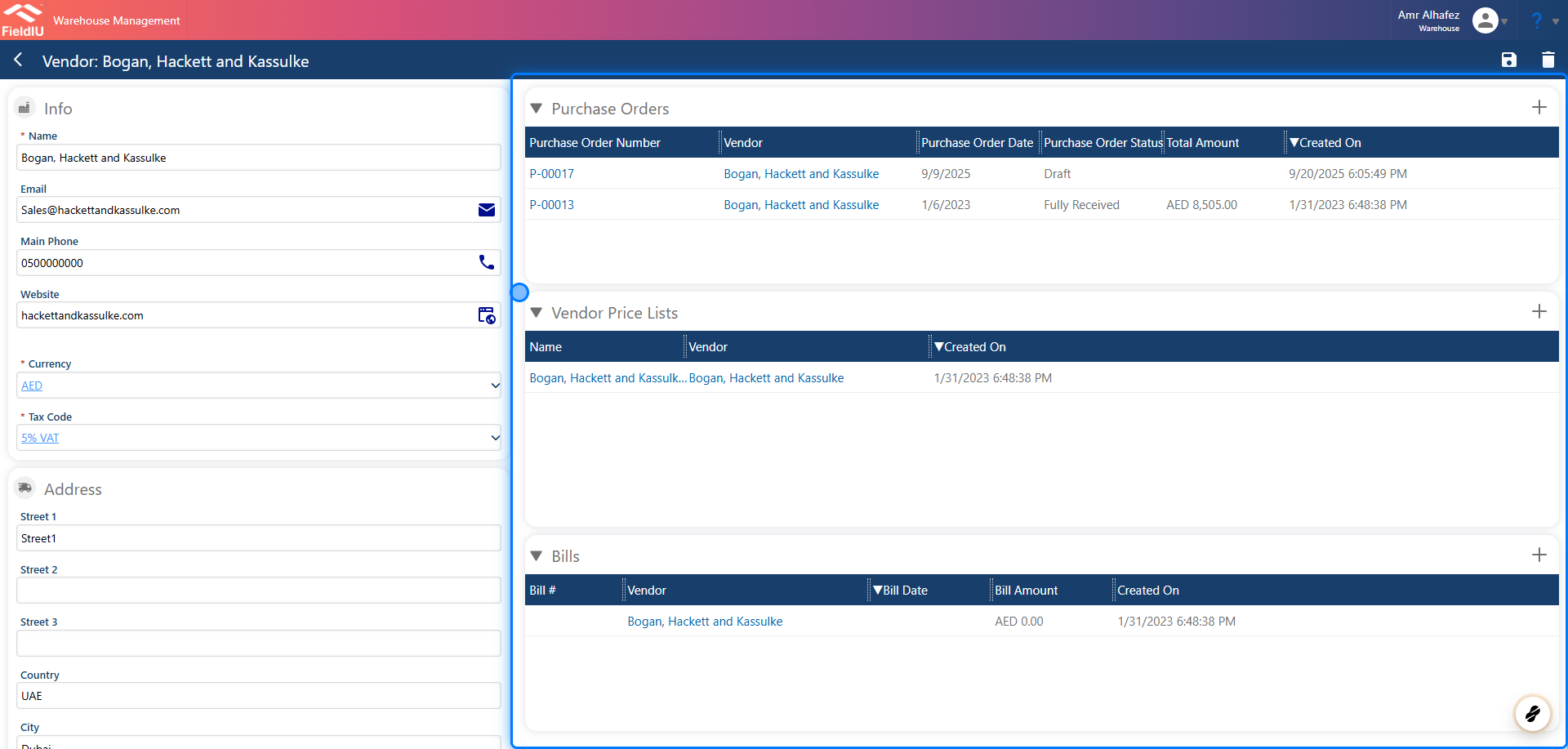
To access Vendors, open the Warehouse app and click the *Vendors* tab in the side menu.\
Here, you can view and manage all vendors, as well as create new vendor records.
 ### 2. Creating New VendorEmail
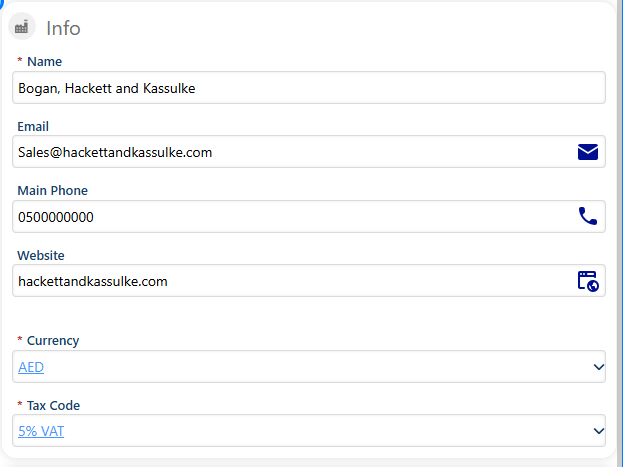
**Once you create a new Vendor, you must enter the main details:**
* **Name** *(required)*
* **Email**
* **Main Phone**
* **Website**
* **Currency** *(required)*
* **TAX Code** *(required)*
### 2. Creating New VendorEmail
**Once you create a new Vendor, you must enter the main details:**
* **Name** *(required)*
* **Email**
* **Main Phone**
* **Website**
* **Currency** *(required)*
* **TAX Code** *(required)*
 ### 3. Vendor Address
 ### 4. Vendor Address
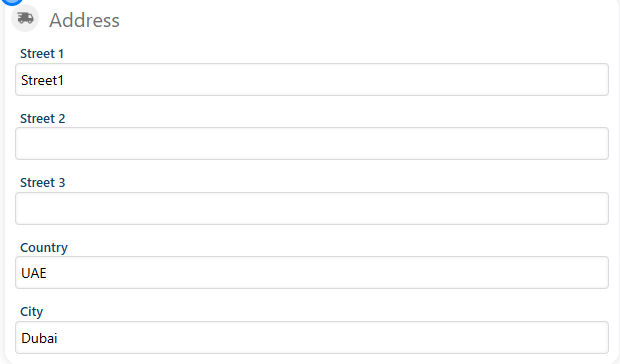
Similarly, in the Address section, you can enter the vendor’s address details.
### 4. Vendor Address
Similarly, in the Address section, you can enter the vendor’s address details.
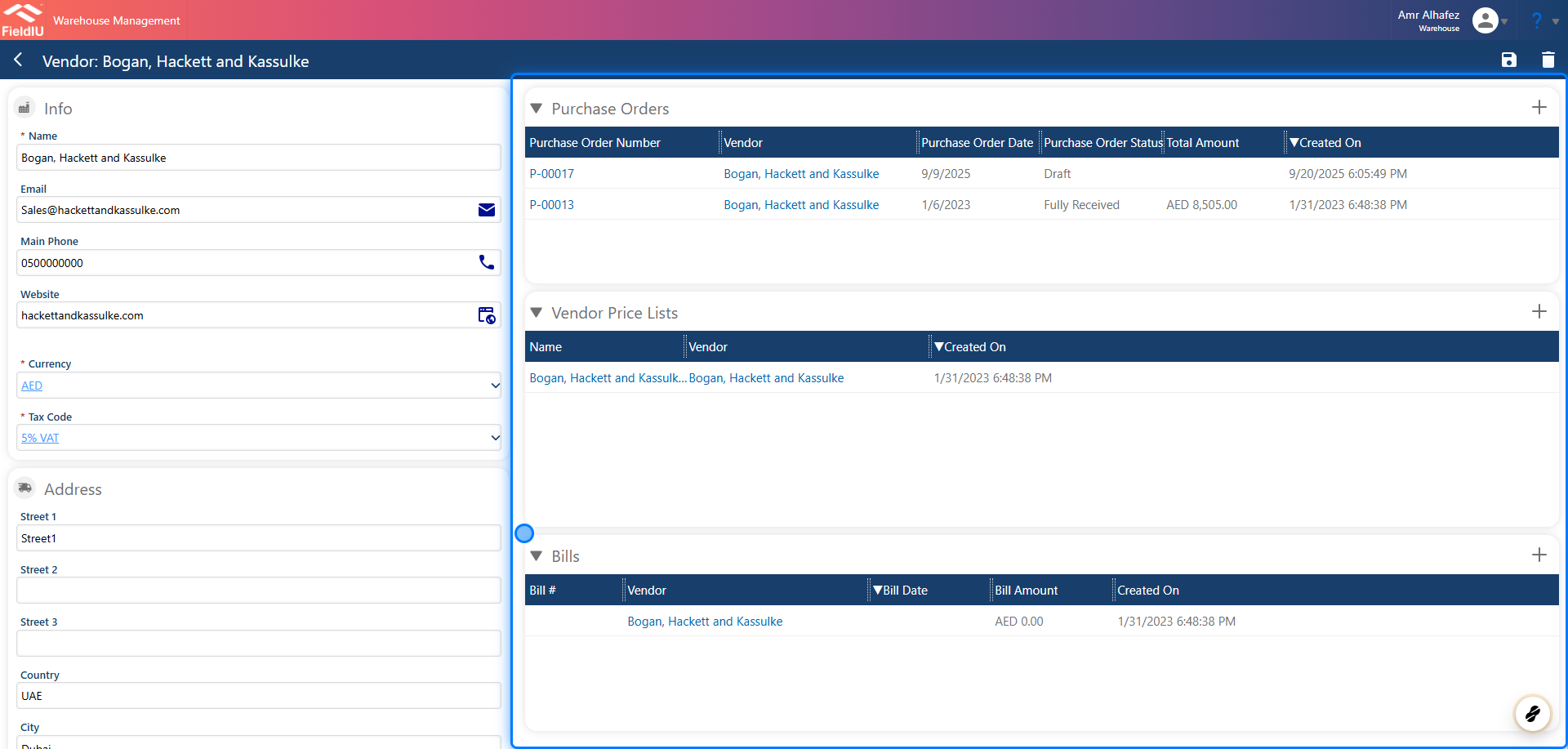
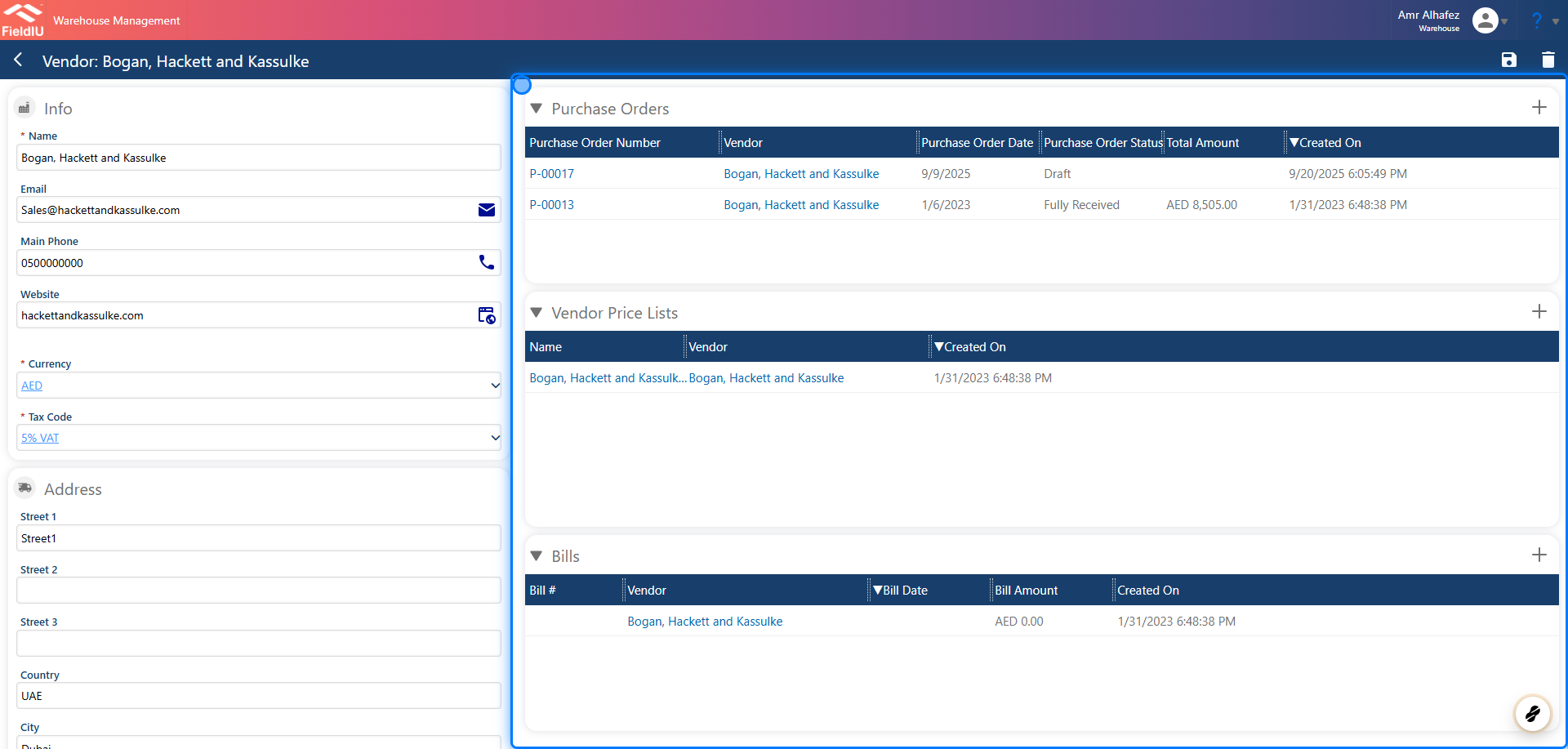 > ### 💡 Once you save the vendor, new sections will become available:
>
> * **Purchase Orders**
>
> * **Vendor Price Lists**
>
> * **Bills**
### 5. Purchase Orders
Purchase Orders is where you can view all purchase orders linked to this vendor.\
*For more details, refer to the* [**Purchase Order Documentation**](https://docs.fieldiu.com/) .
> ### 💡 Once you save the vendor, new sections will become available:
>
> * **Purchase Orders**
>
> * **Vendor Price Lists**
>
> * **Bills**
### 5. Purchase Orders
Purchase Orders is where you can view all purchase orders linked to this vendor.\
*For more details, refer to the* [**Purchase Order Documentation**](https://docs.fieldiu.com/) .
 ### 6. Vendor Price Lists
In the Vendor Price List section, you can add price lists for the vendor and set the prices for the products and items you purchase from them.
*For more details, refer to the* [Vendor Price Lists Documentation](https://docs.fieldiu.com/) .
### 6. Vendor Price Lists
In the Vendor Price List section, you can add price lists for the vendor and set the prices for the products and items you purchase from them.
*For more details, refer to the* [Vendor Price Lists Documentation](https://docs.fieldiu.com/) .
 ### 7. Bills
In the Bills section, you can view and manage all bills linked to this vendor.
*For more details, refer to the* [Bills Documentation](https://docs.fieldiu.com/) .
### 7. Bills
In the Bills section, you can view and manage all bills linked to this vendor.
*For more details, refer to the* [Bills Documentation](https://docs.fieldiu.com/) .
 �����������������������