> ## Documentation Index
> Fetch the complete documentation index at: https://docs.fieldiu.com/llms.txt
> Use this file to discover all available pages before exploring further.
# Inventory Adjustment
The Inventory Adjustment Tool is used to adjust quantities in inventory.
### 1. Adjustment Example
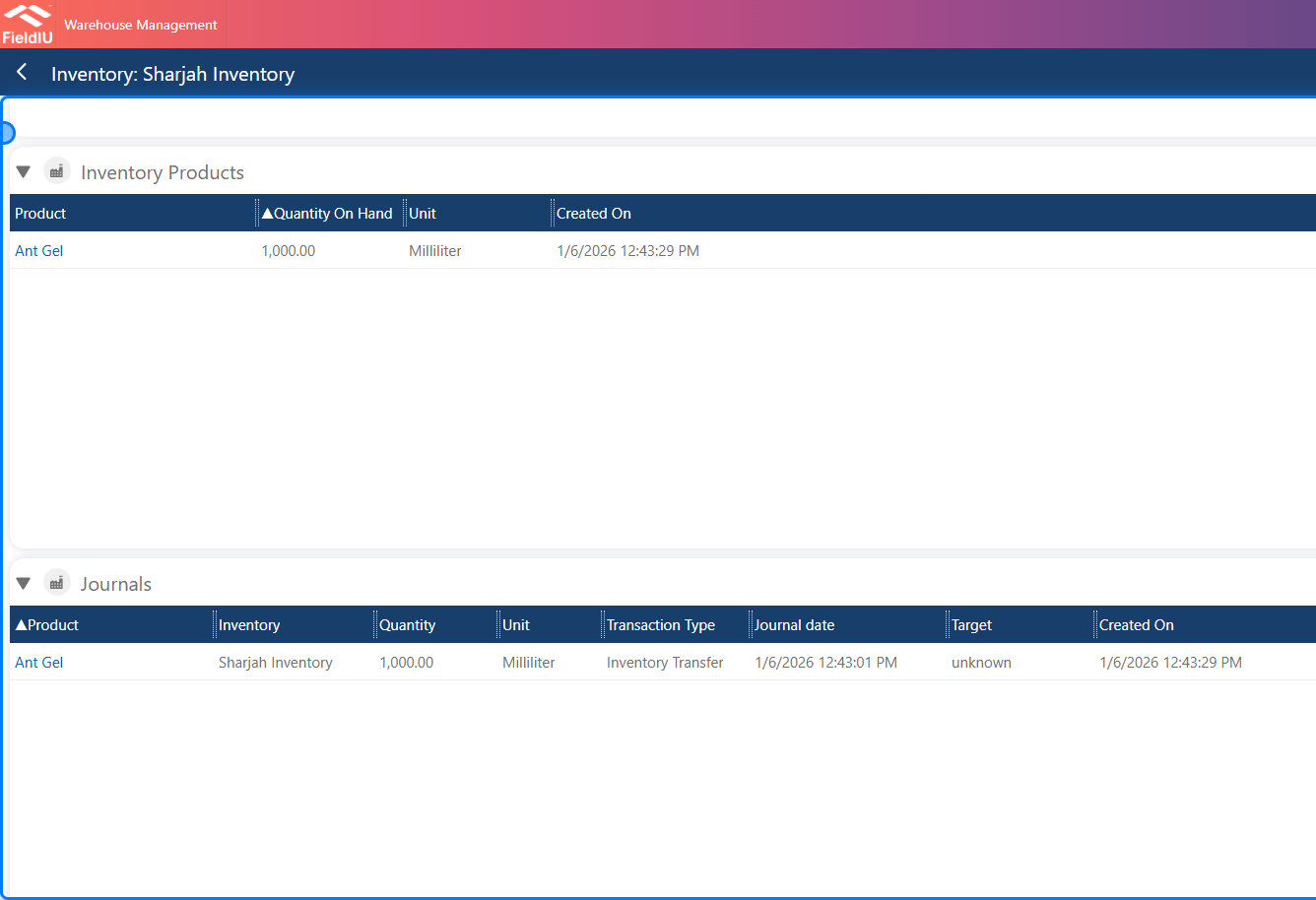
For example, in the system (Sharjah Inventory), we have 1000 milliliters of Ant Gel, but in reality there is none available, so we use the Adjustment Tool to update the quantity.
 ### 2. How To ?
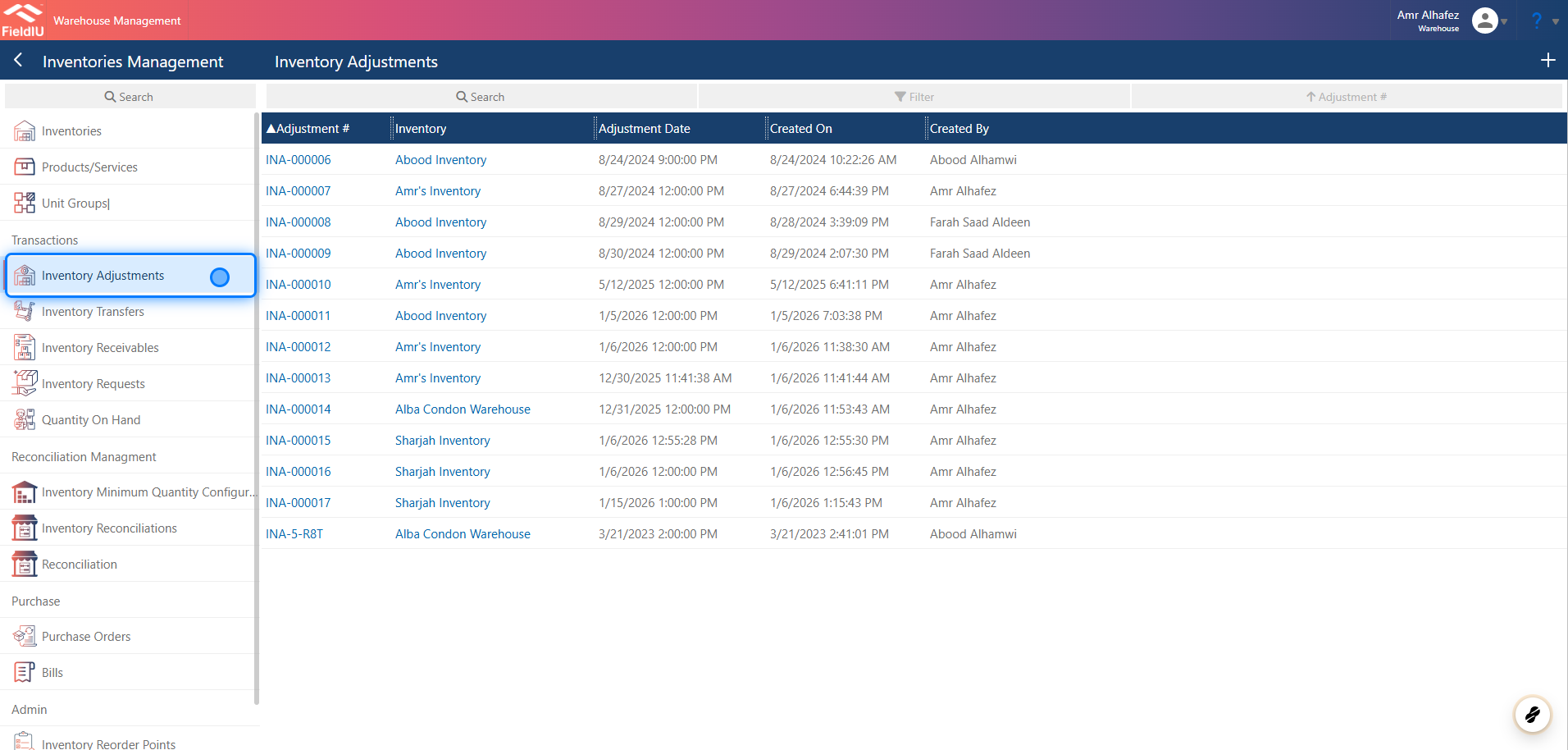
To Create the Inventory Adjustment Record, open the Warehouse app. From the sidebar menu, select the Inventory Management tab. You will find the Inventory Adjustment option in the same menu.
Click the + button to create a new record, or view existing records by selecting them from the list
### 2. How To ?
To Create the Inventory Adjustment Record, open the Warehouse app. From the sidebar menu, select the Inventory Management tab. You will find the Inventory Adjustment option in the same menu.
Click the + button to create a new record, or view existing records by selecting them from the list
 ### 3. Selecting Inventory
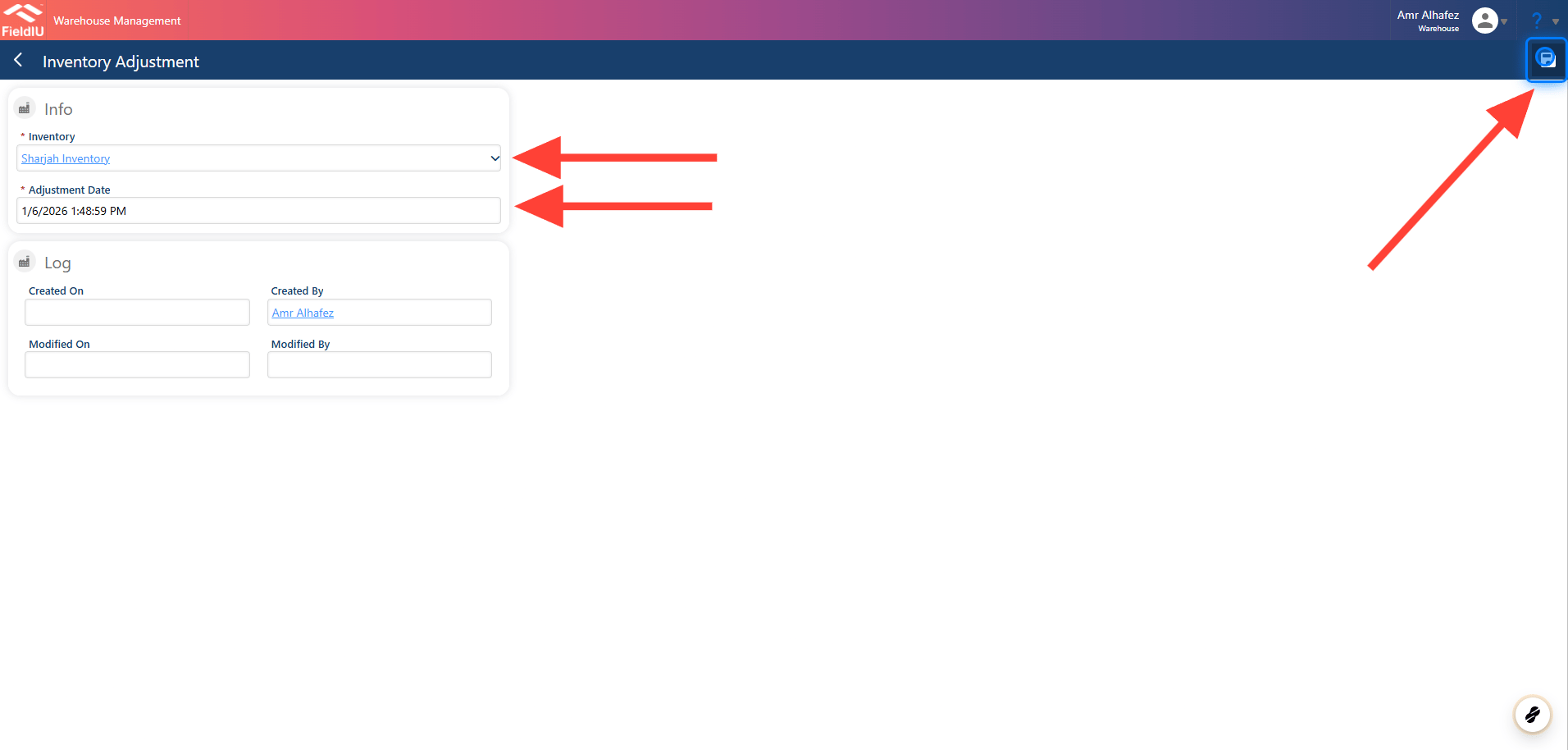
Select the desired inventory (in this case, Sharjah Inventory) and choose the adjustment date
Then Click on Save
### 3. Selecting Inventory
Select the desired inventory (in this case, Sharjah Inventory) and choose the adjustment date
Then Click on Save
 ### 4. Select What To Adjust
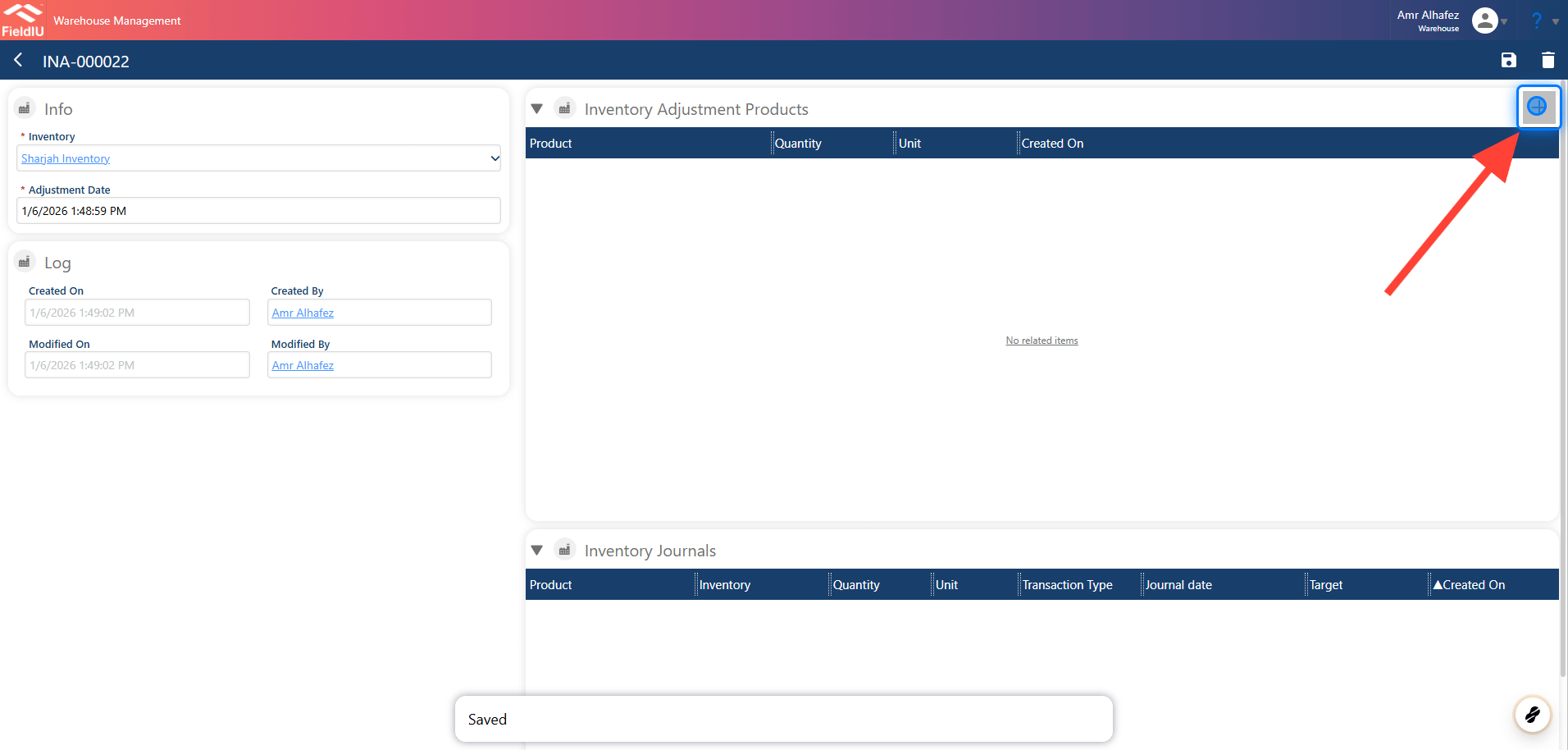
Create new item to adjust by clicking the + icon.
### 4. Select What To Adjust
Create new item to adjust by clicking the + icon.
 ### 5. Select The Item
Fill in the form by selecting the item, unit, and quantity, then click Save
### 5. Select The Item
Fill in the form by selecting the item, unit, and quantity, then click Save
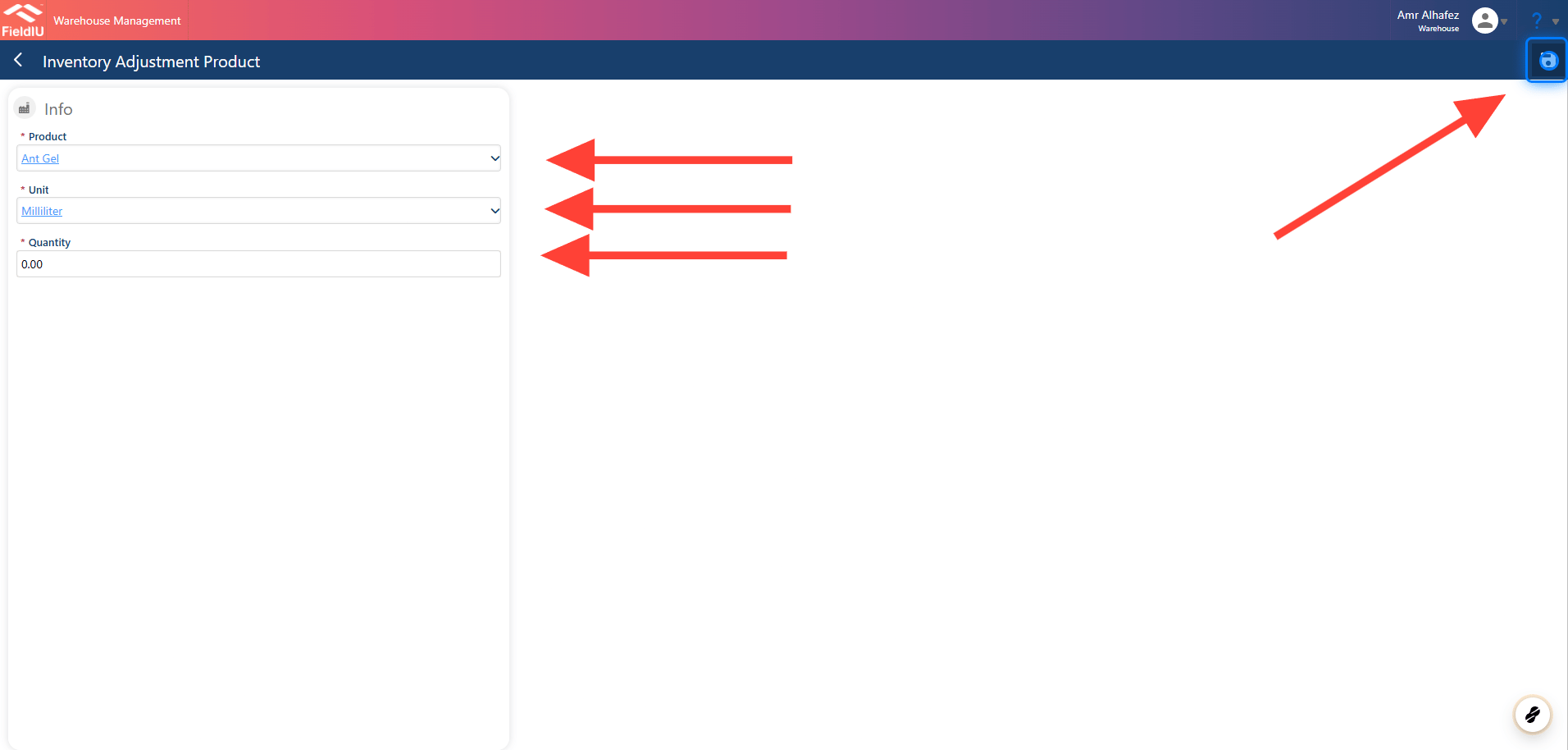 > ### 💡 The quantity you enter will be set as the new quantity for the item.
### 6. Check The Record
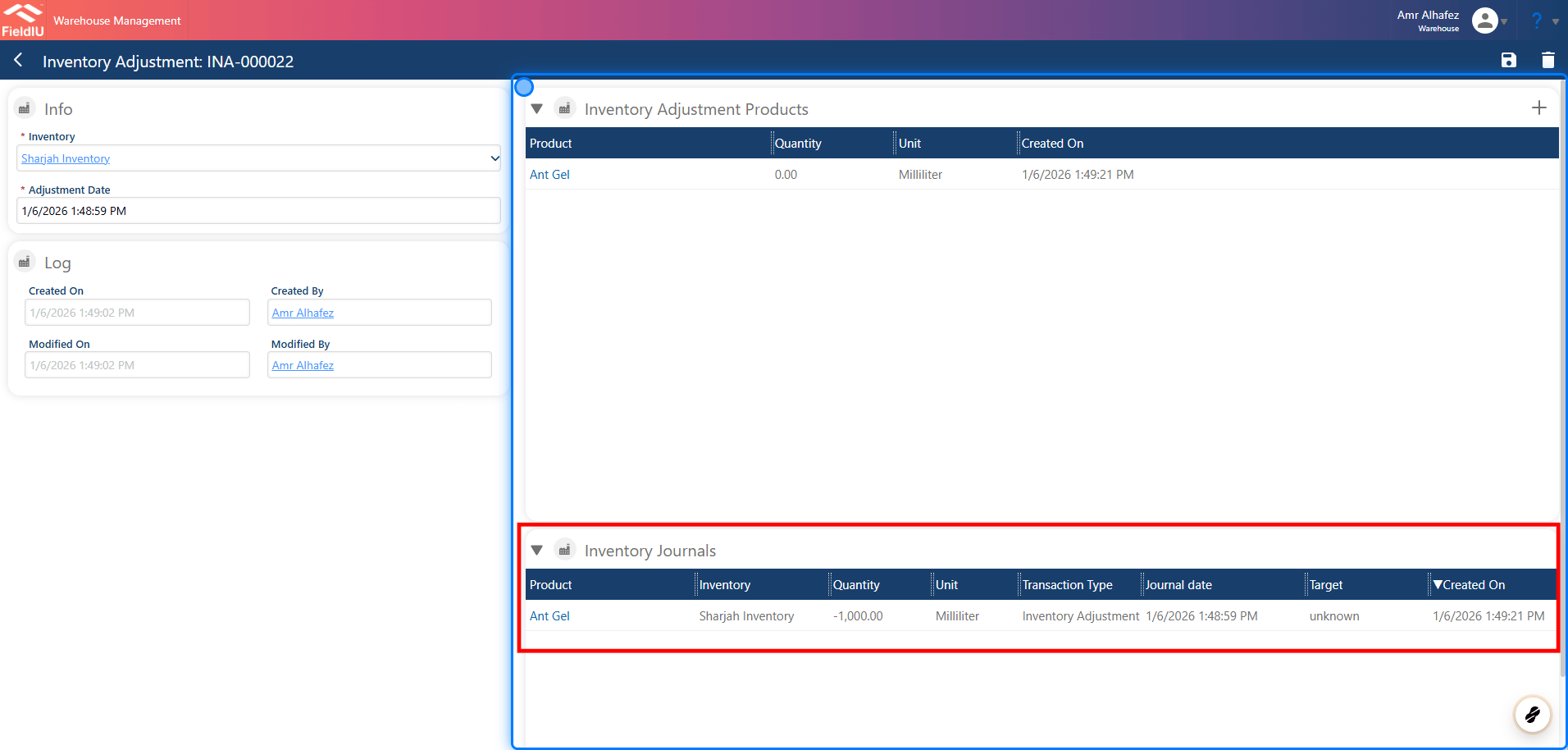
Once you save, a new journal record will be automatically created
> ### 💡 The quantity you enter will be set as the new quantity for the item.
### 6. Check The Record
Once you save, a new journal record will be automatically created
 ### 7. Item Adjusted
 �����������������������