> ## Documentation Index
> Fetch the complete documentation index at: https://docs.fieldiu.com/llms.txt
> Use this file to discover all available pages before exploring further.
# Inventories
### 1. Inventory
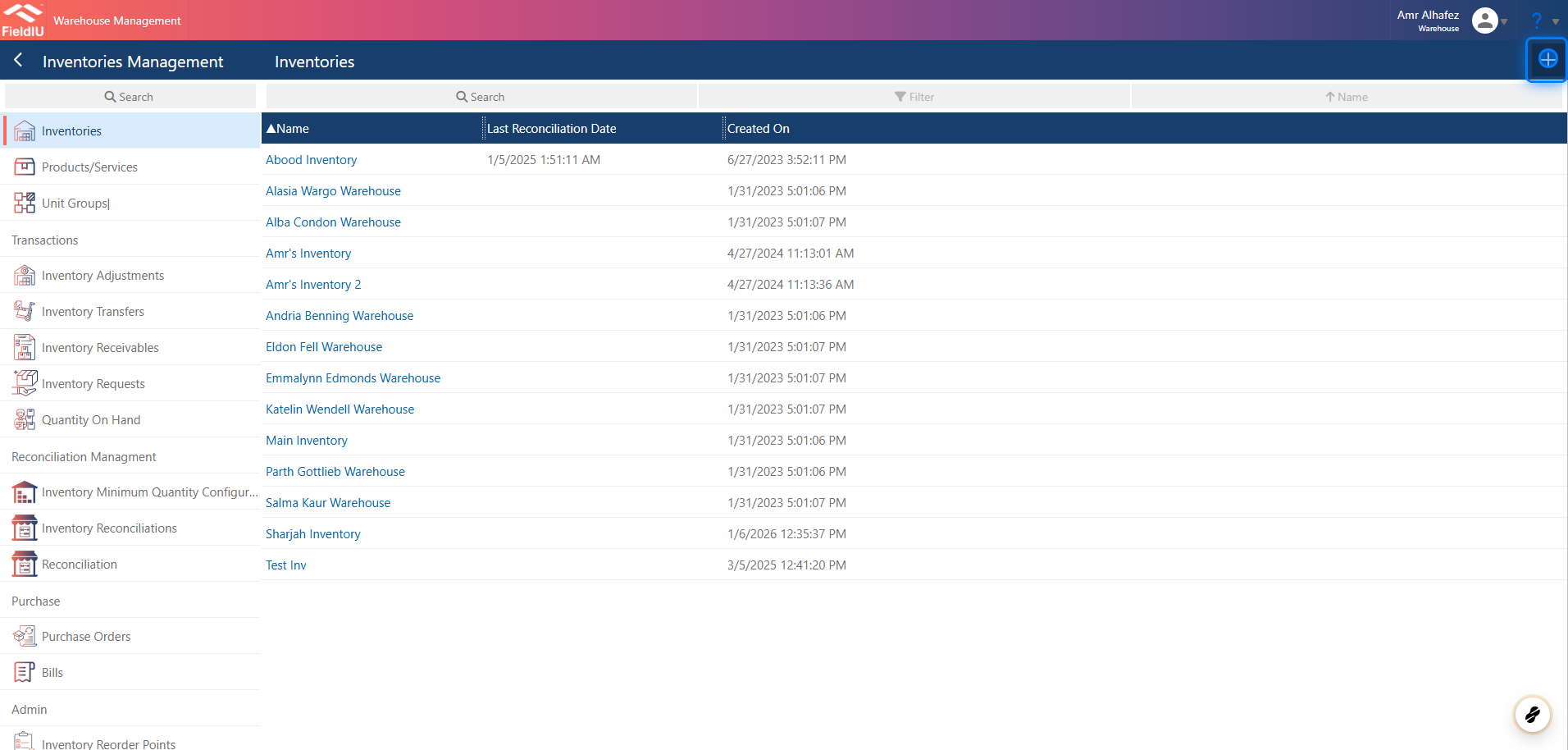
You can access it from the **Warehouse** app. From the side menu bar, click on **Inventory Management** —you will find it at same menu.
You can create a new Inventory by clicking the **+** button, or edit any existing record by clicking on it.
 ### 2. Main Details
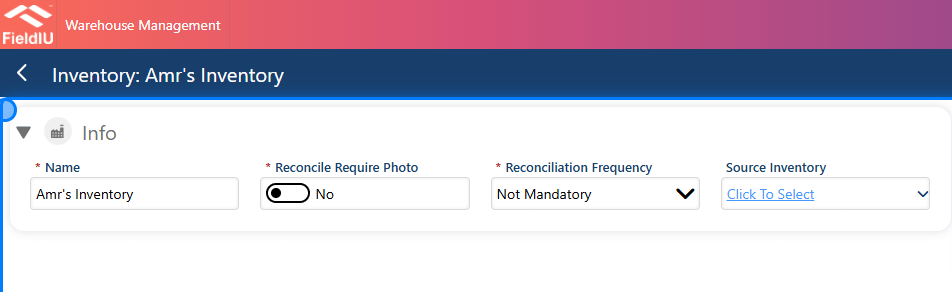
Once you create a new inventory, you need to enter the inventory name and choose whether you want to reconcile with images or not. Also, select the reconciliation frequency, and optionally choose a source inventory if available.
### 2. Main Details
Once you create a new inventory, you need to enter the inventory name and choose whether you want to reconcile with images or not. Also, select the reconciliation frequency, and optionally choose a source inventory if available.
 ### 3. Inventory Minimum Quantity Configuration
You can choose the Inventory Minimum Quantity Configuration from this section.\
Read more in the [Inventory Minimum Quantity Configuration documentation.](https://docs.fieldiu.com/knowledgebase/inventory-minimum-quantities/)
### 3. Inventory Minimum Quantity Configuration
You can choose the Inventory Minimum Quantity Configuration from this section.\
Read more in the [Inventory Minimum Quantity Configuration documentation.](https://docs.fieldiu.com/knowledgebase/inventory-minimum-quantities/)
 ### 4. Inventory Adjustment
You can create a new Inventory Adjustment from this section.\
Read more in the [Inventory Adjustment documentation.](https://docs.fieldiu.com/knowledgebase/inventory-adjustment/)
### 4. Inventory Adjustment
You can create a new Inventory Adjustment from this section.\
Read more in the [Inventory Adjustment documentation.](https://docs.fieldiu.com/knowledgebase/inventory-adjustment/)
 ### 5. Transfers & Quantites
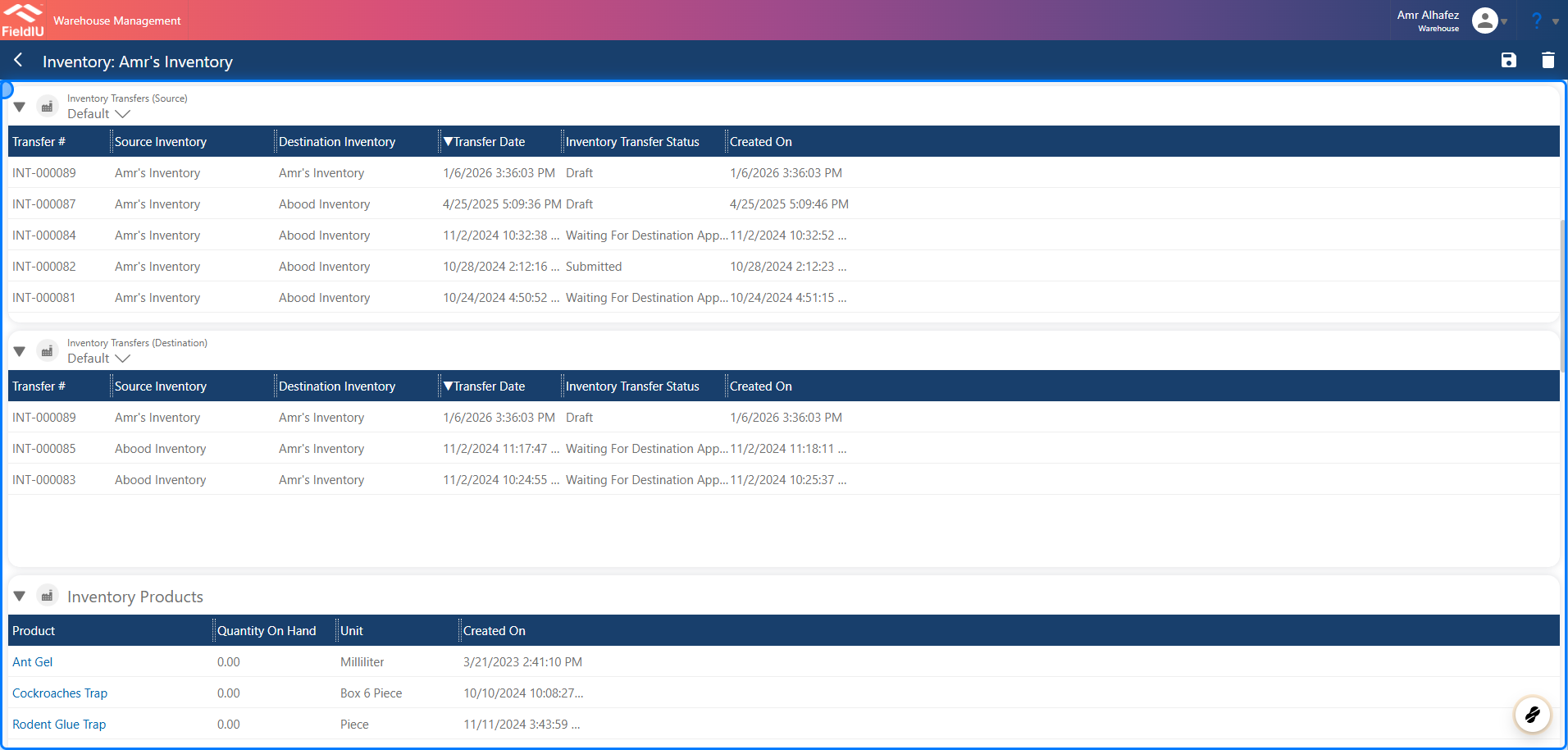
You can also see all the transfer records and the product quantities
### 5. Transfers & Quantites
You can also see all the transfer records and the product quantities
 ### 6. Journals
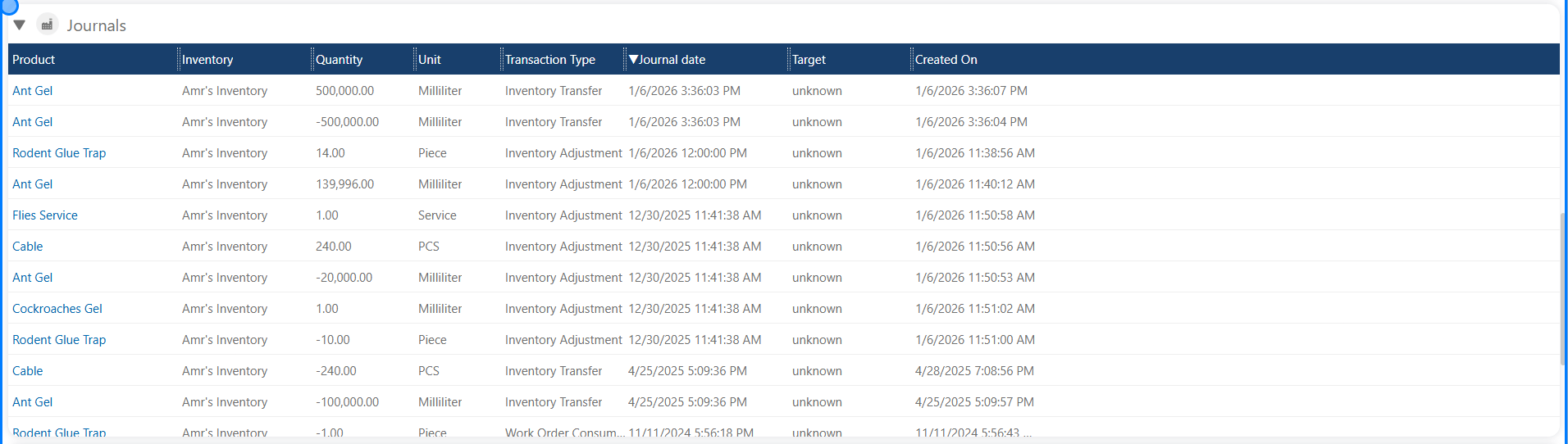
In this section, you will see all the journals for all products related to the inventory.
### 6. Journals
In this section, you will see all the journals for all products related to the inventory.
 ### 7. Assets
The same section is available for assets.
### 7. Assets
The same section is available for assets.
 �����������������������