> ## Documentation Index
> Fetch the complete documentation index at: https://docs.fieldiu.com/llms.txt
> Use this file to discover all available pages before exploring further.
# Advanced Find
> ### 💡 What is Advanced Find ?
>
> The Advanced Find tool allows you to create custom reports according to your needs. It provides the ability to aggregate, group, and filter data as required.
## What's inside The Advanced Find ?!
### 1. Advanced Find Main Screen
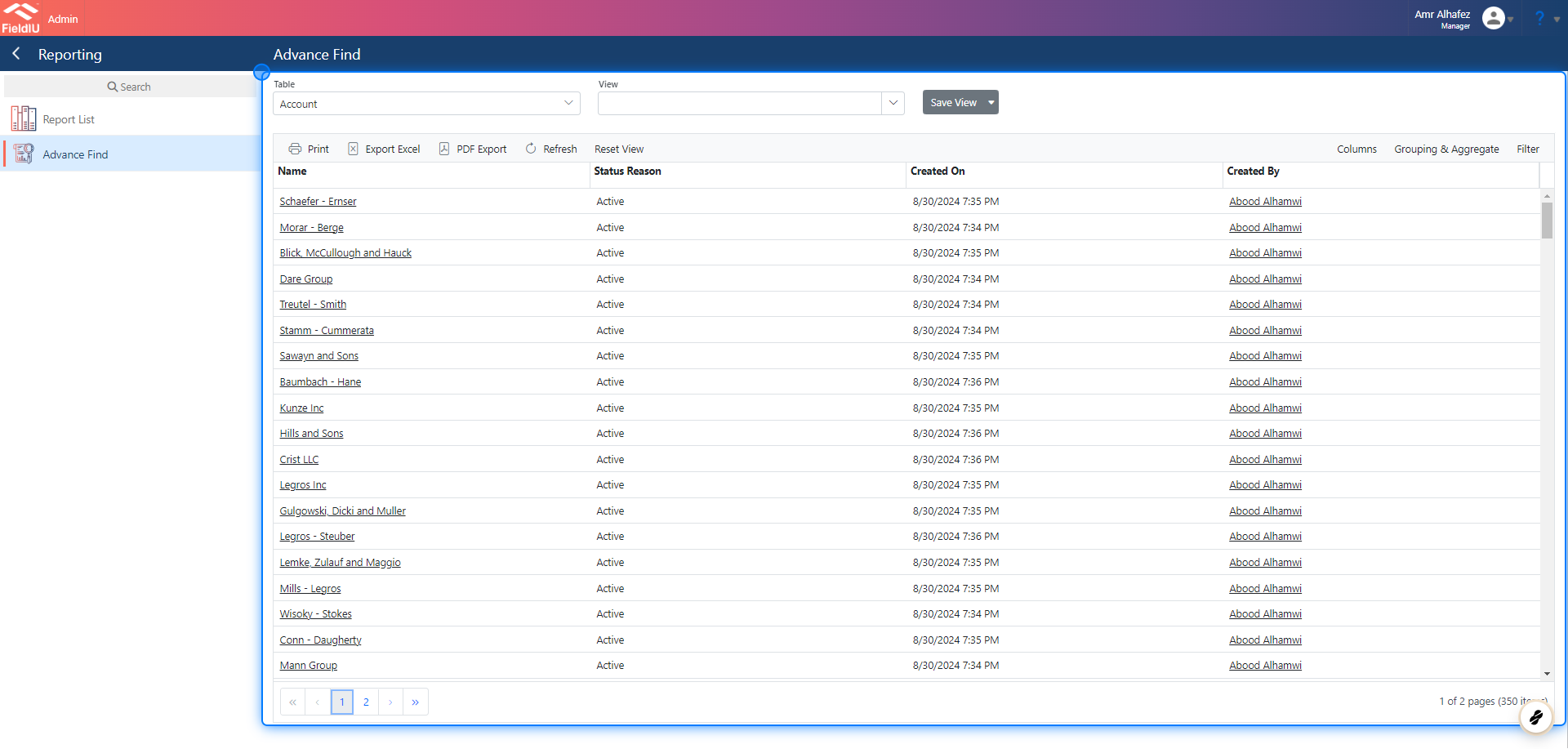
The Advanced Find main screen features various buttons and selectors designed to help you generate your reports.
 ### 2. Table List
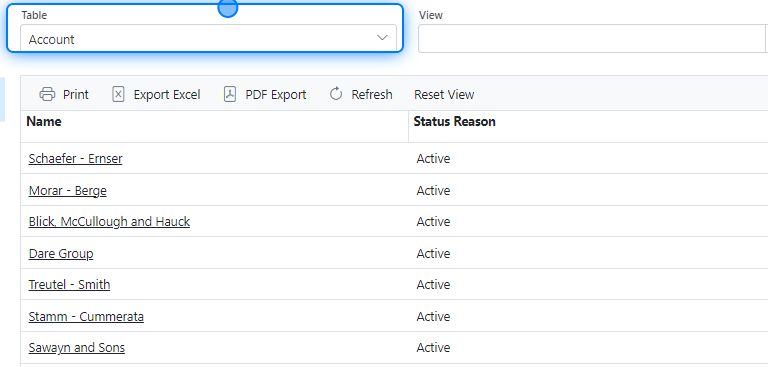
The Table List allows you to select the data that you want to include in your report.
### 2. Table List
The Table List allows you to select the data that you want to include in your report.
 ### 3. View List
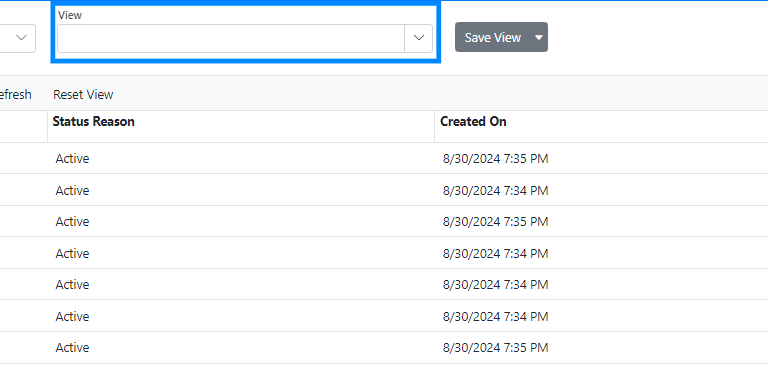
The **View List** is where you can find the reports you have previously saved.
### 3. View List
The **View List** is where you can find the reports you have previously saved.
 ### 4. Save View Button
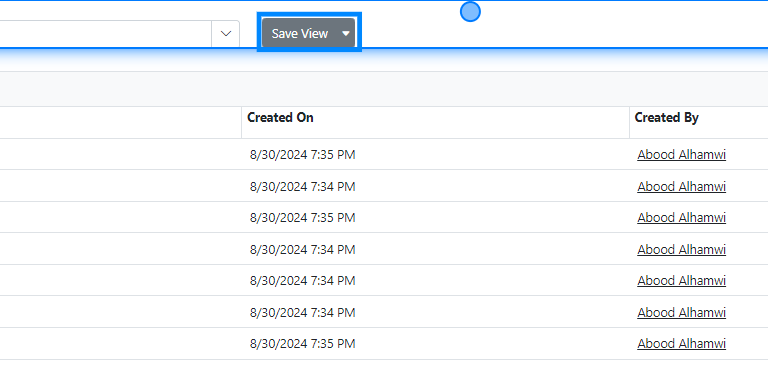
The **Save View** button allows you to save the report you’ve generated, so you don’t have to rebuild it each time you need it.
### 4. Save View Button
The **Save View** button allows you to save the report you’ve generated, so you don’t have to rebuild it each time you need it.
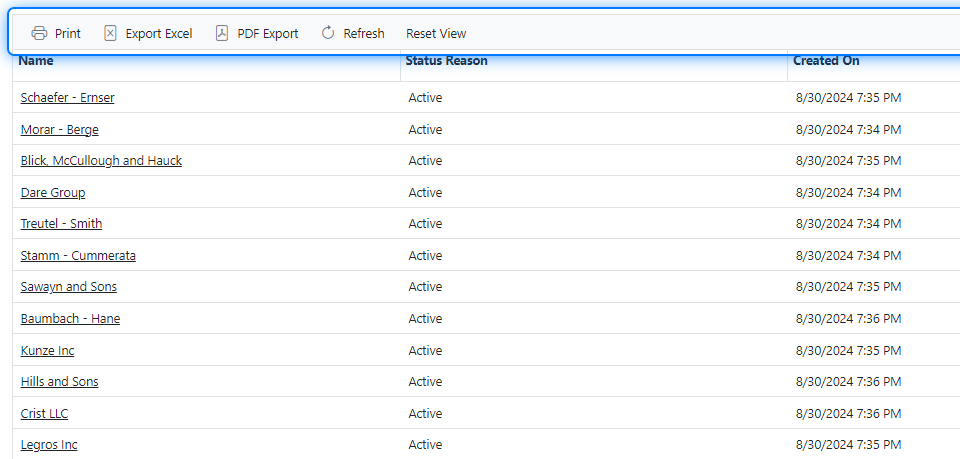
 ### 5. Tools Bar
In the **Tools Bar** , you will find several helpful functions, including **Print** , **Export to Excel** , **Export to PDF** , **Refresh View** , and **Reset View** .
### 5. Tools Bar
In the **Tools Bar** , you will find several helpful functions, including **Print** , **Export to Excel** , **Export to PDF** , **Refresh View** , and **Reset View** .
 ### 6. Tools Bar Data Tools
On the right side of the Tools Bar, you'll find buttons that assist you with selecting columns, grouping data, and filtering data.
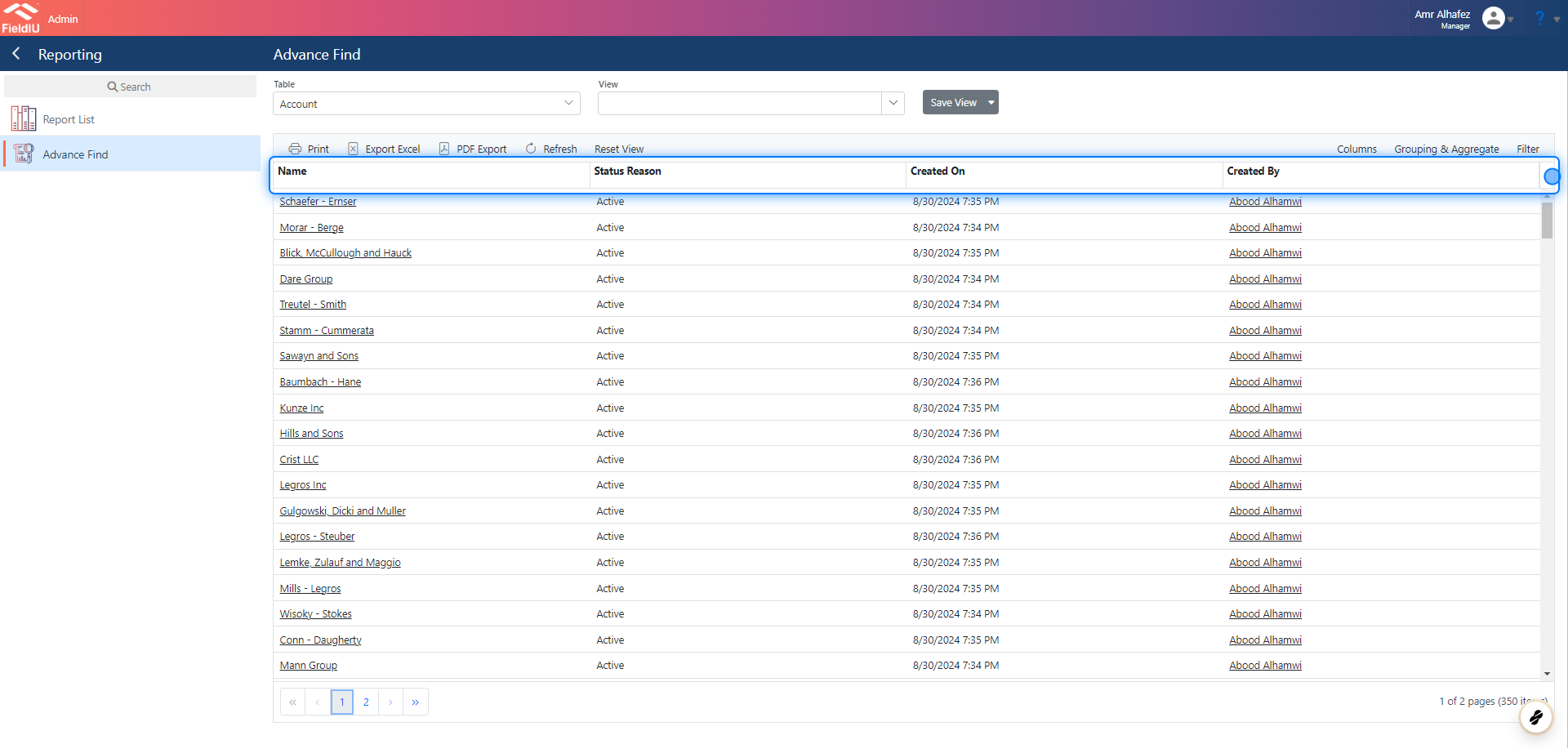
### 7. Columns
The Columns Bar displays the columns for the data you have selected.
### 6. Tools Bar Data Tools
On the right side of the Tools Bar, you'll find buttons that assist you with selecting columns, grouping data, and filtering data.
### 7. Columns
The Columns Bar displays the columns for the data you have selected.
 > ### 💡 You can move the Columns as you want
>
> Simply Drag and Drop
### 8. The Data Grid
The Data Grid displays the data for the columns you have selected and filtered.
> ### 💡 You can move the Columns as you want
>
> Simply Drag and Drop
### 8. The Data Grid
The Data Grid displays the data for the columns you have selected and filtered.
 �����������������������