> ## Documentation Index
> Fetch the complete documentation index at: https://docs.fieldiu.com/llms.txt
> Use this file to discover all available pages before exploring further.
# Advanced Find "Readings Example"
> ### 💡 Reading Report
>
> Here is an example of a report that provides the following information:
>
> * Work Order
>
> * Work Order Booking
>
> * Reading Name
>
> * Point Type
>
> * Action
>
> * Resource
>
> We will group the report by:
>
> * Work Order
>
> * Point Type
>
> We will filter the report to include only completed work order bookings.
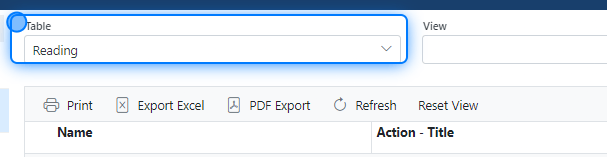
### 1. Select Reading Table
 ### 2. Selecting Columns
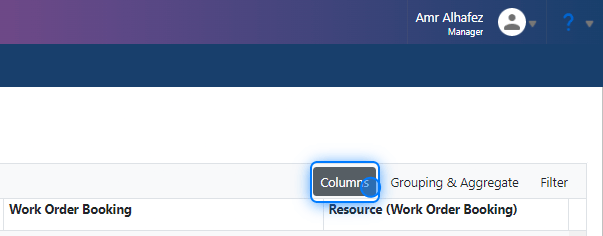
Simply click the columns button and select the columns you want.
### 2. Selecting Columns
Simply click the columns button and select the columns you want.
 ### 3. Columns
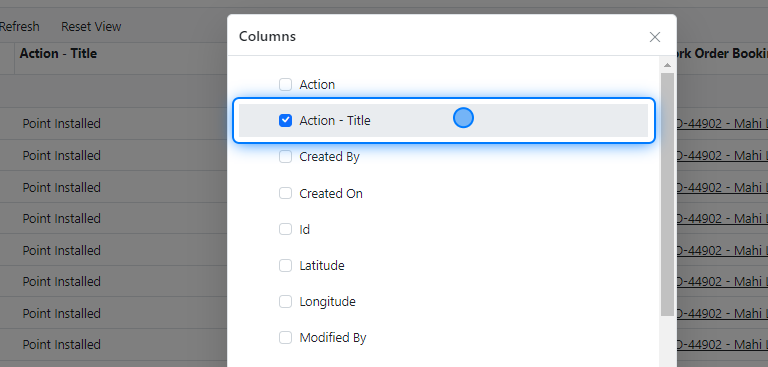
For our example, we will select the following:
**Reading Table:**
* Work Order
* Work Order Booking
* Reading Name
* Point Type
* Action
**From Work Order Booking** (which is related to the Reading Table):
* Resource
### 3. Columns
For our example, we will select the following:
**Reading Table:**
* Work Order
* Work Order Booking
* Reading Name
* Point Type
* Action
**From Work Order Booking** (which is related to the Reading Table):
* Resource
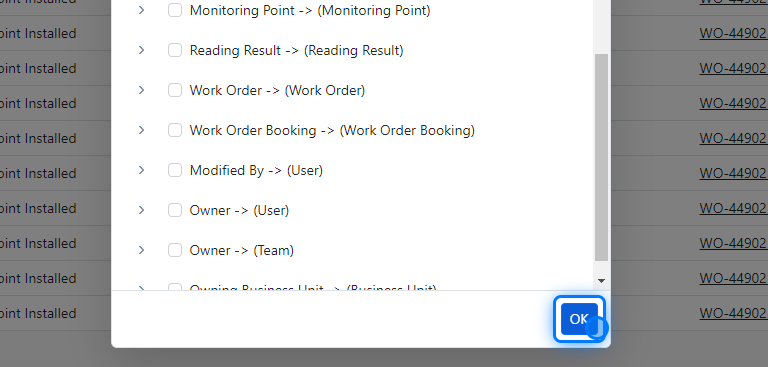
 ### 4. Click on OK
 ### 5. Grouping & Aggregate
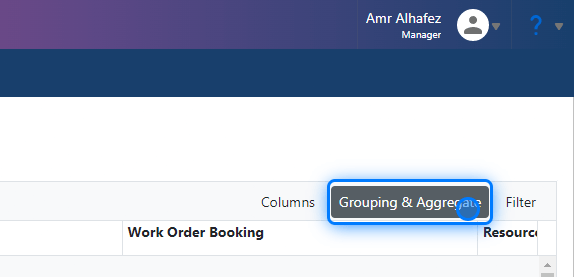
Now, let's group it by clicking on **Grouping & Aggregate** Button.
### 5. Grouping & Aggregate
Now, let's group it by clicking on **Grouping & Aggregate** Button.
 ### 6. Grouping
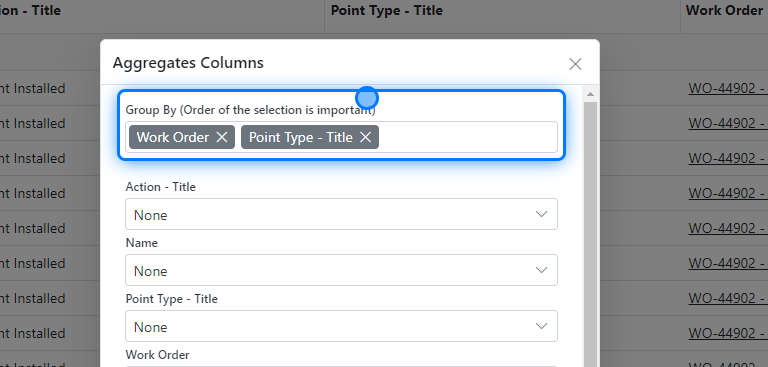
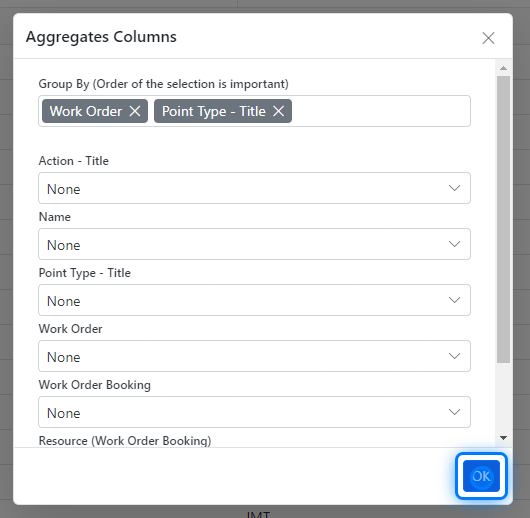
Group By:
* Work Order
* Point Type
### 6. Grouping
Group By:
* Work Order
* Point Type
 ### 7. Click on OK
 ### 8. Quick Review
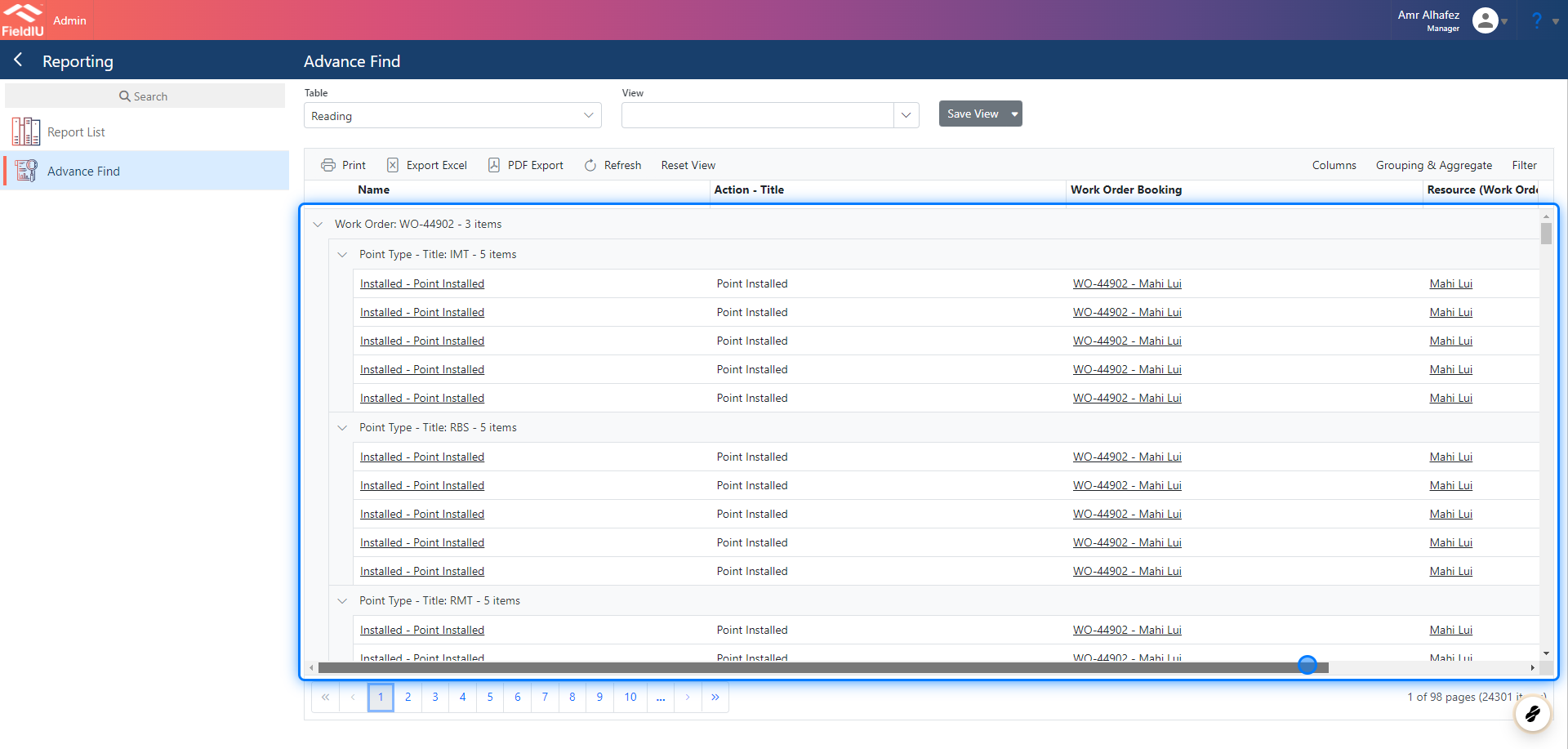
It seems we have all the data we need in our example.
### 8. Quick Review
It seems we have all the data we need in our example.
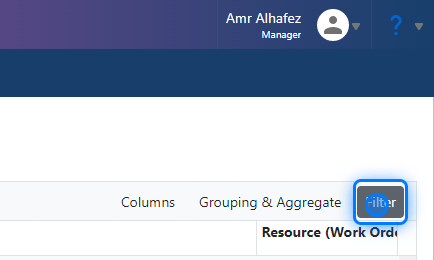
 ### 9. Filtering
 ### 10. Creating Our Filter
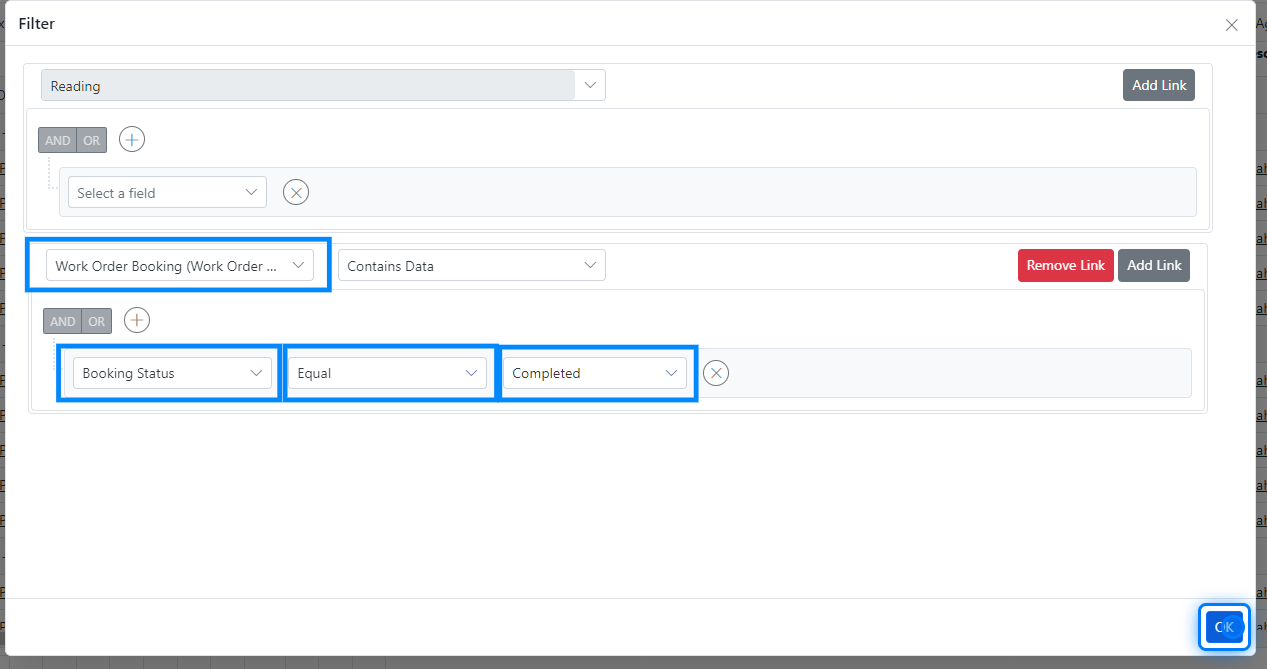
Let’s set up our filter for booking status. We will apply the filter to show only records where the booking status is equal to "Completed."
### 10. Creating Our Filter
Let’s set up our filter for booking status. We will apply the filter to show only records where the booking status is equal to "Completed."
 > ### 💡 Linked Entity "Tables"
>
> Since we have selected the Resource column from the Work Order Booking table (which is related to the Reading table), the Work Order Booking is already linked.
>
> If we didn't select the Resource column but want to filter by booking status, we can click on the link button, select the Work Order Booking table, and set our criteria.
### 11. The Resault
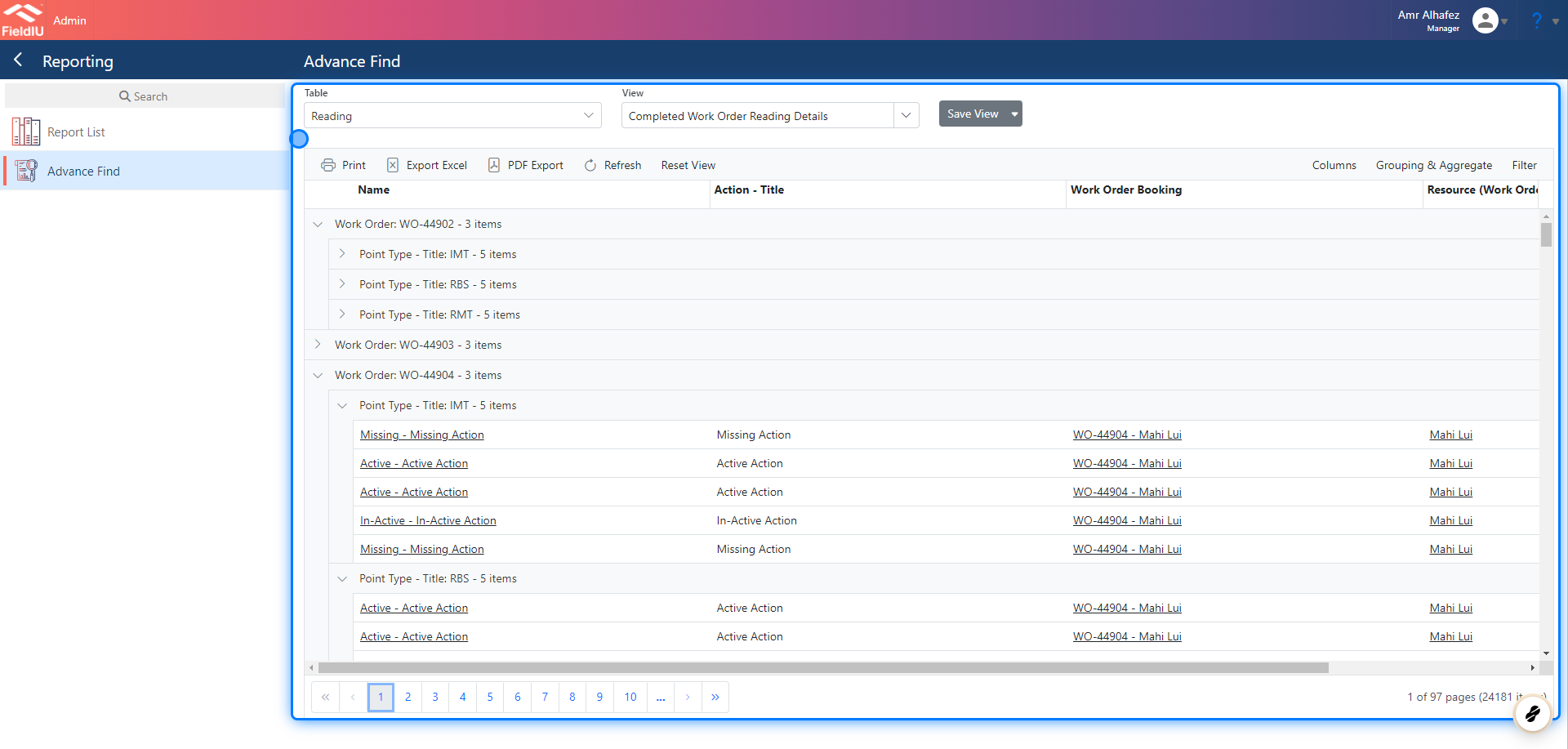
Now we have the report grouped and organized with the data we want, and it is ready to export or print.
> ### 💡 Linked Entity "Tables"
>
> Since we have selected the Resource column from the Work Order Booking table (which is related to the Reading table), the Work Order Booking is already linked.
>
> If we didn't select the Resource column but want to filter by booking status, we can click on the link button, select the Work Order Booking table, and set our criteria.
### 11. The Resault
Now we have the report grouped and organized with the data we want, and it is ready to export or print.
 ### 12. Don't forget to save your Report.
 �����������������������