> ## Documentation Index
> Fetch the complete documentation index at: https://docs.fieldiu.com/llms.txt
> Use this file to discover all available pages before exploring further.
# Activities & Notes
> ### 💡 What is Activities & Notes ?
>
> You can add any additional activities or actions you want to take for this lead, such as phone calls, appointments, or tasks.
>
> In the Notes section, you can also add files and images related to this lead.
### 1. Activities
The sales process can be lengthy for sales teams, so in Fieldiu, you can organize your steps using the Activities and Notes sections.
In the Activities section, you can assign your actions, whether they are tasks, appointments, or phone calls.
 ### 2. Phone Call
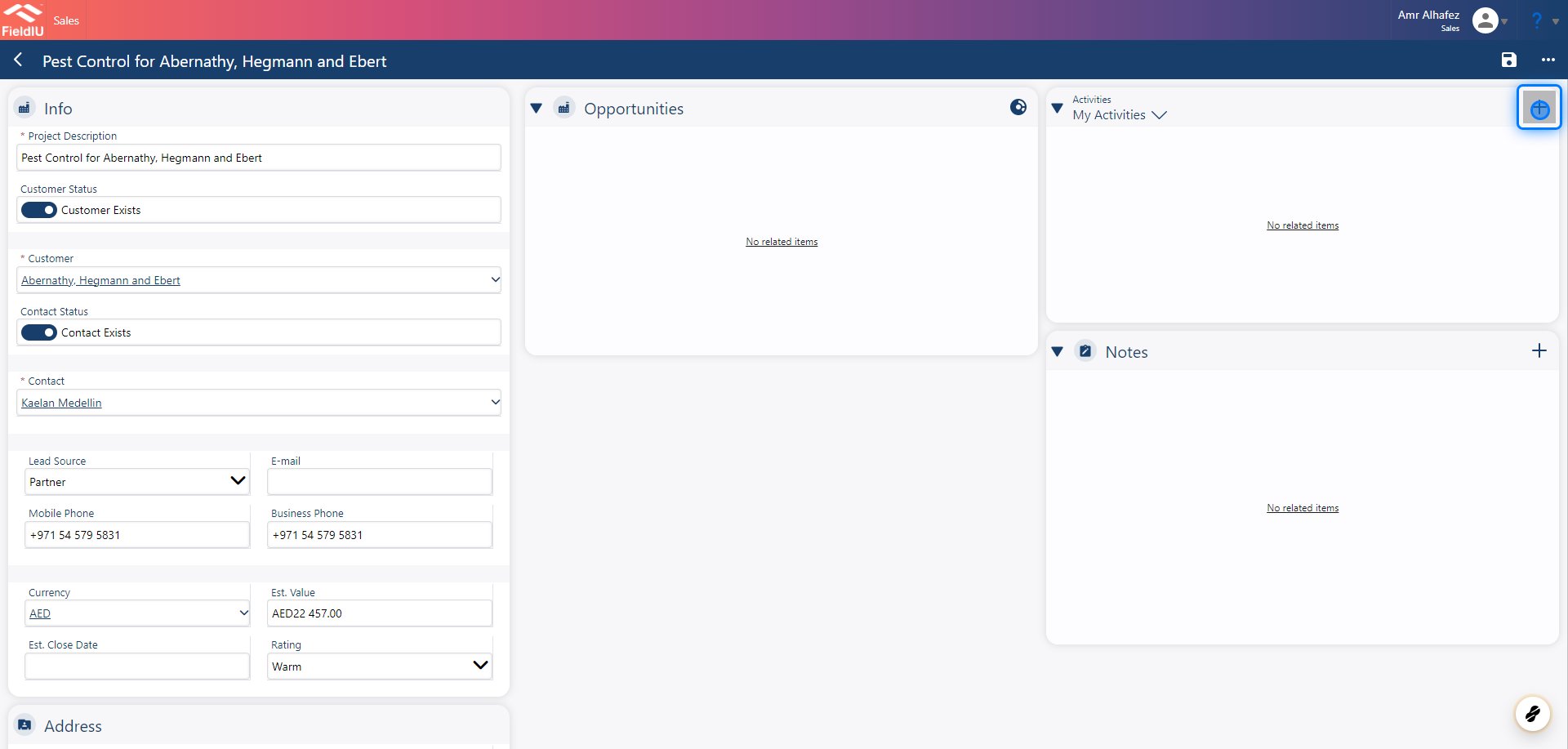
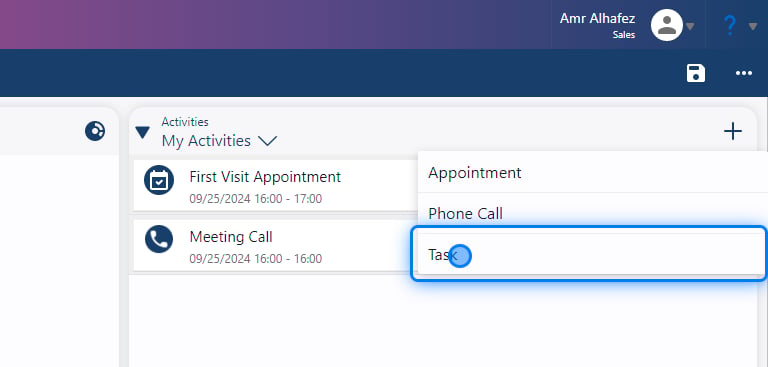
To add a phone call in Activate, simply click the + button and select "Phone Call."
### 2. Phone Call
To add a phone call in Activate, simply click the + button and select "Phone Call."
 ### 3. Fill The Information
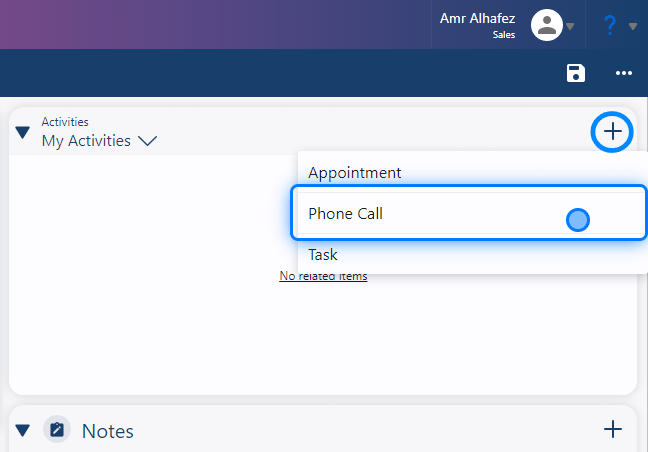
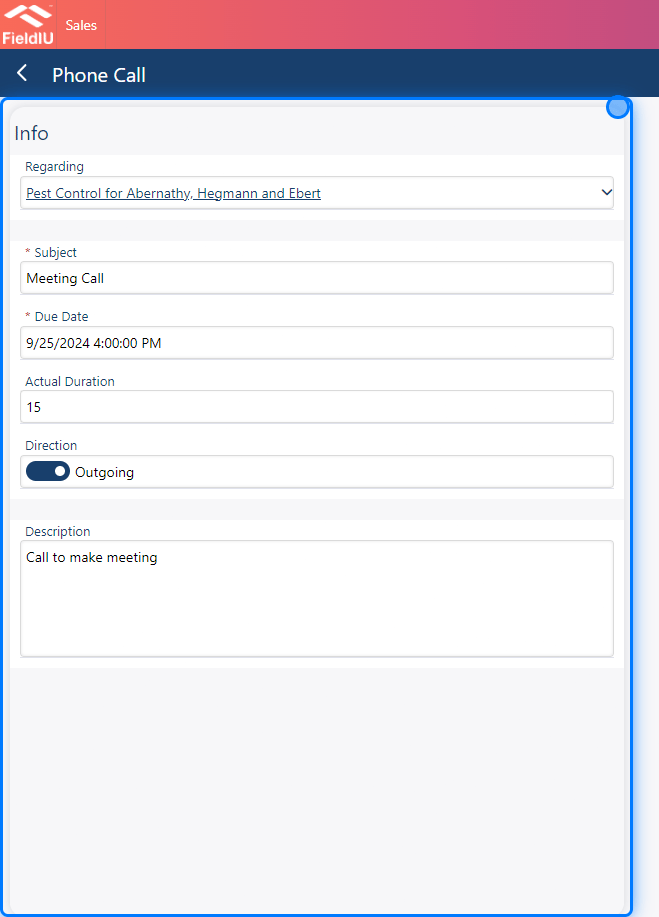
Now, simply fill in the information:
* **Subject**
* **Date**
* **Duration**
* **Direction** (indicate whether it was outgoing or incoming)
* **Description** (type a brief description of the activity)
### 3. Fill The Information
Now, simply fill in the information:
* **Subject**
* **Date**
* **Duration**
* **Direction** (indicate whether it was outgoing or incoming)
* **Description** (type a brief description of the activity)
 > ### 💡 Activity Logic Tip
>
> You can use the activity feature to record what happened during your day with this lead, even if you didn't plan for it. For example, if you received a phone call, you can still document the information afterward.
### 4. Save your changes
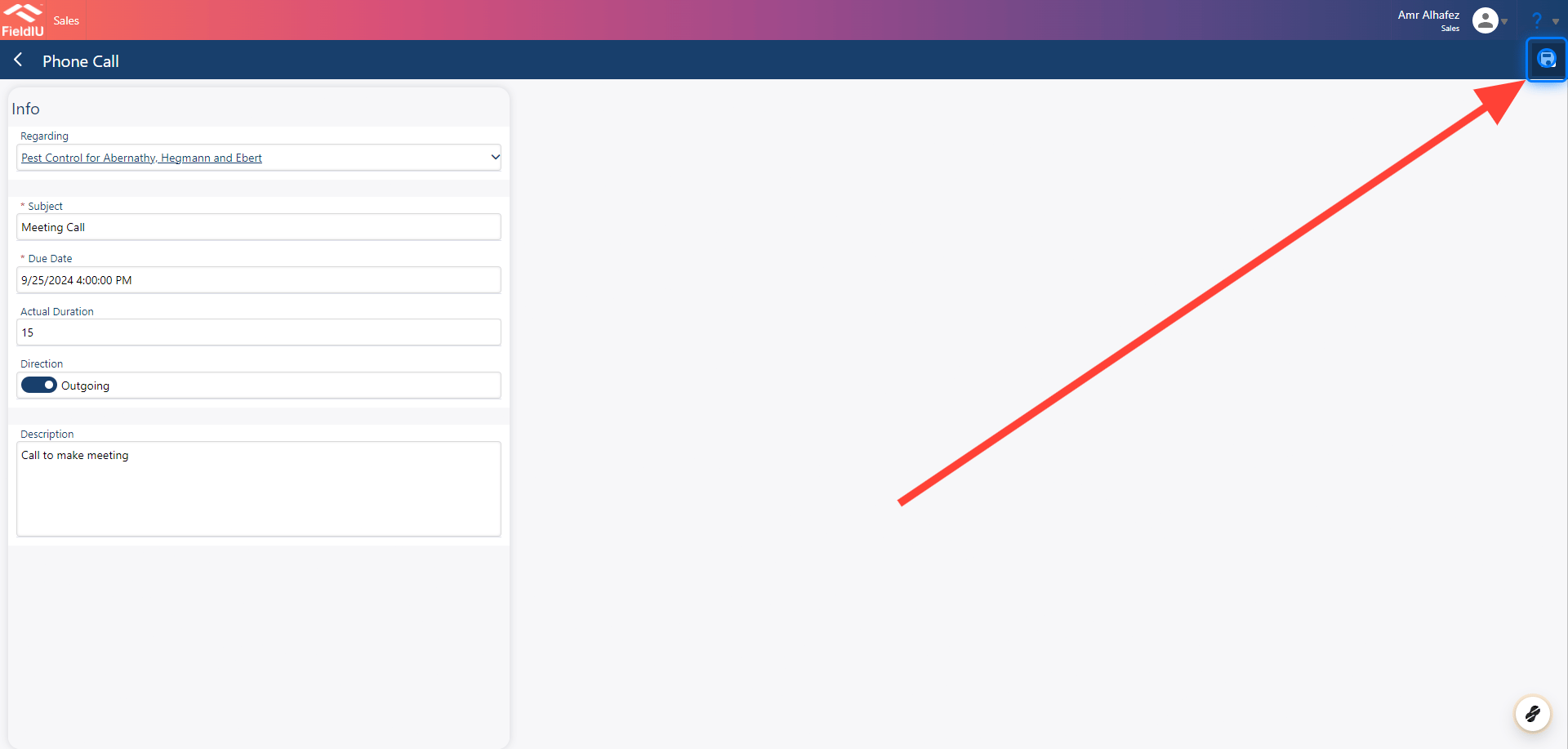
Please remember to save your changes!
> ### 💡 Activity Logic Tip
>
> You can use the activity feature to record what happened during your day with this lead, even if you didn't plan for it. For example, if you received a phone call, you can still document the information afterward.
### 4. Save your changes
Please remember to save your changes!
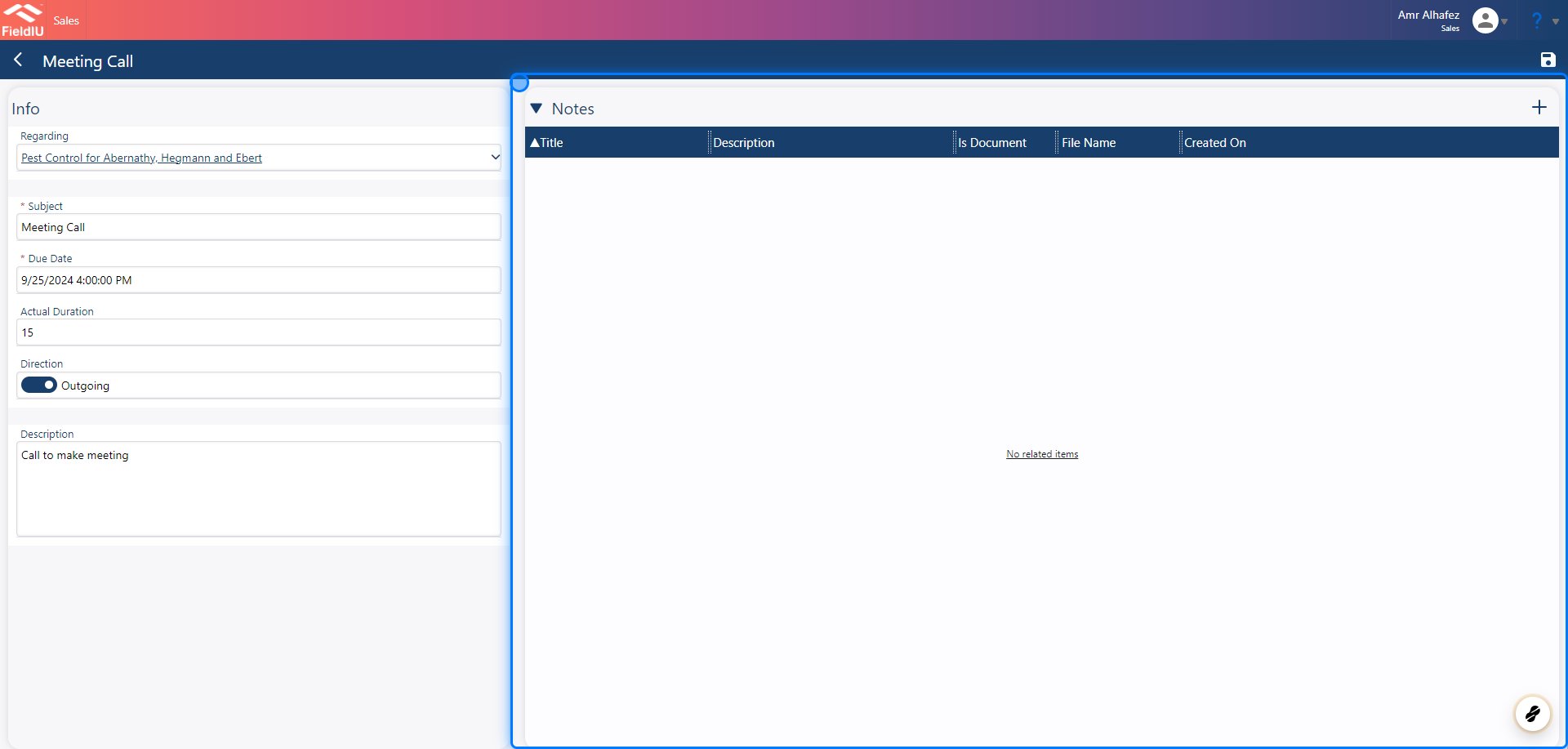
 ### 5. Notes
After saving, a notes section will appear for you to add any additional notes related to your activity.
### 5. Notes
After saving, a notes section will appear for you to add any additional notes related to your activity.
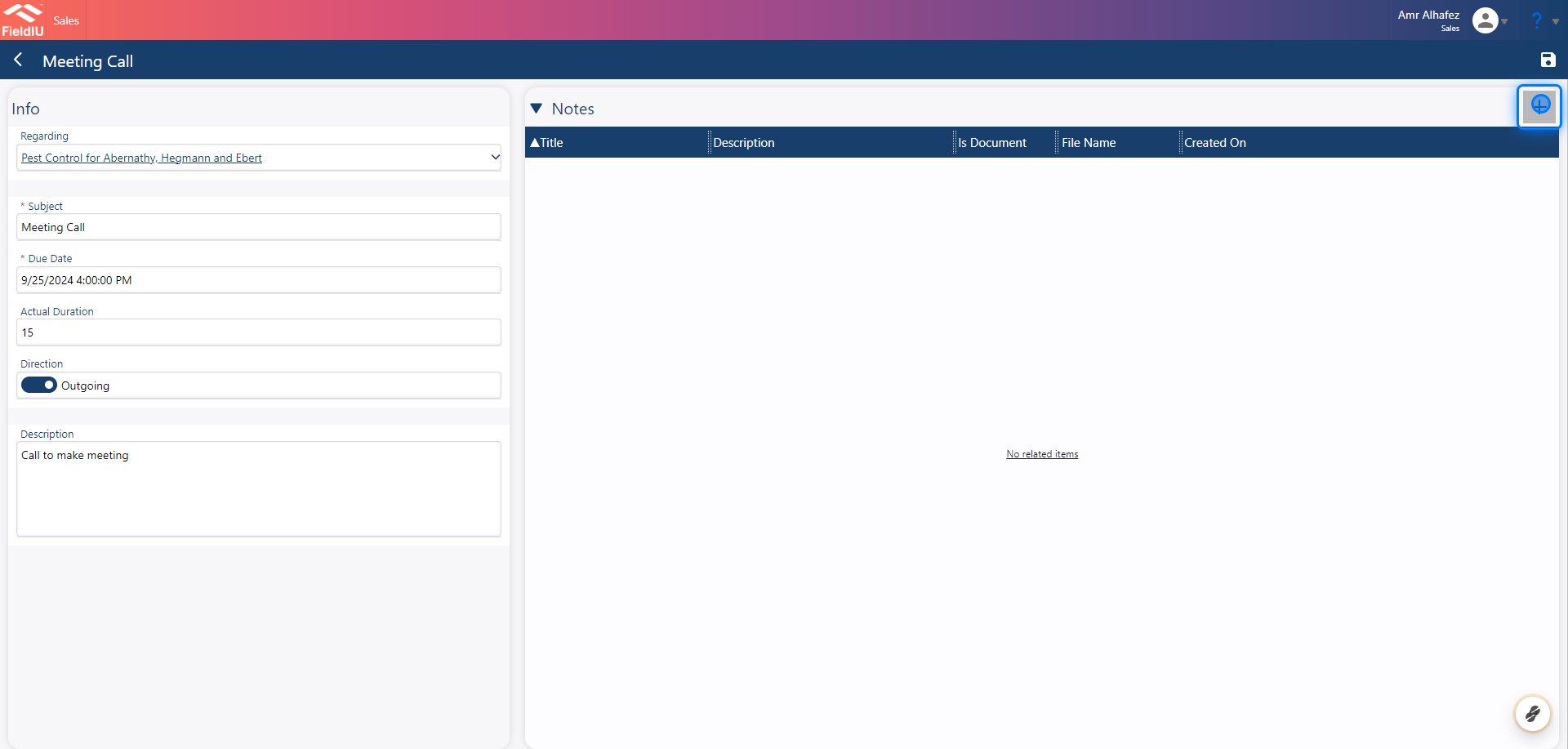
 ### 6. Creating Notes
To add a new note to your activity, simply click the + button.
### 6. Creating Notes
To add a new note to your activity, simply click the + button.
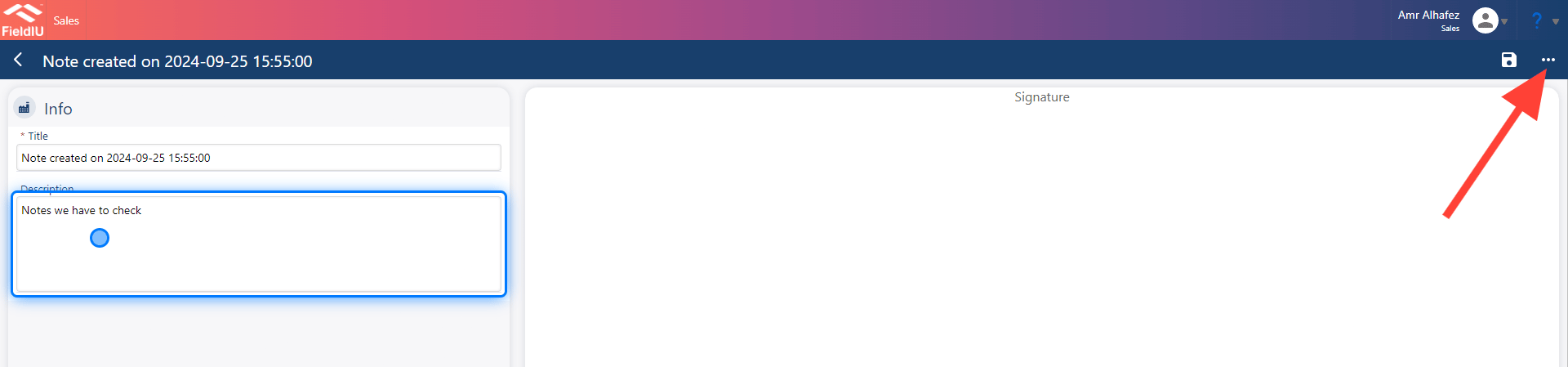
 ### 7. Fill The Information
Fill in the information:
* **Title**
* **Description**
You can add images or files by clicking on the three dots and selecting the desired action.
Click "Save" when you’re finished.
### 7. Fill The Information
Fill in the information:
* **Title**
* **Description**
You can add images or files by clicking on the three dots and selecting the desired action.
Click "Save" when you’re finished.
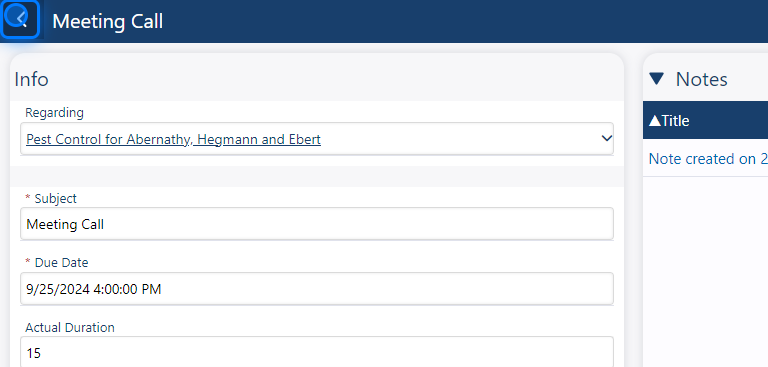
 ### 8. Back Button
You can click the back button in the system to return to the previous page.
### 8. Back Button
You can click the back button in the system to return to the previous page.
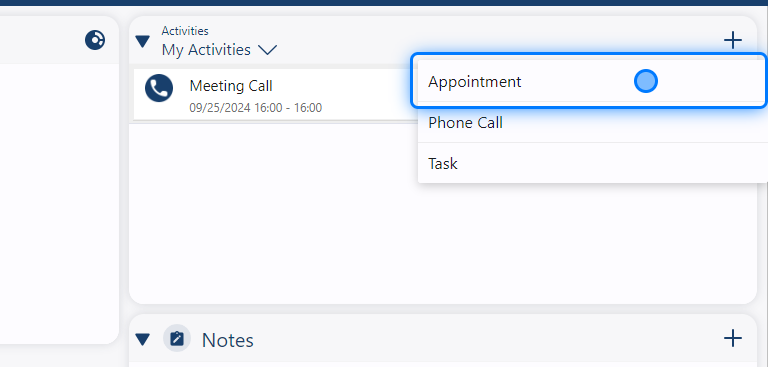
 ### 9. Appointment
As we mentioned, we can add appointments to the activity list.
### 9. Appointment
As we mentioned, we can add appointments to the activity list.
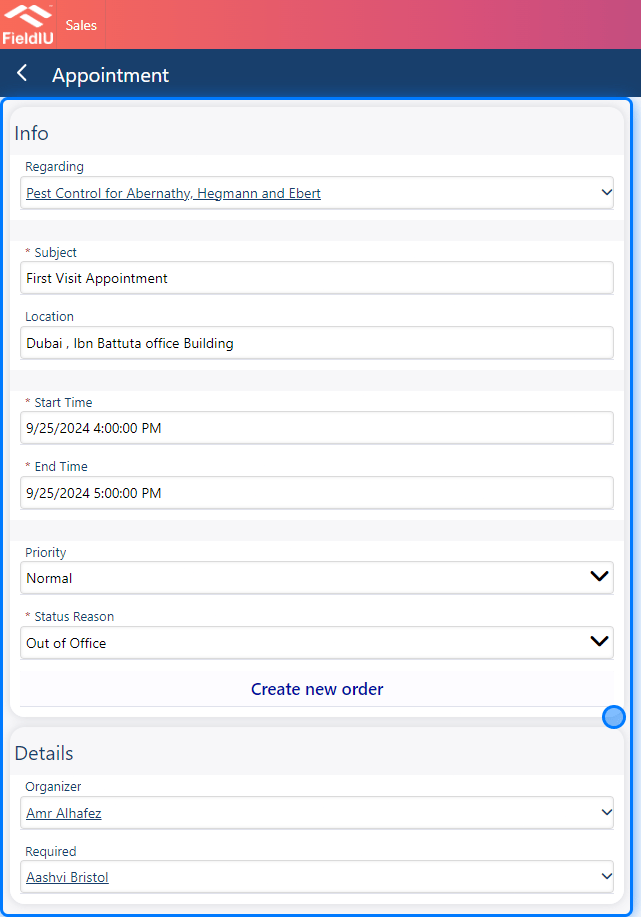
 ### 10. Fill The Information
Simply Fill appointment information:
* **Subject:** Team Meeting
* **Location:** Conference Room A
* **Start Time:** October 5, 2024, 10:00 AM
* **End Time:** October 5, 2024, 11:00 AM
* **Priority:** High
* **Status:** Out of office
* **Organizer:** John Smith
* **Required Attendees:** Jane Doe, Mark Johnson
### 10. Fill The Information
Simply Fill appointment information:
* **Subject:** Team Meeting
* **Location:** Conference Room A
* **Start Time:** October 5, 2024, 10:00 AM
* **End Time:** October 5, 2024, 11:00 AM
* **Priority:** High
* **Status:** Out of office
* **Organizer:** John Smith
* **Required Attendees:** Jane Doe, Mark Johnson
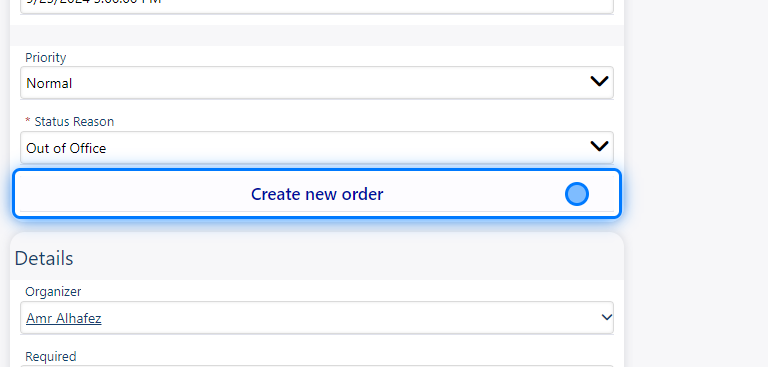
 ### 11. Create new order
You can create an order directly from the appointment page by simply clicking the "Create New Order" button.
### 11. Create new order
You can create an order directly from the appointment page by simply clicking the "Create New Order" button.
 ### 12. Notes
After saving, a notes section will appear for you to add any additional notes related to your activity.
### 12. Notes
After saving, a notes section will appear for you to add any additional notes related to your activity.
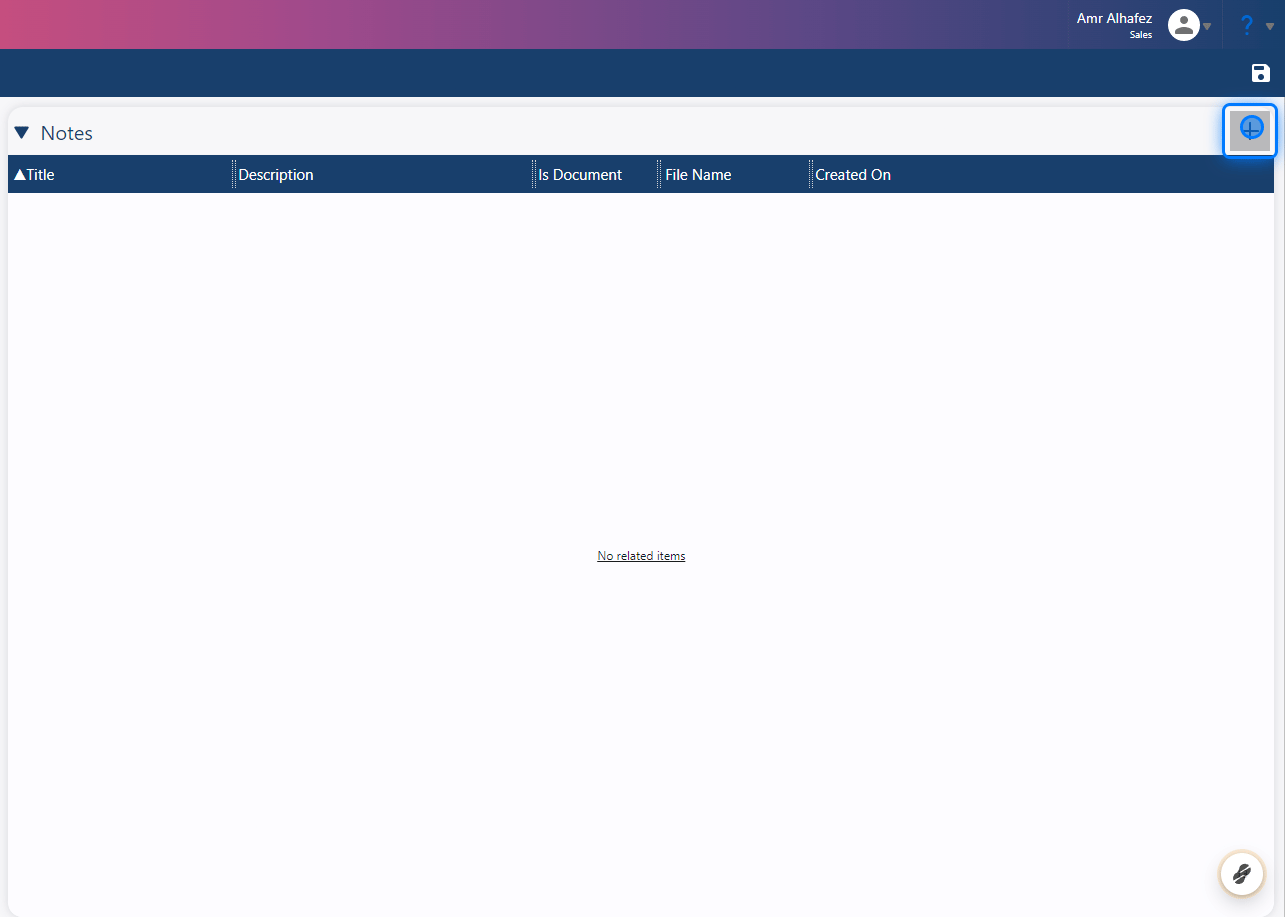
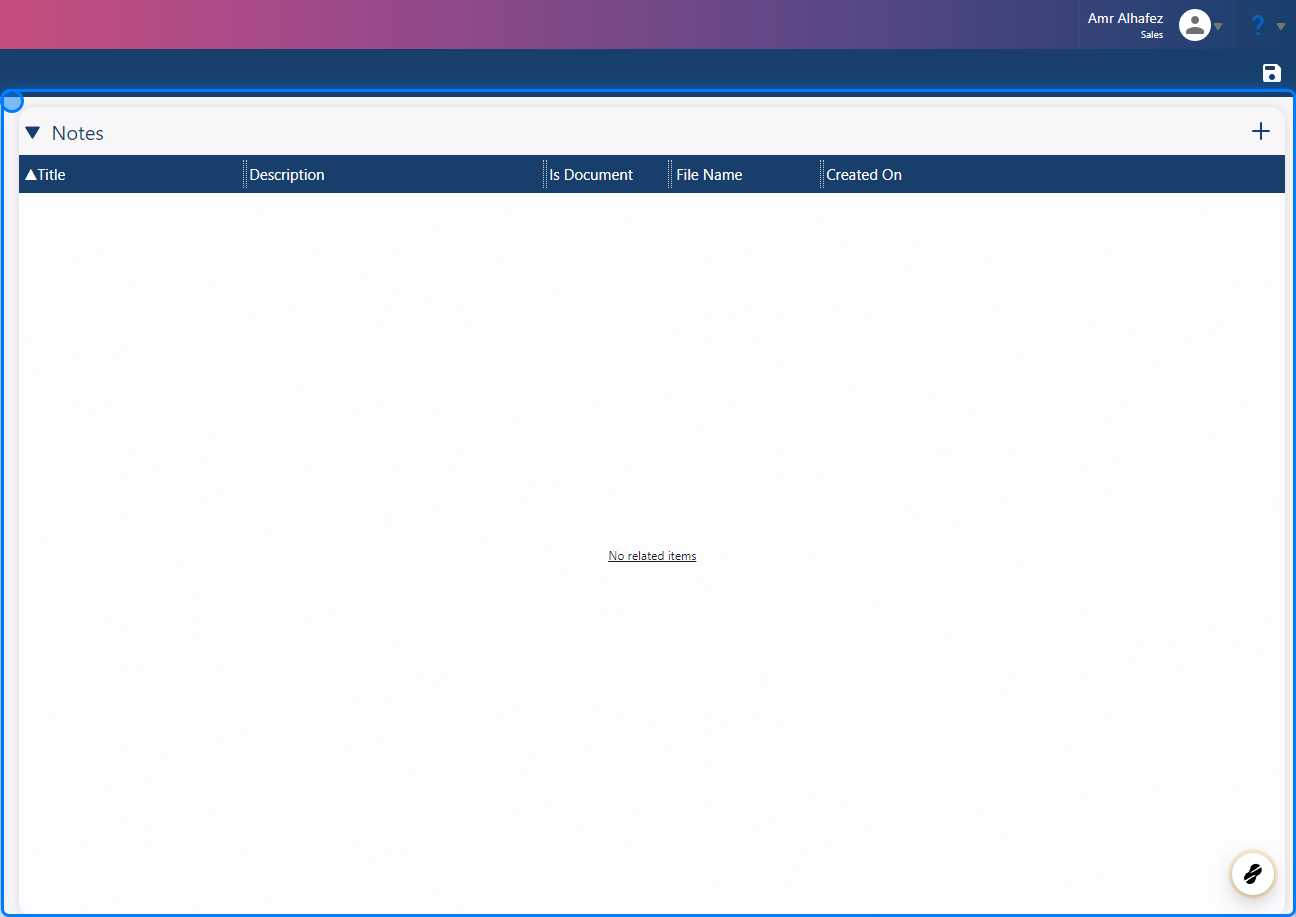 ### 13. Creating Notes
To add a new note to your activity, simply click the + button.
### 13. Creating Notes
To add a new note to your activity, simply click the + button.
 ### 14. Fill The Information
Fill in the information:
* **Title**
* **Description**
You can add images or files by clicking on the three dots and selecting the desired action.
Click "Save" when you’re finished.
> ### ⚠️ Don't Forget To Save !
### 15. Task
### 14. Fill The Information
Fill in the information:
* **Title**
* **Description**
You can add images or files by clicking on the three dots and selecting the desired action.
Click "Save" when you’re finished.
> ### ⚠️ Don't Forget To Save !
### 15. Task
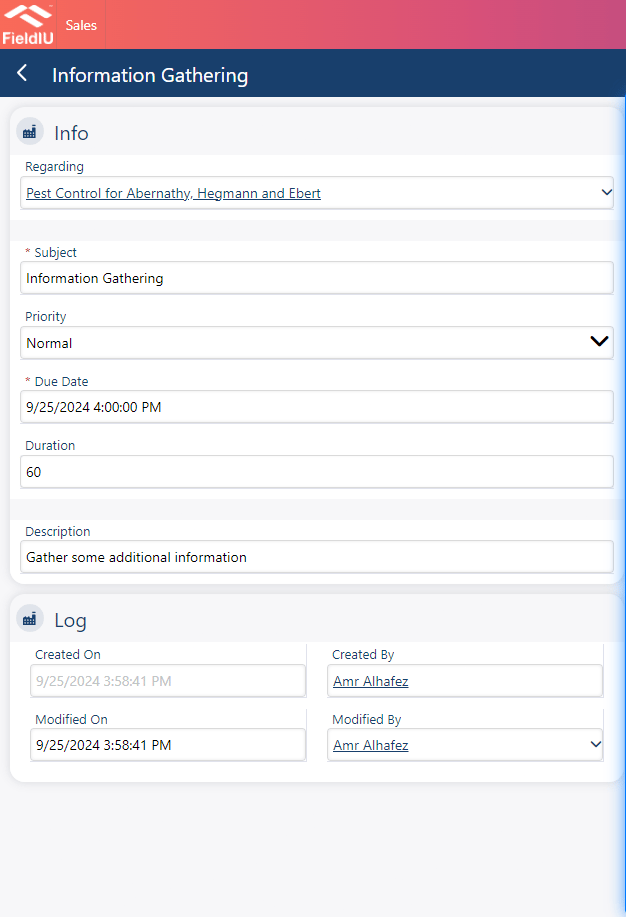
 ### 16. Fill The Information
Now, simply fill in the information:
* **Subject**
* **Priority:** High
* **Date**
* **Duration**
* **Description** (type a brief description of the activity)
### 16. Fill The Information
Now, simply fill in the information:
* **Subject**
* **Priority:** High
* **Date**
* **Duration**
* **Description** (type a brief description of the activity)
 ### 17. Notes
After saving, a notes section will appear for you to add any additional notes related to your activity.
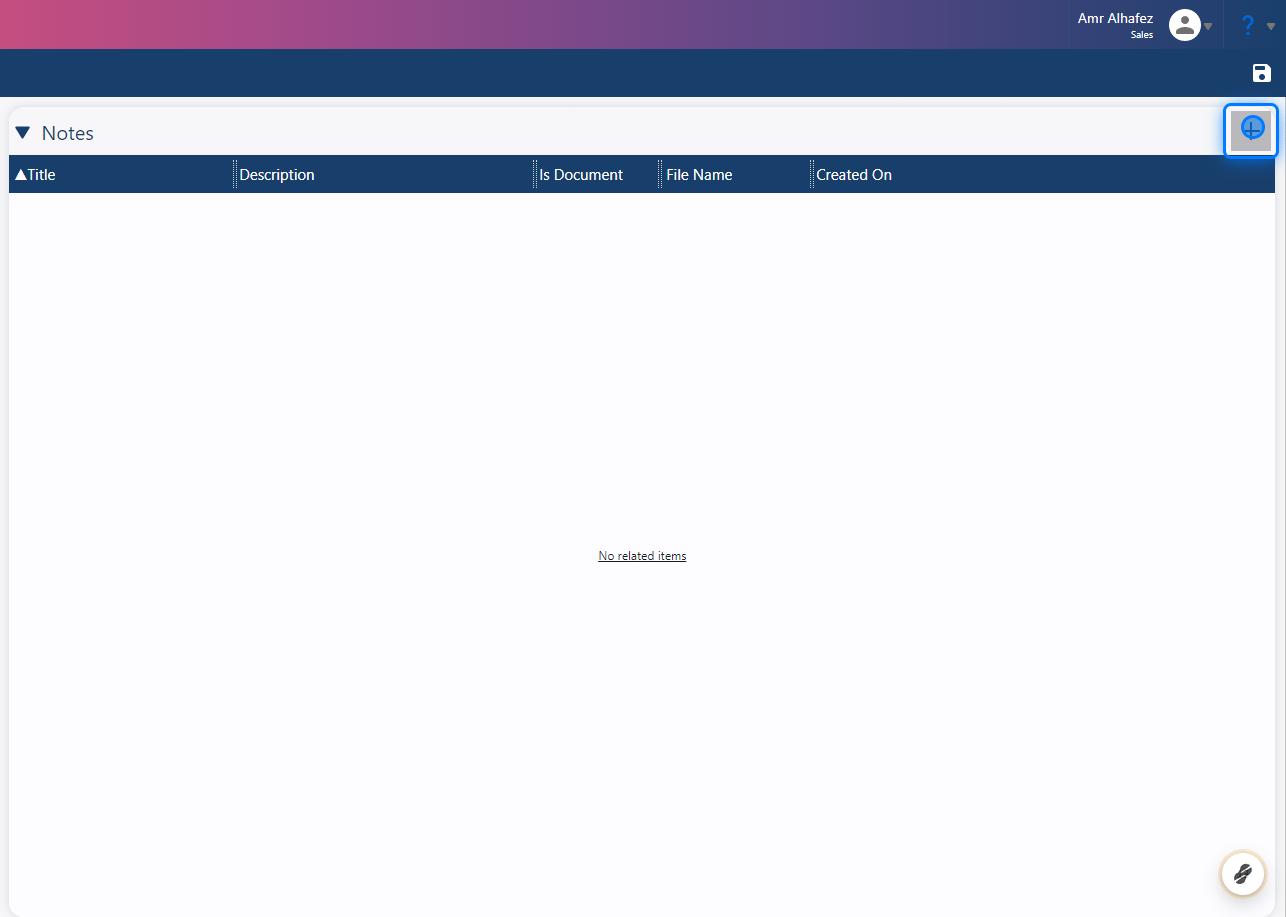
### 18. Creating Notes
To add a new note to your activity, simply click the + button.
### 17. Notes
After saving, a notes section will appear for you to add any additional notes related to your activity.
### 18. Creating Notes
To add a new note to your activity, simply click the + button.
 ### 19. Fill The Information
Fill in the information:
* **Title**
* **Description**
You can add images or files by clicking on the three dots and selecting the desired action.
Click "Save" when you’re finished.
> ### ⚠️ Don't Forget To Save !
### 20. Click on highlight
### 19. Fill The Information
Fill in the information:
* **Title**
* **Description**
You can add images or files by clicking on the three dots and selecting the desired action.
Click "Save" when you’re finished.
> ### ⚠️ Don't Forget To Save !
### 20. Click on highlight
 �����������������������