> ## Documentation Index
> Fetch the complete documentation index at: https://docs.fieldiu.com/llms.txt
> Use this file to discover all available pages before exploring further.
# Quote
> ### 💡 Creating Quotation
>
> There are 2 ways to create a quotation:
>
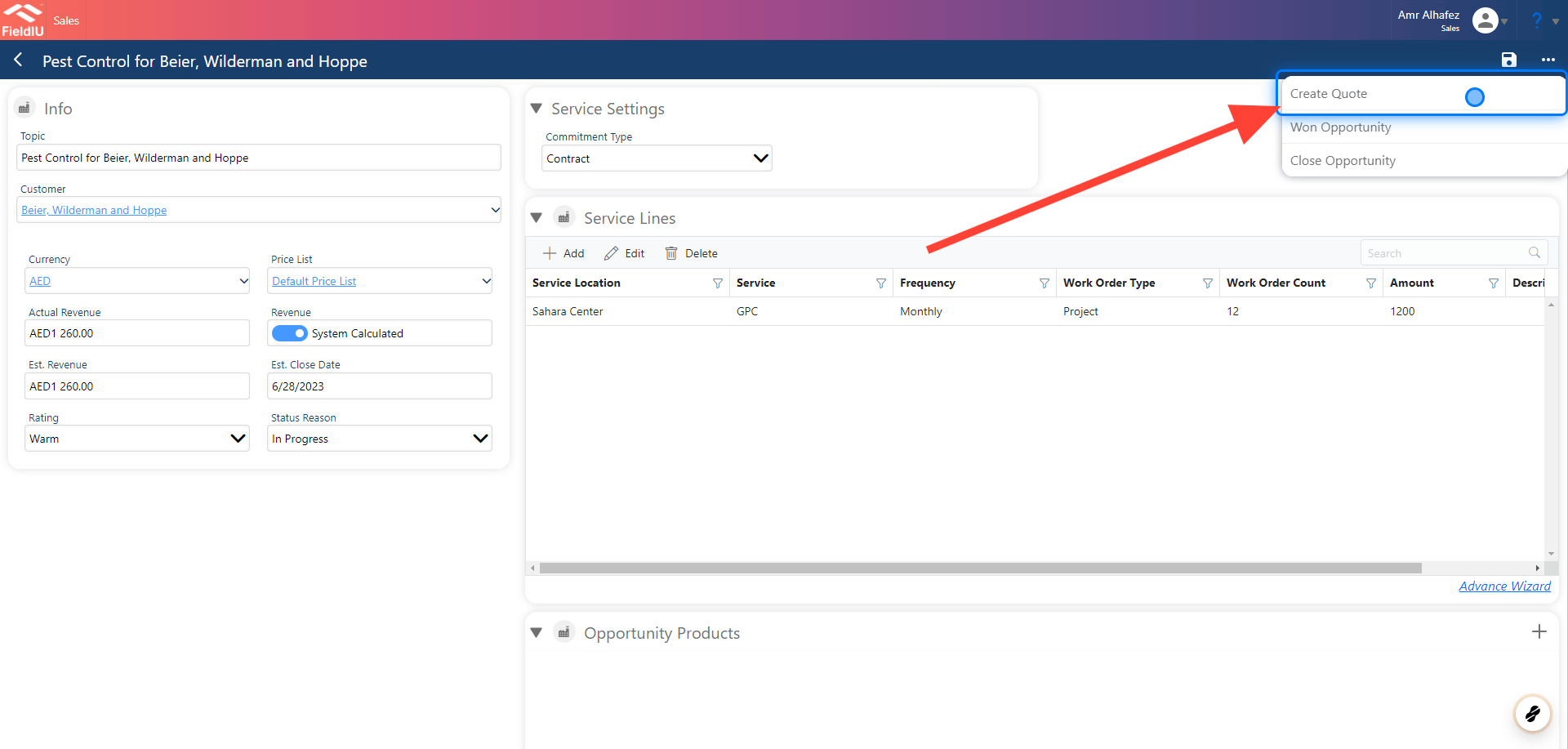
> 1. Create a new quote directly from the Quote screen on the main page.
>
> 2. Submit the opportunity to quote using the "..." button, then select "Create Quote"
### 1.
 ## Quotation Screen
### 2. Quotation Main
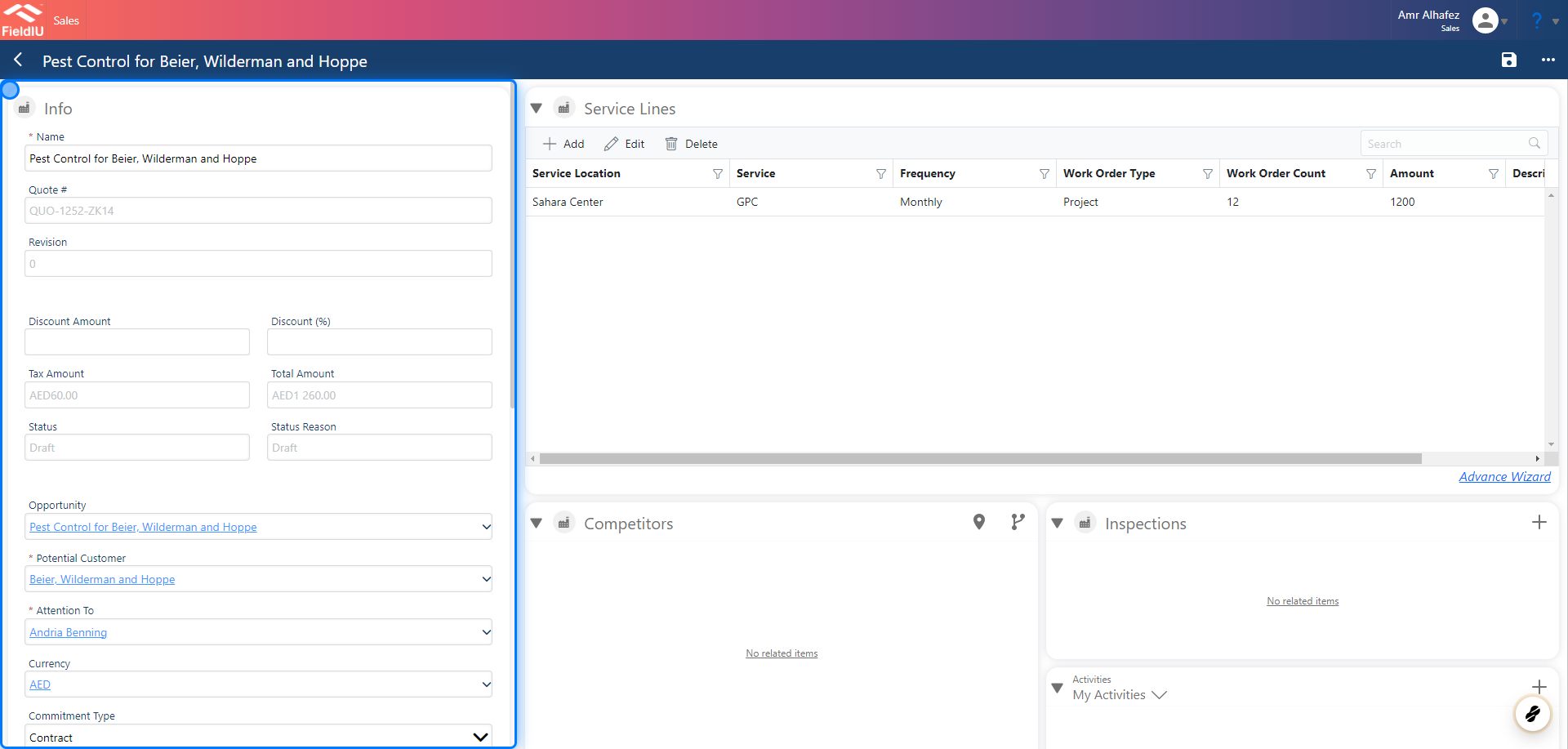
There are two sections: one for the main information, and the other for the quotation details, such as Service Line ,Competitor and Inspections.
## Quotation Screen
### 2. Quotation Main
There are two sections: one for the main information, and the other for the quotation details, such as Service Line ,Competitor and Inspections.
 ### 3. Contract Details
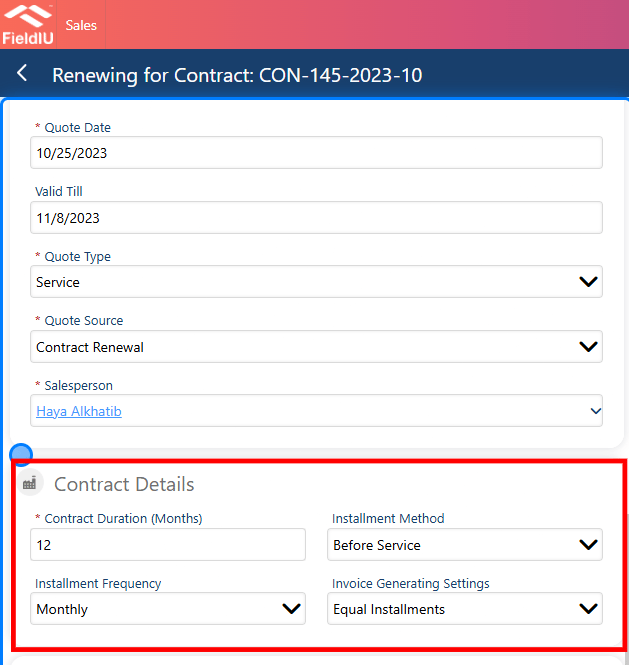
The contract details section is very important as it helps us manage the main contract information, such as contract duration, installment method, installment frequency, and invoice generation settings. We will discuss each of these in more detail next.
### 3. Contract Details
The contract details section is very important as it helps us manage the main contract information, such as contract duration, installment method, installment frequency, and invoice generation settings. We will discuss each of these in more detail next.
 ### 4. Duration & Installment Method
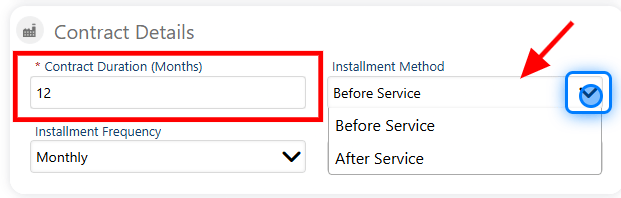
For duration, we simply add the length of the contract in months. In our case, it’s 12 months.
The installment method determines whether the installment should be made before or after the service.
For example, if we have a monthly service and select "Before Service," the installment should be paid at the start of the month, before any service is provided to the contractor. The same applies for the "After Service" option, where the installment would be paid after the service is completed.
### 4. Duration & Installment Method
For duration, we simply add the length of the contract in months. In our case, it’s 12 months.
The installment method determines whether the installment should be made before or after the service.
For example, if we have a monthly service and select "Before Service," the installment should be paid at the start of the month, before any service is provided to the contractor. The same applies for the "After Service" option, where the installment would be paid after the service is completed.
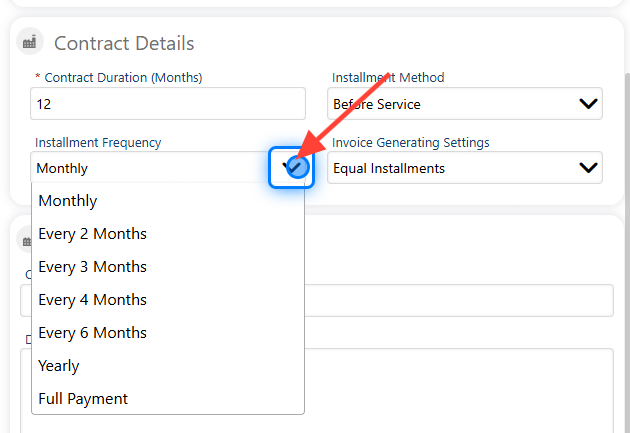
 ### 5. Installment Frequency
Installment frequency is used to select how often the installment will be made, whether it's monthly, every 2 months, yearly, or as a full payment.
### 5. Installment Frequency
Installment frequency is used to select how often the installment will be made, whether it's monthly, every 2 months, yearly, or as a full payment.
 ### 6. Invoice Generating Settings
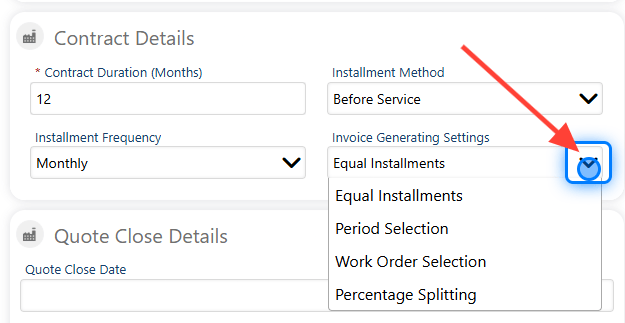
Invoice Generating Settings have 4 options:
1. **Equal Installment** : This follows the installment frequency. For example, if it's set to 12, there will be 12 equal installments.
2. **Period Selection** : Allows us to select a date range for generating the installments.
3. **Work Order Selection** : If we want to divide the installment across selected work orders, this option can be used.
4. **Percentage Splitting** : This splits the installment by percentage value, e.g., 25%.
### 6. Invoice Generating Settings
Invoice Generating Settings have 4 options:
1. **Equal Installment** : This follows the installment frequency. For example, if it's set to 12, there will be 12 equal installments.
2. **Period Selection** : Allows us to select a date range for generating the installments.
3. **Work Order Selection** : If we want to divide the installment across selected work orders, this option can be used.
4. **Percentage Splitting** : This splits the installment by percentage value, e.g., 25%.
 > ### 💡 Service Line
>
> The Service Line section is where we add the services that we will provide to each location for the company.\
> We have a simple option with minimal details, as well as an advanced wizard for more specific details for each line.
### 7. Main ToolBar
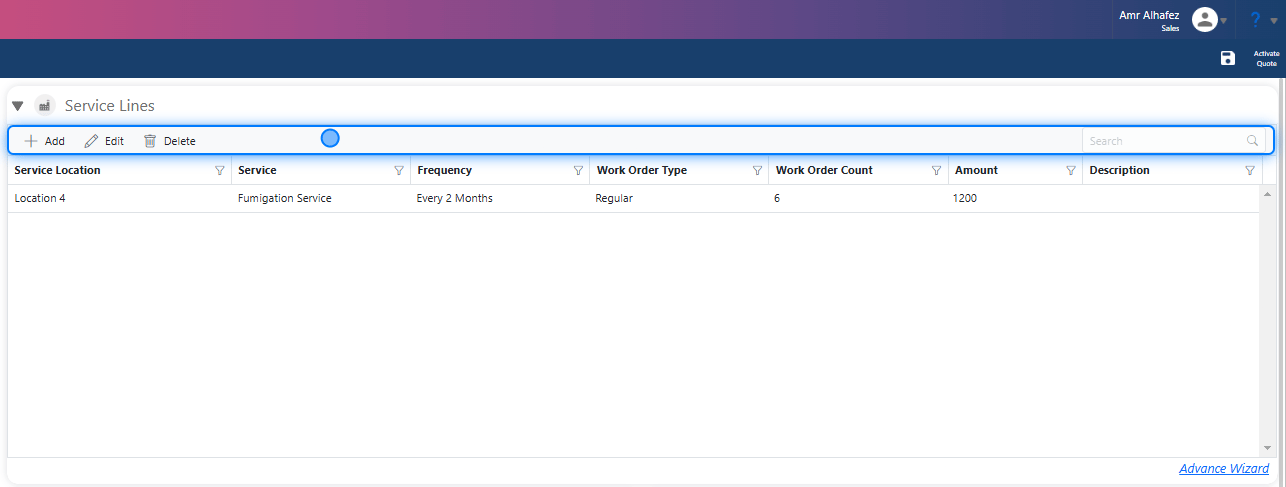
In the main toolbar, we have 3 buttons:
1. **+ Add** : To add a new service line.
2. **Edit** : To edit an existing service line.
3. **Delete** : To delete a service line
> ### 💡 Service Line
>
> The Service Line section is where we add the services that we will provide to each location for the company.\
> We have a simple option with minimal details, as well as an advanced wizard for more specific details for each line.
### 7. Main ToolBar
In the main toolbar, we have 3 buttons:
1. **+ Add** : To add a new service line.
2. **Edit** : To edit an existing service line.
3. **Delete** : To delete a service line
 ### 8. Add New Service Line
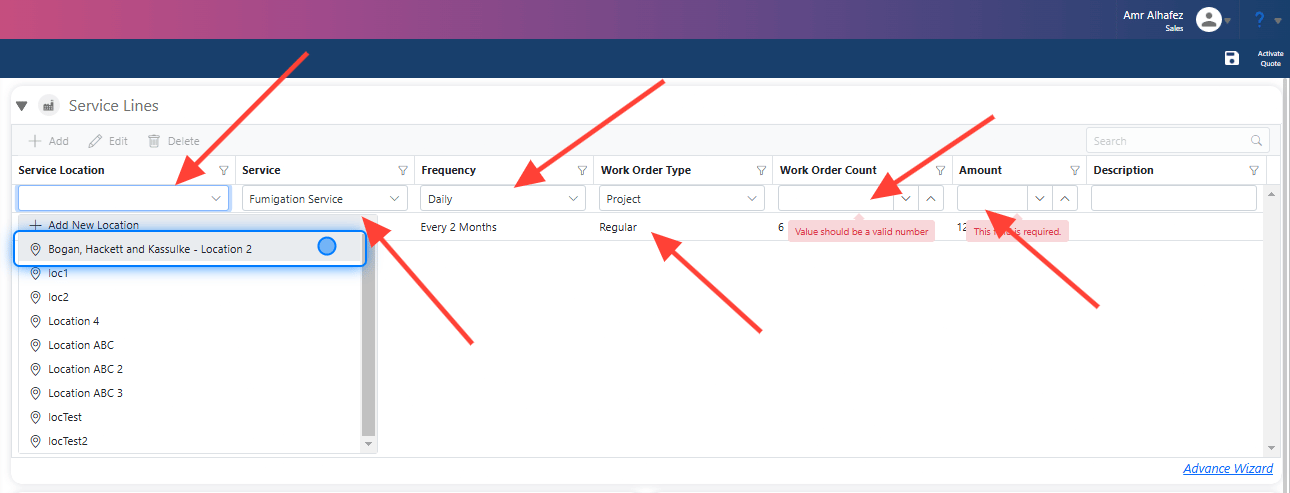
When we add a new service line, we will have a multi-selector to insert the line details:
* **Service Line** : Select the service line that we will provide the service for.
* **Service** : Choose the service we will provide for the location (e.g., GPC, Rodent Service, etc.).
* **Frequency** : Select the frequency for the visits (e.g., Daily, Weekly, Monthly, etc.).
* **Work Order Type** : Choose the type of visit (e.g., Regular Visit, Call Back Visit, etc.).
* **Work Order Count** : Enter the number of visits we will provide for the location.
* **Amount** : Enter the amount for these visits.
* **Description** : Add a description if needed.
### 8. Add New Service Line
When we add a new service line, we will have a multi-selector to insert the line details:
* **Service Line** : Select the service line that we will provide the service for.
* **Service** : Choose the service we will provide for the location (e.g., GPC, Rodent Service, etc.).
* **Frequency** : Select the frequency for the visits (e.g., Daily, Weekly, Monthly, etc.).
* **Work Order Type** : Choose the type of visit (e.g., Regular Visit, Call Back Visit, etc.).
* **Work Order Count** : Enter the number of visits we will provide for the location.
* **Amount** : Enter the amount for these visits.
* **Description** : Add a description if needed.
 > ### ⚠️ Advanced Wizard
>
> Please Read Advanced Wizard Documentation
### 9. Competitors
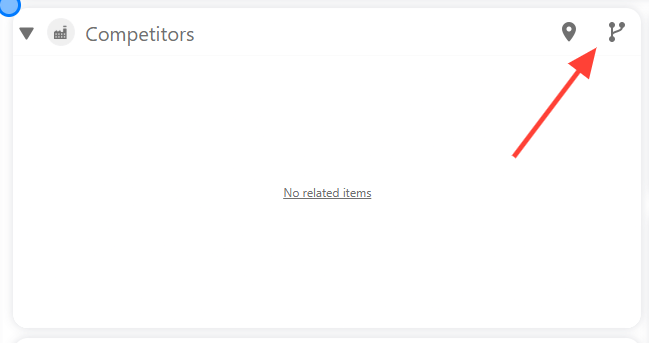
The Competitors section is where you can add information about competitors in the quotation. With this information, you can create promotions that are more attractive than your competitors' offerings to increase your chances of winning the quote.
*You can link a competitor by clicking on the link icon to select the competitor.*
> ### ⚠️ Advanced Wizard
>
> Please Read Advanced Wizard Documentation
### 9. Competitors
The Competitors section is where you can add information about competitors in the quotation. With this information, you can create promotions that are more attractive than your competitors' offerings to increase your chances of winning the quote.
*You can link a competitor by clicking on the link icon to select the competitor.*
 ### 10. Inspection Section
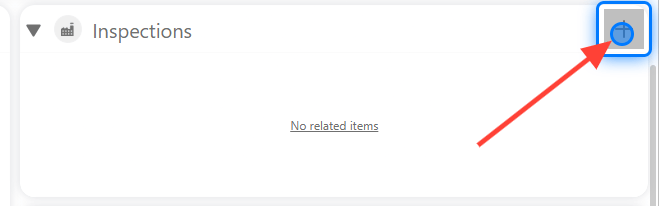
Some companies have forms that need to be filled out to help the salesperson gather more details for the location. You can add these forms using the Inspections section.
To add a new inspection, click on the "Add" button.
*Note that the system comes with 3 default inspections, but you can also create your own custom inspection form.*
### 10. Inspection Section
Some companies have forms that need to be filled out to help the salesperson gather more details for the location. You can add these forms using the Inspections section.
To add a new inspection, click on the "Add" button.
*Note that the system comes with 3 default inspections, but you can also create your own custom inspection form.*
 ### 11. Activities
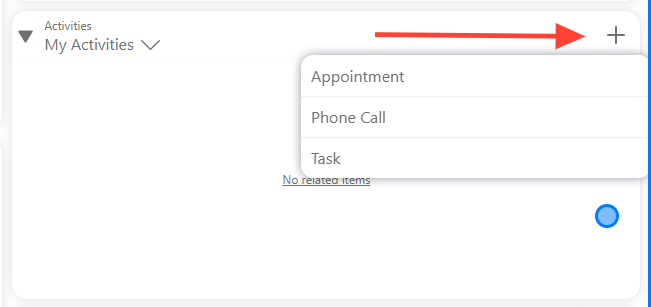
The Activities section is used to organize your activities, such as phone calls, appointments, or tasks.
### 11. Activities
The Activities section is used to organize your activities, such as phone calls, appointments, or tasks.
 ### 12. Start From Existing Contact
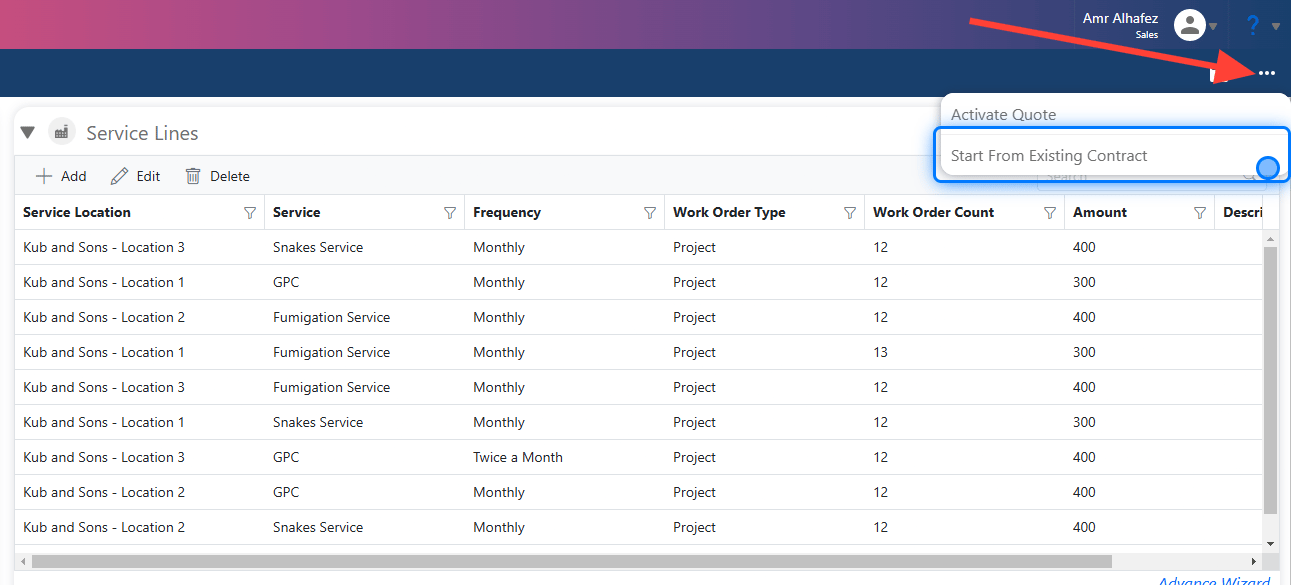
**Start From Existing Contract** : This option allows you to add a new service line to an already existing contract. For example, if your customer opens a new branch and wants to add it to the contract, you can use the "Start From Existing Contract" feature to add the new branch as a new contract line to the contract.
### 12. Start From Existing Contact
**Start From Existing Contract** : This option allows you to add a new service line to an already existing contract. For example, if your customer opens a new branch and wants to add it to the contract, you can use the "Start From Existing Contract" feature to add the new branch as a new contract line to the contract.
 ### 13. Select The Contract
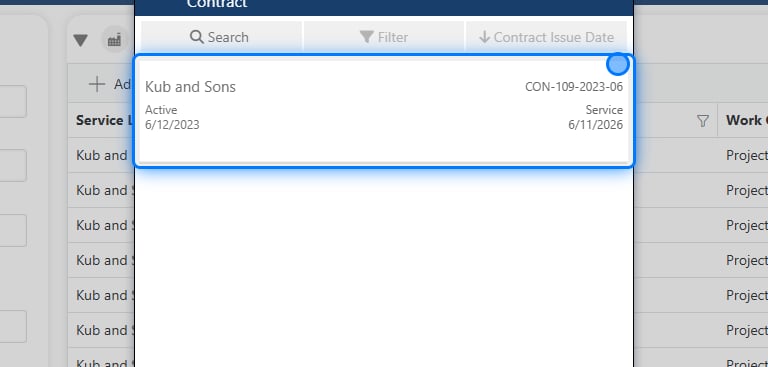
Simply click on the "Start From Existing Contract" button and select the contract that already exists.
### 13. Select The Contract
Simply click on the "Start From Existing Contract" button and select the contract that already exists.
 ### 14. Activating the Quote
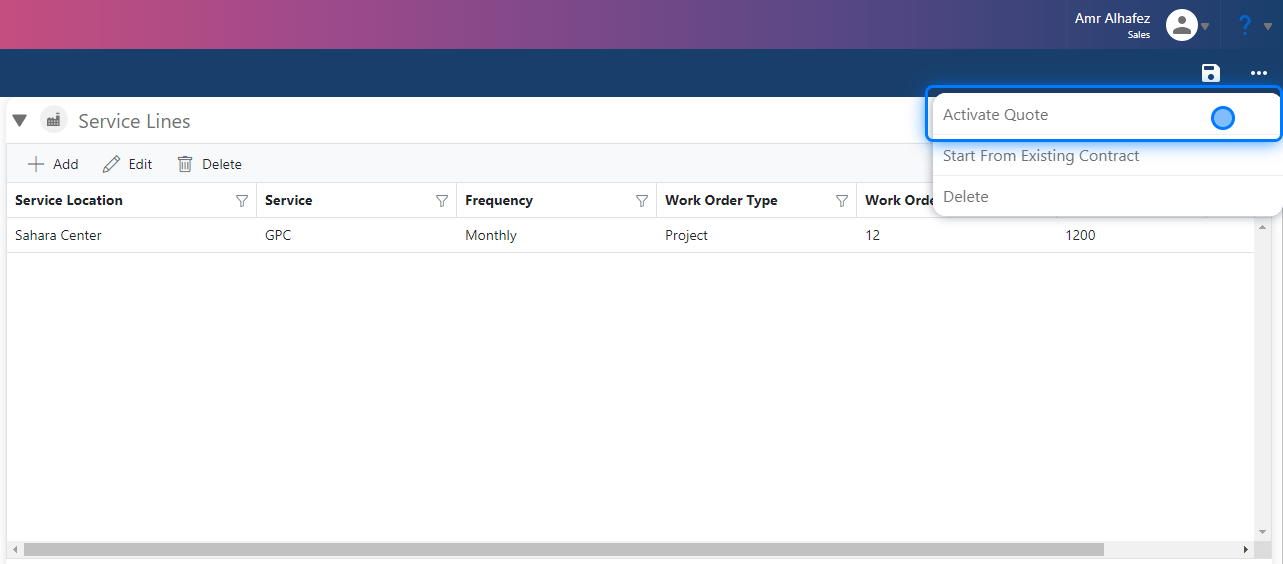
After we have inserted all the details for the quote and service lines, we need to activate the quote in order to perform additional actions, such as:
* Winning Quote
* Create Documents
* Cancel Quote
* Lose Quote
* Revise the Quote
### 14. Activating the Quote
After we have inserted all the details for the quote and service lines, we need to activate the quote in order to perform additional actions, such as:
* Winning Quote
* Create Documents
* Cancel Quote
* Lose Quote
* Revise the Quote
 > ### ⚠️ Activating Quotatin
>
> Once you activate the quote, it will be locked and no longer editable. The only way to make changes is by revising the quote.
>
> All previous revisions are saved in the system, and there is a revision counter in the main information section.
### 15. Activated Quotation Options
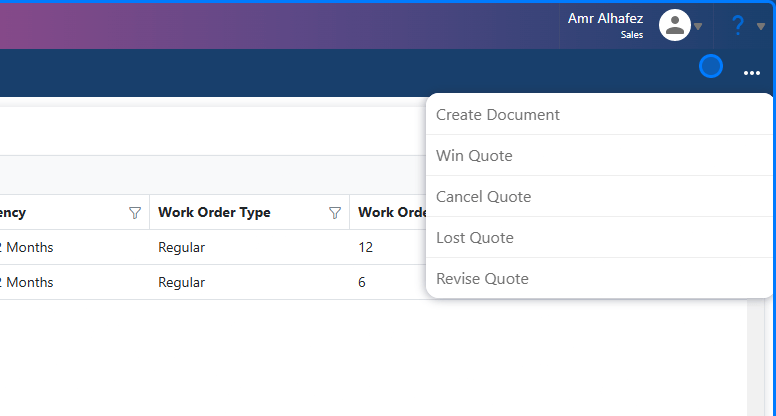
As we can see, the "..." button has been updated, and now we have more options available for the quote.
> ### ⚠️ Activating Quotatin
>
> Once you activate the quote, it will be locked and no longer editable. The only way to make changes is by revising the quote.
>
> All previous revisions are saved in the system, and there is a revision counter in the main information section.
### 15. Activated Quotation Options
As we can see, the "..." button has been updated, and now we have more options available for the quote.
 ### 16. Creating Document
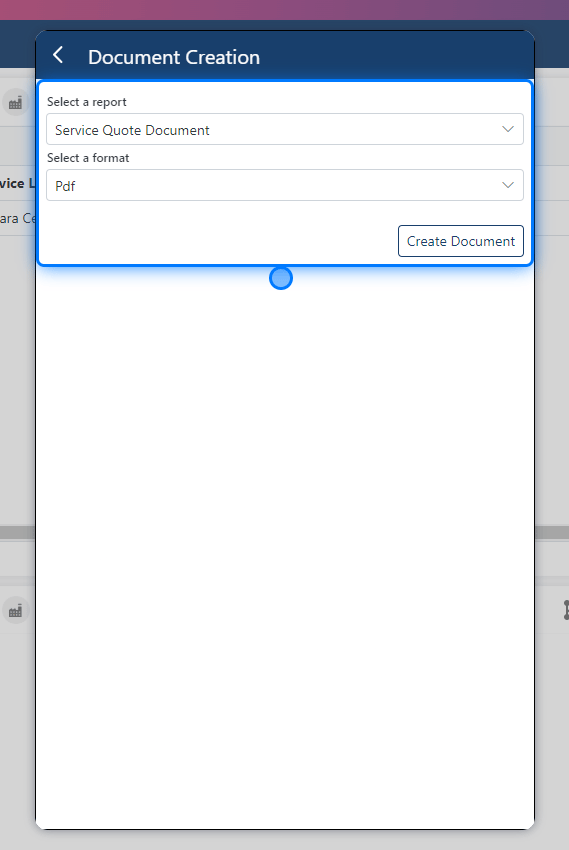
Once we have Click on Create Document, a new window will open for us to select the report " Document we want ", as well as the file format. Then, we click the "Create Document" button.
### 16. Creating Document
Once we have Click on Create Document, a new window will open for us to select the report " Document we want ", as well as the file format. Then, we click the "Create Document" button.
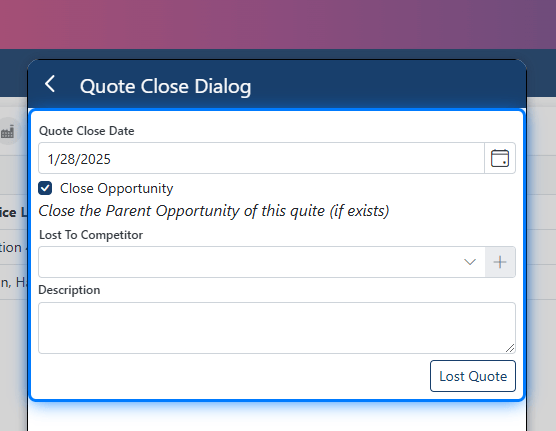
 ### 17. Lost Quote
Lost Quote" is used for quotes that you didn't win. You can add the competitor who won the sale and close the quote from your side.
### 17. Lost Quote
Lost Quote" is used for quotes that you didn't win. You can add the competitor who won the sale and close the quote from your side.
 ### 18. Revise
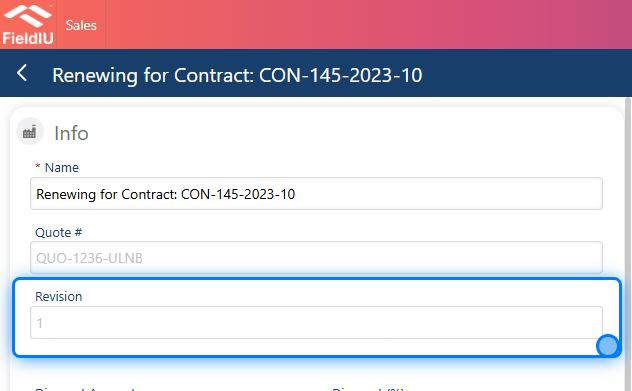
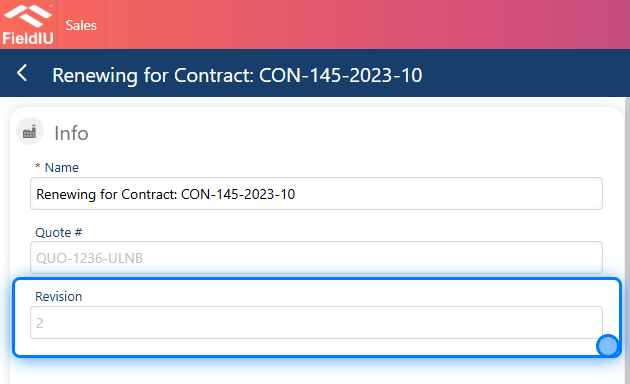
Once we activate the quote, we can't edit or add anything to it. The only way to make changes or add new details is by revising the quote.\
The revision number will automatically increase each time you click "Revise Quote." , it starts From 0.
### 18. Revise
Once we activate the quote, we can't edit or add anything to it. The only way to make changes or add new details is by revising the quote.\
The revision number will automatically increase each time you click "Revise Quote." , it starts From 0.
 ### 19.
 ### 20. Cancel Quote
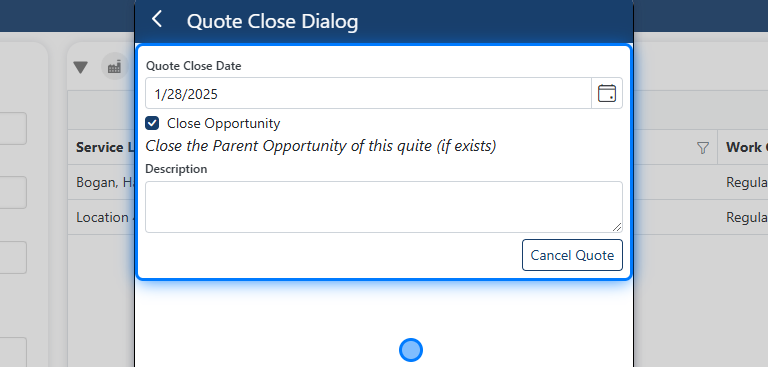
If you want to cancel the quote, all you need to do is click on the cancel button and then select "Cancel Quote."
### 20. Cancel Quote
If you want to cancel the quote, all you need to do is click on the cancel button and then select "Cancel Quote."
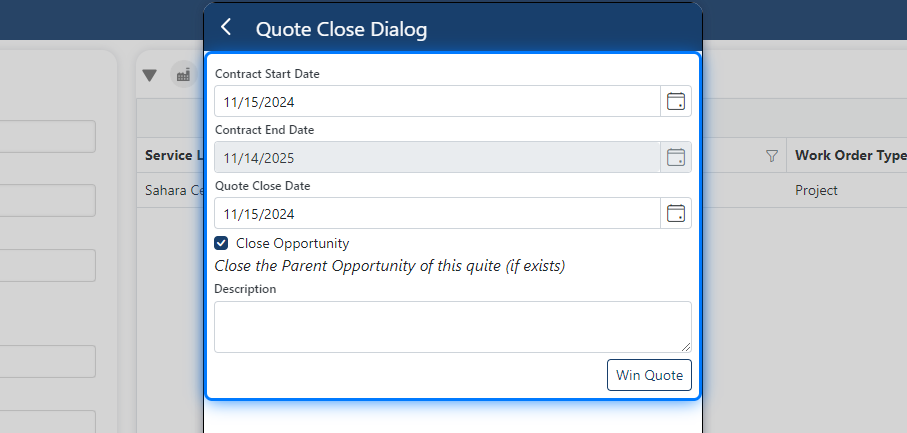
 > ### 💡 Close Opportunity
>
> **Close Opportunity** : You can uncheck this box to keep the opportunity open for future quotes related to the same opportunity.
### 21. Win Quote
When you click on "Win Quote" a new window will open for you to insert the contract start date and a description, if you want to add one.
> ### 💡 Close Opportunity
>
> **Close Opportunity** : You can uncheck this box to keep the opportunity open for future quotes related to the same opportunity.
### 21. Win Quote
When you click on "Win Quote" a new window will open for you to insert the contract start date and a description, if you want to add one.
 > ### 💡 From Quote To Contract
>
> Once You winning the quote it will automatically create new contract with the same details and information�����������������������
> ### 💡 From Quote To Contract
>
> Once You winning the quote it will automatically create new contract with the same details and information�����������������������