> ## Documentation Index
> Fetch the complete documentation index at: https://docs.fieldiu.com/llms.txt
> Use this file to discover all available pages before exploring further.
# Payments
The payments function is to insert customer payments and link them with one or more invoices.
### 1. Create New Payment
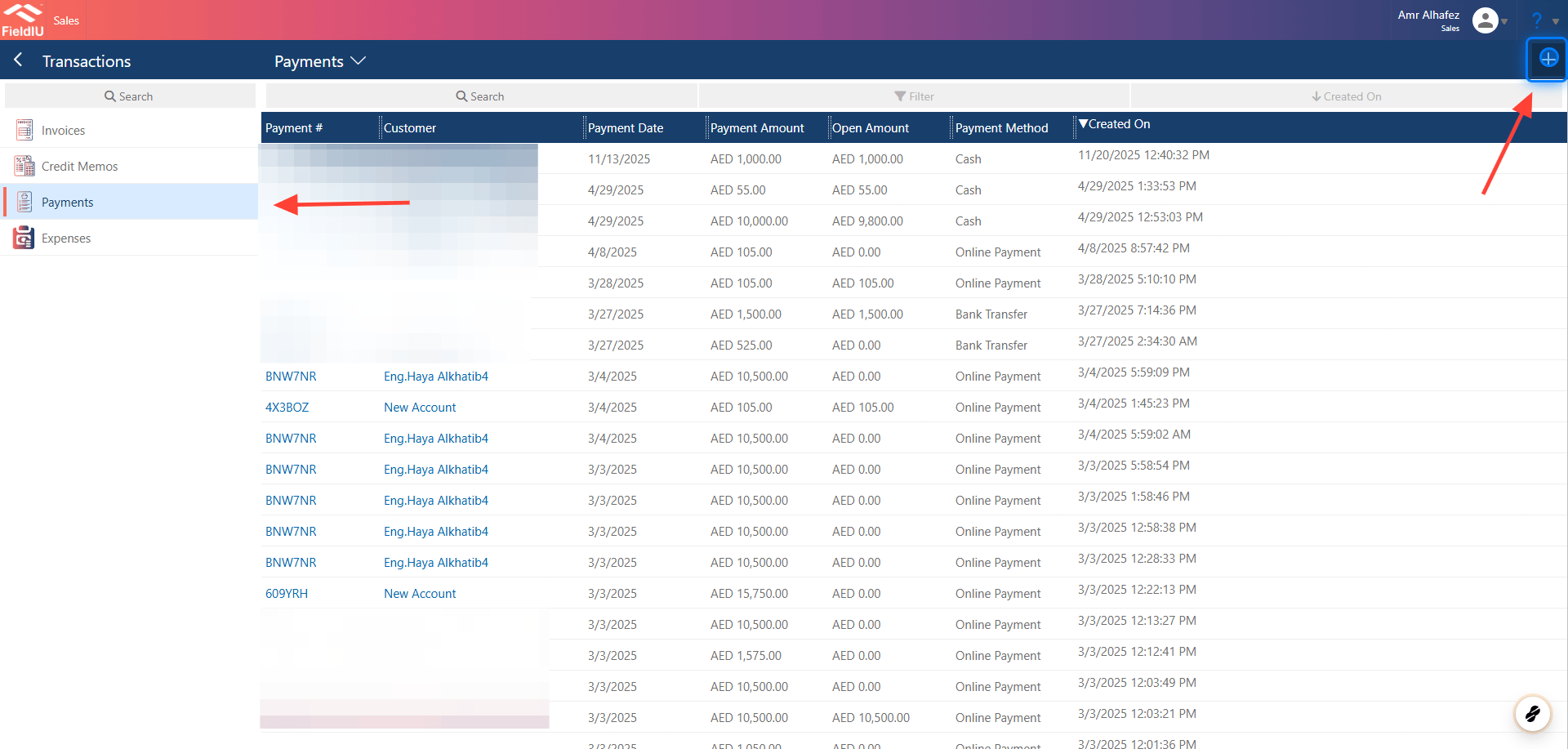
To create a new payment, open the Sales/Accountant app, then from the sidebar menu select *Transactions → Payments* .
 ### 2. Payment Details
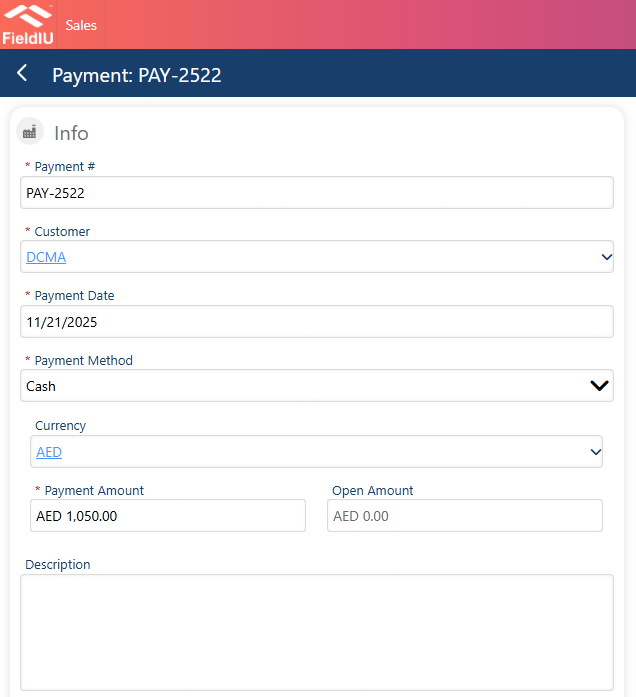
**A new window will open for you to enter the payment details:**
* **Payment #**
* **Customer**
* **Payment Date**
* **Payment Method**
* **Currency**
* **Payment Amount**
* **Description**
### 2. Payment Details
**A new window will open for you to enter the payment details:**
* **Payment #**
* **Customer**
* **Payment Date**
* **Payment Method**
* **Currency**
* **Payment Amount**
* **Description**
 ### 3. Payment Method
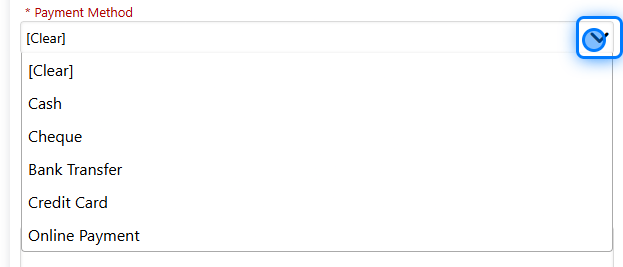
You can select the payment method, whether it is:
* Cash
* Cheque
* Bank transfer
* Credit card
* Online payment
### 3. Payment Method
You can select the payment method, whether it is:
* Cash
* Cheque
* Bank transfer
* Credit card
* Online payment
 ### 4. Link Invoice
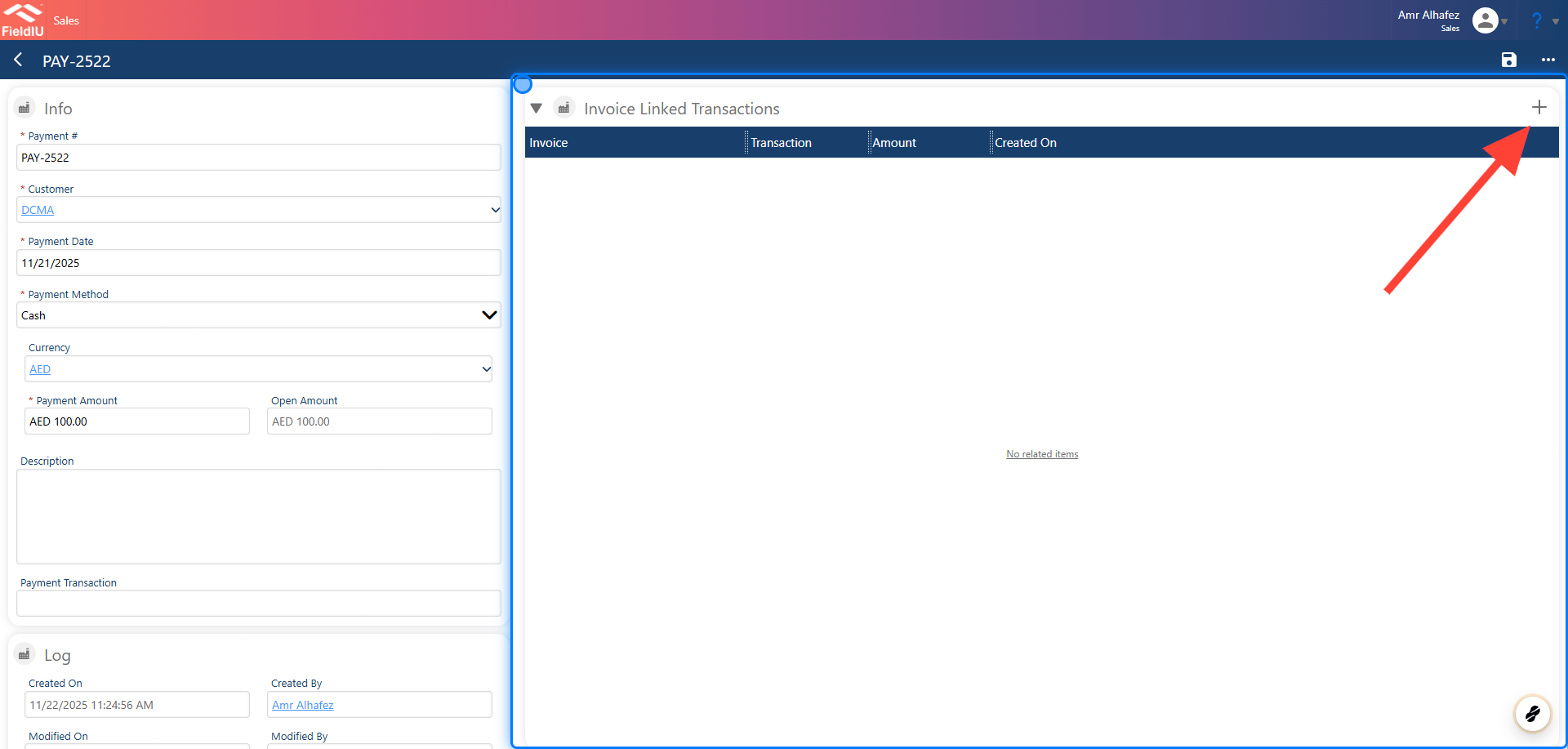
Once you save the details, a new section will open for you to link this payment with a specific invoice or multiple invoices for the same selected customer.
### 4. Link Invoice
Once you save the details, a new section will open for you to link this payment with a specific invoice or multiple invoices for the same selected customer.
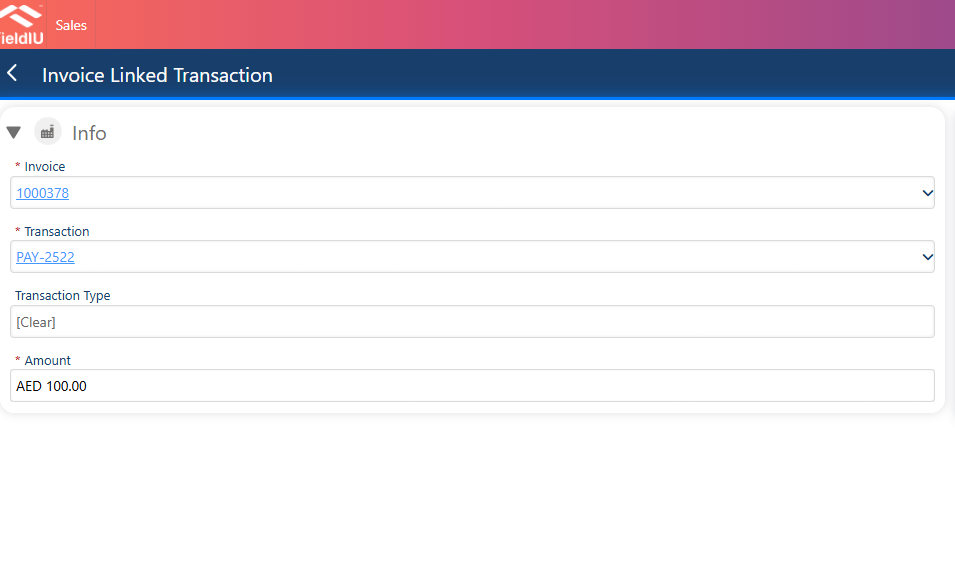
 ### 5. Linked Invoice Details
**Linked Invoice Details**\
*Once you create a new link, you need to enter the invoice details:*
* **Invoice**
* **Amount**
### 5. Linked Invoice Details
**Linked Invoice Details**\
*Once you create a new link, you need to enter the invoice details:*
* **Invoice**
* **Amount**
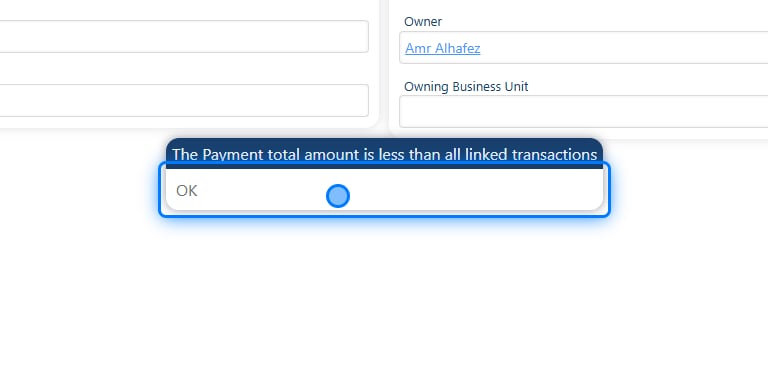
 > ### ⚠️ The amount cannot be greater than the payment amount.
### 6.
> ### ⚠️ The amount cannot be greater than the payment amount.
### 6.
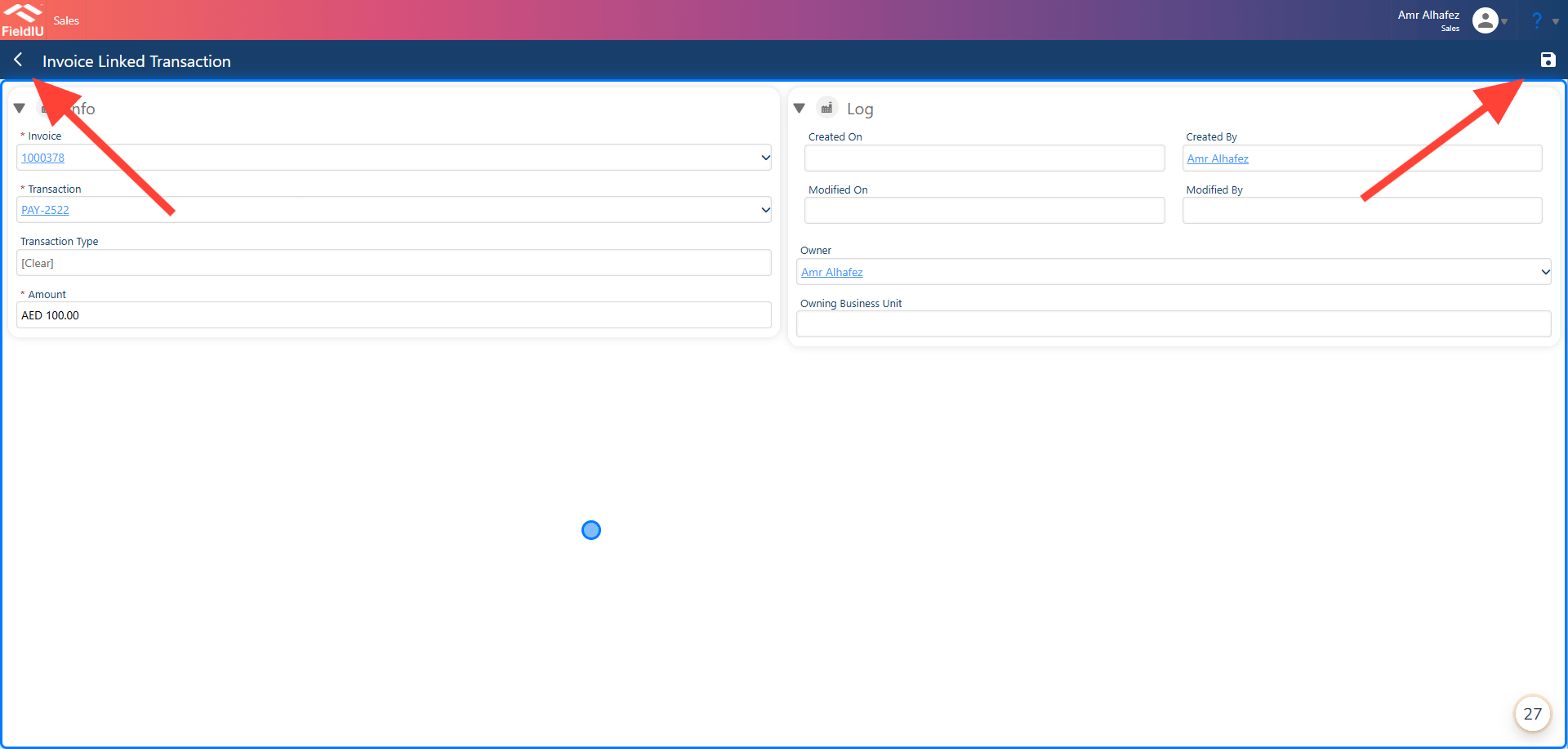
 ### 7. Save And Back
 ### 8. All Linked
Once you return to the payment, you will find the linked invoice details in its own section.
### 8. All Linked
Once you return to the payment, you will find the linked invoice details in its own section.
 �����������������������