> ## Documentation Index
> Fetch the complete documentation index at: https://docs.fieldiu.com/llms.txt
> Use this file to discover all available pages before exploring further.
# Monitoring Points Definition - Contract
### 1. Adding New Monitoring Point Definition
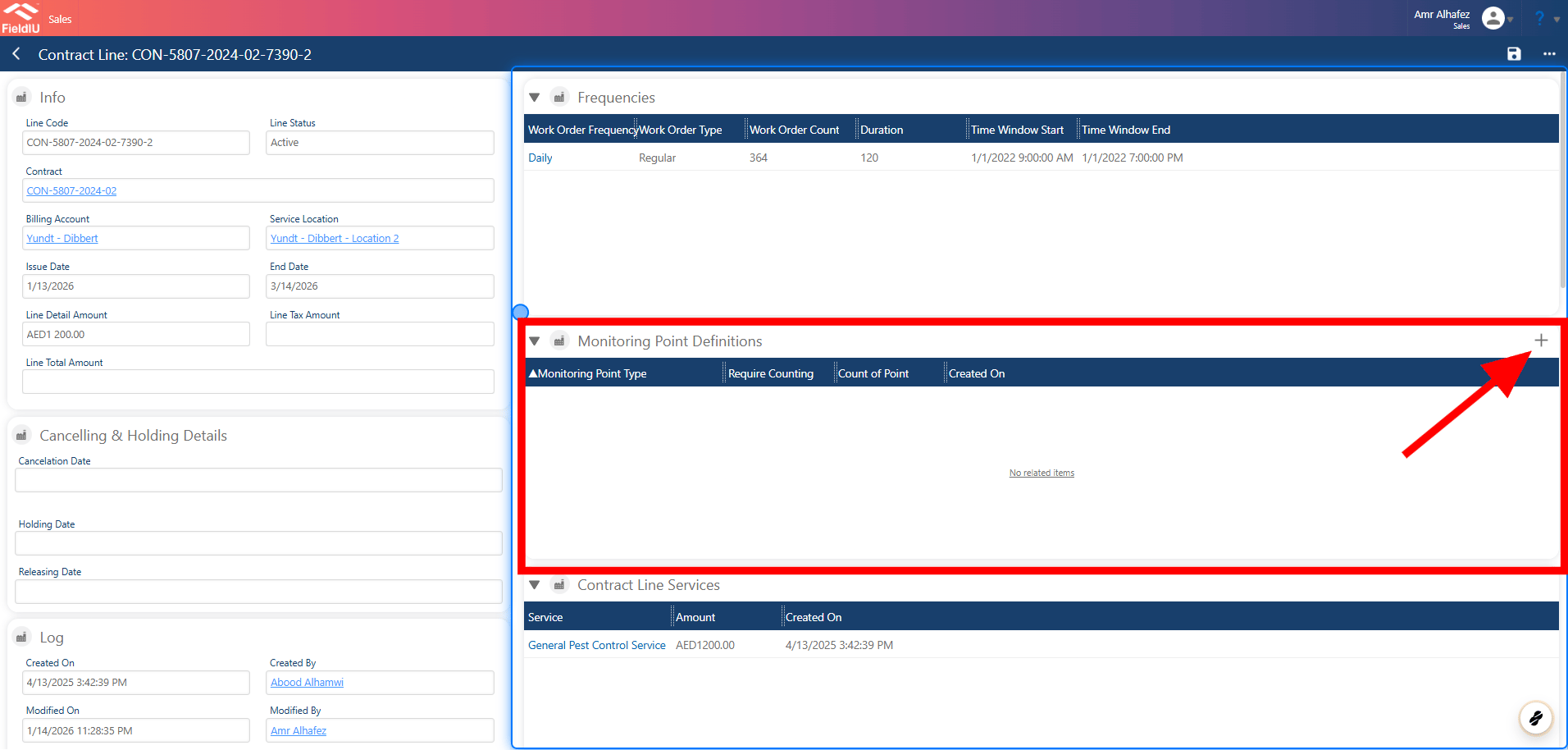
In the **Contract Line** under the **Monitoring Points** section, click the **+** button.
 ### 2. Main Details
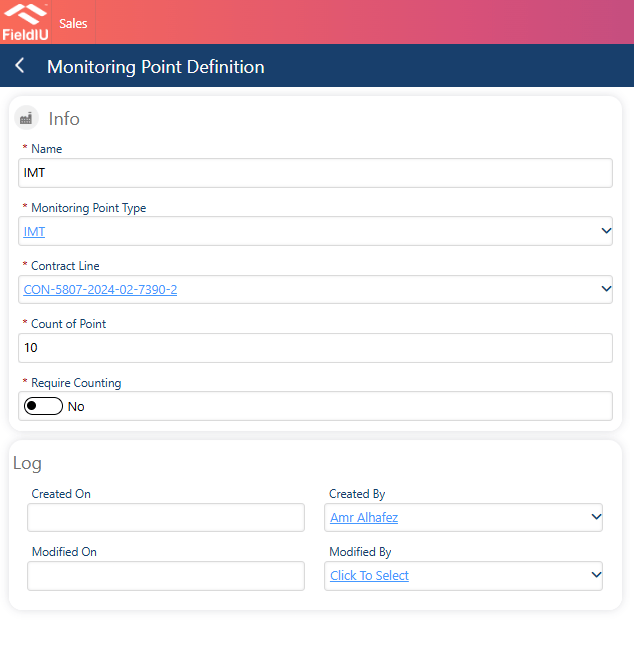
Insert the Main Details for the Monitoring Point Definition , Then Save.
### 2. Main Details
Insert the Main Details for the Monitoring Point Definition , Then Save.
 ### 3. Creating New Monitoring Point
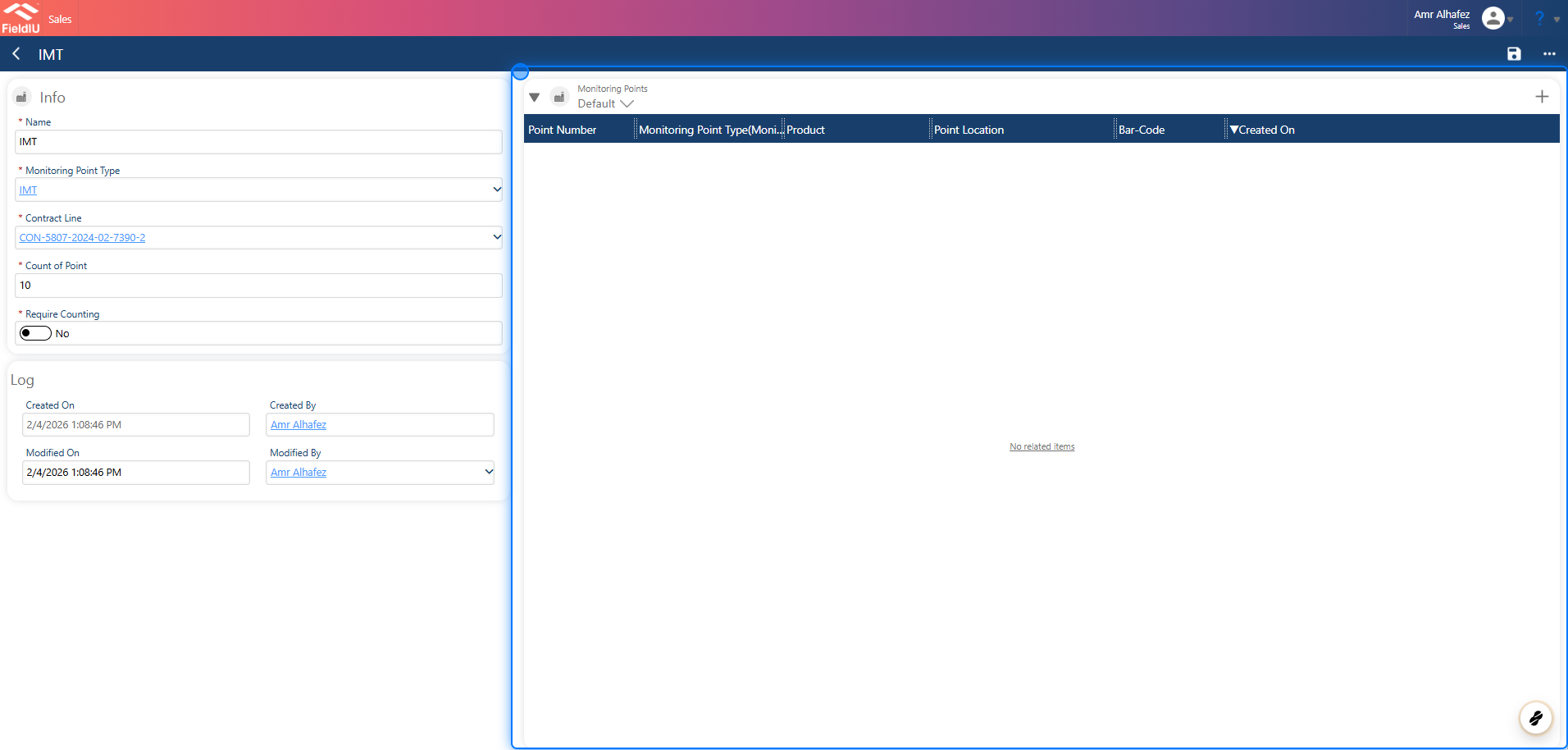
Once you save, a new section will open.\
Here, you can add additional monitoring points directly, just like in the mobile app.
### 3. Creating New Monitoring Point
Once you save, a new section will open.\
Here, you can add additional monitoring points directly, just like in the mobile app.
 ### 4. Install New Monitoring Point
Once you click the **+** button to add a new monitoring point,\
you will see the main form.\
Simply enter the details and click **Save** .
### 4. Install New Monitoring Point
Once you click the **+** button to add a new monitoring point,\
you will see the main form.\
Simply enter the details and click **Save** .
 �����������������������