> ## Documentation Index
> Fetch the complete documentation index at: https://docs.fieldiu.com/llms.txt
> Use this file to discover all available pages before exploring further.
# Invoice Export Requests
> ### 💡 Invoice Export Requests
>
> Invoice Export Requests is a tool designed to help export invoices easily in a single operation.
## How To Access It ?
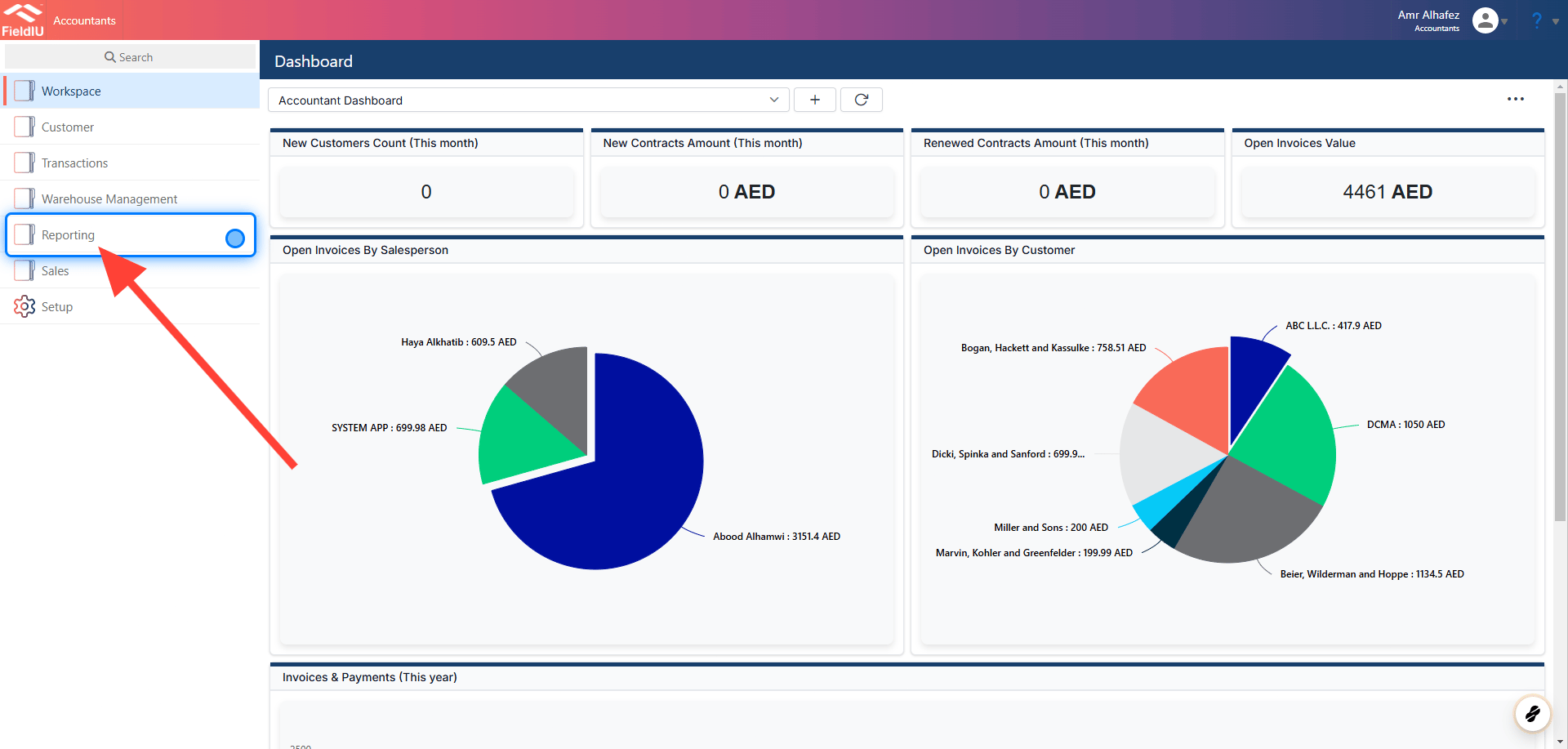
### 1. Click On Reporting
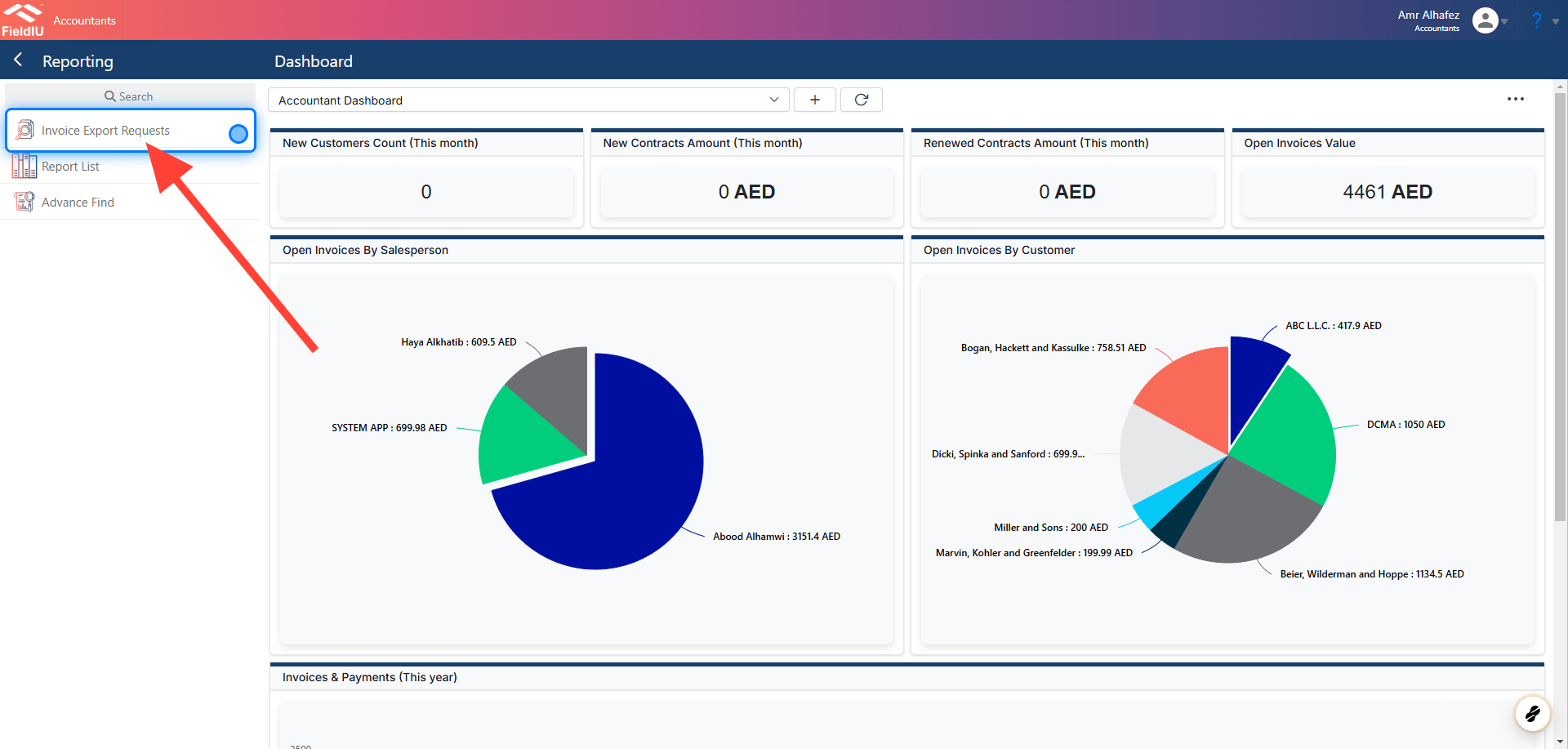
 ### 2. Click Invoice Export Requests
 ### 3. Add New & Old Requests
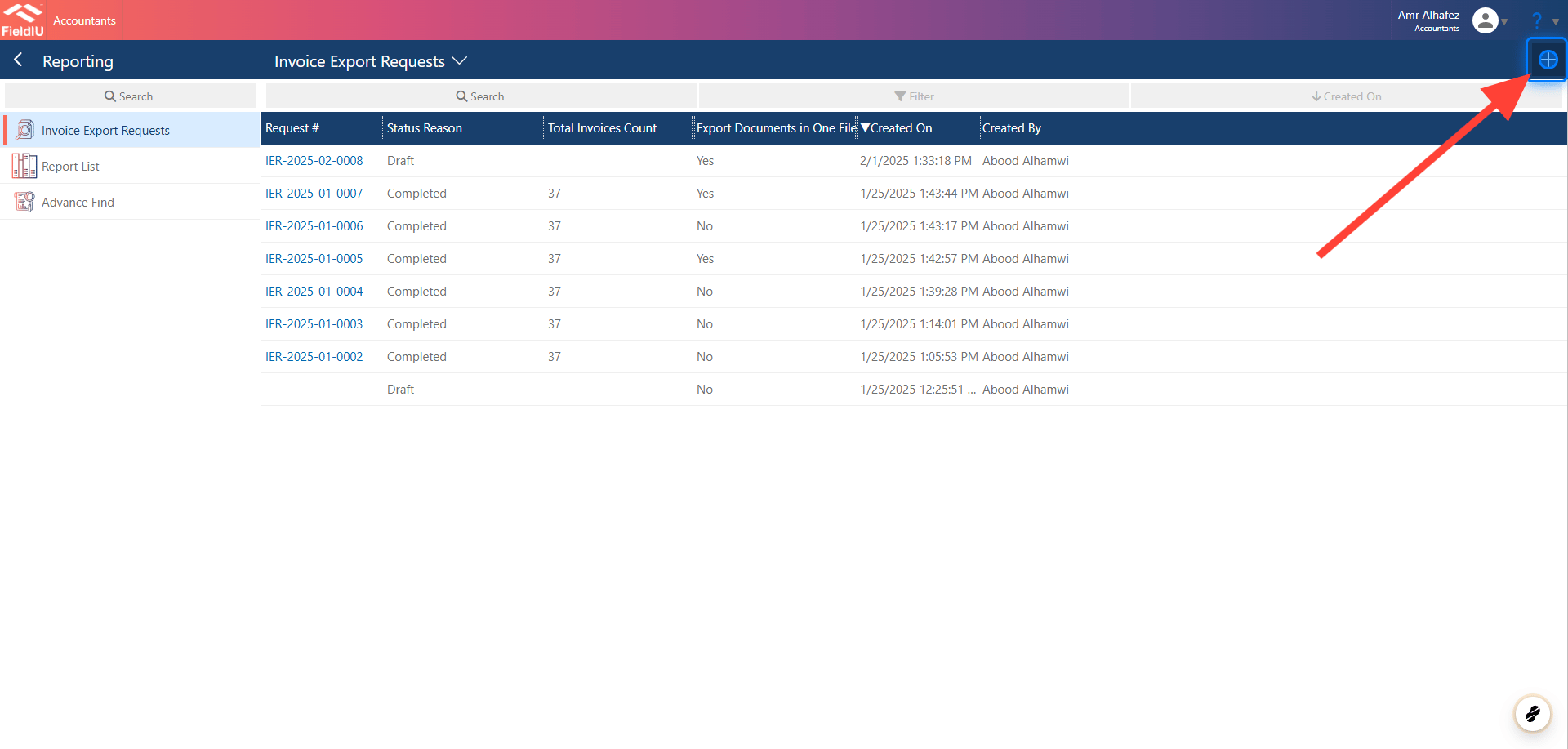
You can add a new request by clicking the + button to create a new request, or you can select an existing record to view it.
### 3. Add New & Old Requests
You can add a new request by clicking the + button to create a new request, or you can select an existing record to view it.
 ### 4. Main Screen
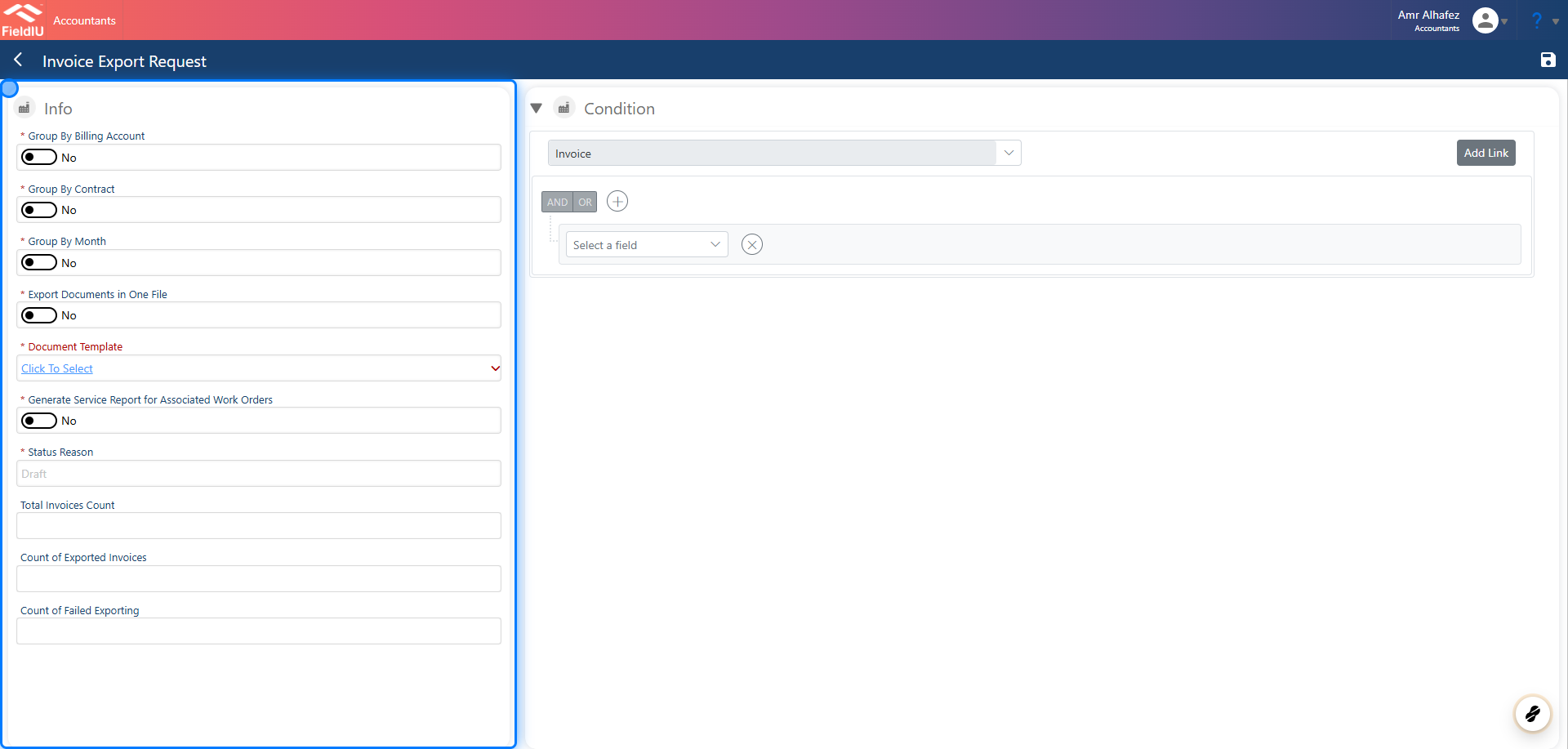
On the main screen, you’ll find two sections: one for the main request information and the other for the invoice conditions, allowing you to more specifically select the invoice you want.
### 4. Main Screen
On the main screen, you’ll find two sections: one for the main request information and the other for the invoice conditions, allowing you to more specifically select the invoice you want.
 ### 5. Grouping
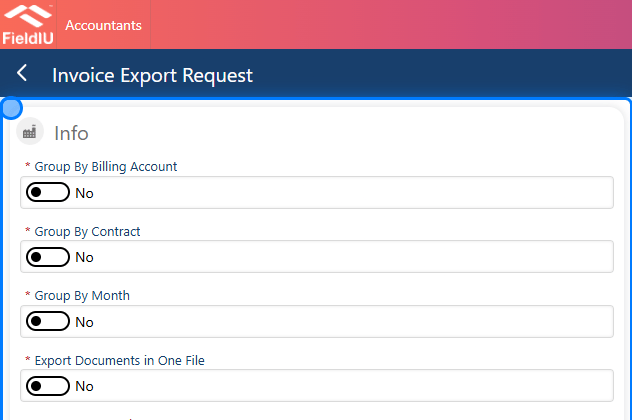
In the grouping settings, you have three options that will organize the invoices into folders based on the selected group setting:
* Group by Billing Account
* Group by Contract
* Group by Month
Additionally, we offer the option to export all documents into a single file.
### 5. Grouping
In the grouping settings, you have three options that will organize the invoices into folders based on the selected group setting:
* Group by Billing Account
* Group by Contract
* Group by Month
Additionally, we offer the option to export all documents into a single file.
 ### 6. Select the Document Template
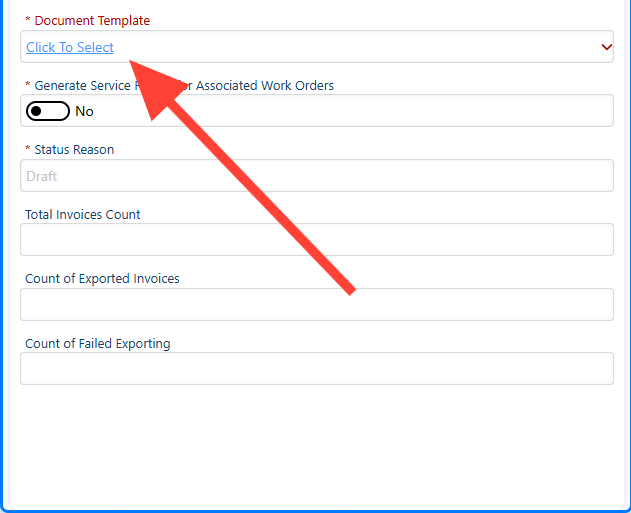
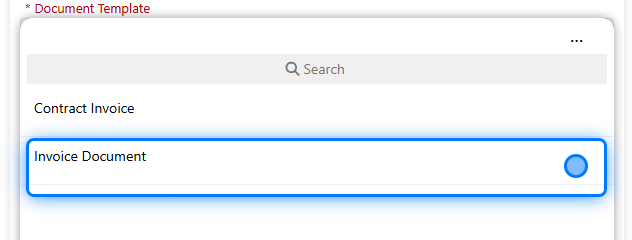
You can select the invoice template you want to export.
### 6. Select the Document Template
You can select the invoice template you want to export.
 ### 7.
 ### 8. Generate a service report for the associated work orders.
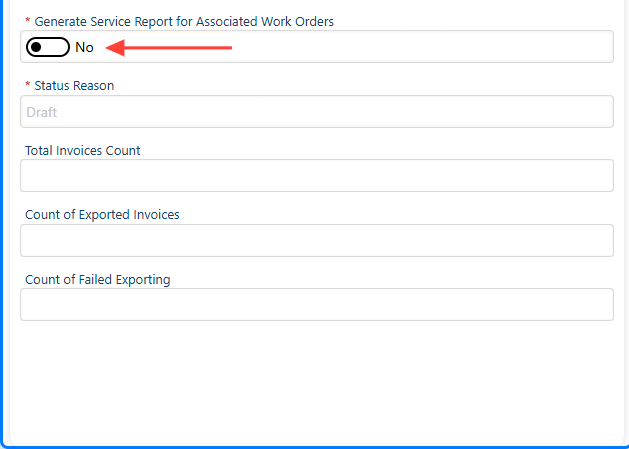
Additionally, we have the option to generate a service report for the associated work orders.
### 8. Generate a service report for the associated work orders.
Additionally, we have the option to generate a service report for the associated work orders.
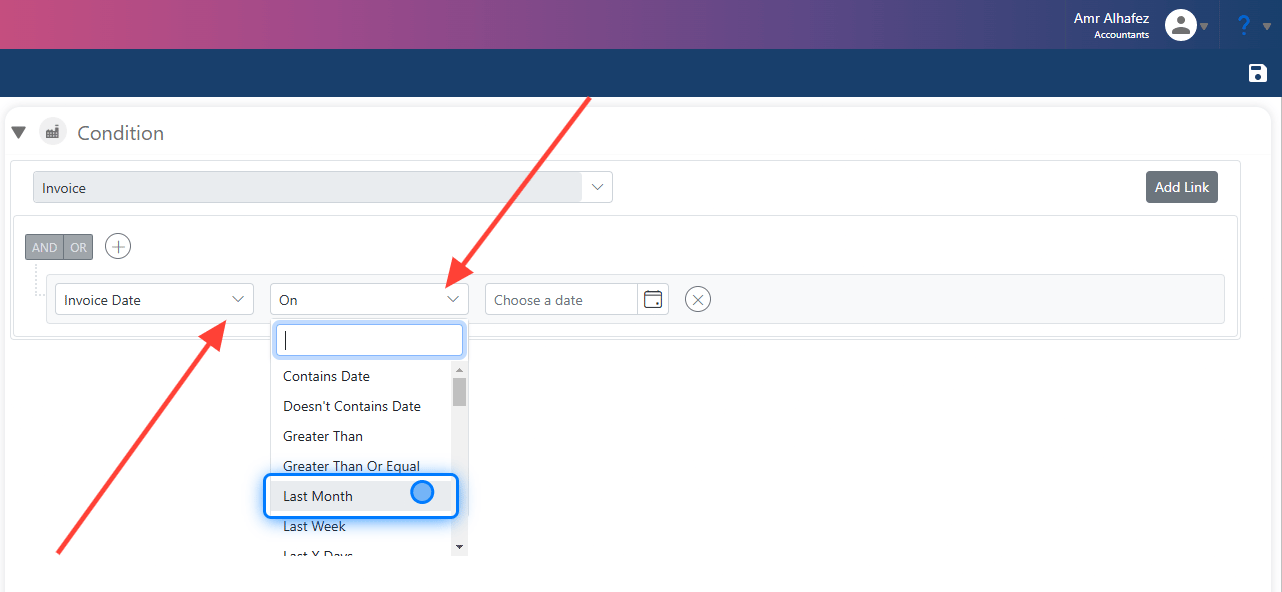
 ### 9. Conditions
You can add any condition you want for the invoices. For example, in this case, we will filter or set a condition to include only invoices from the last month.
### 9. Conditions
You can add any condition you want for the invoices. For example, in this case, we will filter or set a condition to include only invoices from the last month.
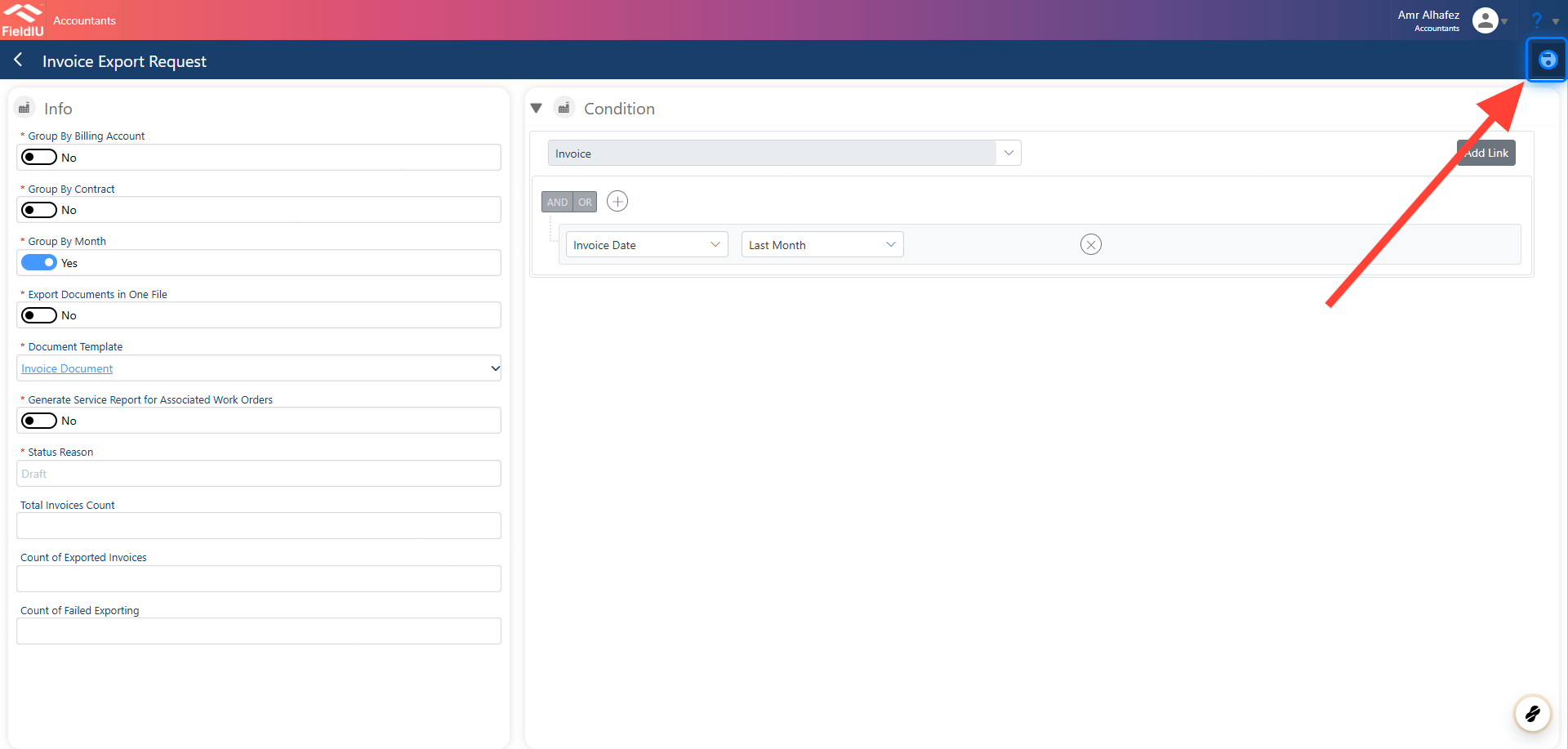
 ### 10. Save
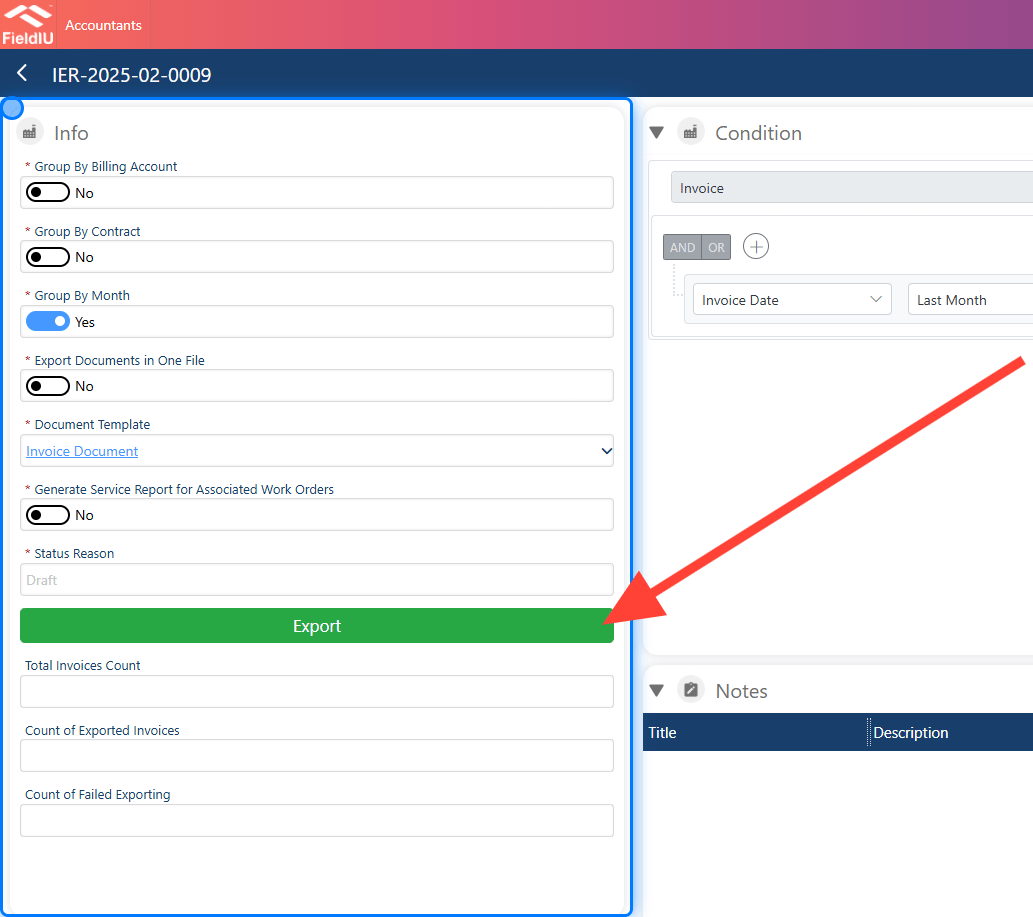
 ### 11. Export
Once the request is saved, the system will display the export button, which you can use to start the export process.
### 11. Export
Once the request is saved, the system will display the export button, which you can use to start the export process.
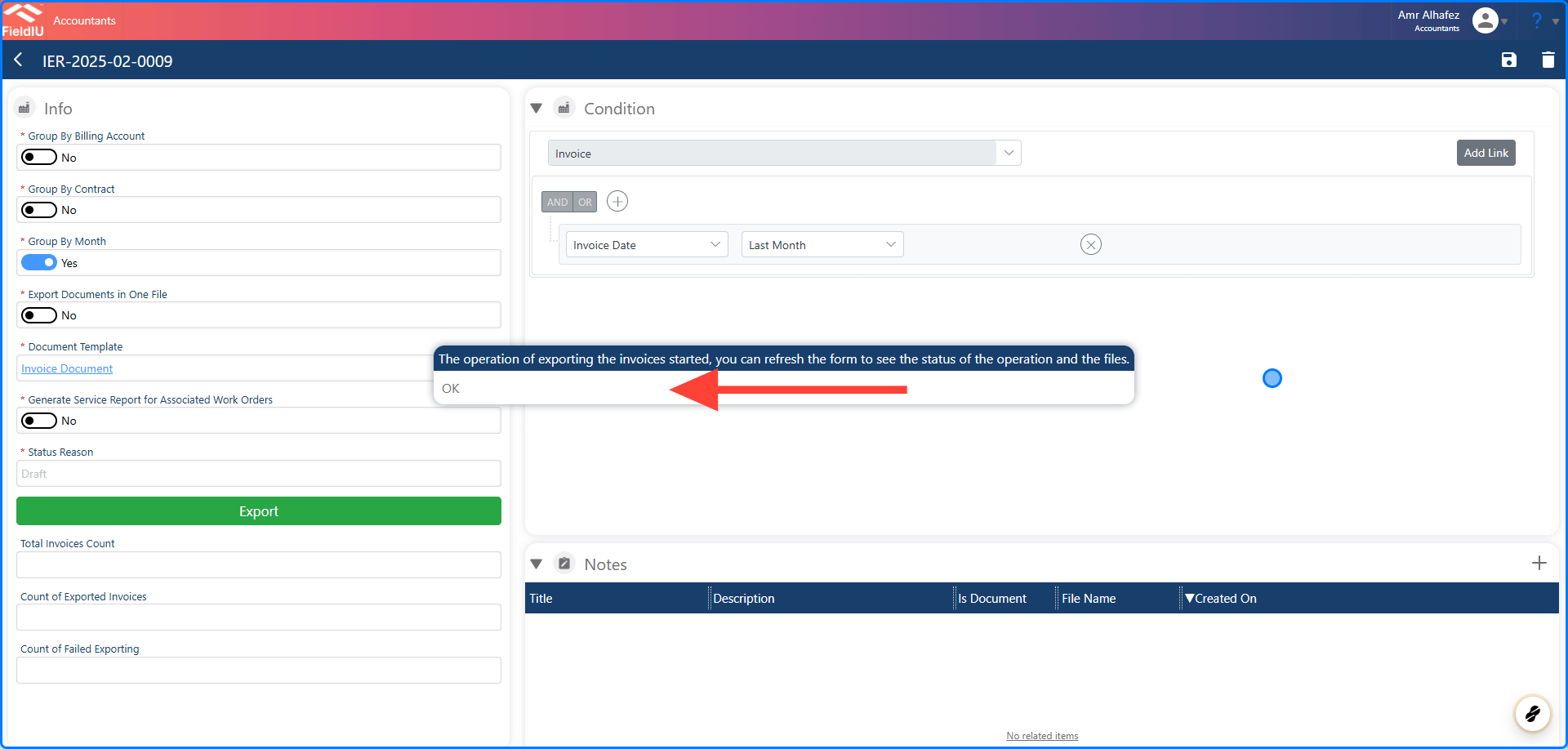
 ### 12. Confirm
Once the export process starts, a new dialog will appear notifying you that you can close the page, and the system will continue the process automatically.
### 12. Confirm
Once the export process starts, a new dialog will appear notifying you that you can close the page, and the system will continue the process automatically.
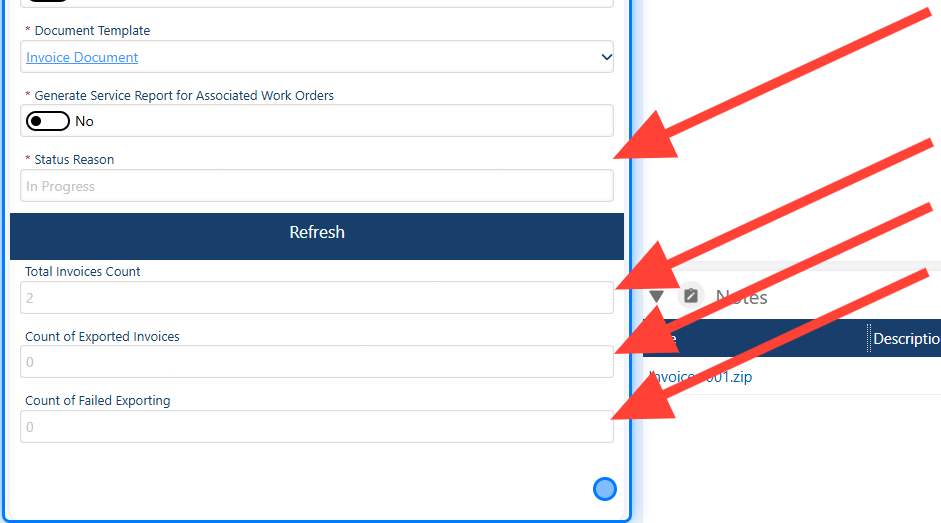
 ### 13. Status
Now, you can see the status of the request, whether it’s in draft, in progress, or completed. Additionally, there are counters where you can view:
* Total Invoice Count
* Count of Exported Invoices
* Count of Failed Exports
### 13. Status
Now, you can see the status of the request, whether it’s in draft, in progress, or completed. Additionally, there are counters where you can view:
* Total Invoice Count
* Count of Exported Invoices
* Count of Failed Exports
 ### 14. Download Files
Once the request is complete, the 'Download Files' button will appear, allowing you to see and download the files that have been generated for you.
### 14. Download Files
Once the request is complete, the 'Download Files' button will appear, allowing you to see and download the files that have been generated for you.
 �����������������������