> ## Documentation Index
> Fetch the complete documentation index at: https://docs.fieldiu.com/llms.txt
> Use this file to discover all available pages before exploring further.
# Contract Functions
> ### 💡 Validating The Contract
>
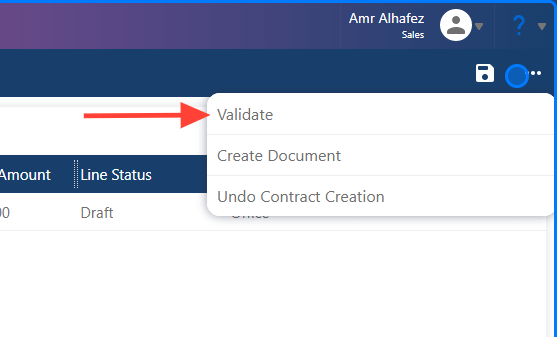
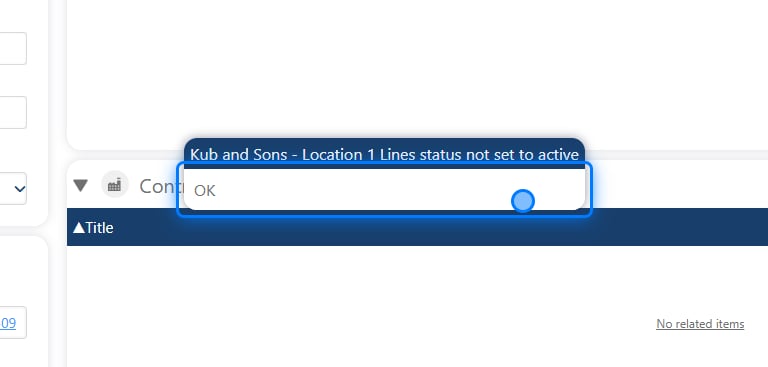
> The "Validate" button helps ensure all the required details for the contract are filled in. The contract will not be activated until all necessary information is completed.
### 1.
 ### 2. Error Example
 ### 3. Activated Contract Menu
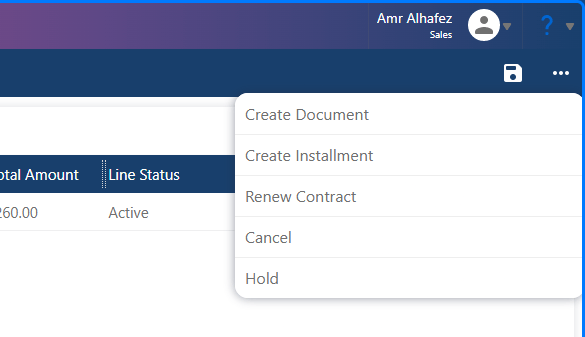
Once we validate the contract, it will automatically activate, and you will have access to the remaining contract options.
### 3. Activated Contract Menu
Once we validate the contract, it will automatically activate, and you will have access to the remaining contract options.
 ## Undo Contract Creation
> ### 💡 What is Undo Contract Creation?
>
> **Sometimes, after completing contract creation, we may need to make changes before activating the contract, such as adjusting prices or making other modifications. In such cases, we can reactivate the quotation, edit or add the new changes, and delete the created contract.**
>
> "In Fieldiu, once we win the quotation, the system will automatically change the status of the won quotation to 'Draft'."
>
> To walk through this step, let’s see how it’s done:
### 4. Where To Undo Contract Creation
To walk through this step, let’s see how it’s done:
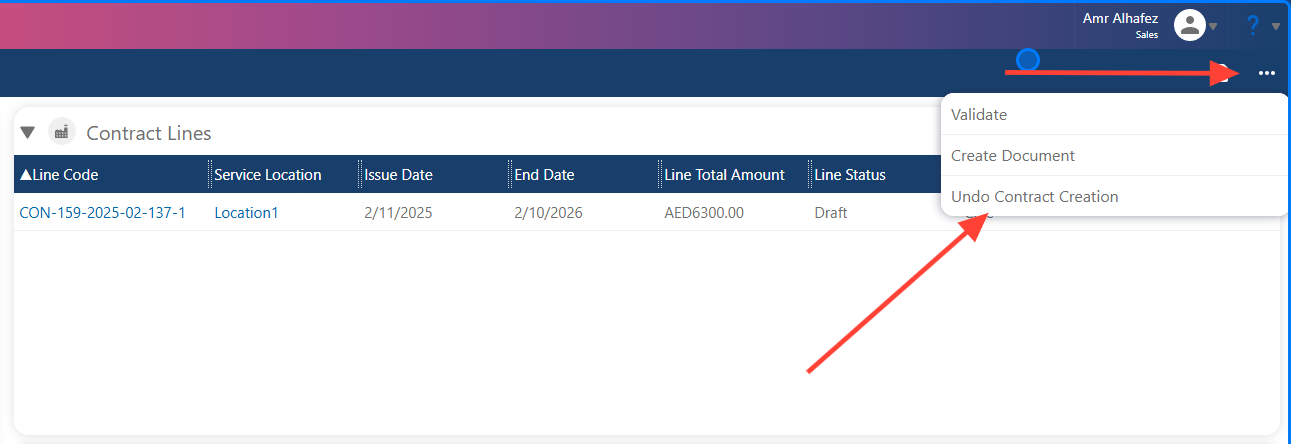
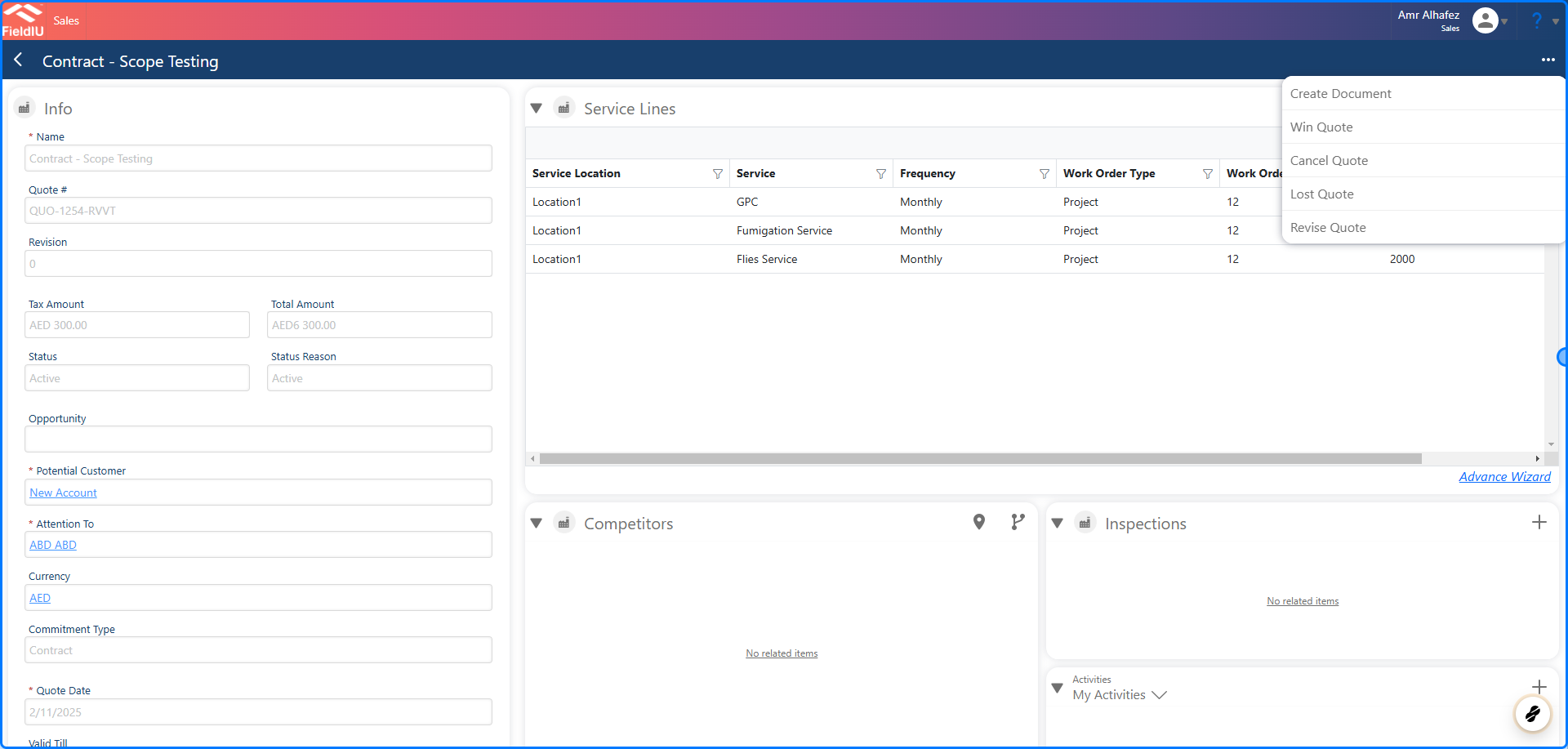
1. On the contract page, click the three buttons (options menu).
2. Select **Undo Contract Creation** to remove the created contract and make any necessary updates.
## Undo Contract Creation
> ### 💡 What is Undo Contract Creation?
>
> **Sometimes, after completing contract creation, we may need to make changes before activating the contract, such as adjusting prices or making other modifications. In such cases, we can reactivate the quotation, edit or add the new changes, and delete the created contract.**
>
> "In Fieldiu, once we win the quotation, the system will automatically change the status of the won quotation to 'Draft'."
>
> To walk through this step, let’s see how it’s done:
### 4. Where To Undo Contract Creation
To walk through this step, let’s see how it’s done:
1. On the contract page, click the three buttons (options menu).
2. Select **Undo Contract Creation** to remove the created contract and make any necessary updates.
 ### 5.
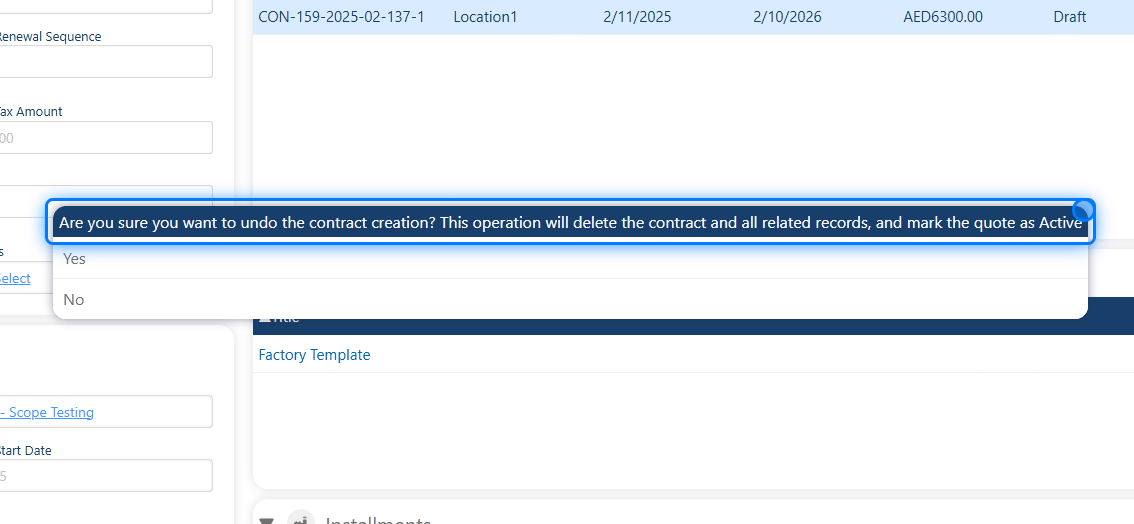
This operation will delete the contract and all related records, and mark the quote as Active
### 5.
This operation will delete the contract and all related records, and mark the quote as Active
 > ### 💡 Clicking Yes
>
> Once we click "Yes," the system will automatically delete the contract and reactivate the quotation associated with it, allowing us to make any necessary changes.
### 6.
> ### 💡 Clicking Yes
>
> Once we click "Yes," the system will automatically delete the contract and reactivate the quotation associated with it, allowing us to make any necessary changes.
### 6.
 ## Holding Contract
### 7. Hold
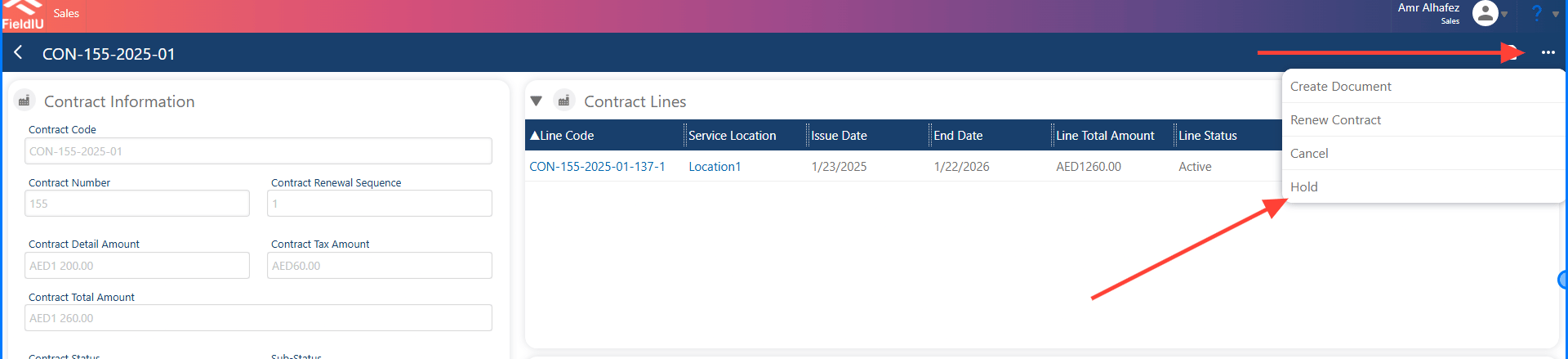
We can also hold the contract for a period of time. To do this, simply click the options button (the "3 dots" button) and select **Hold** .
## Holding Contract
### 7. Hold
We can also hold the contract for a period of time. To do this, simply click the options button (the "3 dots" button) and select **Hold** .
 ### 8. Contract Hold Details
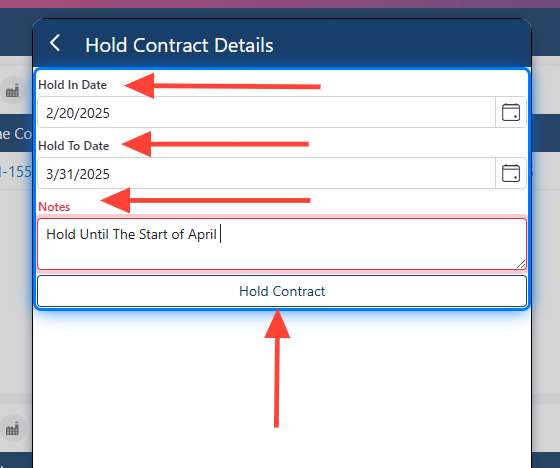
**Once we click on "Hold," a new dialog will open, allowing us to select the hold dates ("Hold From" and "Hold To").**\
Additionally, there is a **Notes** section where we can type a note or description for the hold.
### 8. Contract Hold Details
**Once we click on "Hold," a new dialog will open, allowing us to select the hold dates ("Hold From" and "Hold To").**\
Additionally, there is a **Notes** section where we can type a note or description for the hold.
 ### 9. Confirmation Message
Once we click on "Hold Contract," a confirmation message will appear, informing us that the contract will be on hold for the given dates. Additionally, ***the work orders will be unscheduled and set to hold*** .
### 9. Confirmation Message
Once we click on "Hold Contract," a confirmation message will appear, informing us that the contract will be on hold for the given dates. Additionally, ***the work orders will be unscheduled and set to hold*** .
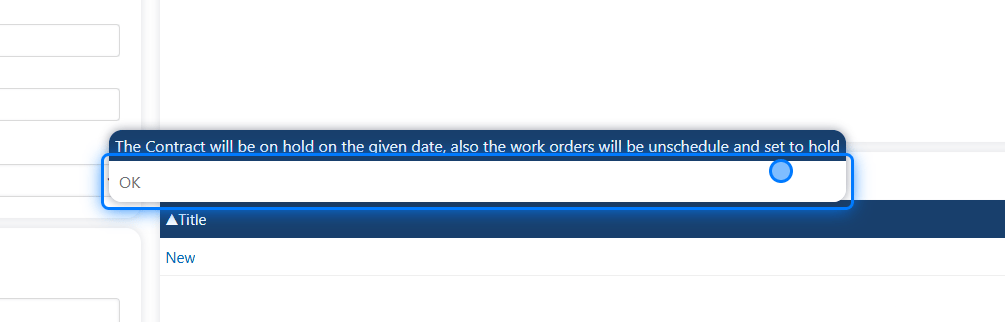 > ### ⚠️ The work orders will be unscheduled and set to hold.
### 10. New Hold Settings
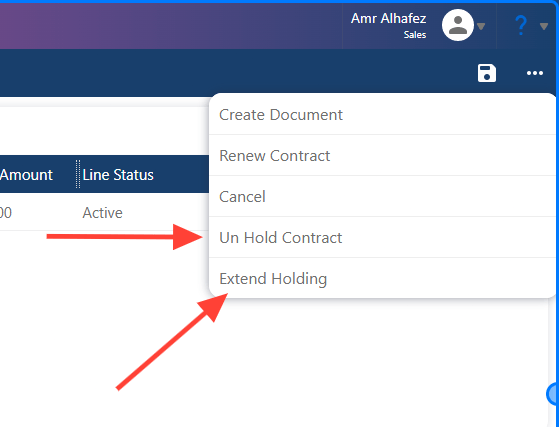
**A new "Hold Settings" menu will appear in the options, offering the following options:**
* **Unhold Contract**
* **Extend Holding**
The names of these settings are self-explanatory.
> ### ⚠️ The work orders will be unscheduled and set to hold.
### 10. New Hold Settings
**A new "Hold Settings" menu will appear in the options, offering the following options:**
* **Unhold Contract**
* **Extend Holding**
The names of these settings are self-explanatory.
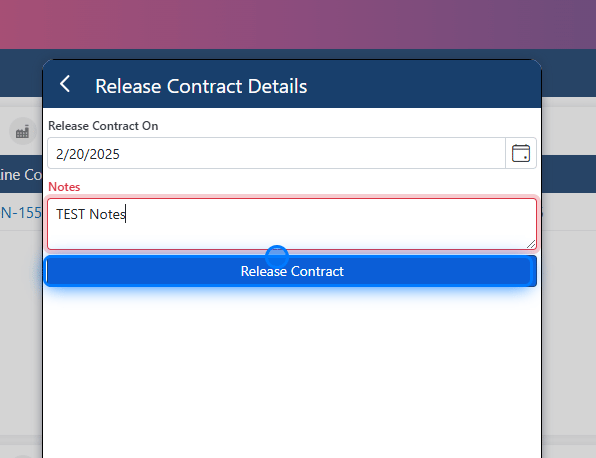
 ### 11. Un holding Contracts
Un holding the contract will release it, allowing us to make changes and continue working on it.
### 11. Un holding Contracts
Un holding the contract will release it, allowing us to make changes and continue working on it.
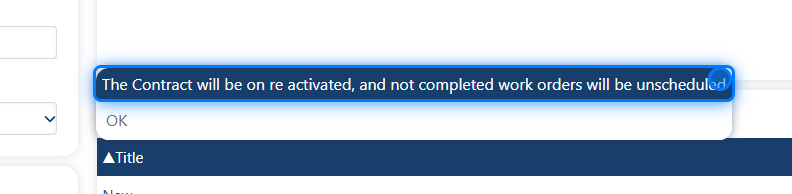
 ### 12. Confirmation Message
Once we "Un hold" the contract, it will be reactivated. However, the unscheduled work orders will not be rescheduled automatically. You will need to manually reschedule these work orders.
### 12. Confirmation Message
Once we "Un hold" the contract, it will be reactivated. However, the unscheduled work orders will not be rescheduled automatically. You will need to manually reschedule these work orders.
 > ### 💡 Un Hold Contract JOB
>
> **The system performs updates every 5 minutes. Therefore, once we unhold the contract, it may take around 5 minutes for the contract status to update.**
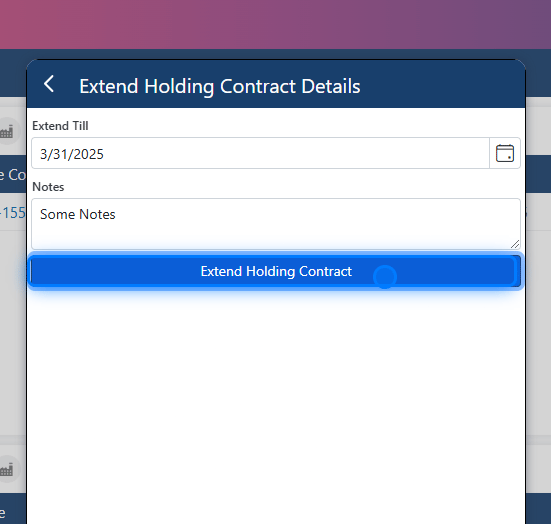
### 13. Extend Holding Contract
**We can also extend the contract hold by selecting a new date and adding any notes or descriptions.**
> ### 💡 Un Hold Contract JOB
>
> **The system performs updates every 5 minutes. Therefore, once we unhold the contract, it may take around 5 minutes for the contract status to update.**
### 13. Extend Holding Contract
**We can also extend the contract hold by selecting a new date and adding any notes or descriptions.**
 > ### 💡 Contract Line " Holding & Cancelation "
>
> You can hold or cancel a specific line individually. To do this, simply open the options menu (the "3 dots" button) in the contract line screen.�����������������������
> ### 💡 Contract Line " Holding & Cancelation "
>
> You can hold or cancel a specific line individually. To do this, simply open the options menu (the "3 dots" button) in the contract line screen.�����������������������