> ## Documentation Index
> Fetch the complete documentation index at: https://docs.fieldiu.com/llms.txt
> Use this file to discover all available pages before exploring further.
# Work Orders & Bookings
### 1. Accessing Work Orders
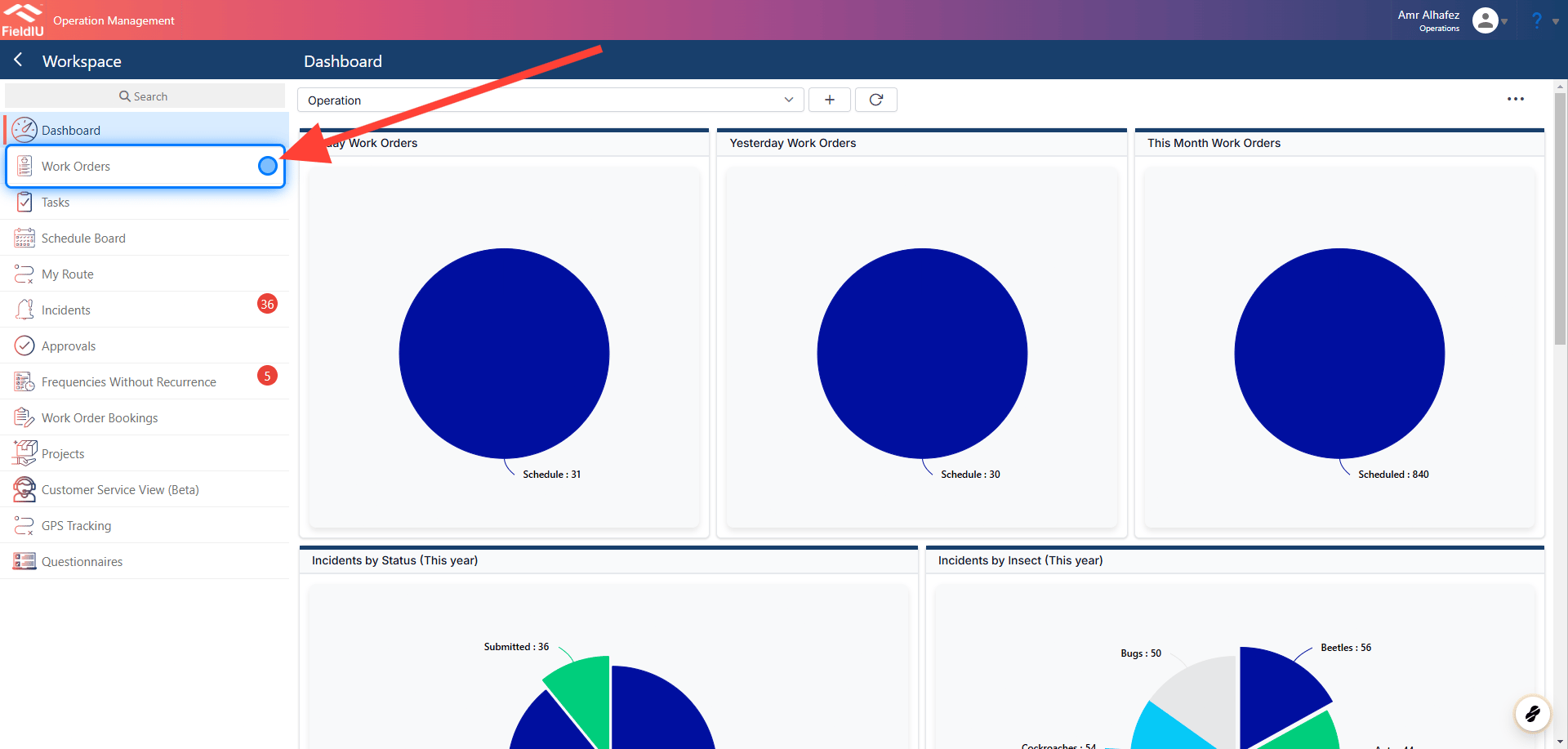
You can access all the work orders from the sidebar menu by clicking on the 'Work Orders' tab.
 ### 2. Main Information
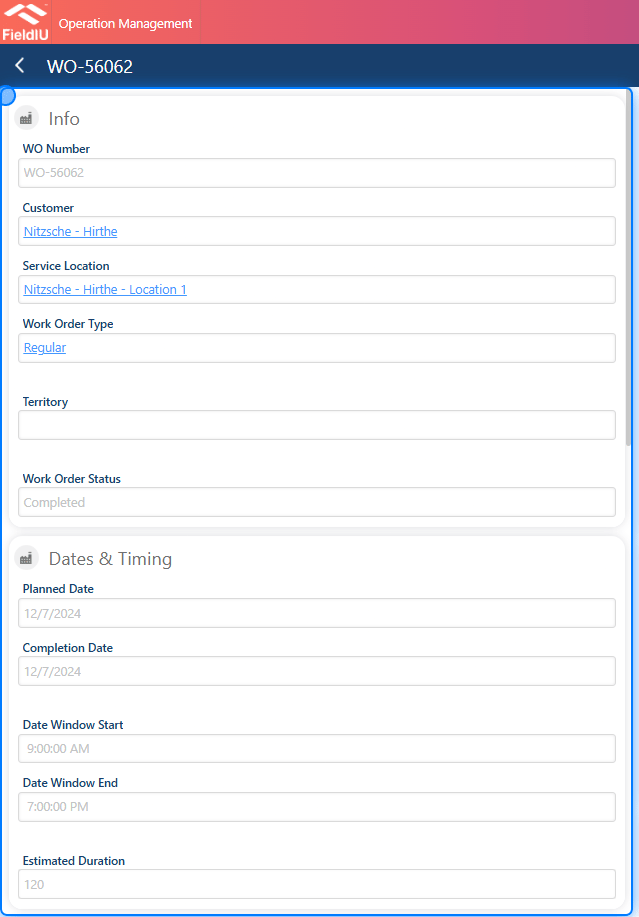
You will find the main information and details on the left side, including:
* Work Order Number
* Customer
* Service Location
* Work Order Type
* Territory
* Work Order Status
* Dates & Timing
### 2. Main Information
You will find the main information and details on the left side, including:
* Work Order Number
* Customer
* Service Location
* Work Order Type
* Territory
* Work Order Status
* Dates & Timing
 ### 3. Details & Cancelation
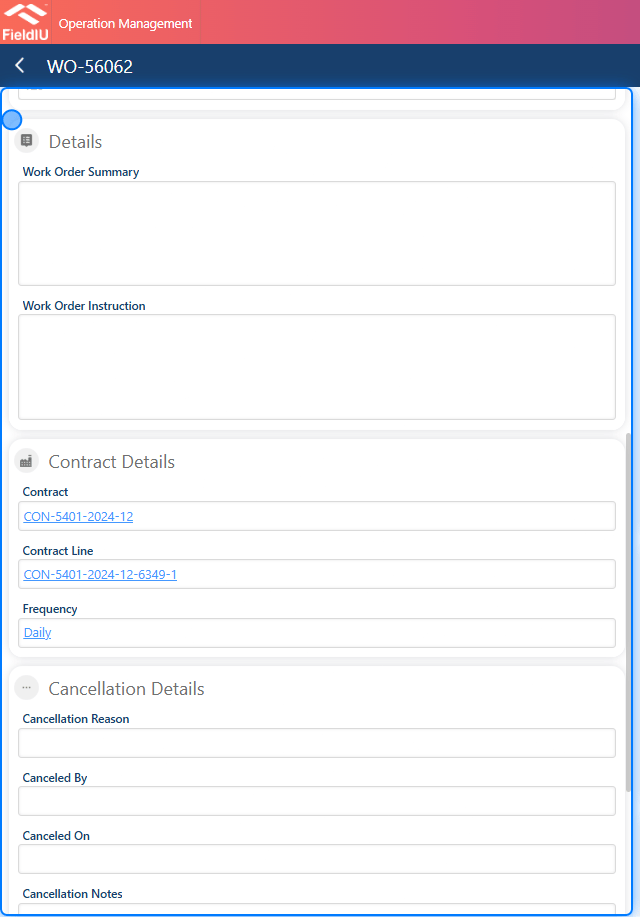
Additionally, we have sections to insert a summary and instructions, as well as a section for cancellation details in case you need to cancel the work order.
### 3. Details & Cancelation
Additionally, we have sections to insert a summary and instructions, as well as a section for cancellation details in case you need to cancel the work order.
 > ### 💡 Let’s take a look at the other sections
### 4. Bookings
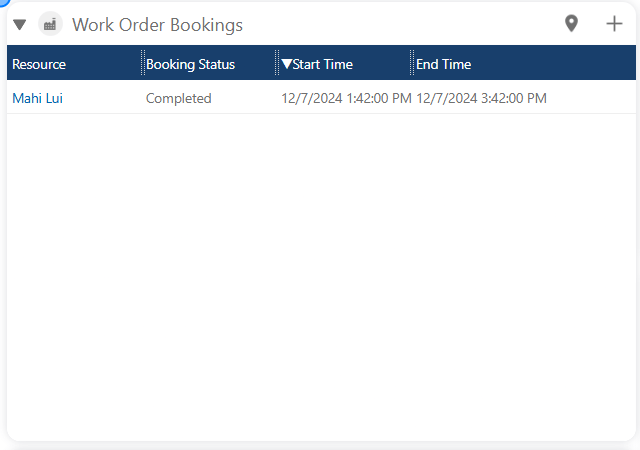
Here, you can view all the visits made for the work orders.
> ### 💡 Let’s take a look at the other sections
### 4. Bookings
Here, you can view all the visits made for the work orders.
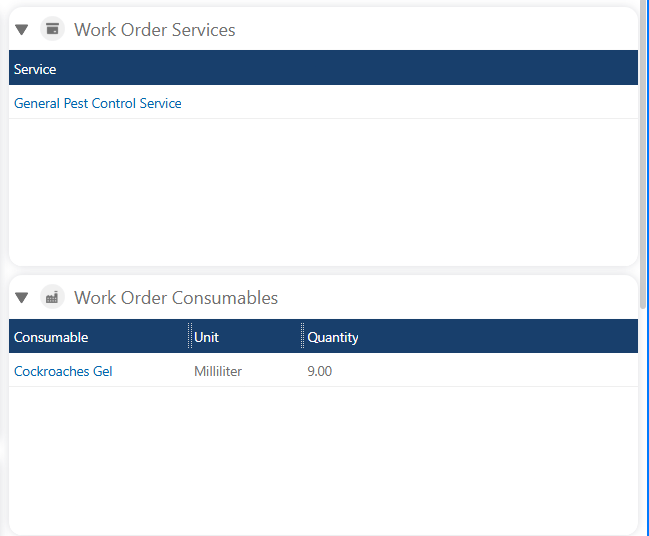
 ### 5. Services & Consumables
We can see the services performed and the products used during all visits.
### 5. Services & Consumables
We can see the services performed and the products used during all visits.
 ### 6. Work Order Services
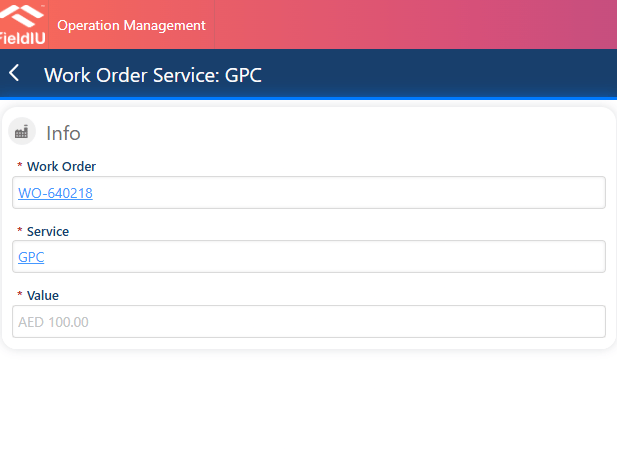
For the work order services, once you select a service, you will see the value for that service.
### 6. Work Order Services
For the work order services, once you select a service, you will see the value for that service.
 ### 7. Findings
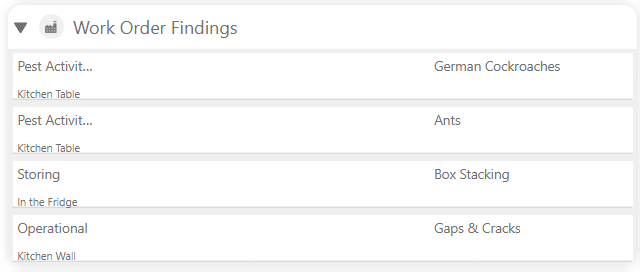
In this section, we can see all the findings from the visits.
### 7. Findings
In this section, we can see all the findings from the visits.
 ### 8. Tasks
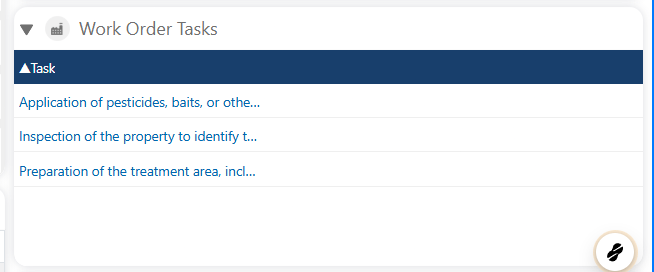
Here, we can find the assigned tasks to the work order.
### 8. Tasks
Here, we can find the assigned tasks to the work order.
 ### 9. Readings
In this section, we can see all the readings for the monitoring points.
### 9. Readings
In this section, we can see all the readings for the monitoring points.
 ## Bookings
> ### 💡 Let’s go through the bookings (Visits) and see what’s inside
### 10. Main Information
Once we select the booking, we will find the main information for the visit, such as:
* **Name** : Booking Name
* **Resource** : The technician who made the visit
* **Booking Status** : Whether it was completed, in progress, etc.
**Timing Details** :
* Start Time / End Time
* Duration
* All timing details
**Work Order Details** :
* Customer
* Service Location
* Work Order Type
* Planned Date
## Bookings
> ### 💡 Let’s go through the bookings (Visits) and see what’s inside
### 10. Main Information
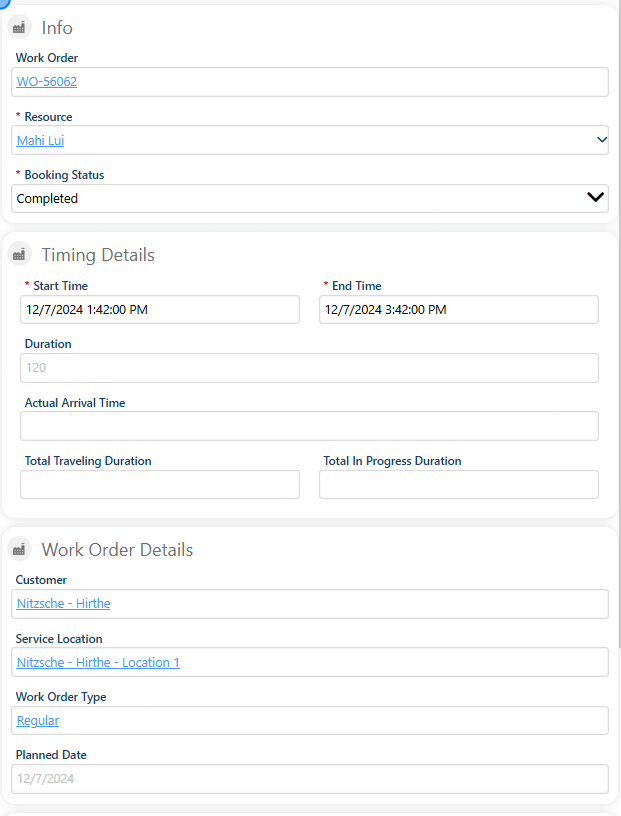
Once we select the booking, we will find the main information for the visit, such as:
* **Name** : Booking Name
* **Resource** : The technician who made the visit
* **Booking Status** : Whether it was completed, in progress, etc.
**Timing Details** :
* Start Time / End Time
* Duration
* All timing details
**Work Order Details** :
* Customer
* Service Location
* Work Order Type
* Planned Date
 ### 11. Cancelation
We have a section for booking cancellation details.
### 11. Cancelation
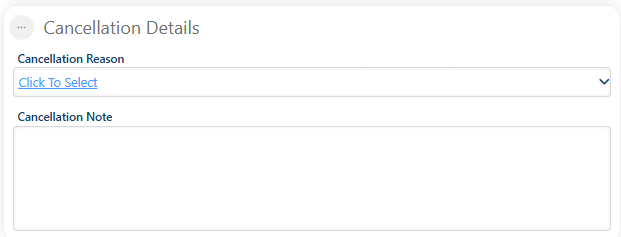
We have a section for booking cancellation details.
 ### 12. Findings
The findings section will display the findings discovered at the service location during the visit.
### 12. Findings
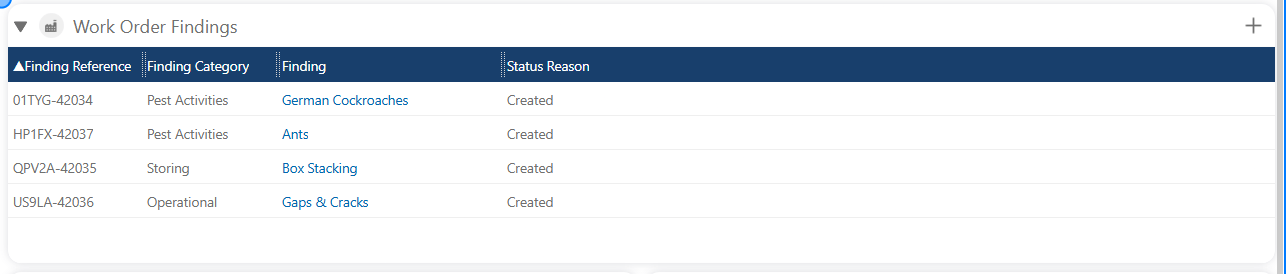
The findings section will display the findings discovered at the service location during the visit.
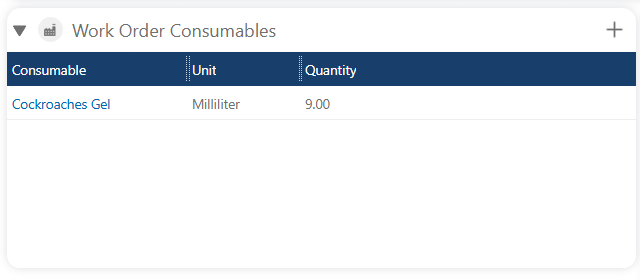
 ### 13. Consumables
The consumables section will display the products used during the visits.
### 13. Consumables
The consumables section will display the products used during the visits.
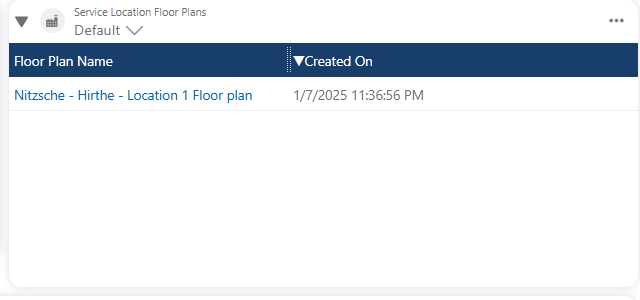
 ### 14. Floor Plans
Additionally, we have a floor plans section
### 14. Floor Plans
Additionally, we have a floor plans section
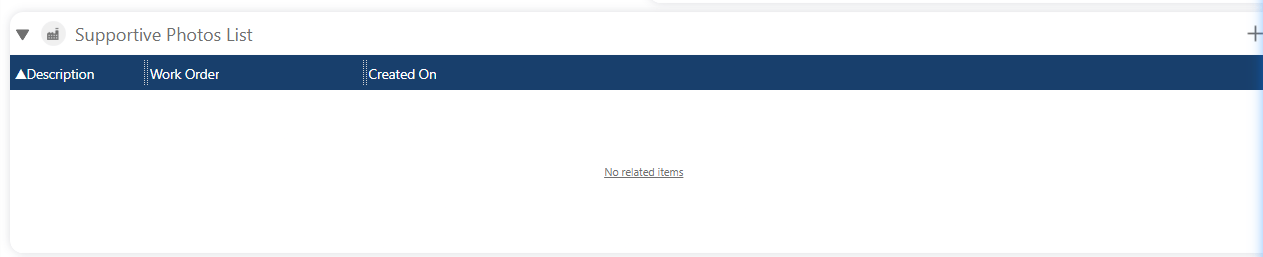
 ### 15. Supportive Photos
We have a section for supporting images, which includes all the photos taken by the technician.
### 15. Supportive Photos
We have a section for supporting images, which includes all the photos taken by the technician.
 ### 16. Monitoring Points
In Monitoring Points section we can see all the monitoring points at the service location.
### 16. Monitoring Points
In Monitoring Points section we can see all the monitoring points at the service location.
 ### 17. Readings
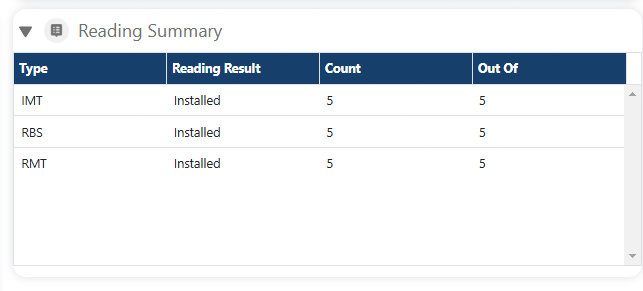
We have a section for all the readings taken during the visit, as well as a section for the summary
### 17. Readings
We have a section for all the readings taken during the visit, as well as a section for the summary
 �����������������������