> ## Documentation Index
> Fetch the complete documentation index at: https://docs.fieldiu.com/llms.txt
> Use this file to discover all available pages before exploring further.
# Work Order Validation
is a tool that allows you to check work orders completed at the desk after the field staff have finished their work.
### 1. Where to find it?
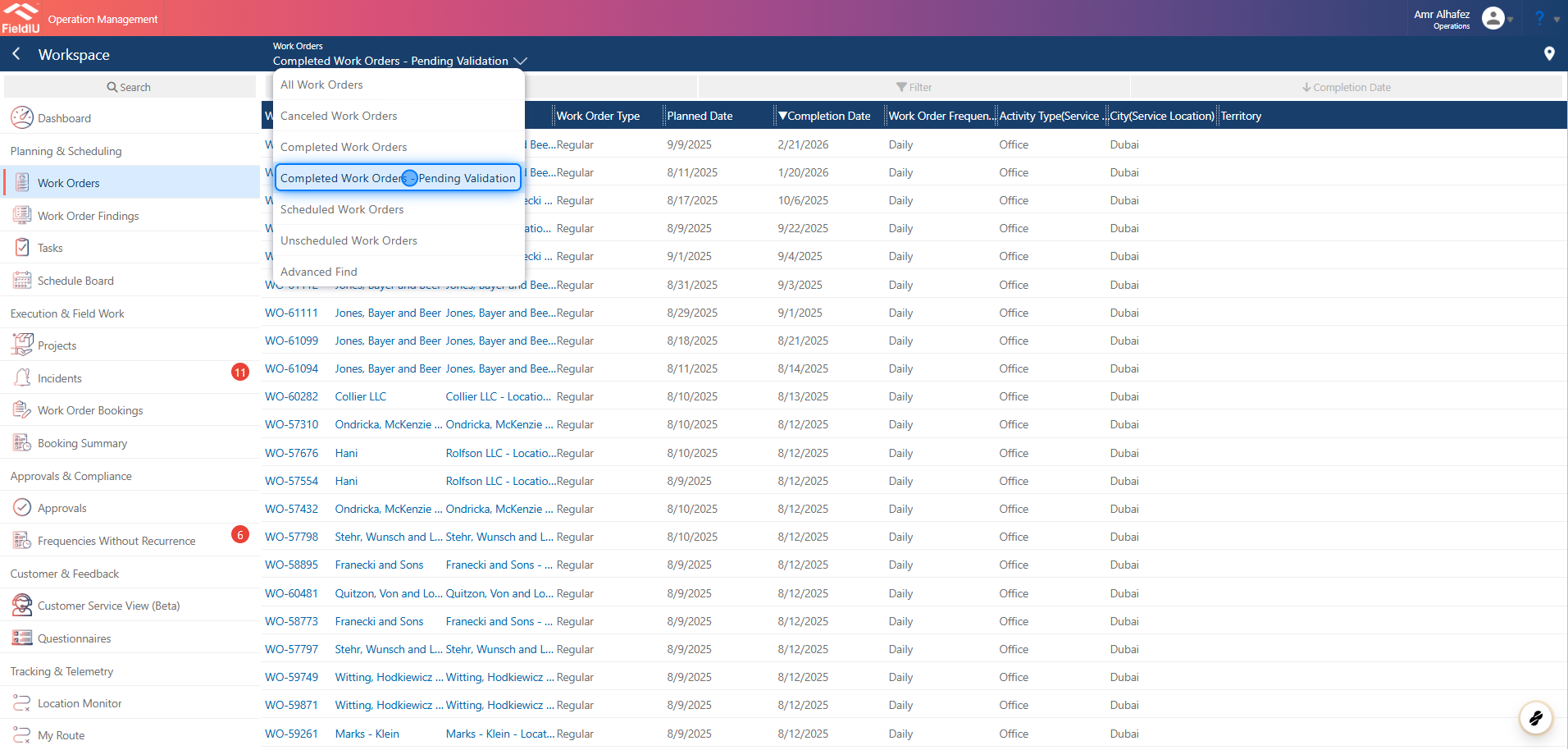
Once you open the Operations app and navigate to **Work Orders** from the side menu, click on the **Views** button, then select **Completed Work Orders – Pending Validation** .
Once you click on the view, the list will display only the work orders pending validation in the system. You can open a work order by clicking on it.
 ### 2. What will you find inside?
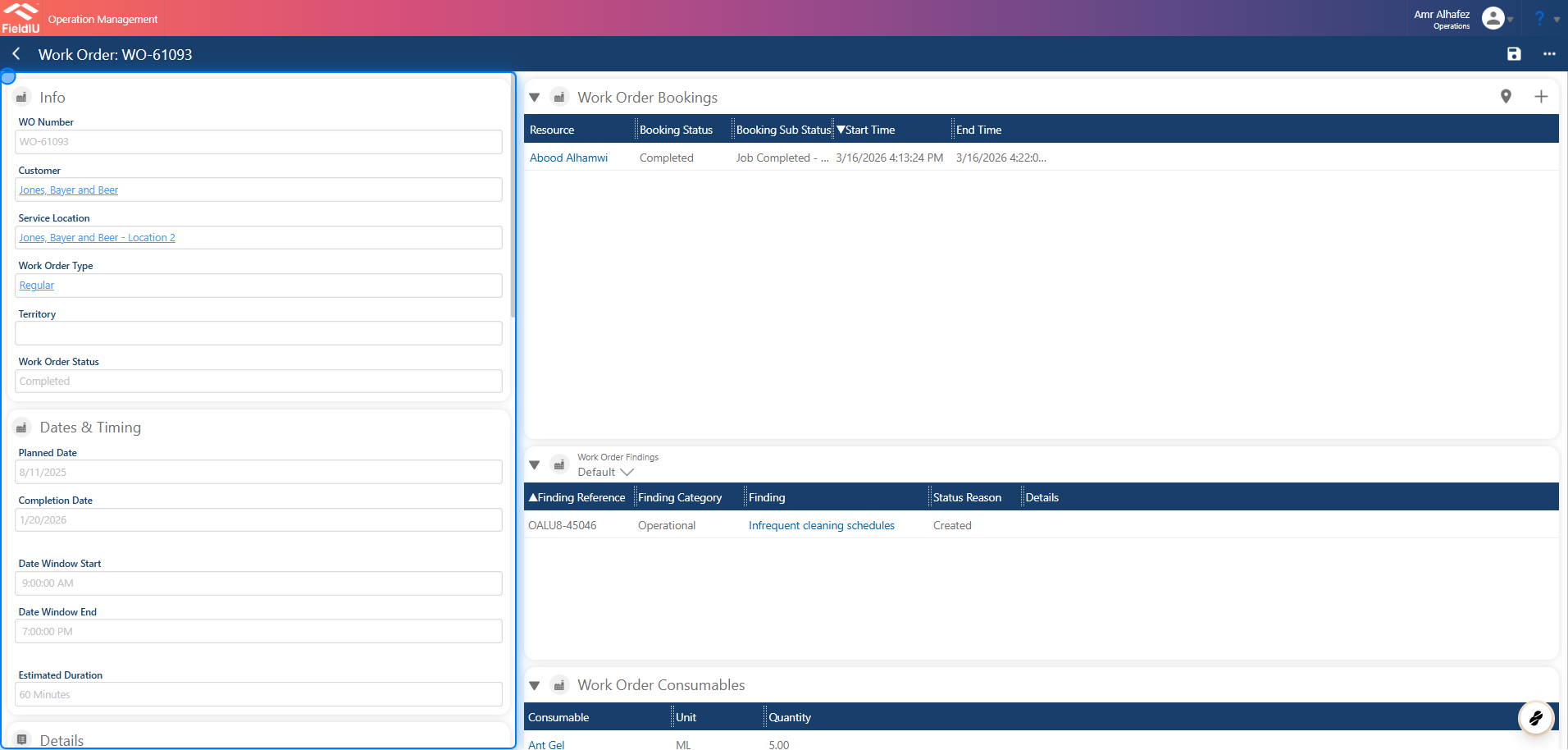
Once you open a work order, you will find all the related data for that work order. You can review different sections such as:
* Work Order Bookings
* Work Order Findings
* Consumables
* Work Order Services
* Work Order Tasks
* Readings Summary
* Technician Comments
You will also see the main details of the work order, such as the name, completion date, and other key information.
### 2. What will you find inside?
Once you open a work order, you will find all the related data for that work order. You can review different sections such as:
* Work Order Bookings
* Work Order Findings
* Consumables
* Work Order Services
* Work Order Tasks
* Readings Summary
* Technician Comments
You will also see the main details of the work order, such as the name, completion date, and other key information.
 ### 3. Validation Details Section
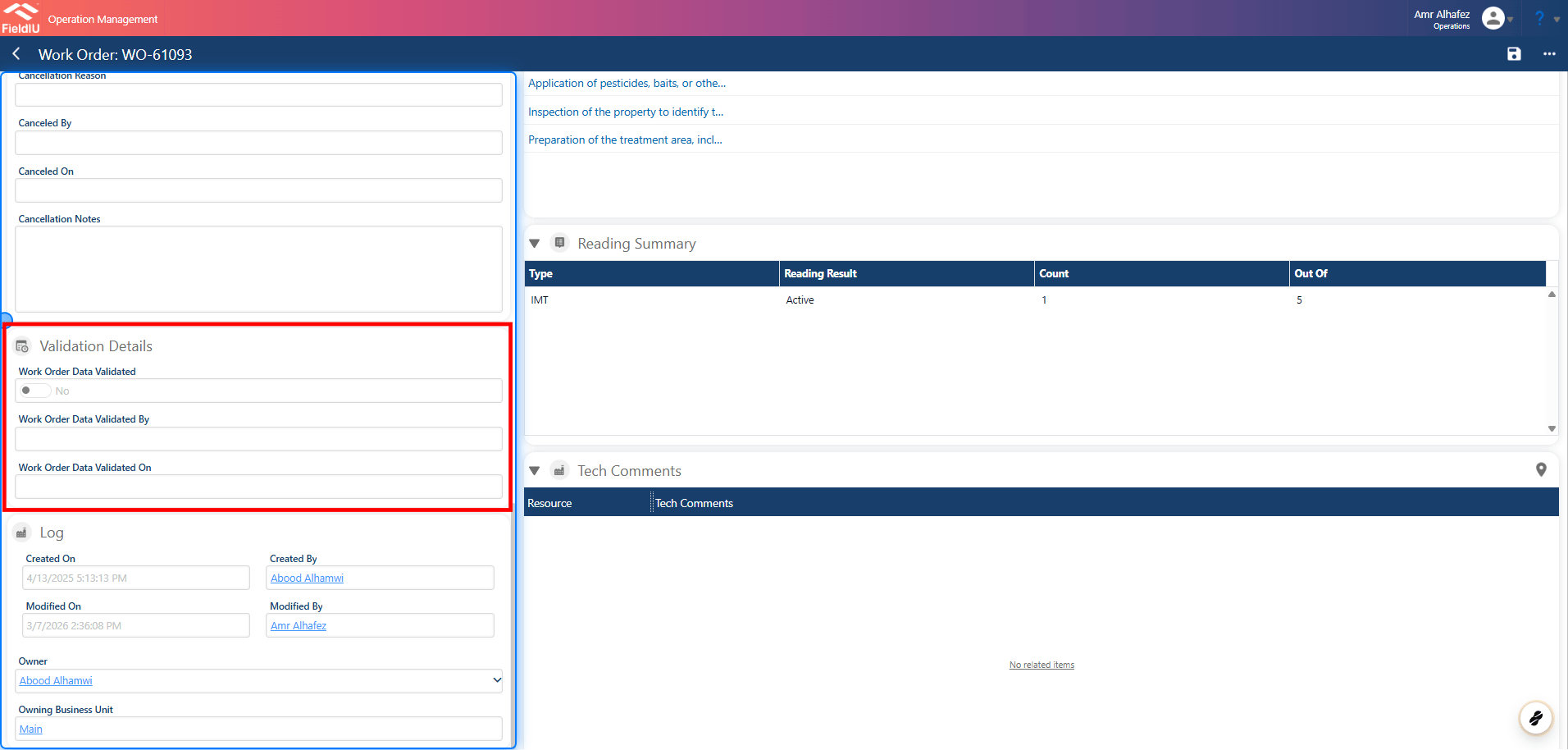
In this section, you can see whether the work order has been validated or not, along with who validated it and when it was validated.
### 3. Validation Details Section
In this section, you can see whether the work order has been validated or not, along with who validated it and when it was validated.
 ### 4. Validating
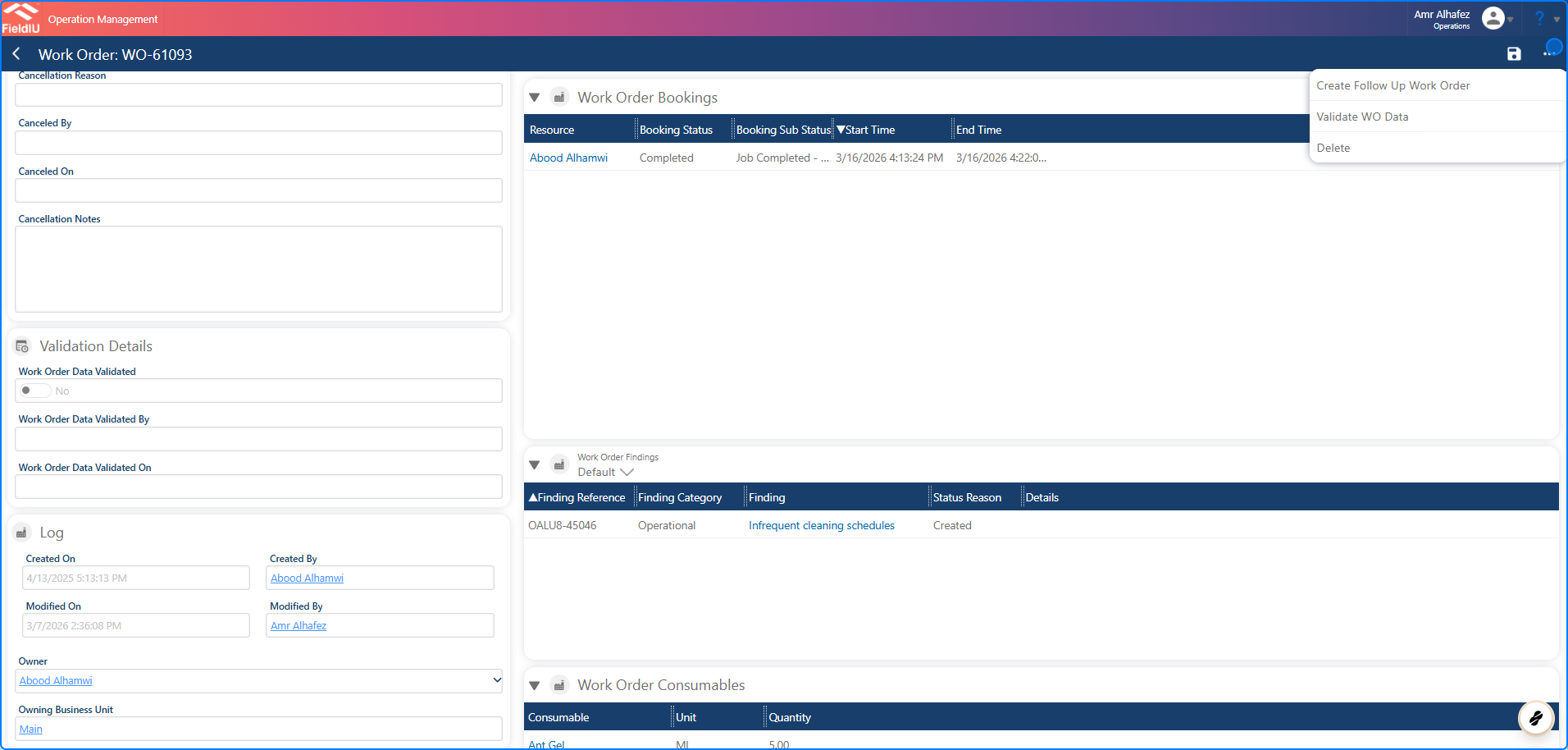
Once you finish reviewing the details, click on the three-dot menu button, then select **Validate WO Data** to validate the work order.
### 4. Validating
Once you finish reviewing the details, click on the three-dot menu button, then select **Validate WO Data** to validate the work order.
 ### 5. Confirm
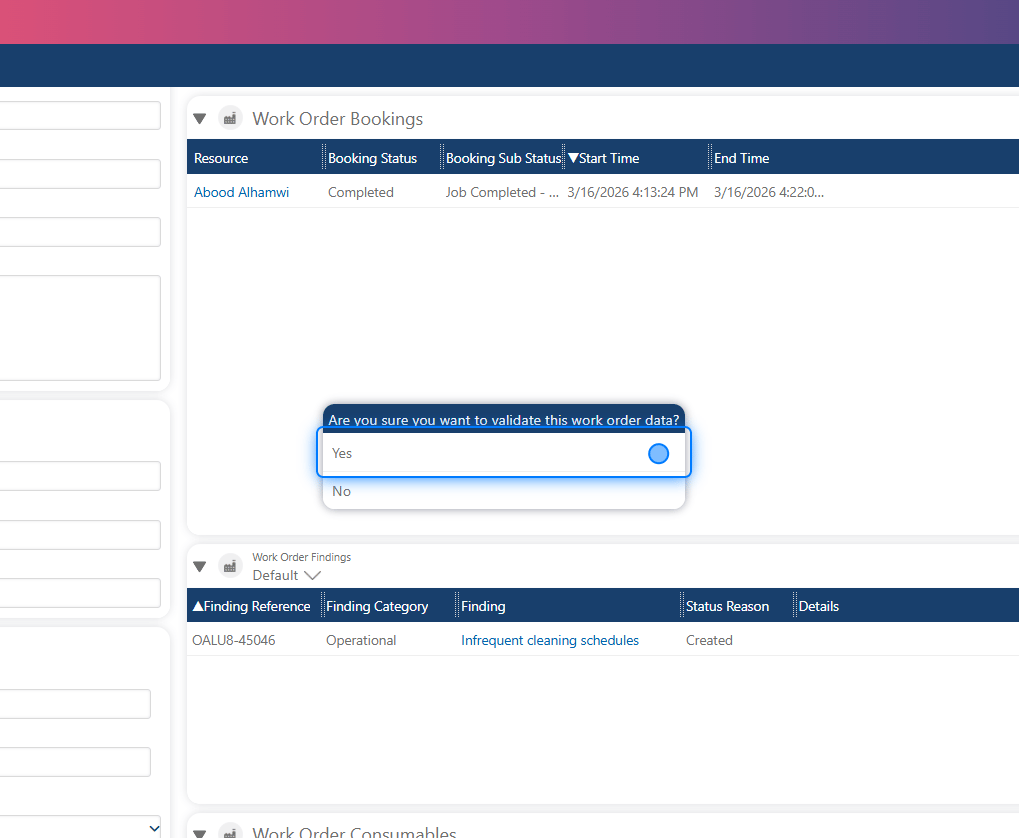 ### 6. Validation Details Section
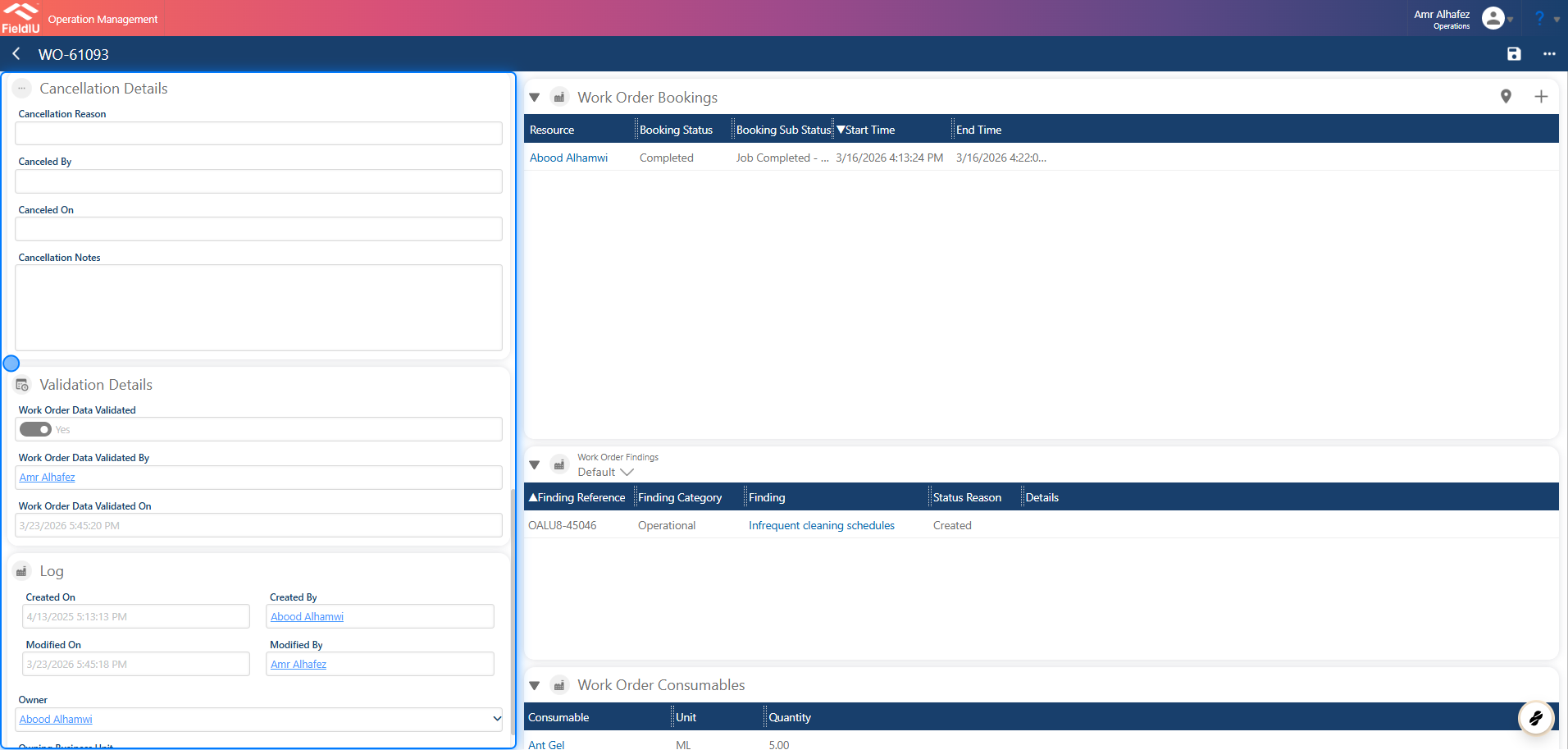
Once you confirm, the work order will be validated, and the Validation section will be updated with the details, including **Validated By** and **Validated On** . The work order will then be removed from the **Pending Validation** view.
### 6. Validation Details Section
Once you confirm, the work order will be validated, and the Validation section will be updated with the details, including **Validated By** and **Validated On** . The work order will then be removed from the **Pending Validation** view.
 > ### 💡 Associate Automation
>
> You can associate automation with this field—for example, to automatically send the report to the customer once it’s validated�����������������������
> ### 💡 Associate Automation
>
> You can associate automation with this field—for example, to automatically send the report to the customer once it’s validated�����������������������