> ## Documentation Index
> Fetch the complete documentation index at: https://docs.fieldiu.com/llms.txt
> Use this file to discover all available pages before exploring further.
# Schedule Board Settings
> ### 💡 What is Schedule Board Settings:
>
> You can control the schedule board settings, such as:
>
> * Filtering the work orders
>
> * Filtering the resources
>
> * Changing the color codes
>
> * Setting the schedule board's start and end time
>
> * Adjusting the size of the cells
### 1. Access
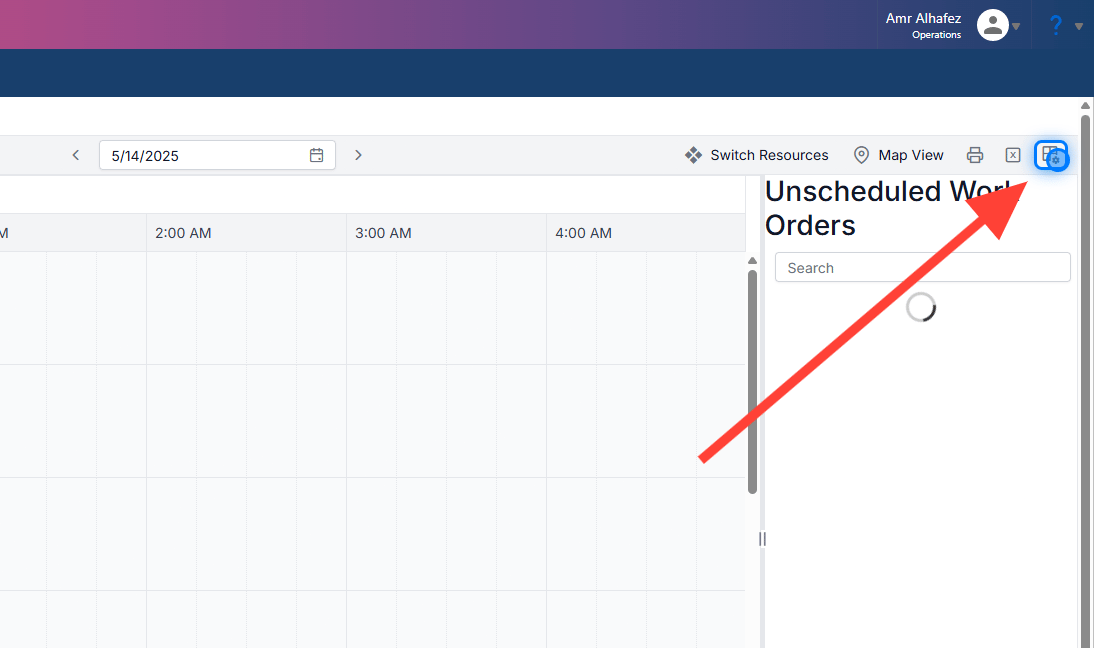
To access the settings, simply click the **Settings** button located in the top-right corner.
 ### 2. Main Settings
At the top, you’ll find the main settings, which include:
* **View Name**
* **Week Start Day**
* **Start Time**
* **End Time**
* **Schedule Board Time Scale Interval**
* **Schedule Board Slot Count**
### 2. Main Settings
At the top, you’ll find the main settings, which include:
* **View Name**
* **Week Start Day**
* **Start Time**
* **End Time**
* **Schedule Board Time Scale Interval**
* **Schedule Board Slot Count**
 ### 3. Color Settings
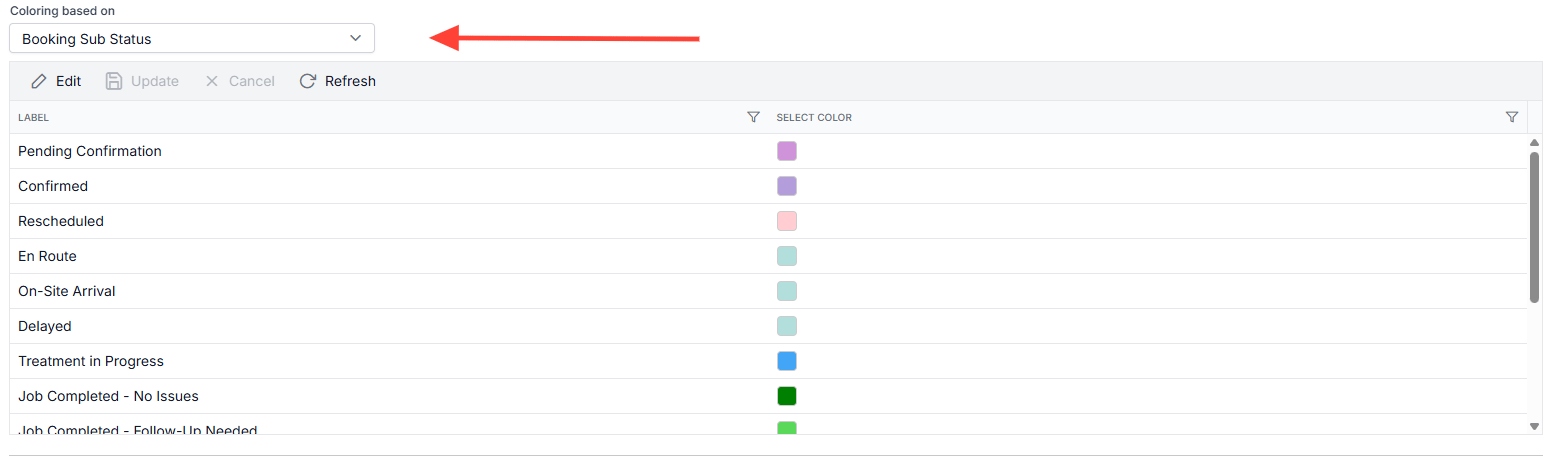
You can choose to apply color coding based on a specific field. For example, in this case, the color is applied based on the **Booking Sub-status** .
### 3. Color Settings
You can choose to apply color coding based on a specific field. For example, in this case, the color is applied based on the **Booking Sub-status** .
 ### 4. Work Order Filter
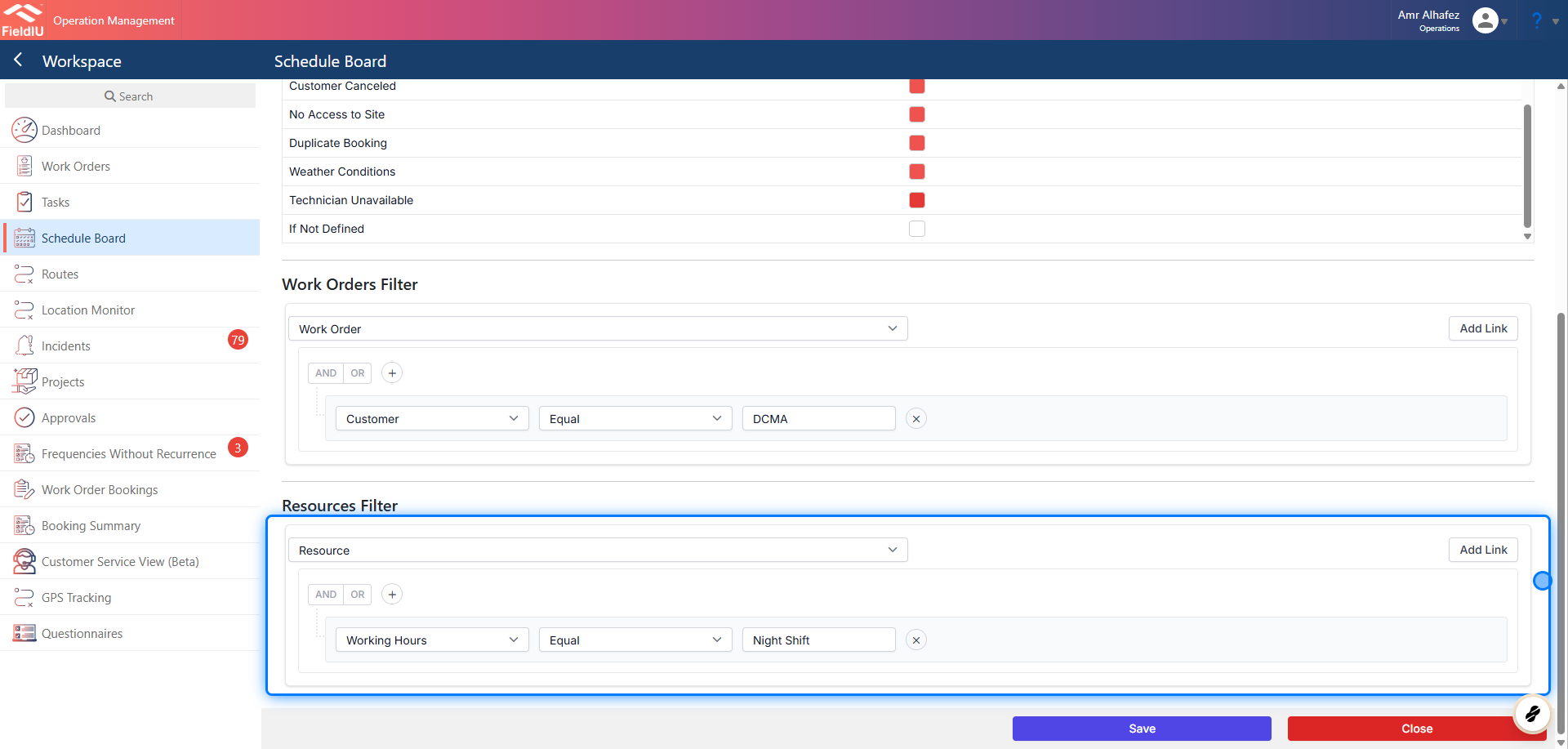
This section allows you to filter the work orders displayed on the schedule board.
In our example, we are filtering to show only **DMCA** work orders.
### 4. Work Order Filter
This section allows you to filter the work orders displayed on the schedule board.
In our example, we are filtering to show only **DMCA** work orders.
 ### 5. Resource Filter
This section allows you to filter the resources displayed on the schedule board.
In our example, we are filtering based on **working hours** , showing only **night shift** resources.
### 5. Resource Filter
This section allows you to filter the resources displayed on the schedule board.
In our example, we are filtering based on **working hours** , showing only **night shift** resources.
 ### 6. Save
**Don’t forget to save your changes** to ensure all your configurations are applied successfully.
### 6. Save
**Don’t forget to save your changes** to ensure all your configurations are applied successfully.
 �����������������������