> ## Documentation Index
> Fetch the complete documentation index at: https://docs.fieldiu.com/llms.txt
> Use this file to discover all available pages before exploring further.
# Requests
### 1. Access & Create Requests
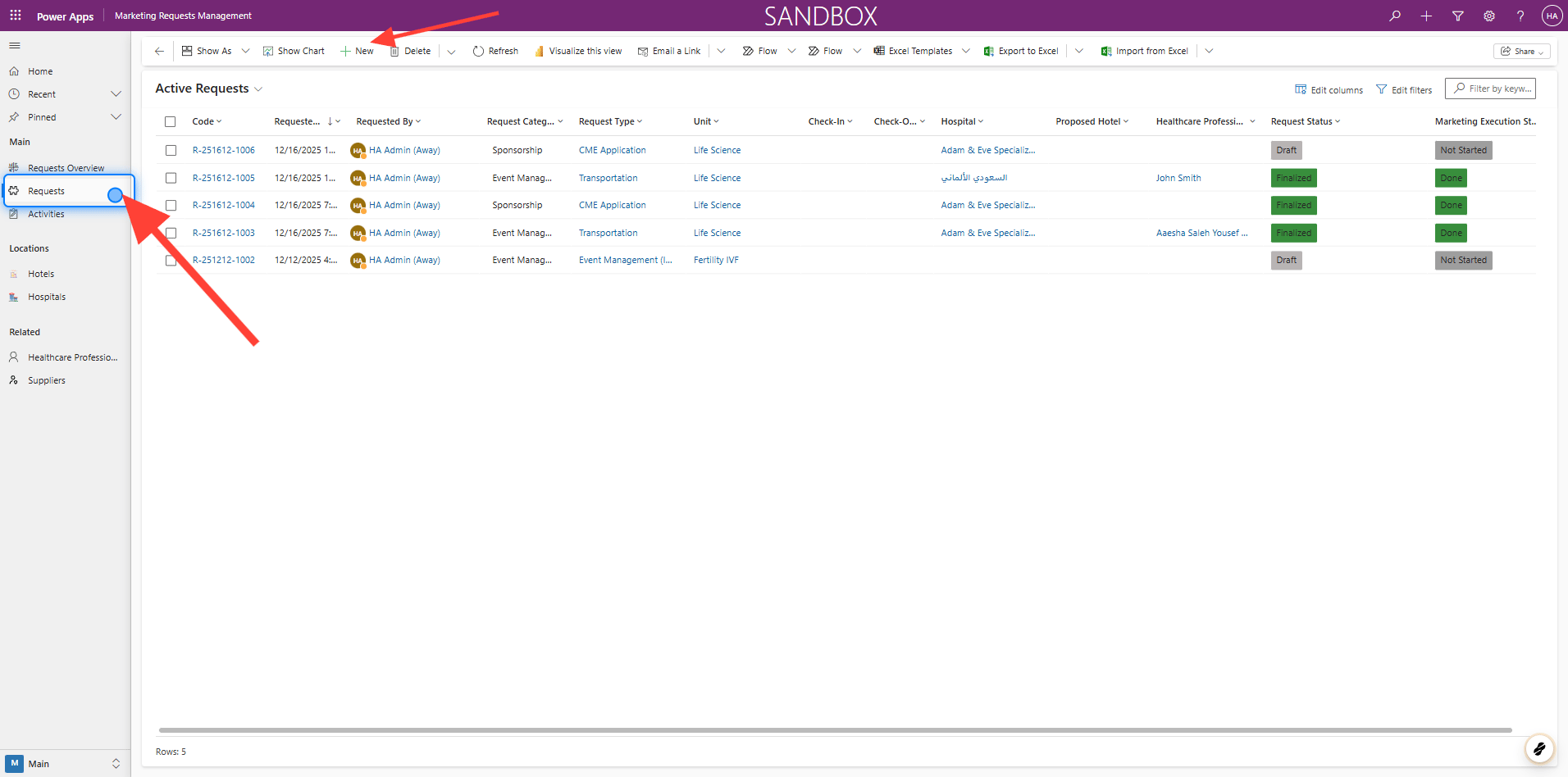
To access requests, navigate to the **Requests** tab in the sidebar menu. Once opened, you will see a list of all requests along with their available controls.
To create a new request, simply click the **New** button.
 ### 2. Main Screen Overview
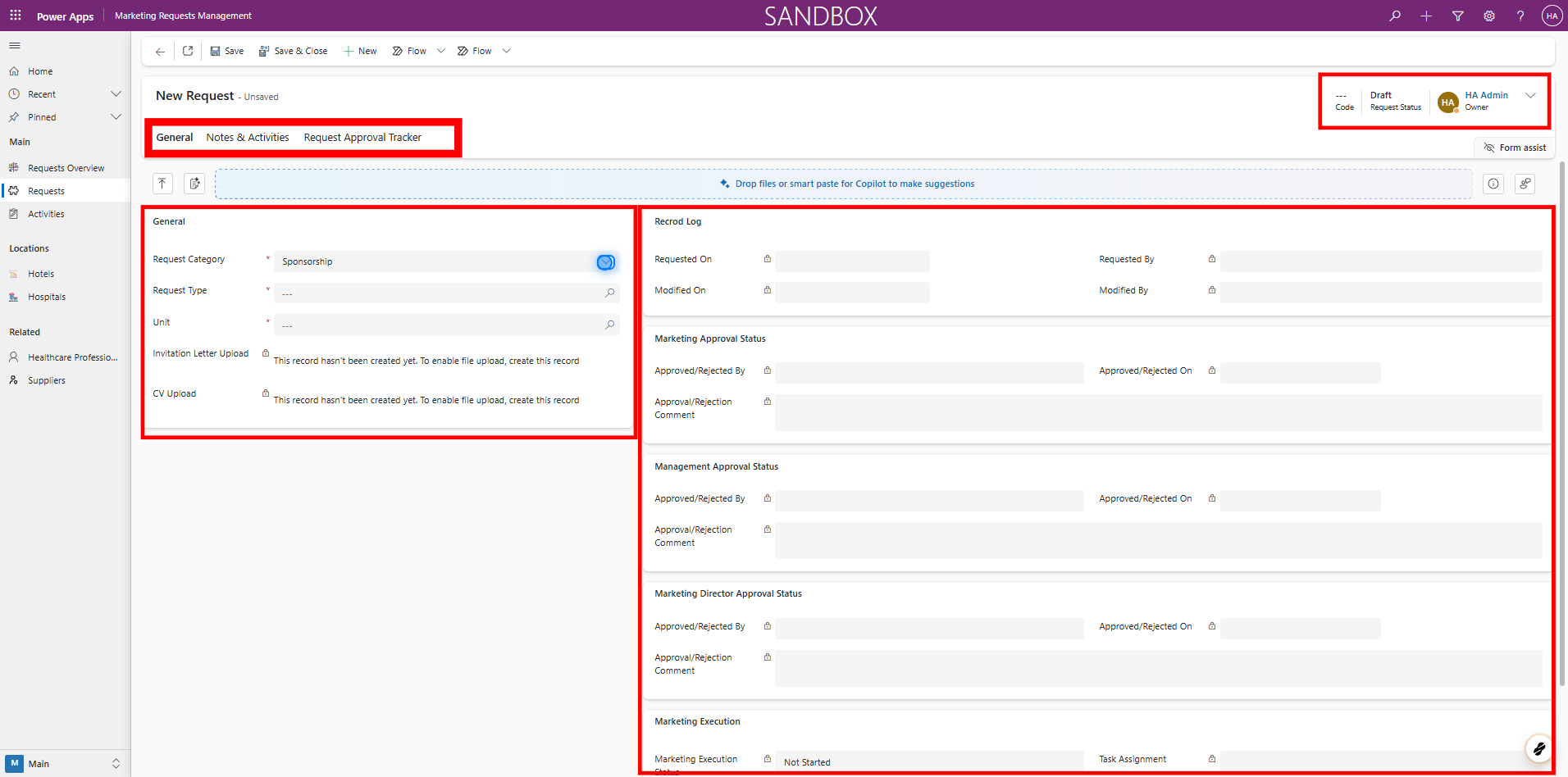
The main screen displays the **status of the request** , along with the **general request data** and the **approval history and comments** .
It also includes the **Approval Tracker** , **Notes & Activities** sections. Additionally, some requests include an **SOP** section.
### 2. Main Screen Overview
The main screen displays the **status of the request** , along with the **general request data** and the **approval history and comments** .
It also includes the **Approval Tracker** , **Notes & Activities** sections. Additionally, some requests include an **SOP** section.
 ### 3. General Details
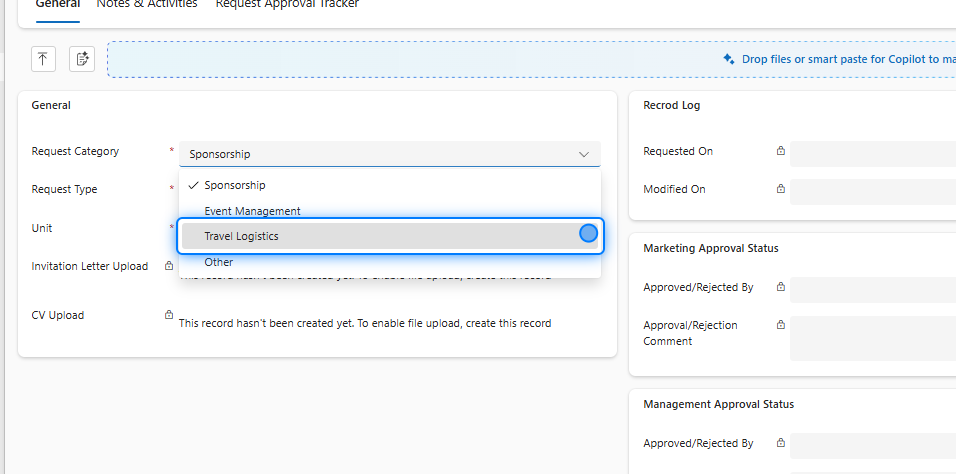
The most important field is the **Request Category** , as each category has different inputs and fields based on its specific requirements.
We have four main categories:
1. **Sponsorship**
2. **Event Management**
3. **Travel Logistics**
4. **Other**
### 3. General Details
The most important field is the **Request Category** , as each category has different inputs and fields based on its specific requirements.
We have four main categories:
1. **Sponsorship**
2. **Event Management**
3. **Travel Logistics**
4. **Other**
 ### 4. Click on General
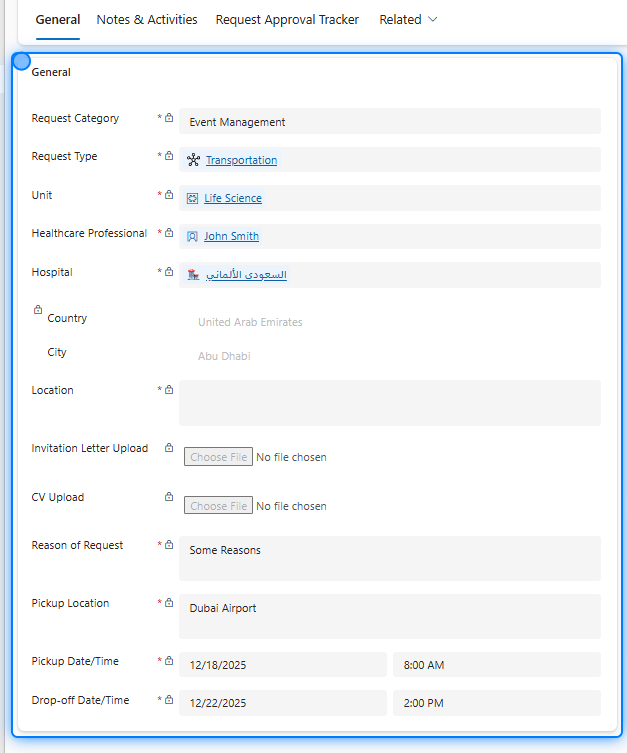
 ### 5. Fill up the Data
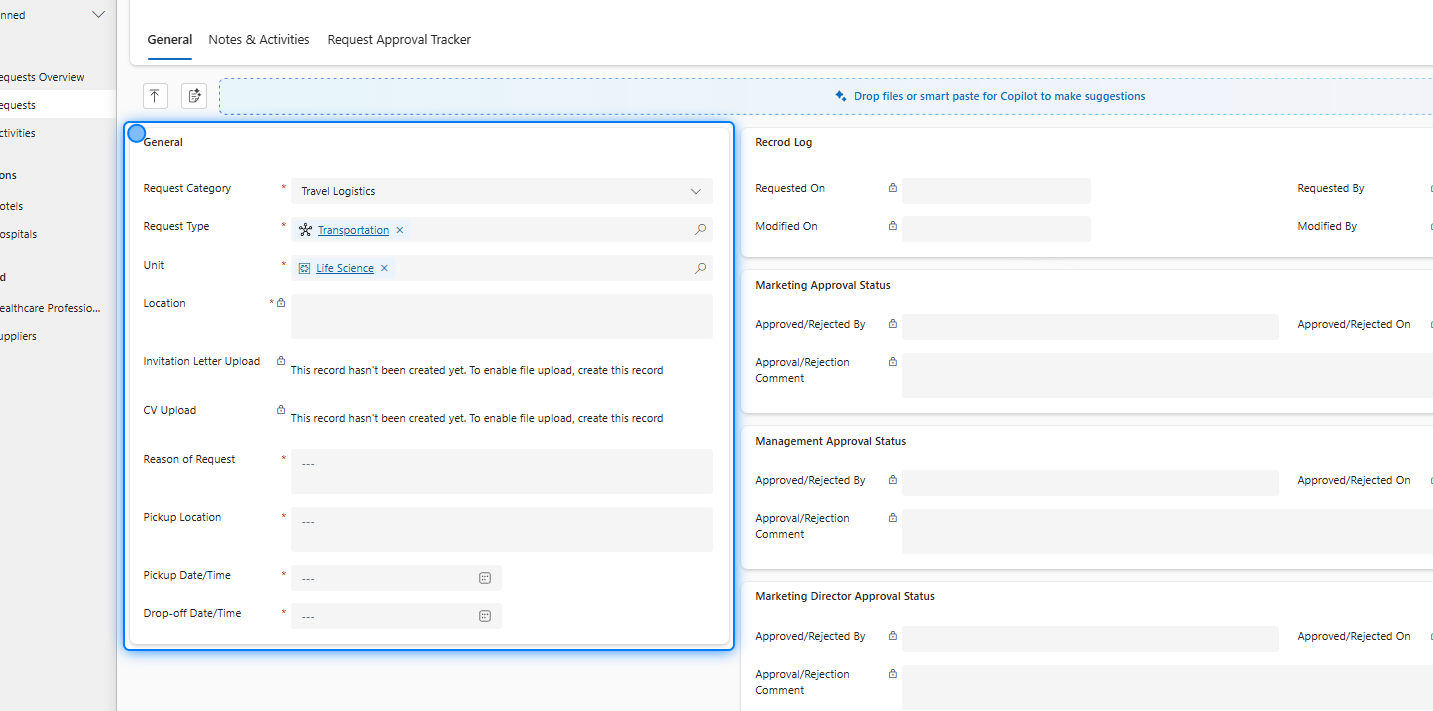
Fill in all mandatory fields with accurate and relevant information.
### 5. Fill up the Data
Fill in all mandatory fields with accurate and relevant information.
 ### 6. Submit Request
 ### 7. Record Log
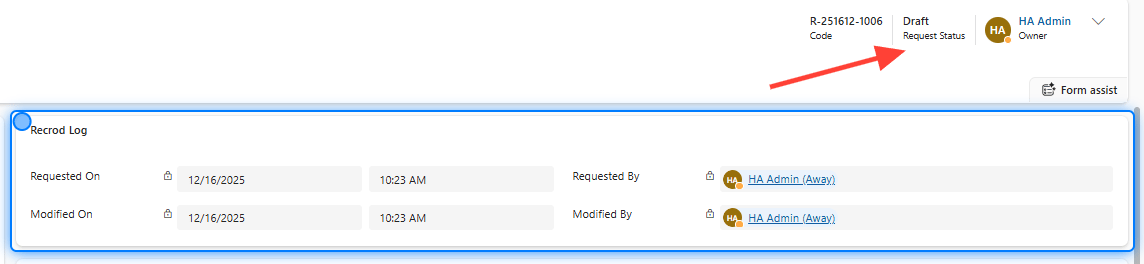
Once the request is submitted, the status will change, and the record log will be filled automatically.
### 7. Record Log
Once the request is submitted, the status will change, and the record log will be filled automatically.
 ### 8. Adding Activities and Notes
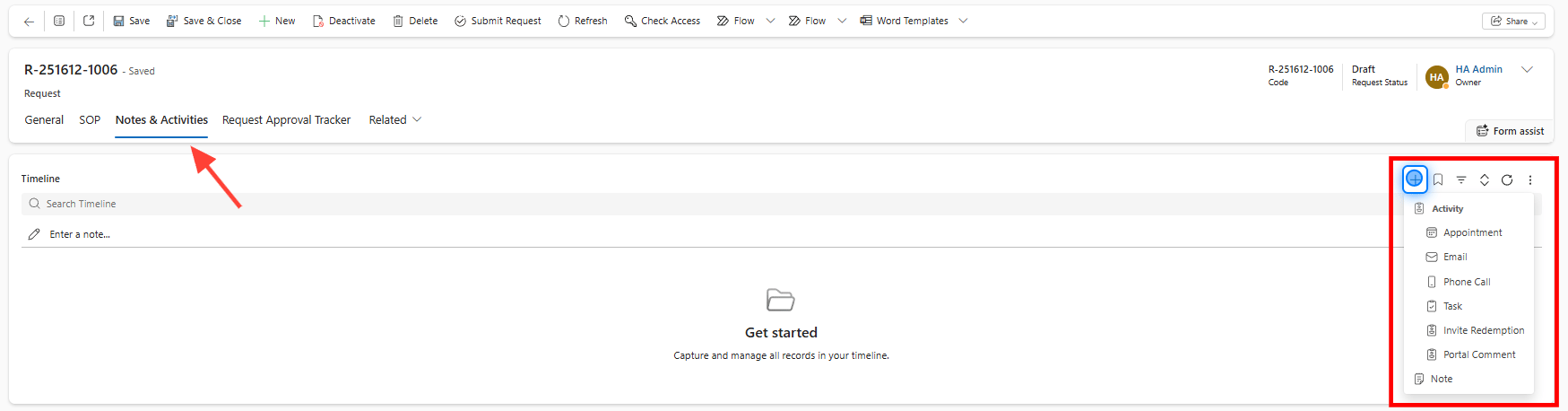
You can add **Activities** and **Notes** to the request or attaching files to provide additional information, updates, or comments related to the request.
### 8. Adding Activities and Notes
You can add **Activities** and **Notes** to the request or attaching files to provide additional information, updates, or comments related to the request.
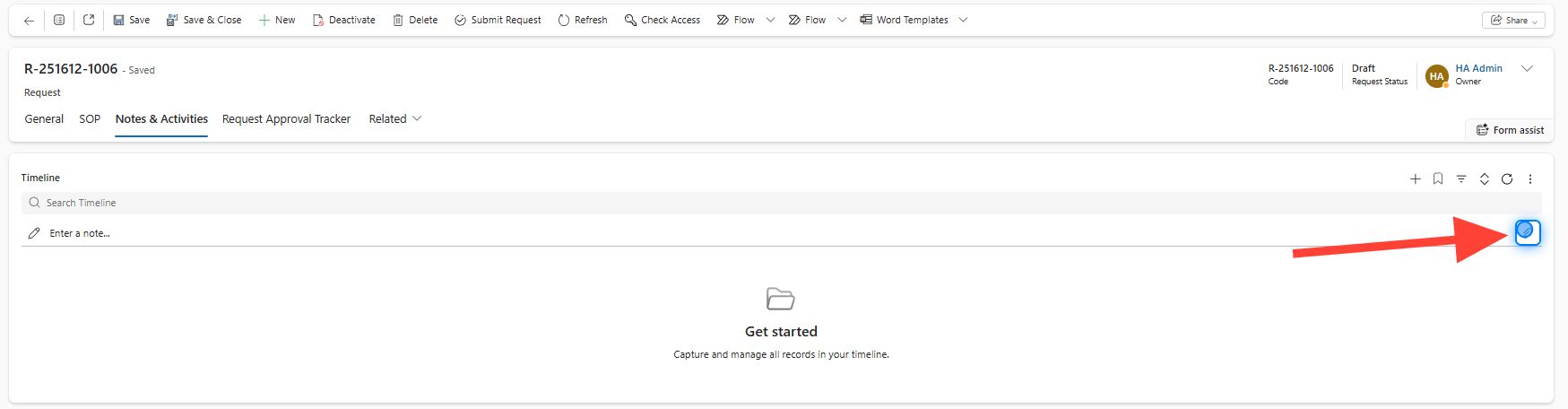
 ### 9. Attaching Files
 ### 10. SOP Section
The **SOP** section is required for managing certain request categories.
### 10. SOP Section
The **SOP** section is required for managing certain request categories.
 ### 11. Confirm Submission
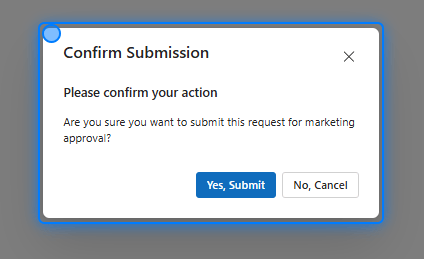 ## Approvals
> ### 💡 Approval Tracker
>
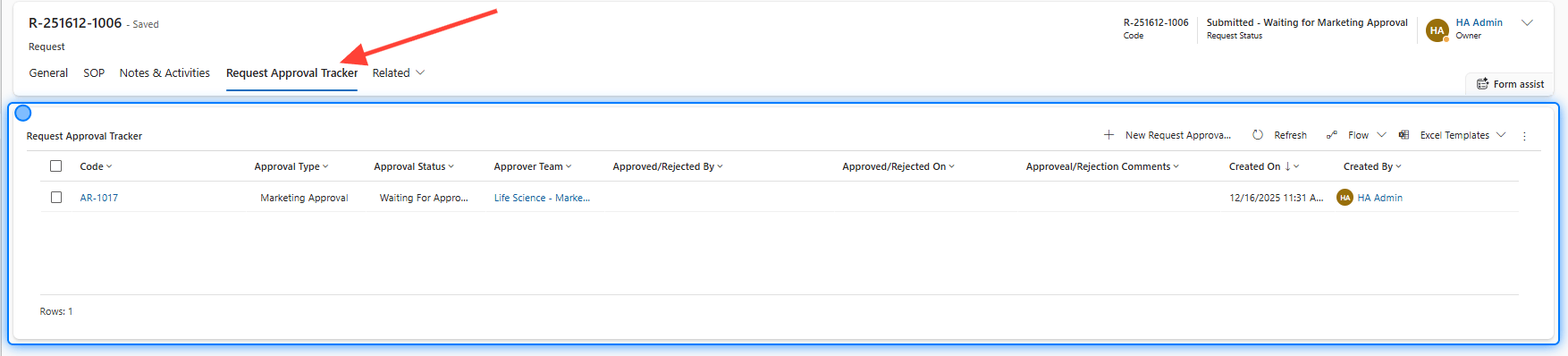
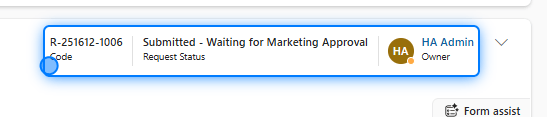
> You can track the approval process from the **status bar** , and you can also use the **Approval Tracker** for detailed progress.
### 12. Request Approval Tracker
## Approvals
> ### 💡 Approval Tracker
>
> You can track the approval process from the **status bar** , and you can also use the **Approval Tracker** for detailed progress.
### 12. Request Approval Tracker
 ### 13. Status Bar
 ### 14. Admin Approval
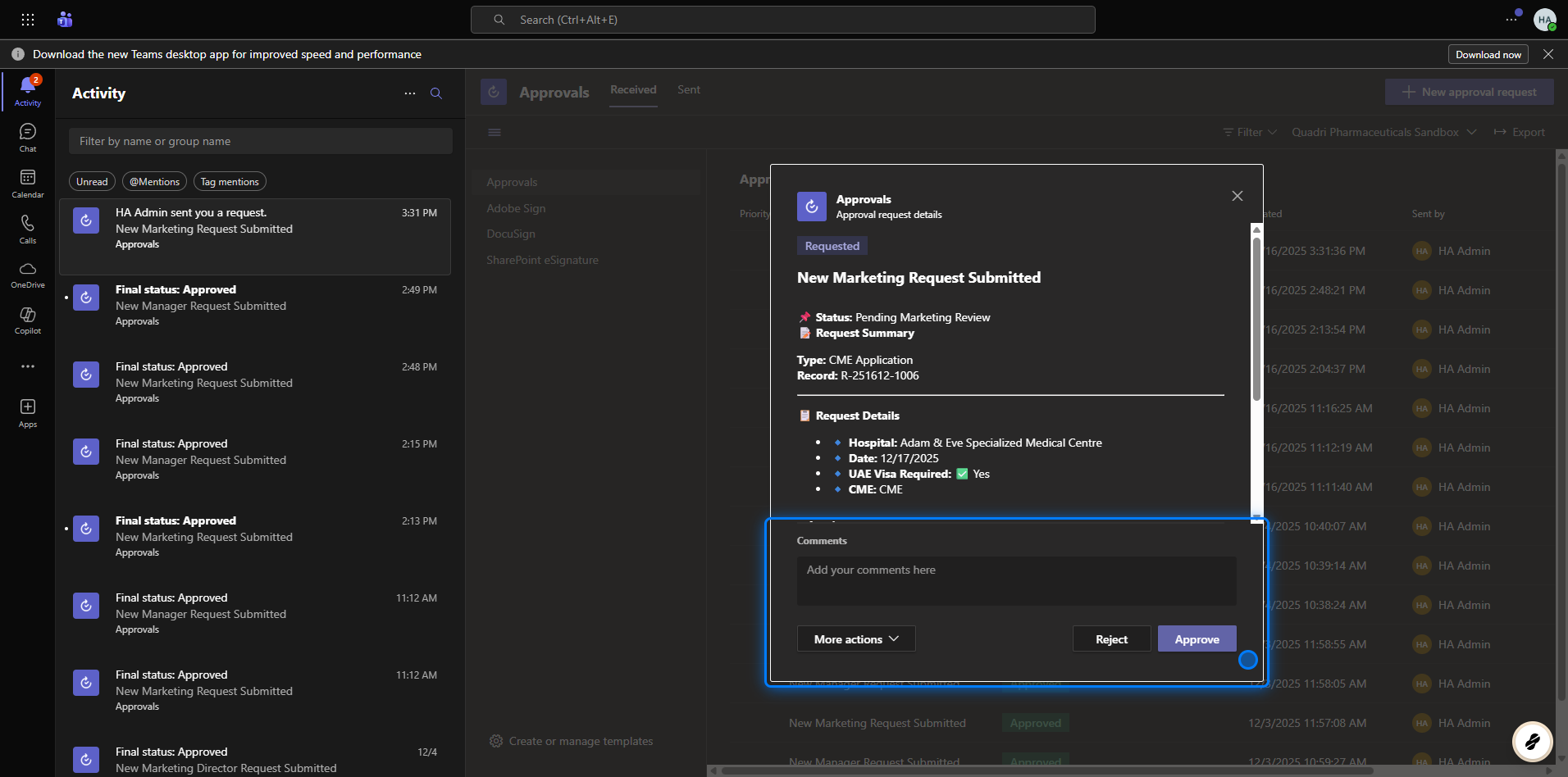
The admin will receive the approval request via **Microsoft Teams** and **email** , allowing them to **approve or reject** the request and add notes to the approval.
### 14. Admin Approval
The admin will receive the approval request via **Microsoft Teams** and **email** , allowing them to **approve or reject** the request and add notes to the approval.
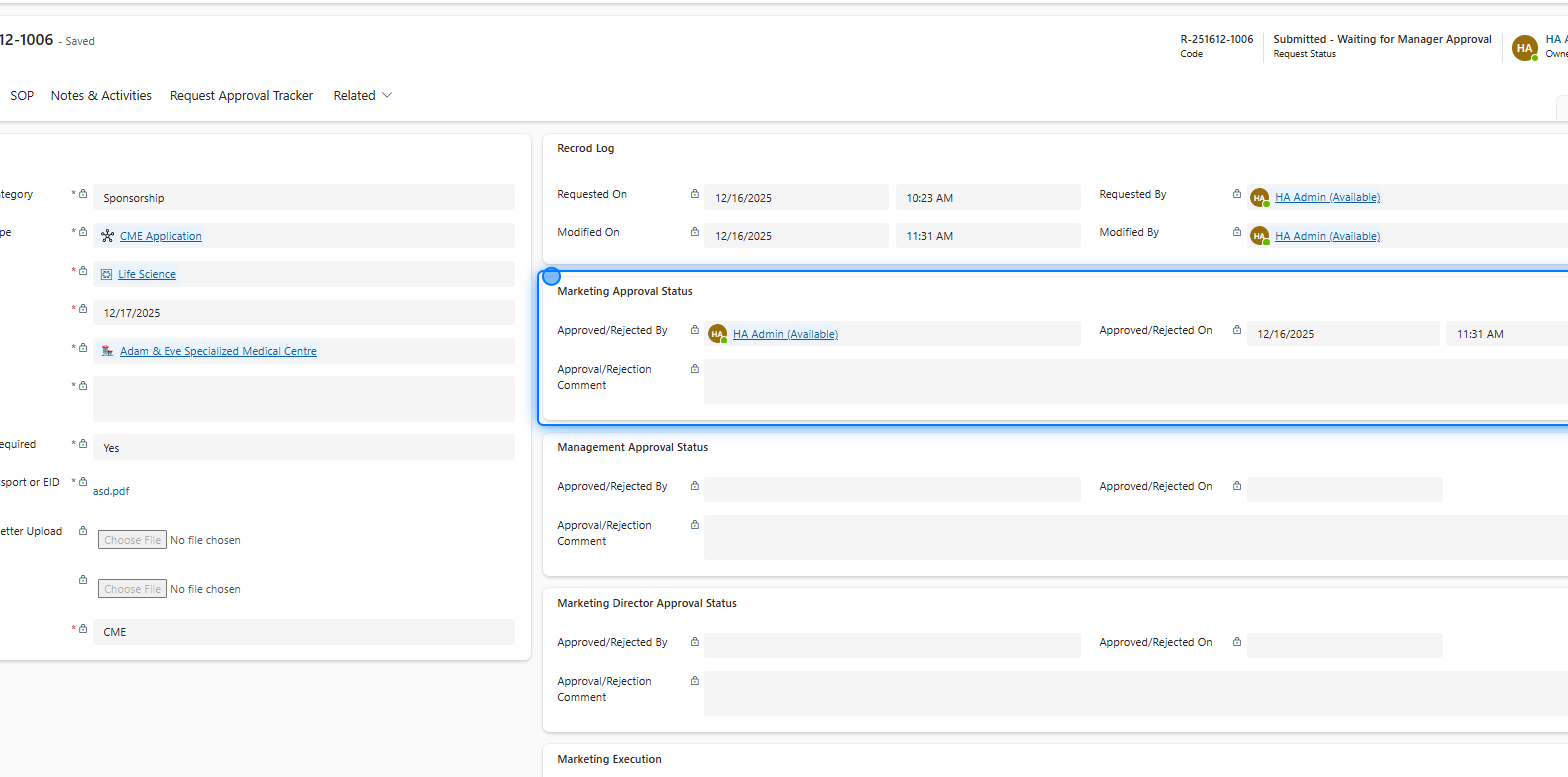
 ### 15. Click on Marketing Approval Status
 ### 16. Management & Marketing Approval Status
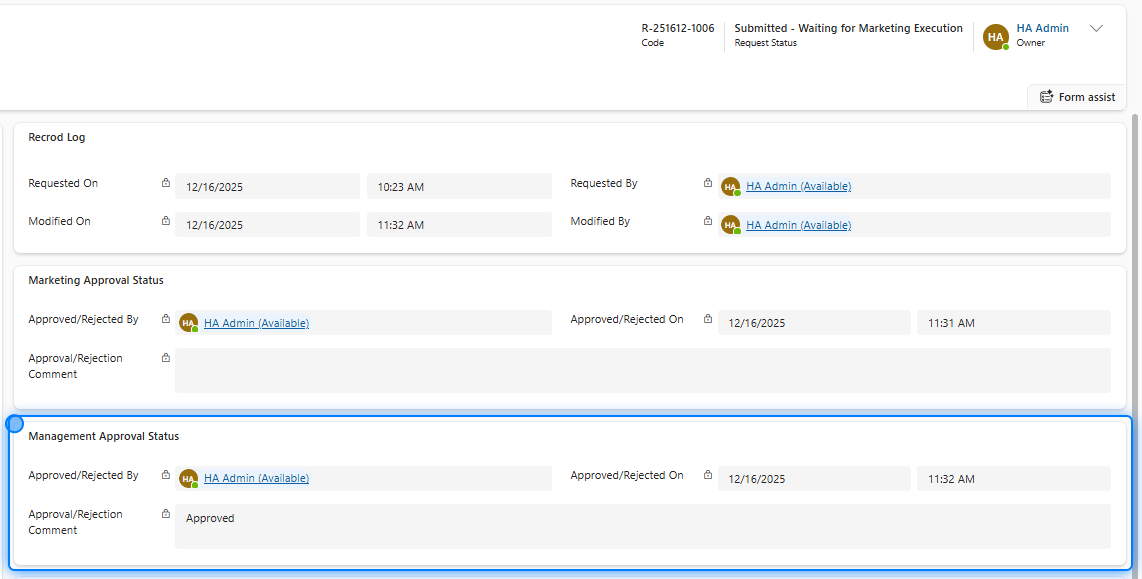
Once the admin approves or rejects the request, the **status** will change automatically, and the **Approval** section will be updated automatically, whether it is a **Marketing** or **Management** approval.
### 16. Management & Marketing Approval Status
Once the admin approves or rejects the request, the **status** will change automatically, and the **Approval** section will be updated automatically, whether it is a **Marketing** or **Management** approval.
 > ### 💡 Submit For Marketing Director Approval
### 17.
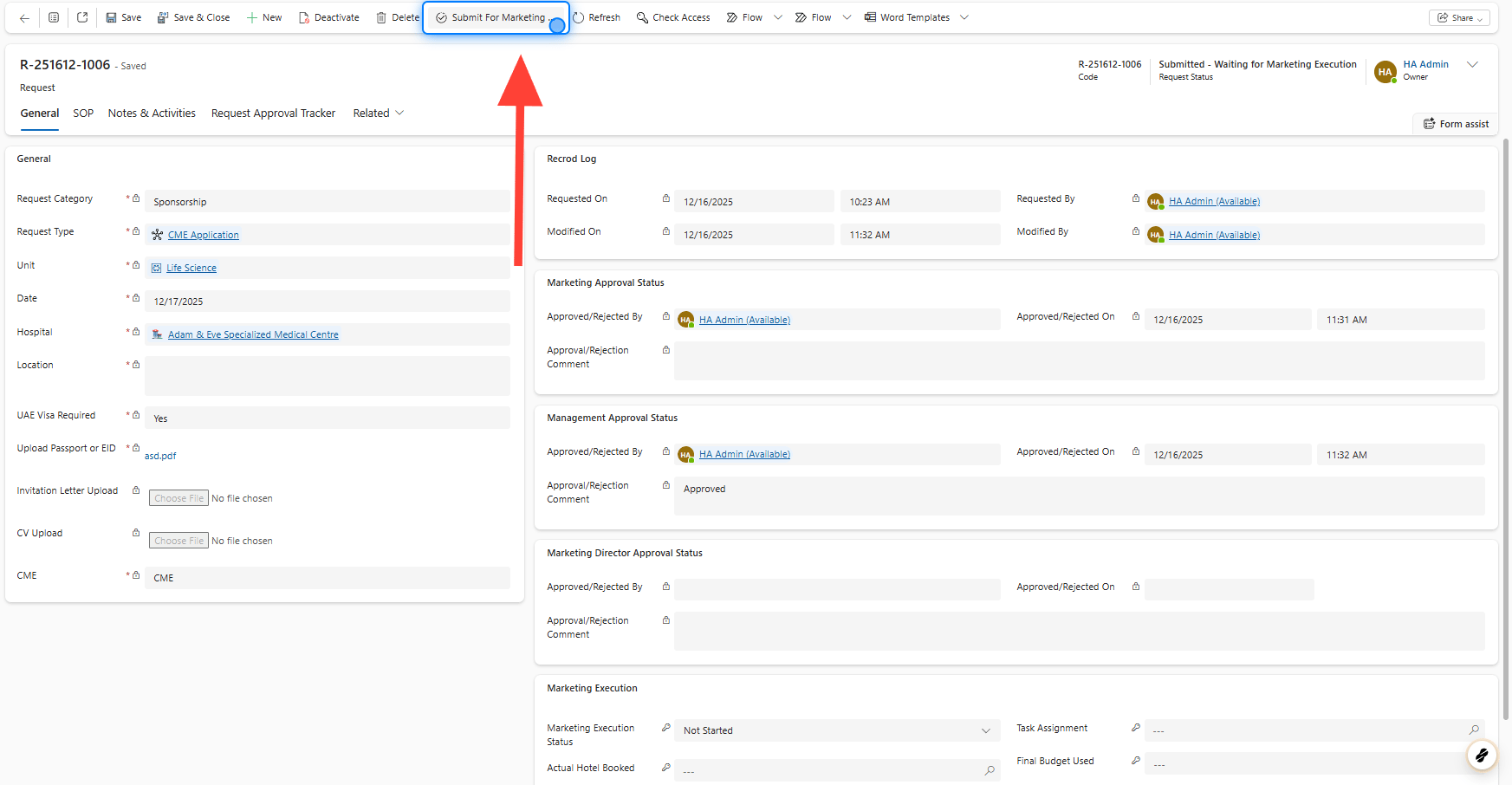
You can also **submit the request for Marketing Director approval** from the top menu bar.
> ### 💡 Submit For Marketing Director Approval
### 17.
You can also **submit the request for Marketing Director approval** from the top menu bar.
 ### 18. Marketing Execution
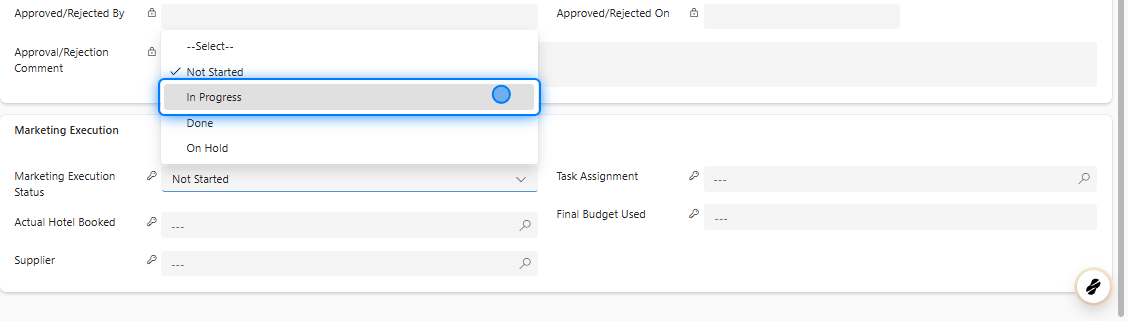
Finally, after the request is approved, you can work on it by selecting the **Marketing Execution** status. This allows you to:
* Assign tasks to users
* Add the final budget
* Select a hotel (for example)
* Add suppliers
### 18. Marketing Execution
Finally, after the request is approved, you can work on it by selecting the **Marketing Execution** status. This allows you to:
* Assign tasks to users
* Add the final budget
* Select a hotel (for example)
* Add suppliers
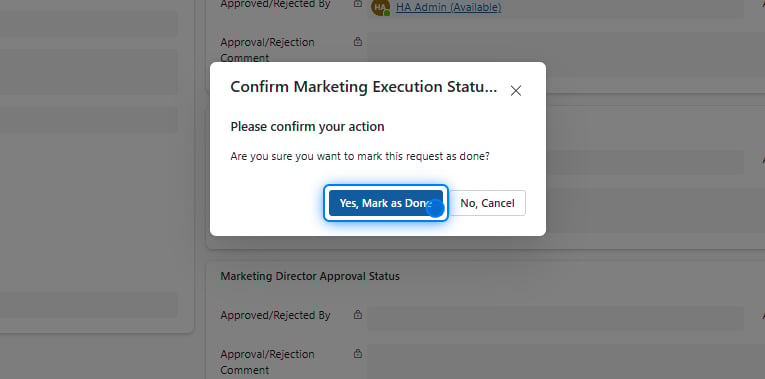
 ### 19. Complete The Request
Once the **Marketing Execution** status is completed, the request will be **closed** .
### 19. Complete The Request
Once the **Marketing Execution** status is completed, the request will be **closed** .
 ## Splitting Request
> ### 💡 We Can Split The Request On Many Units
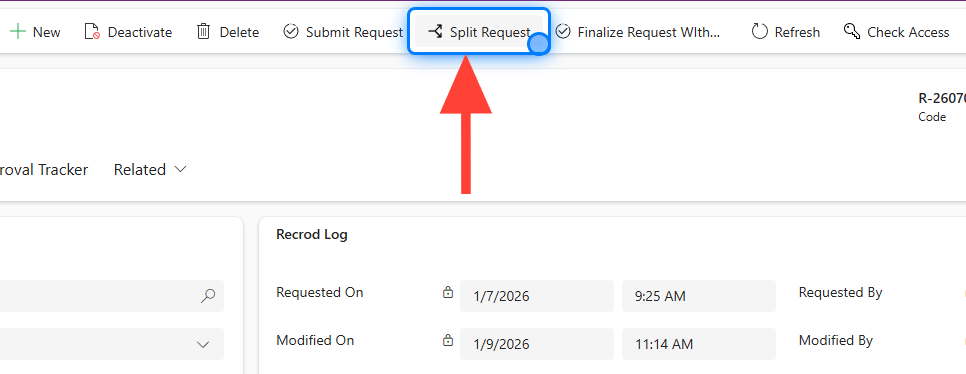
### 20. Selecting Split Request
From the top menu, click the **Split Request** button.
## Splitting Request
> ### 💡 We Can Split The Request On Many Units
### 20. Selecting Split Request
From the top menu, click the **Split Request** button.
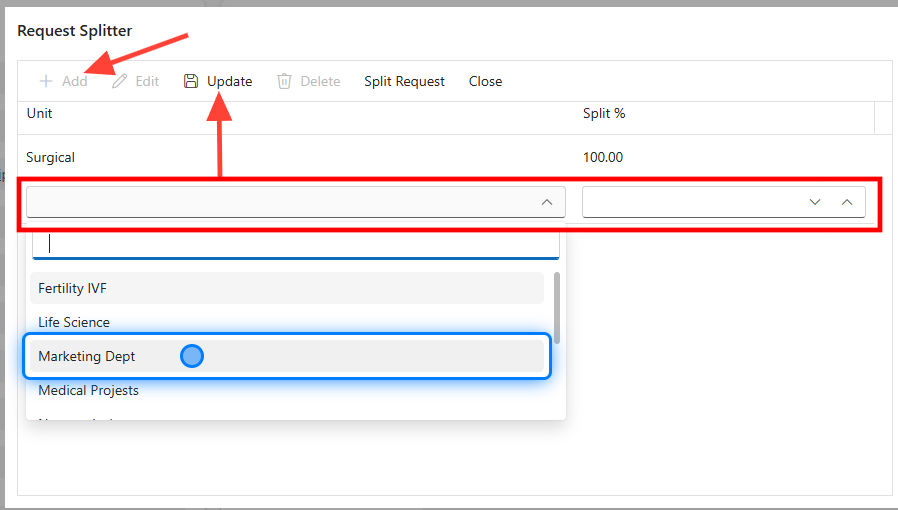
 ### 21. Add The Unit And The Percentage.
Simply add the unit and the percentage you want, then click **Update** .
### 21. Add The Unit And The Percentage.
Simply add the unit and the percentage you want, then click **Update** .
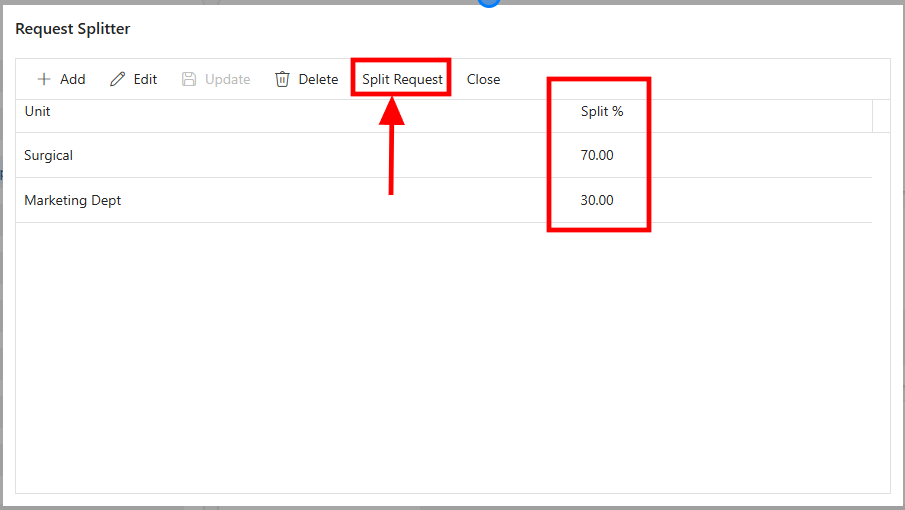
 ### 22. Click on Request Splitter
Now, as you can see, the percentage automatically changes on the main unit. Once you click the **Split** button, the system copies the main request details and creates another request based on the added unit. The estimated cost and the final budget used are adjusted according to the selected percentage.
### 22. Click on Request Splitter
Now, as you can see, the percentage automatically changes on the main unit. Once you click the **Split** button, the system copies the main request details and creates another request based on the added unit. The estimated cost and the final budget used are adjusted according to the selected percentage.
 > ### 💡 The newly created request owner will be the Unit Marketing Team.�����������������������