> ## Documentation Index
> Fetch the complete documentation index at: https://docs.fieldiu.com/llms.txt
> Use this file to discover all available pages before exploring further.
# Findings Pre-Defined Details
**Finding Pre-Defined Details:** This feature allows you to streamline the process of entering details during a visit. As an admin, you can define predefined details for each finding category, making it easier for field staff to select the appropriate information.
### 1. Create New Pre-Defined Details
To create new Finding Pre-Defined Details, navigate to the Admin App, then in the side bar menu Operations Management -> Finding Pre-Defined Details.
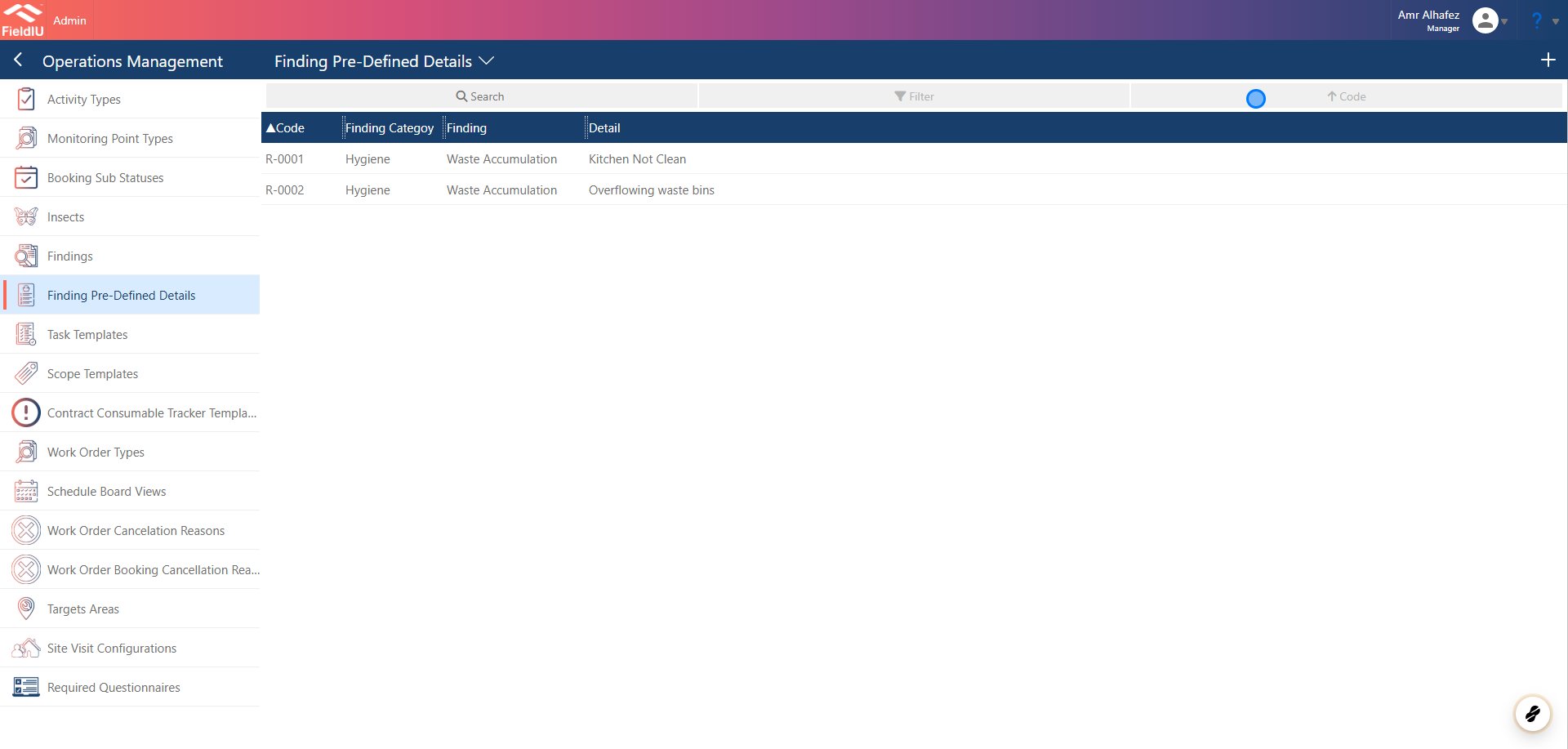 ### 2. Enter The Data
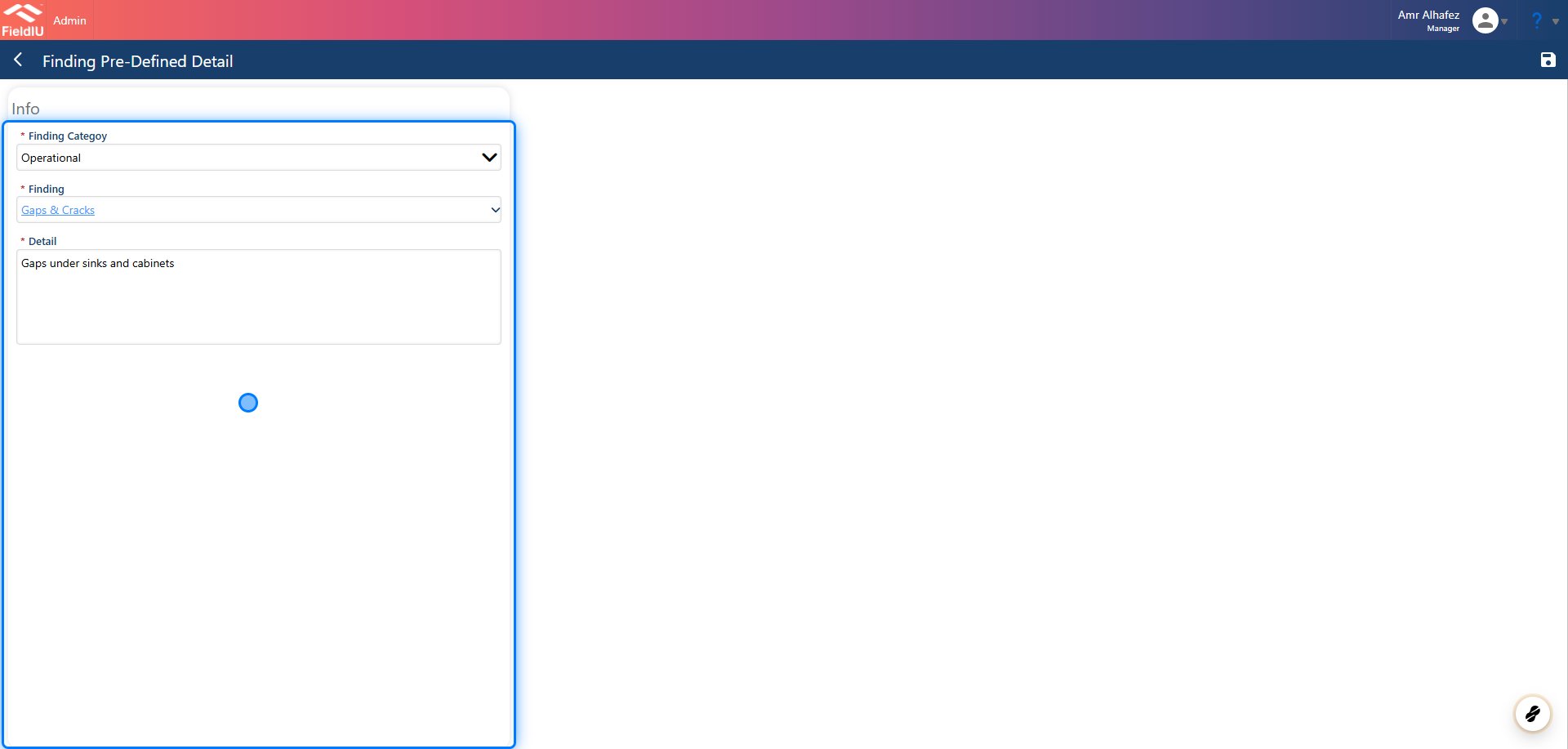 > ### ⚠️ Don't Forget To Save
## Field Staff APP
### 3. Insert Predefined
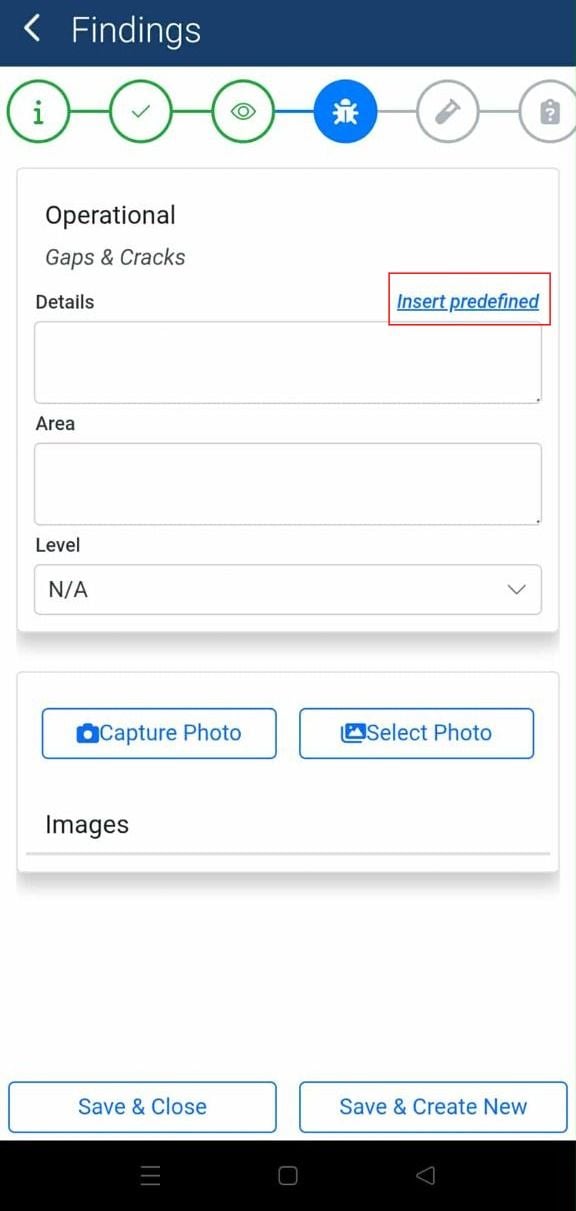
In the Field Staff Mobile App, when the user wants to insert the finding details for a visit, they will see the "Insert Predefined" button above the Details Box.
> ### ⚠️ Don't Forget To Save
## Field Staff APP
### 3. Insert Predefined
In the Field Staff Mobile App, when the user wants to insert the finding details for a visit, they will see the "Insert Predefined" button above the Details Box.
 ### 4. Select the Details
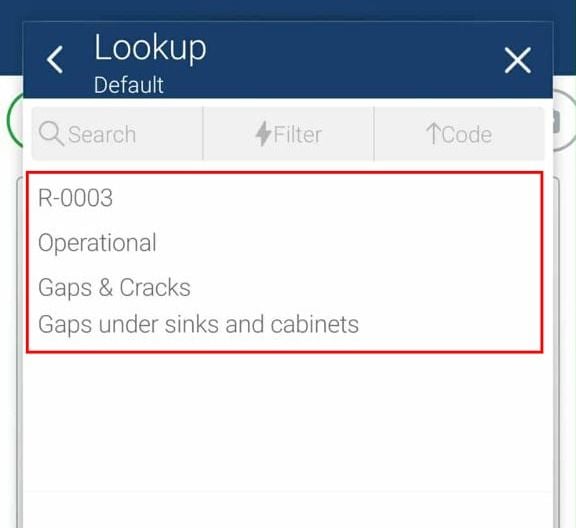
Based on the finding, the user will see the predefined details. When they click on a detail, it will automatically populate the Details field, saving time by eliminating the need for manual typing.
### 4. Select the Details
Based on the finding, the user will see the predefined details. When they click on a detail, it will automatically populate the Details field, saving time by eliminating the need for manual typing.
 ### 5.
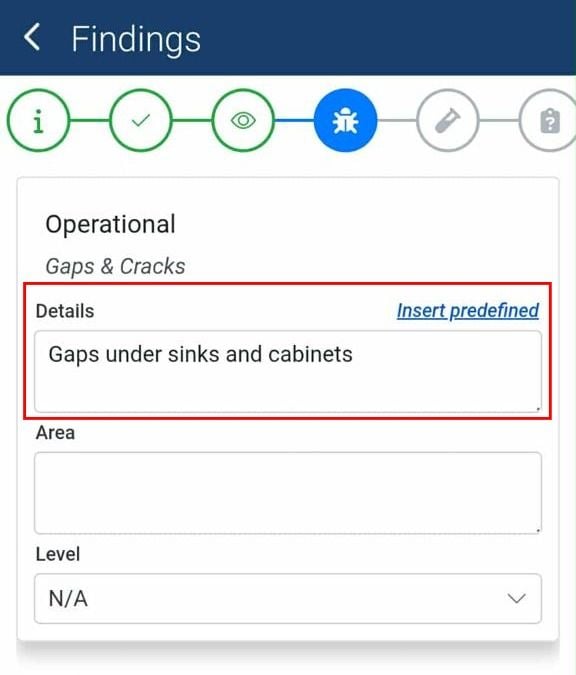 > ### 💡 The field staff still can edit the record
## Enable The Feature
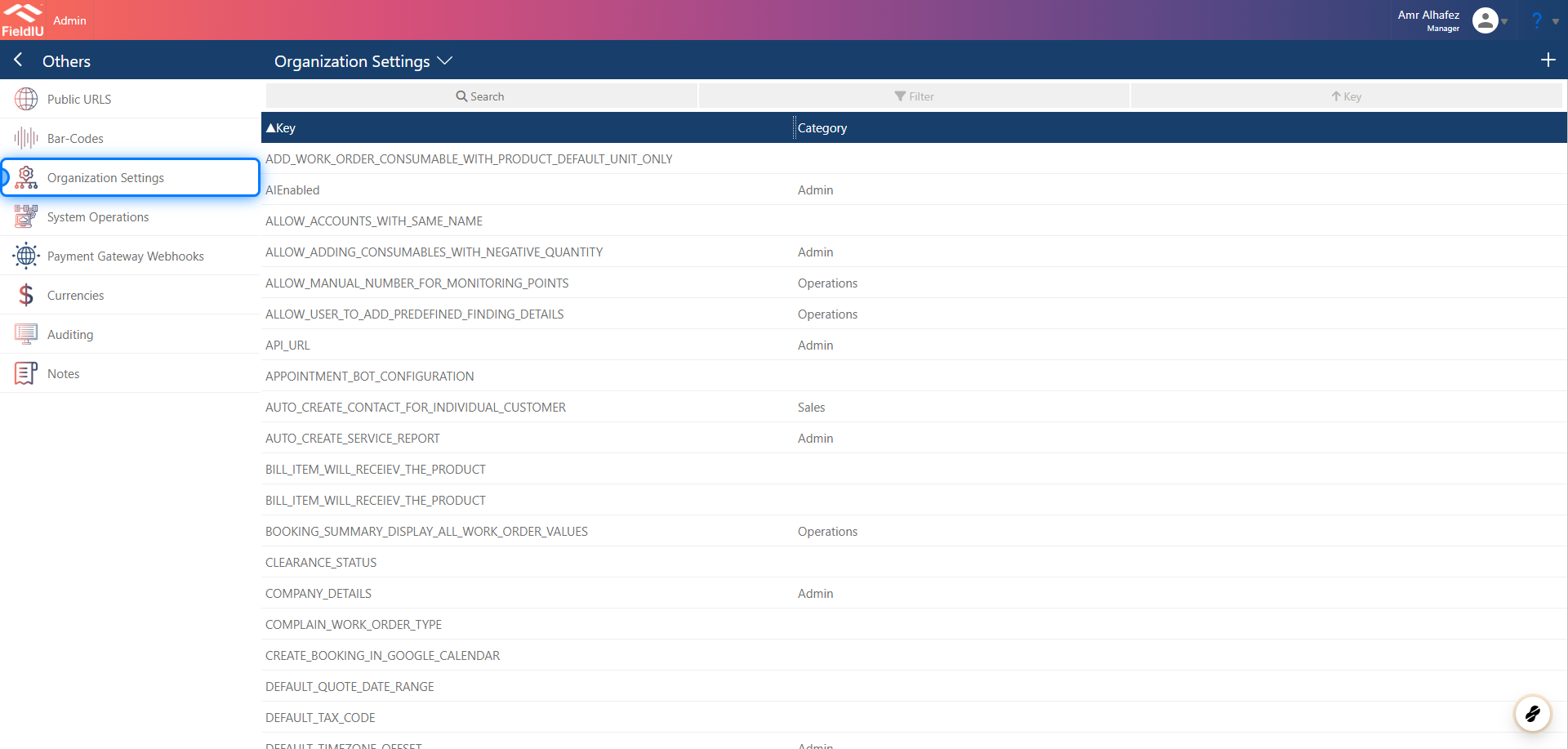
### 6. Open Organization Settings
From the Manager App, go to Organization Settings in the sidebar menu.
> ### 💡 The field staff still can edit the record
## Enable The Feature
### 6. Open Organization Settings
From the Manager App, go to Organization Settings in the sidebar menu.
 ### 7. Select the Key
Search for the key: ALLOW\_USER\_TO\_ADD\_PREDEFINED\_FINDING\_DETAILS
### 7. Select the Key
Search for the key: ALLOW\_USER\_TO\_ADD\_PREDEFINED\_FINDING\_DETAILS
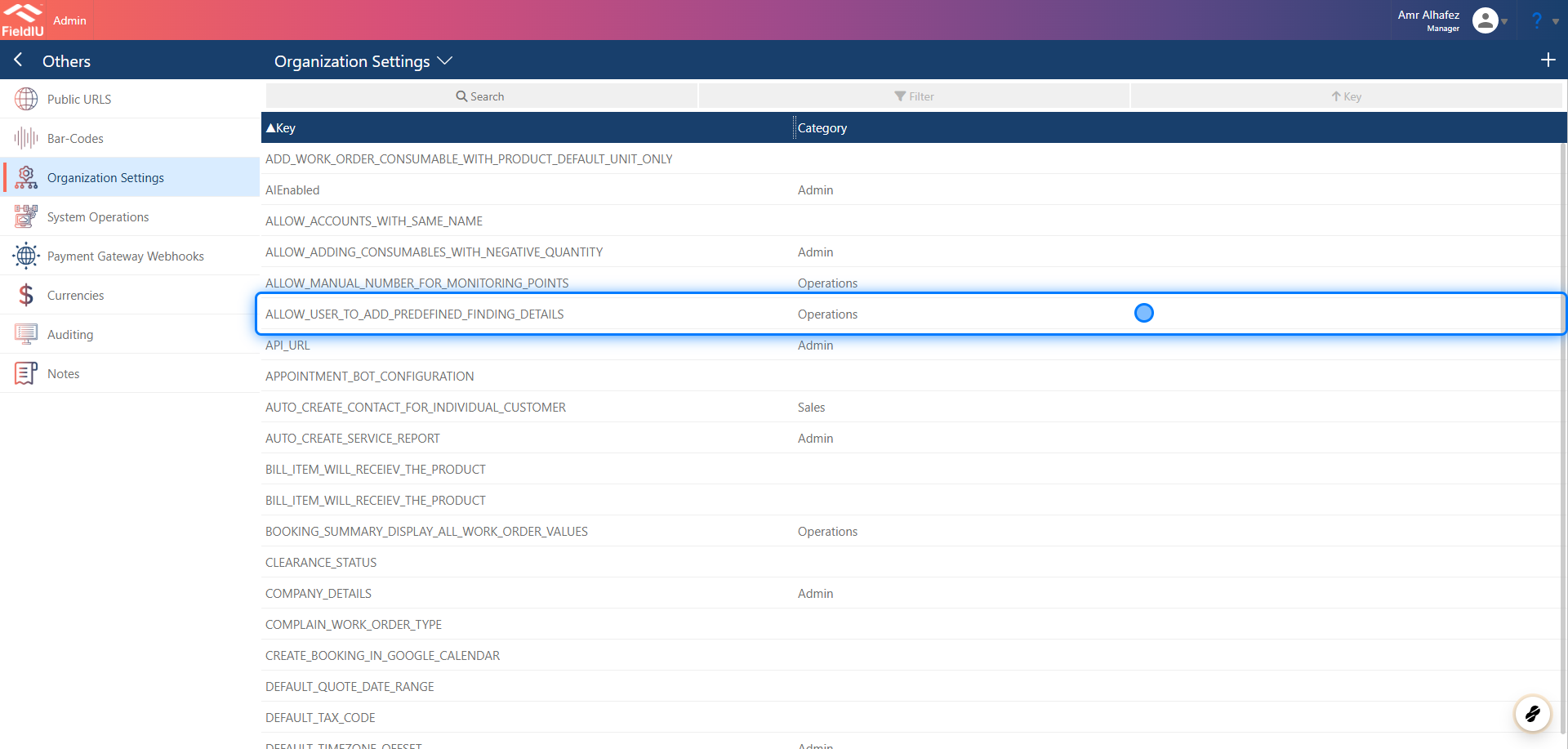 ### 8. Set the value "True"
 �����������������������