> ## Documentation Index
> Fetch the complete documentation index at: https://docs.fieldiu.com/llms.txt
> Use this file to discover all available pages before exploring further.
# Customer Portal Findings
### 1. Login Page
 ### 2. Customer Portal Findings
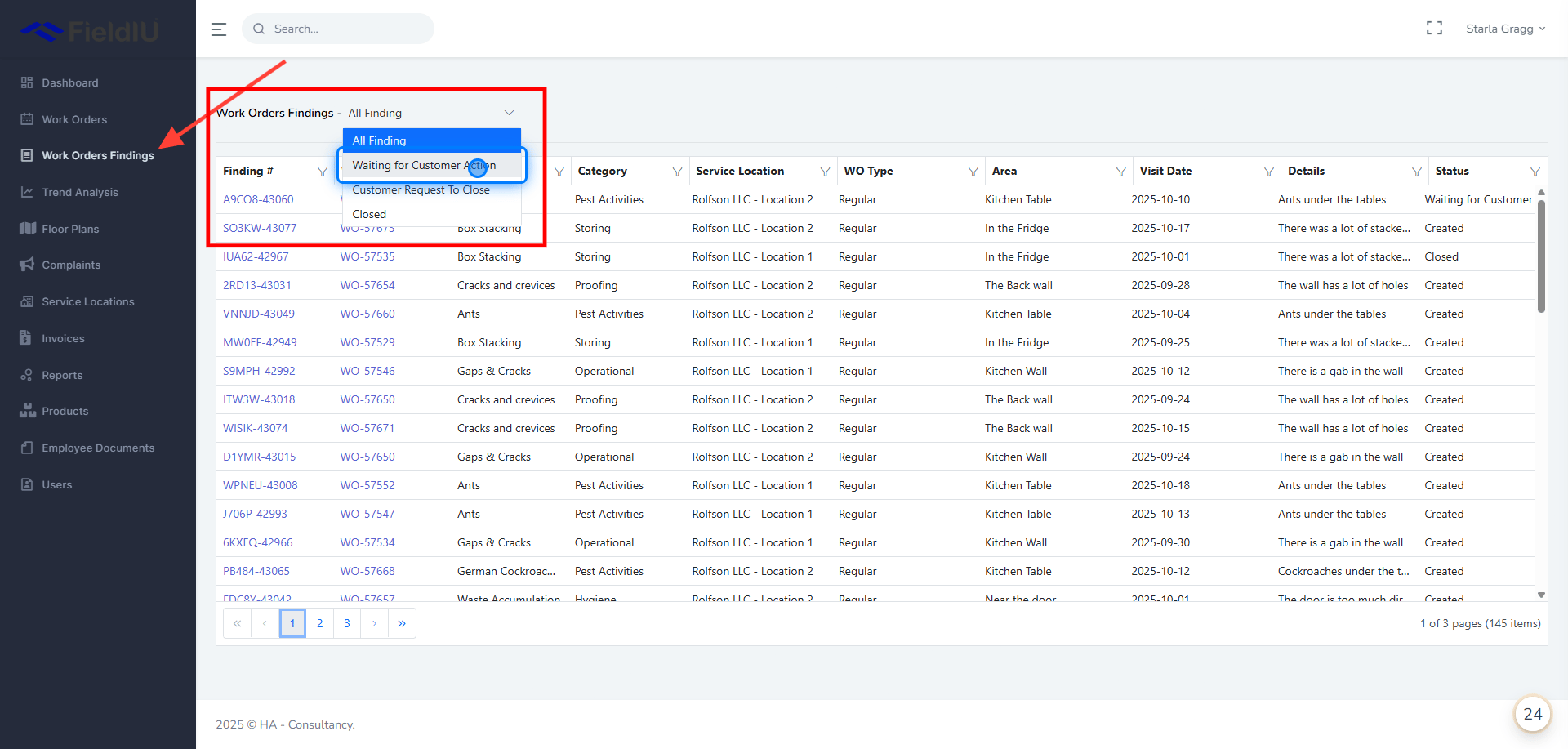
Once you enter the portal, you can find the Work Order Findings list in the side menu bar.
**The Findings list offers several views to help you filter and manage entries effectively:**
* All Findings
* Waiting for Customer Action
* Customer Requested to Close
* Closed
### 2. Customer Portal Findings
Once you enter the portal, you can find the Work Order Findings list in the side menu bar.
**The Findings list offers several views to help you filter and manage entries effectively:**
* All Findings
* Waiting for Customer Action
* Customer Requested to Close
* Closed
 ### 3. Select the Work Order Findings list
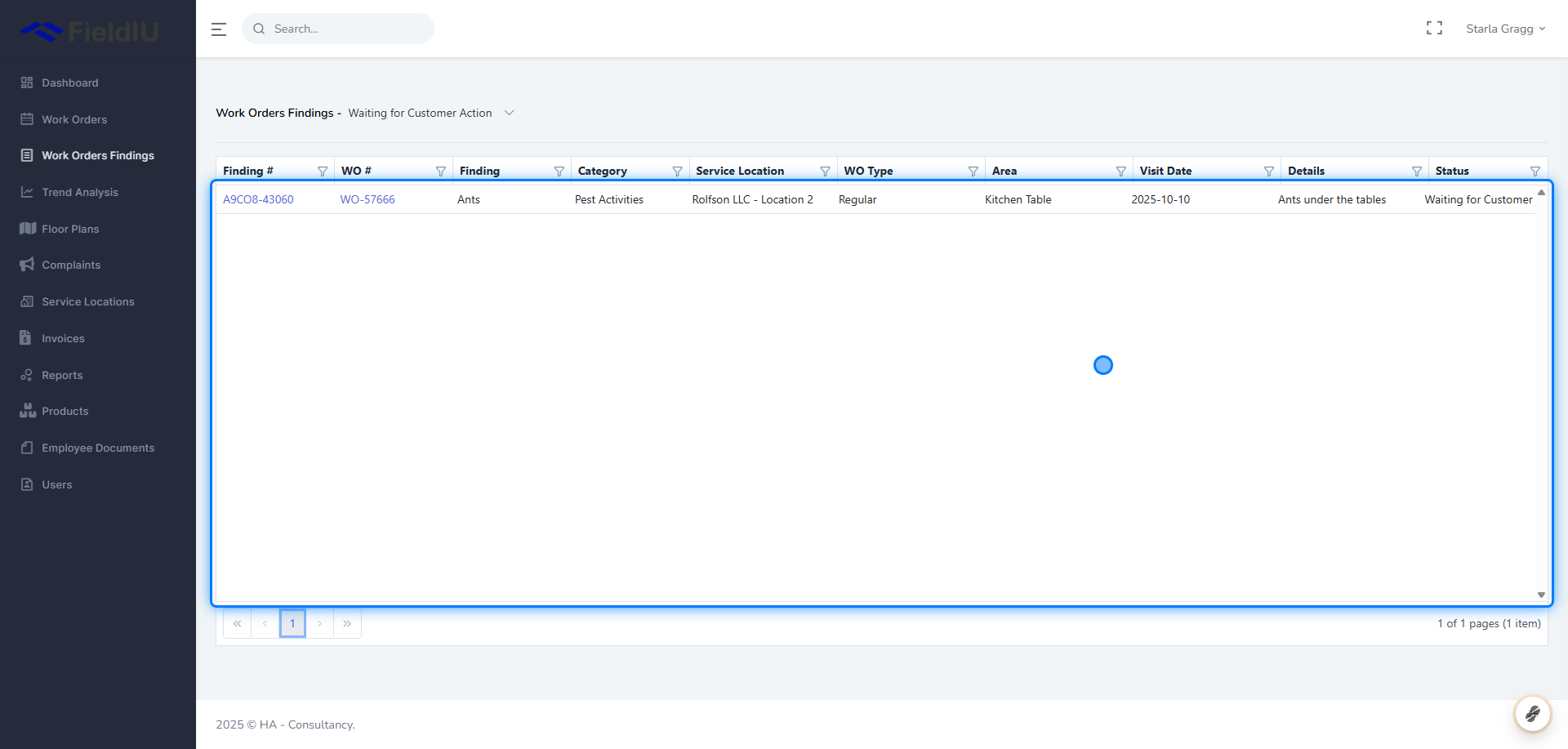
Then choose the findings you want to review.
### 3. Select the Work Order Findings list
Then choose the findings you want to review.
 ### 4. Finding Interface
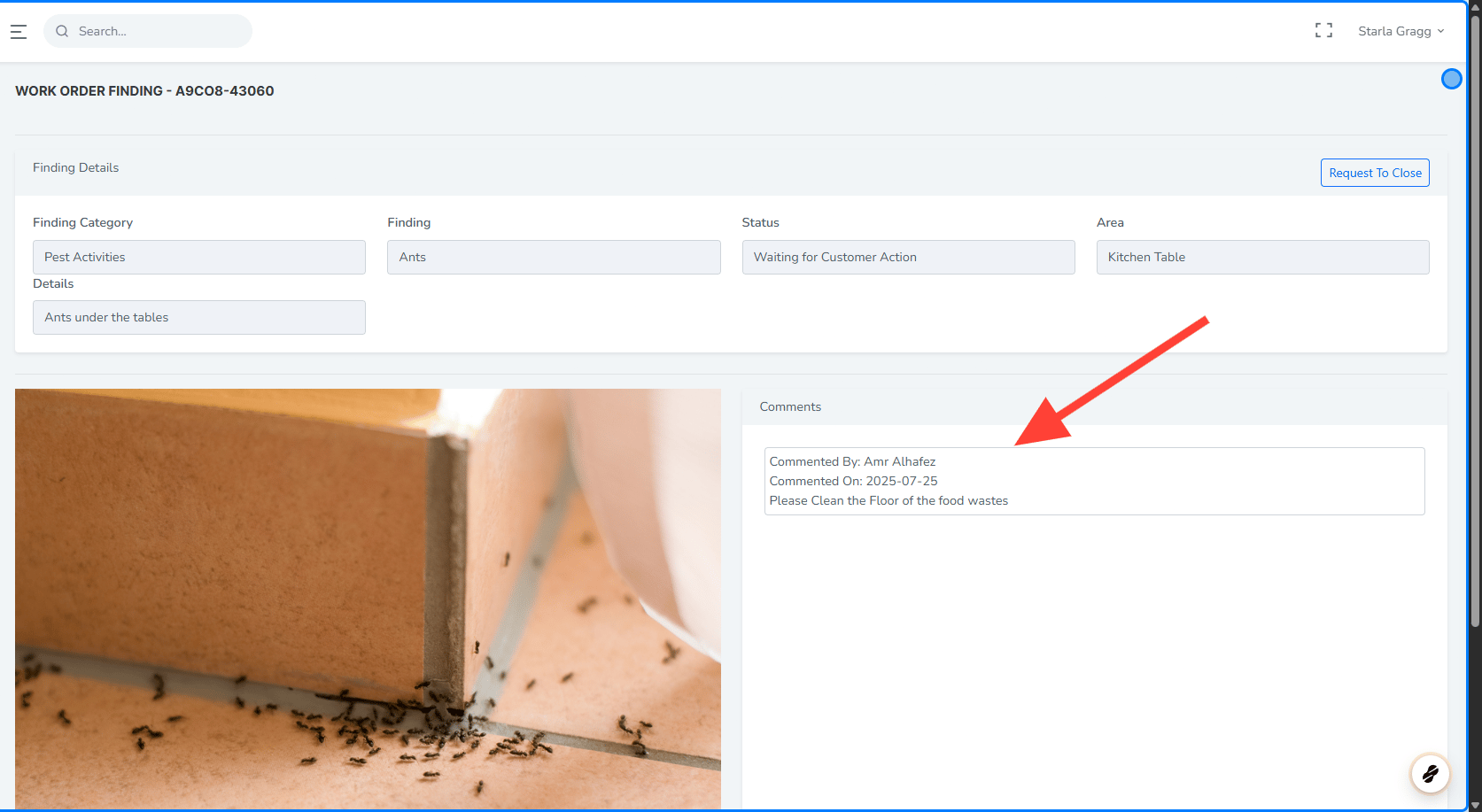
Once you select the desired finding, you can view all its details and the comments made by the Operations Manager, and you can also reply to them.
### 4. Finding Interface
Once you select the desired finding, you can view all its details and the comments made by the Operations Manager, and you can also reply to them.
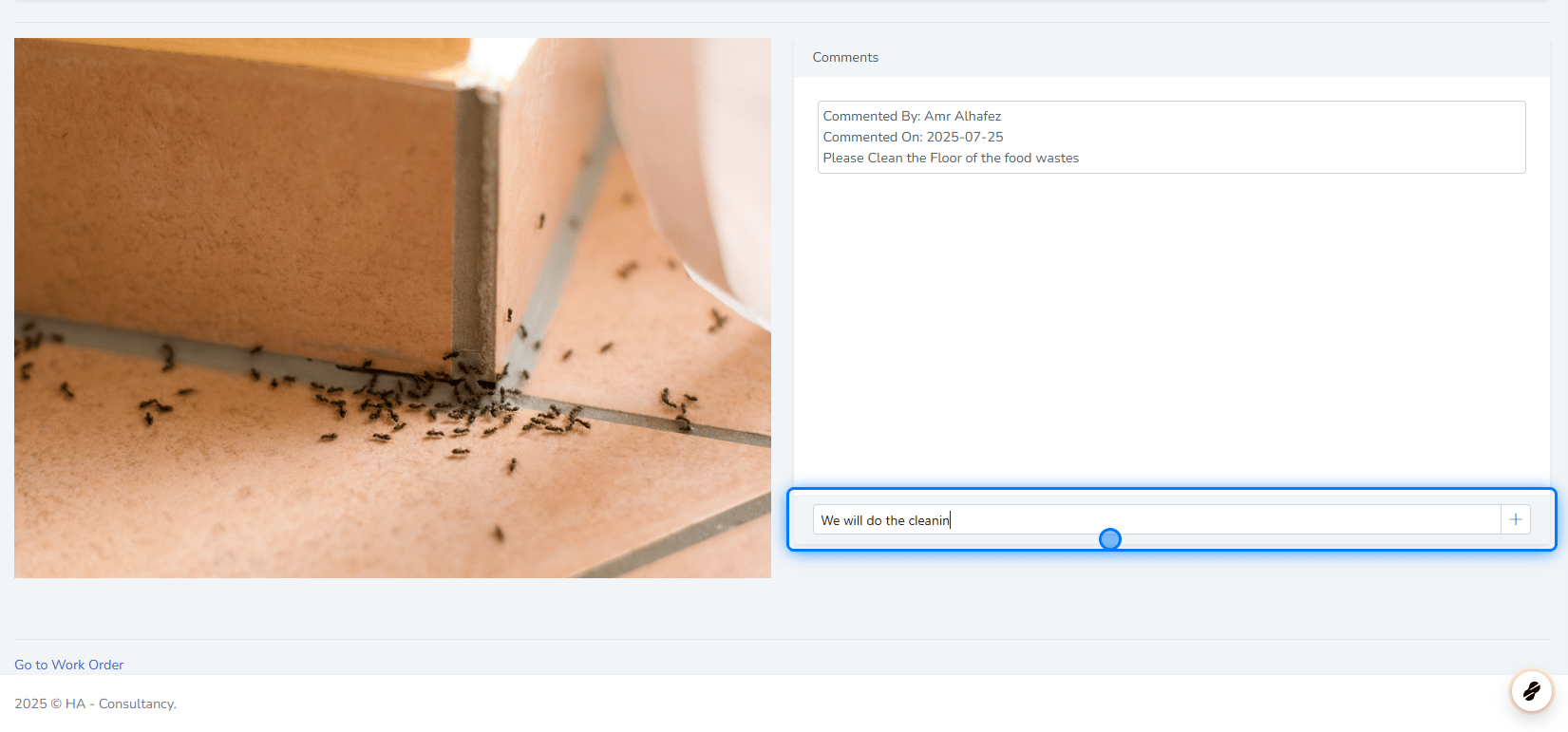
 ### 5. Submitting Comments
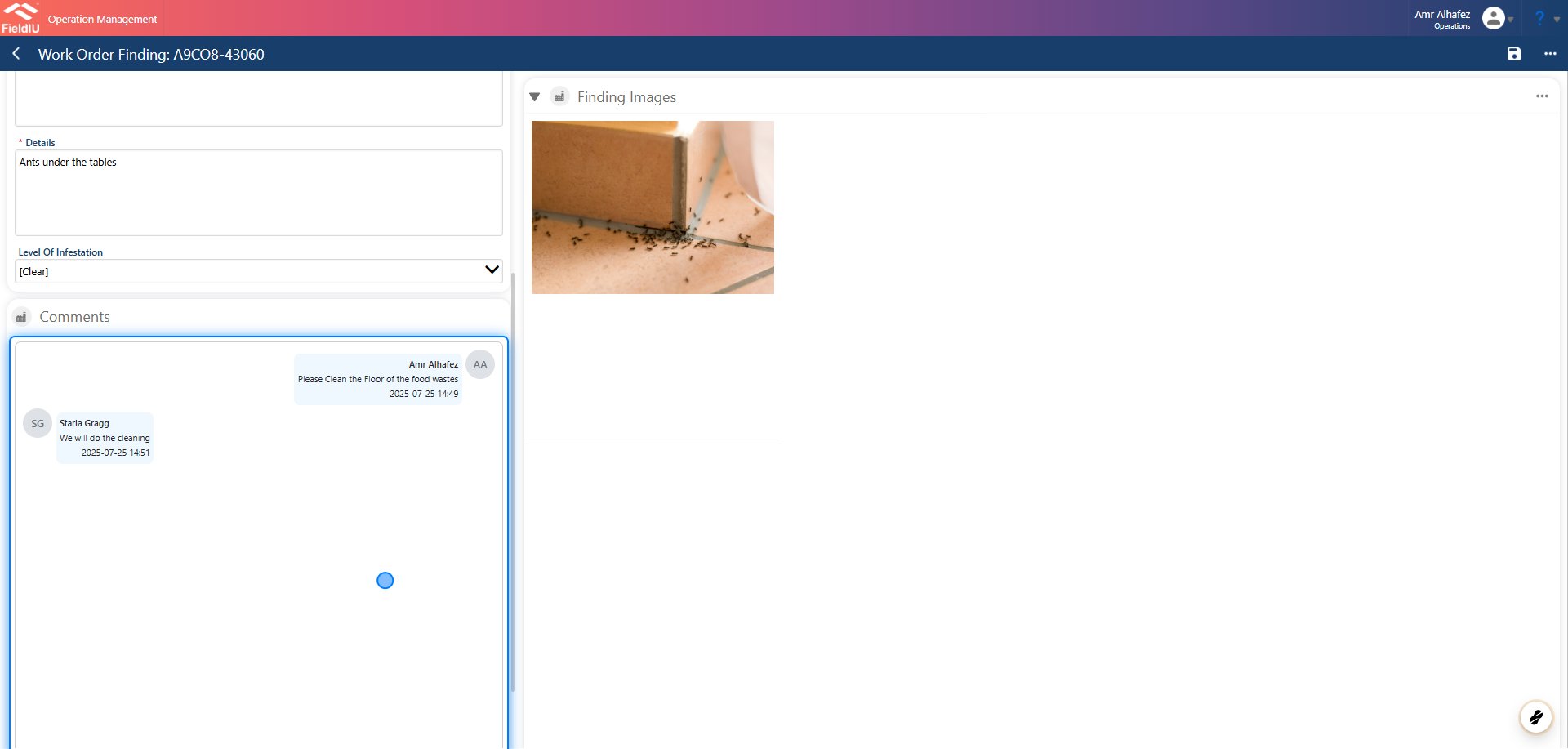
 ### 6. How is the Comment shows on the Operations side
 ### 7. Request To Close
Once you have completed the actions requested by Operations, close the finding by clicking the 'Request to Close' button.
### 7. Request To Close
Once you have completed the actions requested by Operations, close the finding by clicking the 'Request to Close' button.
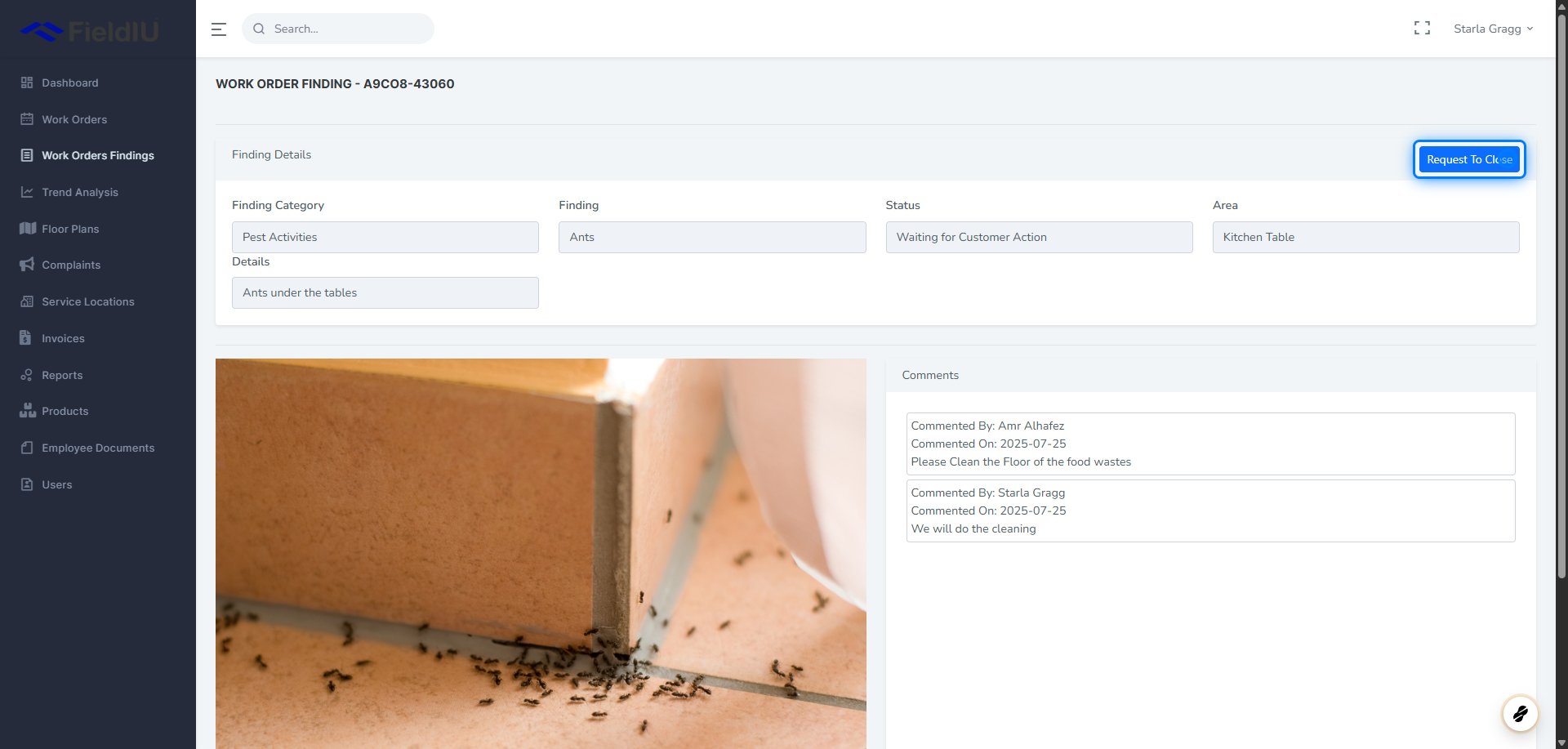 ### 8. Add Your Description and Upload an Image
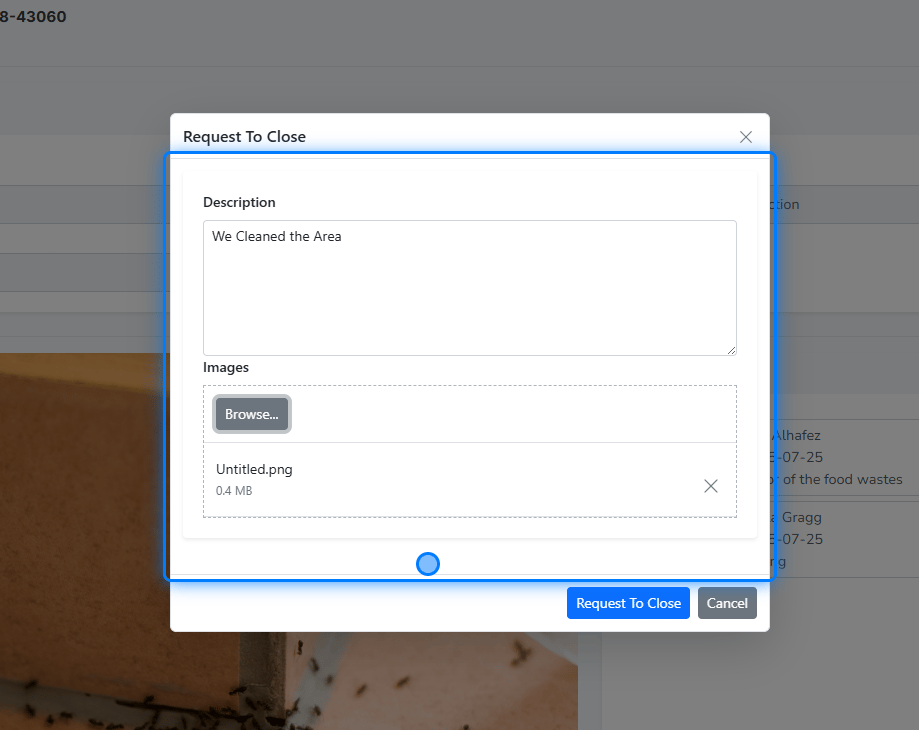 ### 9. The Changes
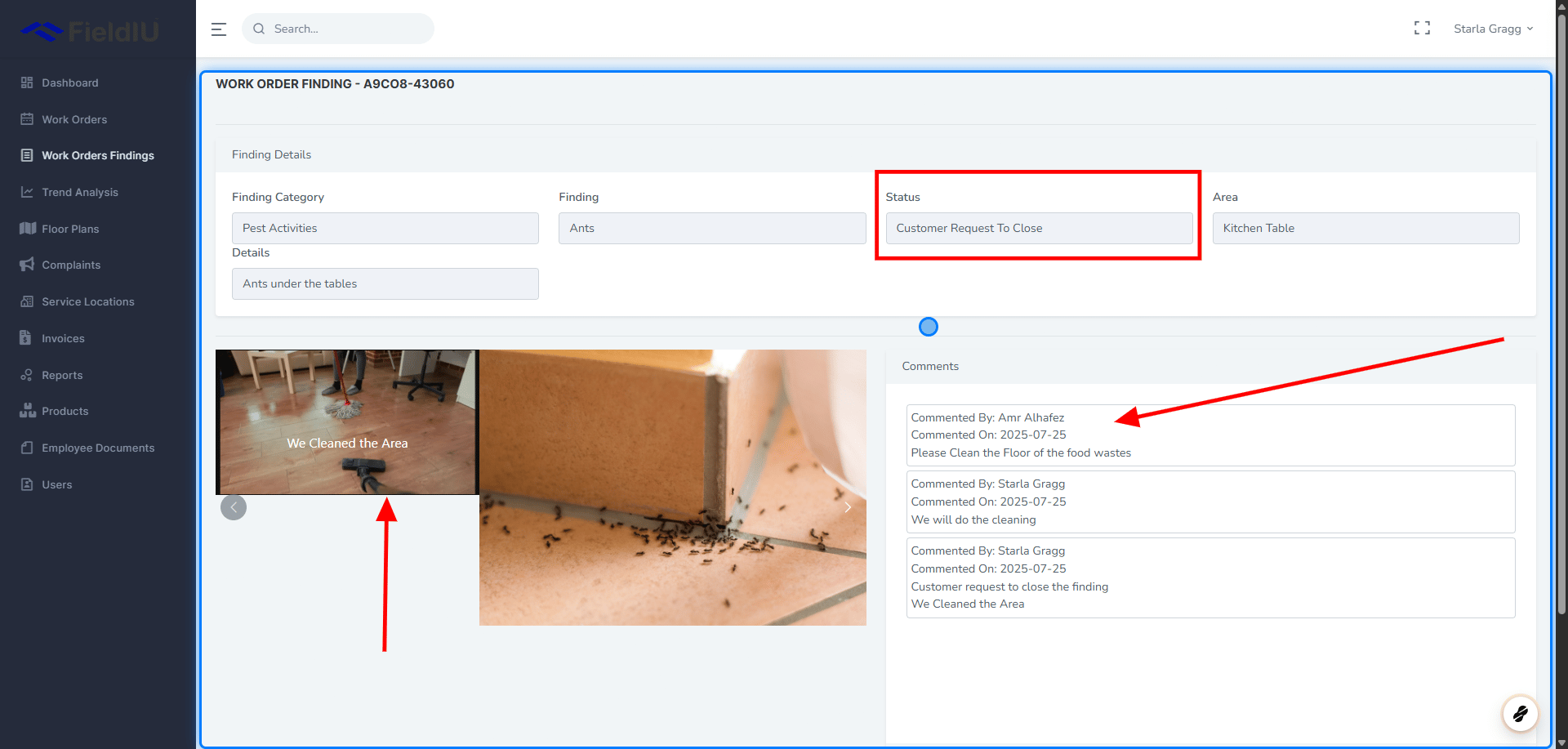
As you can see, the status has been updated, and both the image and description have been submitted to the Operations team.
### 9. The Changes
As you can see, the status has been updated, and both the image and description have been submitted to the Operations team.
 ### 10. Closed Findings
You can now see that the finding you closed is listed under the 'Closed Findings' view.
### 10. Closed Findings
You can now see that the finding you closed is listed under the 'Closed Findings' view.
 �����������������������